

5 Cool Things You Probably Didn't Know Amazon Fire Tablets Could Do

We may receive a commission on purchases made from links.
One common mistake people make when buying a new tablet is spending far more money than they need to by buying far more tablet hardware than they'll ever use. But with its Fire tablet lineup, Amazon offers a wide variety of models that each present some value for their price point. That's in part because these tablets can do a lot.
Their most basic features make them great for streaming movies, reading e-books, browsing the internet, and sharing among family. They even make sense for budget shoppers, as there are entry-level models available and a lot of free apps for Amazon Fire tablets. But Fire tablets are more capable than many people give them credit for. While they're often perceived as basic, no-frills devices, Fire tablets can do some pretty cool things.
The kinds of features we're talking about here are often overlooked or discovered entirely. Some of them are features Amazon simply doesn't put at the forefront of its advertising, and some others require simply browsing through a Fire tablet's settings to find. As previously mentioned, each of the Fire tablets in the lineup presents pretty solid value, but we've made note of some lesser-known things you can do with a Fire tablet that add even more to the experience.
Set up multiple user profiles

One reason Fire tablets are popular among families is that they are great for sharing. But with so many people accessing a single device, things can get a little messy. While streaming movies may be one person's priority, playing games may be another's. To better manage situations like this, Amazon Fire tablets support multiple user profiles, allowing each person in the house to have their own personalized space.
Each profile gets its own home screen, apps, and settings, which means the tablet can feel like a completely different device depending on whose hands it's in. Up to two adult profiles can be set up on a single Fire tablet, and up to four child or teen profiles can be added on top of that. Adult profiles are linked to individual Amazon accounts, allowing different payment methods for each.
Child profiles come with built-in parental controls, which makes this feature especially useful for parents. Kids of different ages aren't likely to need access to the same kinds of content, and parents can keep their music and streaming libraries accessible only to themselves. Setting up different user profiles can also be useful for single users who want to set up different home screens and app layouts for different use cases.
Read your fingerprint
For those who value securing their digital devices, Amazon has added a fingerprint sensor to the Fire Max 11, the top-tier tablet in the lineup. In fact, the Fire Max 11 is the first Fire tablet to feature a fingerprint reader, and it can store up to 5 fingerprints at a time. Amazon even puts some effort into privacy with the feature, ensuring fingerprints are stored only on the device and are never sent to Amazon's cloud.
Because methods like Face ID and fingerprints are now used to secure laptops, smartphones, and tablets, a fingerprint reader may seem like a standard feature. But security beyond PINs and passwords is often reserved for more expensive devices. The Fire Max 11 is the most expensive tablet in the Fire tablet lineup, but at $230 for the base model, it's relatively inexpensive for a tablet that offers a fingerprint reader as its primary security measure. By comparison, the entry-level iPad includes a fingerprint reader and starts at $349.
While other Fire tablets don't yet include a fingerprint reader, they do offer other security features. The full lineup includes PIN and password screen lock options, each of which helps keep the device and its user profiles secure. But the option for a fingerprint reader is available with the Fire Max 11, and with mid-range Fire tablets like the Fire HD 10 priced at $180, it isn't too much of a price jump to get access to the feature.
Go into Echo Show Mode
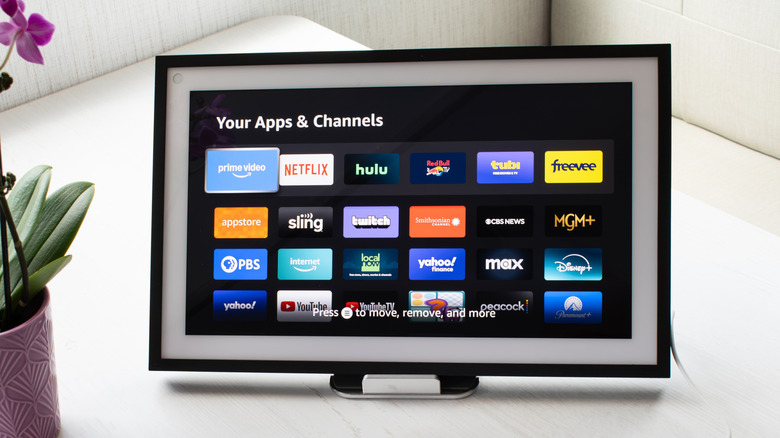
The Echo Show is one of the cheapest Alexa devices you can buy on Amazon. It's a smart display that combines an Alexa-enabled speaker with a touchscreen. It gives users access to weather, timers, and even video calls, and it's one of the more popular smart home devices Amazon makes. But with an Amazon Fire tablet in tow, you can tap into many of these features without needing to purchase an Echo Show at all.
Fire tablets support a feature called Show Mode, which turns the tablet into a display that essentially recreates the Echo Show experience. Enabling it takes only a single tap in the quick settings panel or a voice command to Alexa. The Fire tablet's interface will shift into the same visual layout found on an Echo Show, and it can be returned to its regular form just as easily. It's easy enough to use an old Amazon Fire tablet as a dedicated Show Mode device, but you can also tap into the feature with a Fire tablet you use for other things.
With Show Mode enabled, a Fire tablet can display weather forecasts, play music, and pull up visual answers to questions you ask Alexa, among many other things. All of this can even be done using voice commands. Show Mode also turns a Fire tablet into something more like a smart home hub, giving users control over compatible devices like smart lights and thermostats.
Accessorize into a laptop
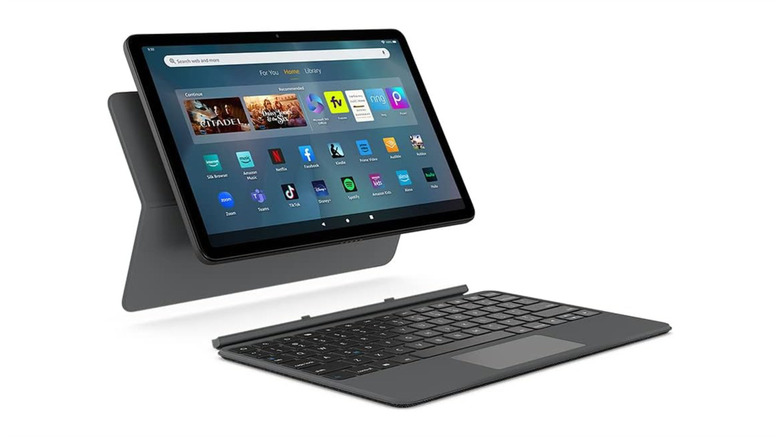
Apple and Samsung are often the brands people turn to when searching for a tablet that can replace a laptop, as Apple makes a Magic Keyboard designed specifically for the iPad Pro, and Samsung's DeX mode gives its tablets a PC-like interface. Many Fire tablet users may not have considered turning their device into a more capable professional tool, but accessories available for the Fire Max 11 make it possible to use it like a touchscreen laptop.
Amazon makes a Fire Max 11 Keyboard Case that brings many of the features the Magic Keyboard adds to the iPad Pro to the Fire Max 11. The case attaches magnetically with no setup or charging required, and it includes a laptop-like trackpad and cursor control. But form factor is just as important for laptops, and with the magnetic keyboard attached to a Fire Max 11, the device can fold up and slide into a backpack or laptop bag.
The Fire Max 11 Keyboard Case is available as a standalone purchase for $90. While this accessory is exclusive to the Fire Max 11, owners of other Fire tablets can still put it to use in professional environments. With Bluetooth connectivity on board, any Fire tablet can be paired with a Bluetooth keyboard and mouse, and a compatible tablet stand is easy to find.
Sideload apps
The Amazon Appstore is the default way to install some essential apps for your Amazon Fire tablet. It only provides access to a fraction of the apps available on Android, but you may not relaize that Fire tablets can also run Android apps that aren't in the Amazon Appstore, since the Fire OS platform is built on Android, The process of installing an app outside of a device's official app store is known as sideloading, and it makes many popular and useful apps available to Fire tablet users.
Fire tablet owners can take advantage of the device's ability to sideload apps without any technical expertise. The process requires enabling a single setting that allows apps from outside the App Store to be installed. From there, an app's installation file can be downloaded with a web browser and opened like any other file. This gives users access to Android apps that Amazon has chosen not to feature in the Appstore, as well as open-source apps that may not be available in app stores.
Not every Android app will run perfectly on a Fire tablet, and it's always important to determine the trustworthiness of any place you download from. But for Fire tablet owners who want to explore more of the Android app library than Amazon makes available by default, the device is fully capable of installing apps from other sources.