

5 Unique Apple Watch Features Users Love
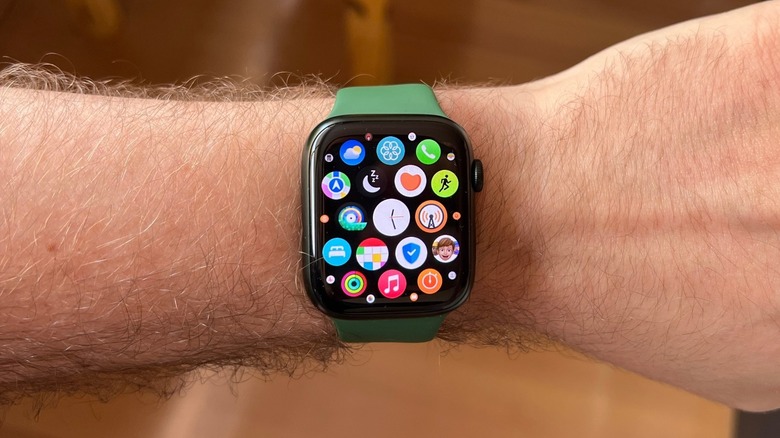
The Apple Watch is one of the most interesting devices for iPhone and AirPods users. With this wearable, not only can you rock a smartwatch with style, but also track your workouts, check your notifications at a glance, and get useful information about your vitals. Whether you just bought your first Apple Watch, have owned several models, or are thinking about getting one for the first time, it has several unique features that makes this device feel unique and special, like how it ejects water from the watch, the ability to unlock the Mac, and even offer a live preview of what your iPhone camera is seeing.
What's more interesting about those features is that they're not necessarily tied to a specific software update, meaning that users can take advantage of these functions in a wide range of Apple Watch models, even those released a few years ago. For almost the past decade, Apple's smartwatch has been my daily companion, and while it has a few problems that annoy me and many other users, it's still the best option out there.
From tracking my sleep to getting a summary of my day, accompanying me for runs with podcasts or my favorite tunes, the Apple Watch Ultra 2 still has a solid two-day battery, and even though it has some exclusive perks like the Action Button, all of the unique features mentioned below are available on all the options Apple sells.
Apple Watch has a sonic ejector
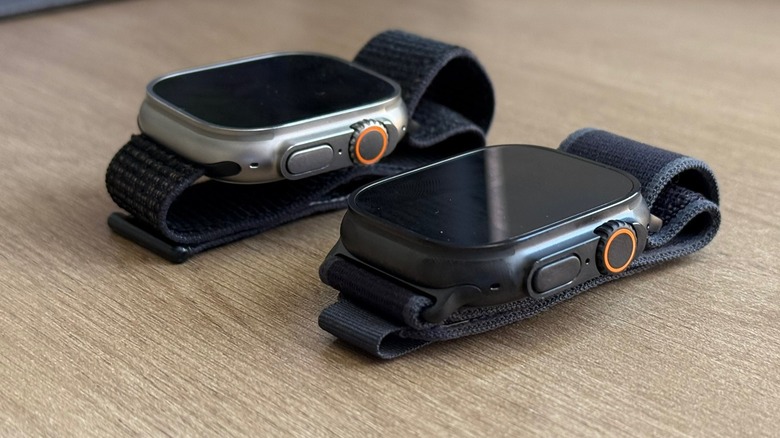
All the Apple Watch models released by Apple are water resistant. While this resistance has improved over the years, one of the most interesting things available on Apple's smartwatch is the Water Lock functionality. With it on, users can avoid random taps on the display while swimming, enjoying a pool, or playing a game at the beach. Basically, the Water Lock blocks the display of the Apple Watch, and while customers can still take a look at the current metrics, notifications, and more, it's not possible to interact with them.
However, once customers press and hold the Digital Crown, they use a sonic ejector with a few tones that can clear any water inside the speakers, so they can sound as natural as ever without you having to wait for a long time. More interestingly, customers also get Water Lock turned on automatically when they start a swimming or scuba diva workout. Once you're in the water, the Apple Watch can also tell how deep you are and how deep you've been under water.
That said, the Water Lock feature is a clever way to avoid your display going crazy in the water, but also reassuring that you'll be able to use the Apple Watch speaker as soon as you leave your shower, pool, or beach, as it removes all the water inside them.
Smart gestures
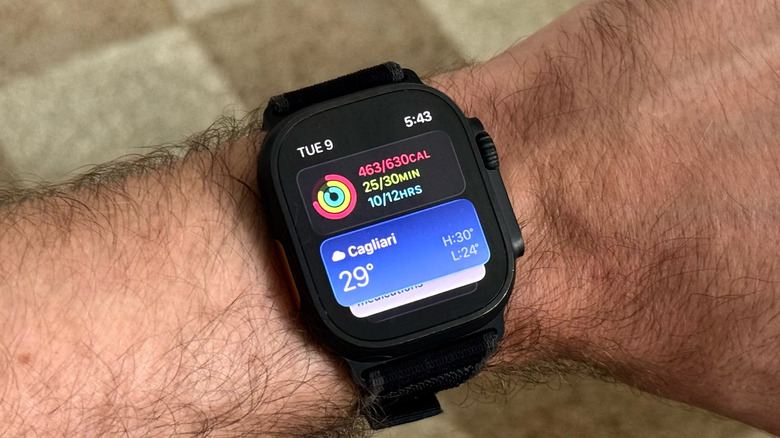
watchOS 10 and later watchOS 11 introduced double tap and wrist flick gestures for Apple Watch Series 9, Apple Watch SE 3, and Apple Watch Ultra 2 or later. With those functions, you can control your Apple Watch even if your other hand is busy, or you require special accessibility features.
For example, the double tap, which works by double tapping your index finger and thumb together twice, lets you perform everyday actions on Apple Watch. If you get a notification, double tapping will let you reply, if it's a message, or like a post if it's from social media. In case the app doesn't give you custom options, you can just dismiss it. However, if you're seeing the hours, inside an app, or even in the Notification Center, then the watch will scroll down so you can see the Smart Stack, next lists, or even the rest of your notifications.
With a wrist flick, you need to quickly turn your wrist away from you and back. This is especially useful if you want to ignore a notification, a timer, or a call. After all, if you have your hands busy and someone starts to message you, a timer starts to play, or you get calls nonstop, having an Apple Watch in that moment can feel horrible. However, by quickly doing the wrist flick, it almost feels like your Apple Watch never buzzed.
Mac biometric authentication
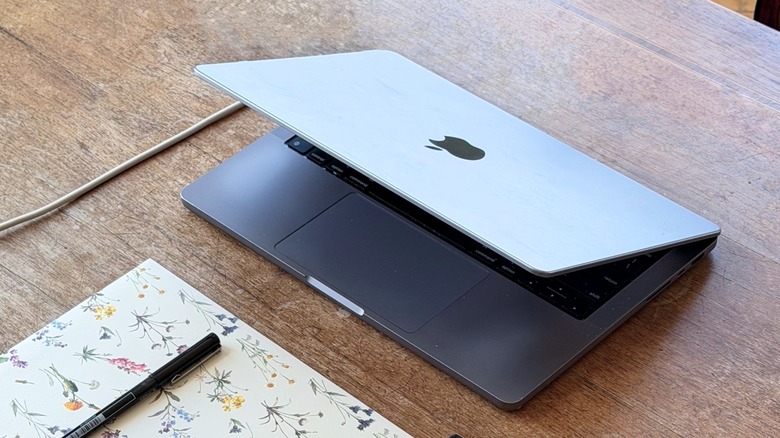
One of my favorite Apple Watch features is the ability to unlock the Mac with the Apple Watch. This feature has been available for quite a while, which means that even if you're running something like macOS Ventura, you can still take advantage of it. By tapping the Apple menu and going to System Settings, you can go to Touch ID & Password (or Login Password), and turn on the setting to authenticate your Mac with the Apple Watch.
This can be especially useful if your Mac doesn't have Touch ID, if it does but you have your fingers wet, or you just don't want to reach for the button. Apple says that the first time you log in after you turn the Mac on, restart it, or log out, you'll still need to enter the password manually. However, as there's no need to actually turn off your Mac, you can ensure that it's always good to go by using your Apple Watch to unlock it.
As a matter of fact, this authentication by other device also works if you want to unlock your Apple Watch when your iPhone is unlocked, and if you're wearing a mask, you can also change the iPhone settings so your phone can recognize that you're wearing a mask and immediately unlock your phone if you have your Apple Watch on your wrist. These unique features make interoperability between Apple devices a lot better, and especially stress-free when moving between different products.
Pacer workouts
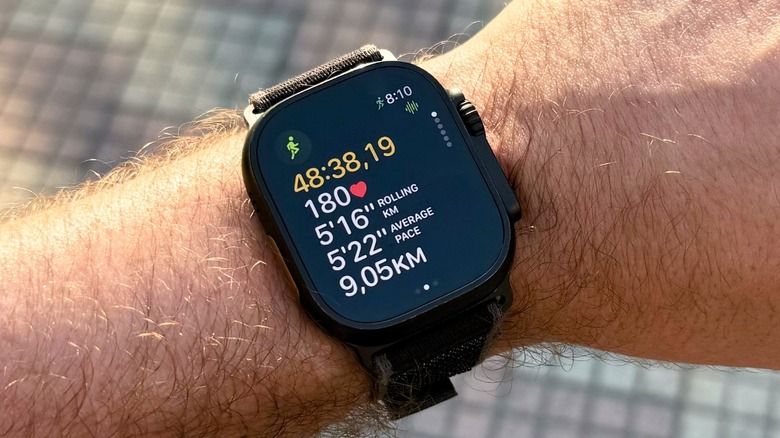
The Apple Watch is far from offering all the health metrics available to Garmin users. However, one of the most interesting features available for Apple Watch users is the ability to set a pacer for your running workouts.
By opening the Apple Watch's Workout app, you can go to an Indoor or Outdoor Run workout, tap the right-upper corner, and select Pacer. There, you can choose how much you want to run in a specific set of time. After you start your workout, the Apple Watch will bring up a bar informing how close (or far) you are from your goal. The Apple Watch will display your average pace, your current pace, and the distance you've achieved so far. This is a great way to practice sprints, improve your running pace, and also challenge yourself.
I hope Apple is able to integrate this feature with Workout Buddy, as it could give a better insight while you're running, since this AI-like coach can tap information from what you're playing, your health data, and more during the workout. After you complete your exercise, you can see how well you managed your time, which kilometer you were faster and slower, your heart rate frequency, and so on. At present, the Apple Health app doesn't interpret your data, so you still need to rely on a third-party app or AI agents to understand what you're doing right (or wrong) and how to improve to achieve your goal.
Camera Remote with live preview
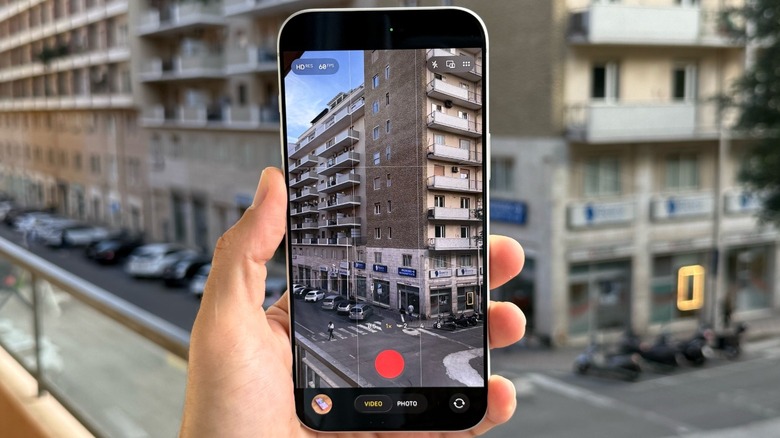
Last but not least, a unique feature of the Apple Watch is to control your iPhone camera from a certain distance using the Apple Watch. You probably realized that once you open your iPhone camera, the Apple Watch displays a little camera icon on the bottom of its display. If you tap there, Apple starts to mirror your iPhone camera to the Watch.
This functionality is very practical if you want to record yourself from a distance, take a group photo, and you think it's not ideal to set a timer on your phone, go back to your position, and start recording/taking the photo. What's interesting about this integration is that the Apple Watch streams the image live, in a low-latency video preview right from your wrist. Users can also tweak a few settings like use the 3-seconds timer, switch from the front and rear cameras, use flash, use the Live Photo functionality, and even zoom in or out on the photo to ensure everything is framed perfectly.
Personally, I like to use this feature when I need to record a little video for social media, or if I'm trying to take a group photo with the iPhone's main cameras. Another function Apple recently added to make this experience better is to use the AirPods stem to take pictures from the iPhone. These are small, yet thoughtful features that make the Apple ecosystem more interesting.