

8 Things Your Google Drive Can Do (Besides Saving Files)
In 2012, Google announced Google Drive to the world. From the start, in that very first announcement post, it was marketed as more than just cloud storage. Google said even in that initial press release that Drive was intended to support wide-ranging online creation and collaboration in addition to long-term access. Even so, most people seem to focus on the last part and largely use it as a place to save files.
But Google made good on its initial promise of delivering more than a drive, despite sticking with the name (Drive). It's the backbone of Google's cloud apps as well as numerous third-party services that piggyback on its infrastructure. Besides being the home of many other applications that rely on it, Drive has some nifty tricks built into it that make it far more than just plain file storage. If you've been using Google Drive as just a flash drive in the sky, then it's time to learn about some of the neat things it can do beyond just keeping your diary entries safe.
Scan documents with your phone
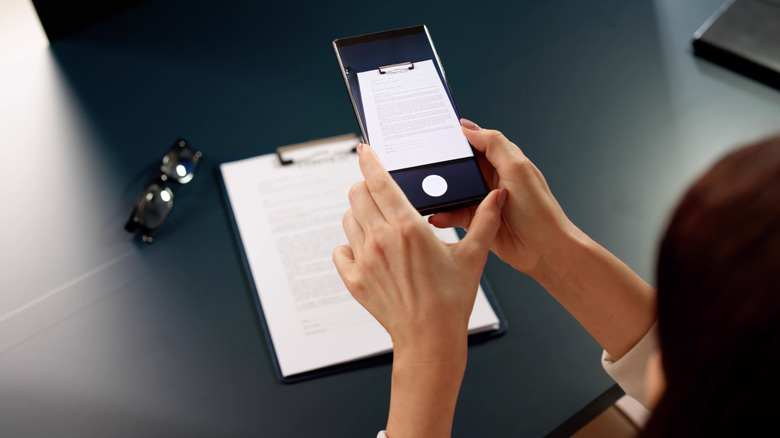
Thanks to modern smartphone cameras, there's simply no need for scanners anymore, at least not for the average person who just wants a clear, legible digital copy of a paper document. Even entry-level smartphones have cameras with enough resolution to clearly see all the details, but to actually make a photograph of a document look like a properly scanned document is harder than it sounds.
Both the Google Drive Android app and iOS/iPadOS app have a scanning function built in. In the Android app, you tap the camera icon, and on the Apple side of the fence, you tap the Plus icon to add a document, and then select the scan option. You can also apply the scanning function to photos of documents you've taken earlier from your gallery.
Once you've scanned a page, Drive lets you adjust the scan or retake the image. You can also scan multiple pages and save them as a single PDF document instead of having every page be an individual file. Once you've scanned and saved the PDF, you can treat it like any other PDF document in Google Drive. Just keep in mind that you still have to take a decent photo in the first place. The software can compensate for some skew to make the final product look like a traditional scan, but it can't magically correct a terrible initial image.
Search inside images and PDFs

Everyone knows that Google Docs can search within text documents. That's the very least anyone would expect, but if you have PDF documents and images, you can actually do text searches inside those documents too.
How is this possible? These days there's almost certainly some AI involved, but Google Drive has had multiformat search from the very beginning in 2012. Google Photos got this feature on Android and iPhone in 2019, because, interestingly, your Google Photos images aren't stored in the same place as your Google Drive images. Despite this, both Google Drive and Google Photos count towards the same total storage limit. Go figure!
You don't have to do anything special to search inside PDFs or images. Just do a regular text search, and if that text exists within an image or a PDF, it should come up in the results. What you can do is use the search filter to either exclude PDFs and images, or only search for either type of file format, which should cut down on irrelevant image and PDF results, or PDF results that are just copies of regular Google Docs documents.
Turn photos into editable text
You thought we were done talking about PDFs and images, but no! It turns out there's another very cool trick Google Drive offers if you want to edit a PDF or edit the text in an image. Sadly, you can't edit things directly in the original document, but with just a few clicks you can convert PDFs and photos stored in your Google Drive to text that you can edit in a separate Google Doc.
Before you dig into this one, there are some guidelines you can follow upfront for best results. The document in question should not be larger than two megabytes, and the smallest text in the document should be at least 10 pixels high, or Google's Optical Character Recognition (OCR) utility won't be able to read it accurately. The document also needs to be right-side up, and it works best with common fonts like Arial or Times New Roman.
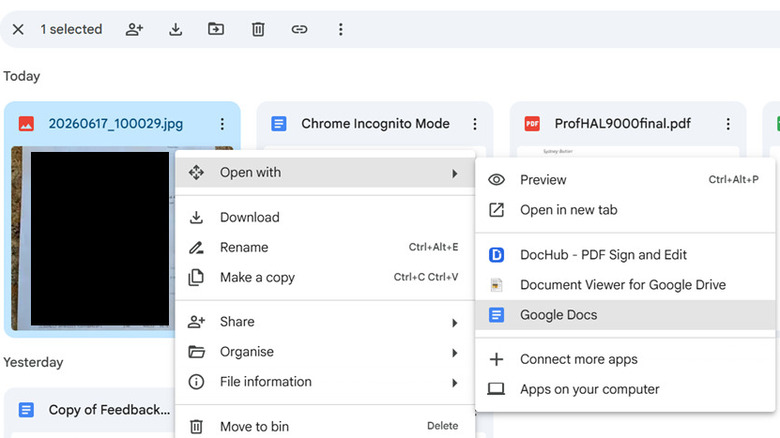
If you're on a computer, just right-click on a PDF or image and choose Open with and pick Google Docs. This will create a new Google Doc containing the text from the source file. Google Drive even tries to keep things like text formatting and font intact if it can. Sadly, there's no way to access this feature using the mobile app. That might not be such a big loss, though, and the entire feature feels a bit like an interesting parlor trick as AI tools continue to advance. For example, ChatGPT's new image generation ability might be impressive, but it's also great at analysing images and can create documents in various formats.
Keep a full version history of your work
You're probably aware that one of the big selling points of Google Drive in the first place is that you can work with other people and share resources. So, for example, you can create a shared folder for a project, and everyone you give access to can add files to that folder and even edit them.
The thing is, whenever a group of people work together on something, it can become extremely hard to keep track of what's actually going on, or who has contributed what. Google Drive keeps meticulous records of everything that happens, and it knows exactly what changes have been made by which people, and when. Even better, it's pretty rare for someone to make destructive changes that are irreversible.
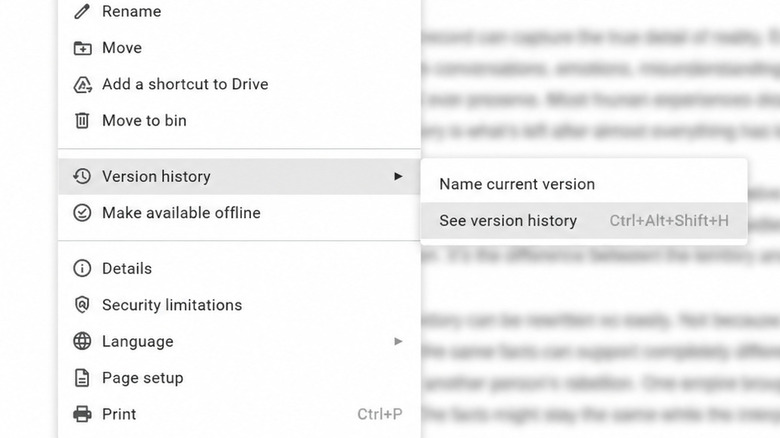
This photographic memory of events is implemented in different ways throughout Google Drive. If you're in a particular document, such as a Google Doc, you can use the Version History option under the File menu. This will give you a clear view of what changes have been made and by whom, but you can also turn back the clock to a previous version of that document, or even make a new document based on an older version so you can fork the chain without erasing the latest version. When you're in the Drive home page, you can also use Recent to see changes by anyone with access.
Share files like a mini web server
File sharing has come a long way, from passing floppies back and forth to eventually handing someone a USB flash drive with the files you want them to have. But thanks to broadband internet, there's no real need for USB flash drives anymore in most cases. You can just attach a file to an email and send it that way. One problem with that idea, though, is that Gmail has an attachment limit of 25 megabytes, and that doesn't go very far these days, thanks to high-res images, HD video, and large software packages.
While Google Drive can only edit or display a limited number of file formats, you can actually upload pretty much any file you like. Google Drive will then assign a shareable link to the file, and you can send that link to others with just a few clicks. Just like native Google file types, you can choose to share files with specific people or make it so that anyone with the link can download the file. It's just like having your own file server, but quick and easy if you only need to share documents occasionally.
If you want to share multiple files at a time, there are a few good ways to do it. Zipping your files into a single archive file is a solid approach and gives you the option of encrypting your archive if you don't want Google to see what's inside. Alternatively, you can put all the files you want to share in a Google Drive folder and share the folder as a whole.
Collaborate in real time

Before platforms like Google Drive made it possible for people to collaborate in real time on documents, we had to use the dreaded round-robin method. This is where one person creates a document, and then it's passed back and forth between team members as they each make changes. Anyone who has tried to unravel the tracked changes in a Word document that's been passed around knows the special terror of seeing all that colored text. Even worse, if the document is sent to multiple people at the same time, some poor soul has to merge the changes. Yikes!
Google Drive neatly solves this entire headache, and if you're still doing the round-robin thing, you need to convince your colleagues that there's a better way. With Google Drive, there's only one live version of a document. Everyone can see all the changes and comments made by everyone else in real time. We already mentioned the revision history feature, but you can also switch to suggestion mode, where you can make provisional changes to a document without altering it, and then others can review, accept, or reject those changes.
Anyone you share a document with is assigned a role. You can make someone a viewer, commenter, or editor of a document. It's why we've named Google's collaboration technology one of the essential apps for every remote worker. It really is that much of a game-changer. And if you're feeling really adventurous, you can take real-time editing to the extreme because Google Drive allows multiple people to edit the same doc at the same time. It's a scary thought at first, but it's pretty easy to get the hang of it, and version history is always there to help you recover from any potential disasters.
Store and manage forms, surveys, and quizzes

This is one of Google Drive's best-kept secrets, but you can create and share quizzes and surveys using a type of Google Drive document known as a Google Form. This is similar to a hidden Microsoft 365 feature, but Google Forms is simpler to learn and faster to implement for many users. Once you know the basics, you can have a form out to your respondents in minutes.
It's super easy to make a form. When you create a new document in Google Drive, it's simply listed as another type, although usually at the bottom of the available options. You might even be wondering why you've never noticed it there before, but it's funny how we don't see things we aren't actually looking for.
Once you've created a form, you can quickly build your questions, which can be any of the common survey question formats, such as multiple-choice or open-ended. With every Google Form, there's a Google Sheets spreadsheet that captures the data when a respondent submits the form. Google Sheets has limited analysis tools, but for a simple survey it should be more than adequate. Of course, once the data is collected in a Sheet, you can download it in another format (like Excel) and move it to a different piece of software if you really need to do advanced number-crunching.
Add comments directly to PDFs and documents
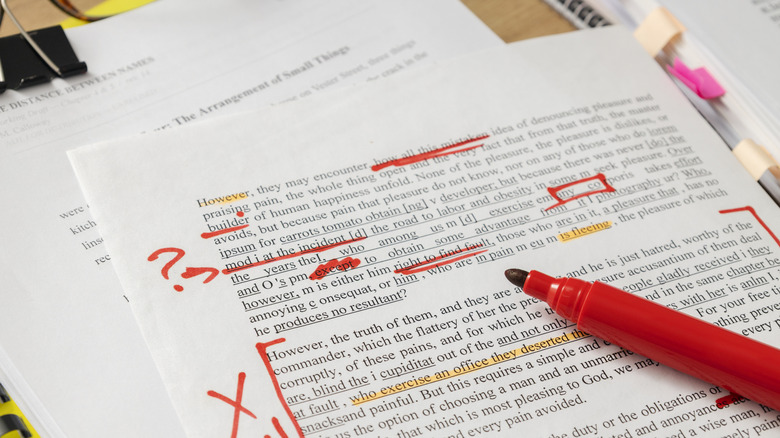
While being able to search PDFs and convert them to editable text is great, sometimes you want to just make notes on a PDF without having to reprocess the whole thing into another format. If you have an Android phone or tablet, you can annotate directly onto PDFs in the Android Google Drive app.
That's especially handy if you have an Android device with a stylus like the Samsung Galaxy S16 Ultra, but your finger will also do in a pinch, especially on a large device like a tablet. If you don't have an Android device, you can still make direct comments on PDFs on other platforms, using the same method you'd use to leave a comment on a native Google Doc. Just highlight the text you want to comment, and then go to Insert and select Comment. Of course, anyone you share the document with via Google Drive can also see your comments and annotations.