

9 Things You Didn't Know Your Mouse Could Do

Using a keyboard and mouse has become second-nature for most people, regardless of whether they use their computers for work or gaming. In fact, most users are so accustomed to holding onto a device and moving an on-screen pointer around that even using a touchpad can feel downright alien by comparison. With a trusted mouse in hand, most people enjoy a greater sense of control as they select text quickly, drag-and-drop files, or issue commands to units in their favorite real-time strategy games.
However, despite most people using a mouse for most of their lives, there are many handy mouse shortcuts and tricks that remain overlooked and even unknown to a wide swath of users. Regardless of whether you're using a Windows or Mac device, mouse users are missing out on an added level of convenience that can improve their workflow considerably and help them quickly navigate their system. The next time you have to do some work on your computer, remembering these mouse shortcuts can come in handy.
Copy and move files with a drag-and-drop shortcut

You're no doubt familiar with the drag-and-drop function, usable via both a touchpad and a mouse, but you might have missed some of its nuances. On a Windows machine, for example, you can hold down the Ctrl key when you drag and drop a file to automatically copy a file to a new location. If you hold down Alt while dragging a file around, you will create a shortcut in the destination drive or folder instead. Another unique action is enabled with the Shift key, but this needs some context. Usually, the regular drag-and-drop function moves files, but there's an exception — drag and drop a file from one drive to another, and you'll copy the file automatically instead. If you want to outright move the file, then you can hold down Shift while moving files.
These drag-and-drop shortcuts are largely similar on Mac devices. Hold down the Option key while dragging and dropping a file to create a copy of it in a new location. Or you can hold down both the Command and Option keys while carrying out this function to create an alias — Mac's version of a shortcut — of the selected file. Finally, holding the Command key while drag-and-dropping a file from one volume — drive for Windows users — to another moves the file instead of just copying it.
The final drag-and-drop trick can be seen if you right-click to move files around. This will show a small drop-down menu regarding the selected file, letting you choose whether you want to copy the file, move it entirely, create a shortcut, or access any file extraction options if you're moving around a ZIP file.
Directly download a web link

While it's not likely that you'll download web pages all the time, it can sometimes be helpful to have an offline copy of a page with important data, especially if you aren't constantly connected to the internet. Usually, right-clicking on the page in question shows a drop-down menu, from which you can download the page as either an HTML document or a PDF file (accessed by choosing the Print option and selecting Save as PDF).
However, if you want to use a mouse shortcut to download a page, then all you need to do is hold down either the Alt or Option key — depending on whether you're surfing the web on a Windows or Mac device — and left-click on the page link. This will automatically initiate a download of the webpage as an offline HTML document that can be opened later on, even without an internet connection.
Use advanced text selection tricks

Selecting text with a mouse is a universal act that needs no introduction. What does need some explaining, however, are the various ways in which you can make the most of this simple act, to the point where you can genuinely be entertained as you experiment with selecting text in a browser or text document. The vast majority of these shortcuts are common across both Windows and Mac devices.
For starters, you can double-click near a letter to select an entire word instantly. Double-click and drag to select text word-by-word, allowing for more precise text selection, as opposed to having to perfectly place the cursor so that you don't accidentally stop in the middle of a word instead. With a triple-click, you can choose the entire paragraph! Dragging your mouse after a triple-click lets you select multiple entire paragraphs in one fell swoop. Finally, selecting one section of the text and shift-clicking at another point instantly selects all words between these two clicks, which is yet another handy way to select precisely what you want without having to be a bit too precise with your mouse movements.
The final text selection trick applies only to Microsoft Word, but it's worth mentioning as one of the more unique ways you can select text in a Word document. If you hold Alt and left-click together in Word, you can select text column-wise, instead of the usual row selection! This shortcut may have a very specific use case, but it's weirdly fascinating to see a vertical block of text being selected when you're used to horizontal highlighting.
Zoom in and out across multiple applications

For the most part, your Windows File Explorer — an essential Windows app you likely use quite a lot — and most webpages are designed to be as legible as can be. However, this design approach isn't universal, and there are moments when certain text or images are so small that trying to discern them becomes a massive pain. This is where a simple zoom trick can be very useful. Instead of delving into your device's settings to permanently increase the text size of your browser or File Explorer to make it more readable, you can access a convenient zoom feature by simply holding down the Ctrl key and moving the scroll wheel on your mouse to zoom in and out however you wish.
It's an easy-to-access shortcut for Windows users, but Mac users need to go the extra mile to enable the same feature with their mouse. Go to the Accessibility section in System Settings and click on Zoom. From there, you can select the "Use scroll gesture with modifier keys to zoom" option. Choose the modifier key of your choice — Control, Option, or Command — and you will be able to use this zoom feature on a far wider scale than on Windows. Instead of enjoying this zoom in just a few applications, Mac's version of this feature is universal and lets you zoom into the entire screen, no matter which program — if any — is currently in focus. You can also choose between a run-of-the-mill zoom, a split-screen zoom to target a particular area of the screen, or a picture-in-picture zoom that focuses on the area where you've placed the pointer.
Quickly access Snap Layouts/Window Tiling
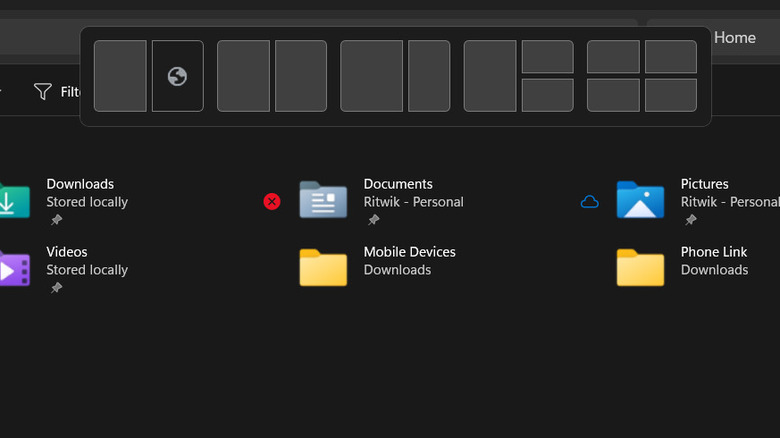
People who prioritize multitasking over everything else will love the idea of dividing their screen into multiple sections that can house all the programs they need. This is especially useful on a larger screen, where the extra real estate can help improve productivity without forcing you to squint to see what information each corner of your screen is trying to relay. Microsoft introduced this feature first with Snap Layouts in 2021, a secret Windows feature everyone should be using by now that lets users choose from one of multiple layouts to organize their screen however they see fit. It wasn't until three years later that Apple finally decided to introduce its version of this feature for macOS, called Window Tiling.
One of the easiest ways to access this feature is via your mouse. Simply drag the window of your choice to the top of the screen in Windows or to an edge of the screen in macOS to access Snap Layouts and Window Tiling, respectively. This launches the Layouts or Tiling interface, and you can choose how to organize your screen and where to drop the selected window from there. It's the simplest way to access these nifty screen divisions and will let you quickly experiment with multiple layouts to settle upon the best one of the lot.
Directly access the full right-click context menu
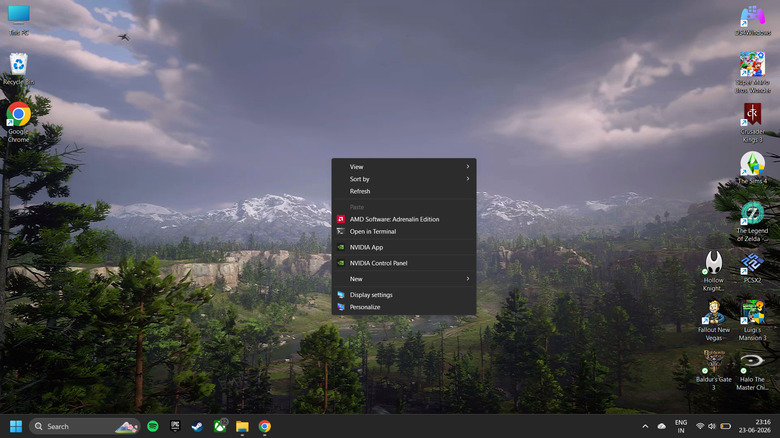
Remember the simpler days when a simple right-click was all you needed to bring up a drop-down menu with all the options you needed? Now, what happens instead is that a simpler menu pops up, forcing you to click on "Show more options" to bring up the full context menu. Many long-time Windows users aren't huge fans of this change, which is why a particular mouse shortcut might interest them.
All you need to do is hold Shift and press right-click to bring up the full drop-down menu out of the gate. It's a simple and convenient solution that will help most users circumvent one of the most divisive changes brought about by Windows 11. Don't get us wrong — the truncated right-click menu isn't too hard to get used to, but for people who don't like the change or just miss the convenience of the old interface, this is one tech habit that can help them save time ... and frustration.
Carry out a variety of scrolling techniques

Who said scrolling needs to be a boring activity? Your mouse's middle button can do a lot of things that you don't know about (if you actually have a middle mouse button, that is). For starters, press this button to enable auto-scroll, letting you move up, down, left, or right on a page, based on where you move your pointer from the area where you pressed the button. To stop this auto-scroll function, just press the middle mouse button again to bring back the normal functionality of your mouse.
Unlike most of the other mouse shortcuts we've discussed before, macOS users are fresh out of luck in this department. The very fact that Apple's Magic Mouse lacks a middle mouse button makes it clear that this wasn't a priority for the company. However, there's another, lesser-known scrolling technique that both Windows and Mac users can enjoy.
This involves holding down the Shift key while moving the scroll wheel up and down. If a browser has been designed in a manner that you can scroll left or right as well, then this shortcut will let you do so instantly. For some, this horizontal scrolling shortcut is far more convenient than having to either use the horizontal scroll bar at the bottom of the screen or press the middle mouse button to use the auto-scroll feature we discussed above.
Open and close tabs effortlessly

Don't assume that the term "tabs" refers only to the ones you can open in a browser. Windows File Explorer also lets you open separate tabs, which makes it easier to navigate your drives, but which can also be confusing and cumbersome to move through. To make your mouse navigation in this department more intuitive, the middle mouse button once again can be your friend. Whether on a browser or in File Explorer, you can press this button while hovering over a folder or website link to open it in a new tab. Use the middle mouse button on the open tab, and it will instantly close.
It's very intuitive, and it's a shame that Mac doesn't support this functionality ... at least in Finder, Mac's equivalent of File Explorer. While there's no innate mouse shortcut to close tabs outright — you'll need to use the Command and W keyboard shortcut to close the frontmost tab instead — you can open a new tab by holding down the Command key and double-clicking the folder of your choice. Thankfully, if you're navigating a browser on a Mac, then you'll be happy to see that the middle-mouse-button shortcuts discussed above work seamlessly to open and close tabs (if you're not using a Magic Mouse, which has no middle button).
Use remapped mouse controls with special software

Finally, one of the best ways to unlock your mouse's untapped — or, in this case, unclicked — potential is by using third-party software that lets you remap your mouse entirely. This is especially useful if you've bought an advanced mouse and want to use its additional buttons to make your navigation even more seamless. Chances are that if you already own an advanced mouse from a notable developer, then you have access to tools like Razer Synapse, Logitech Options, or Corsair iCUE. These are great and let you accomplish everything from setting up different profiles for specific apps to configuring advanced macros that will make your competitive gaming endeavors more efficient than ever.
Windows users can also use Microsoft PowerToys and AutoHotkey, two great options for setting up mouse-button mappings. Given that the former is a Microsoft-certified application, its mouse utilities will be easy to use and won't confuse beginners who only want to enable basic-level shortcuts on their mouse. Meanwhile, more advanced users can opt for AutoHotkey, which requires basic scripting knowledge but lets well-versed coders unlock a variety of options to customize their mouse however they see fit.
Meanwhile, if you own a Mac device, then you have a wide array of options to choose from. If you want scrolling to feel better than ever while enjoying basic button remaps, then you might look into Mos. For people who don't want to spend a dime on a third-party mouse app while still enjoying a suite of great remapping features, LinearMouse may be the way to go. Finally, for the most extensive array of possible customizations to turn your mouse into a productivity behemoth, BetterTouchTool is a solid option.