

10 Tech Habits That Will Save You Time

Time management is a huge component for success, not only at work but in your personal life. Without proper time management, you'll slowly feel like you can never get ahead and that you're constantly drowning, as you have five more tasks to do after completing one that you thought was the most important. There are several ways you can get ahead, and many of these involve incorporating technology into your daily life to help make things easier. You don't have to do everything, but leveraging technology can help you get more done while feeling — and actually being — less busy.
We've gathered 10 popular recommendations on the best methods to save you time while you're working or in your personal life. These tips can work for just about everyone, at least to some degree, and it all comes down to incorporating these habits to maximize your efficiency. Any of these tech practices can help save you time every day if you use them the right way, so pick and choose the ones that best fit your style and situation.
Keep digital notes

Digital notes are a great way to keep track of your day-to-day affairs and ensure you remember small details for upcoming projects or tasks you might need to focus on in the future. The appealing thing about having access to digital notes is that you can use them in multiple locations, which means you can check on them from your desktop or your phone, adding to them whenever you have updates or new insights, or so you can check something on the go. All you need to access them is an electronic device that can use the internet, and you're ready to read through or add to your notes. You may also consider reMarkable Paper, a note-taker's dream app that synchronizes with Google Drive, OneDrive, and Dropbox.
There are many types of digital notes you can use, and the application you choose can help you stay organized. You want a program that allows you to create multiple folders and play around with fonts and formatting. One of the better options is Microsoft OneNote, which offers a free version that includes all the important features — you can upgrade later if you need more storage or more bells and whistles. You can also consider using Evernote, although this is a more expensive option with a less-than-robust free choice. There's also Obsidian or Google Keep, for those who regularly use Google products.
Track your activity time
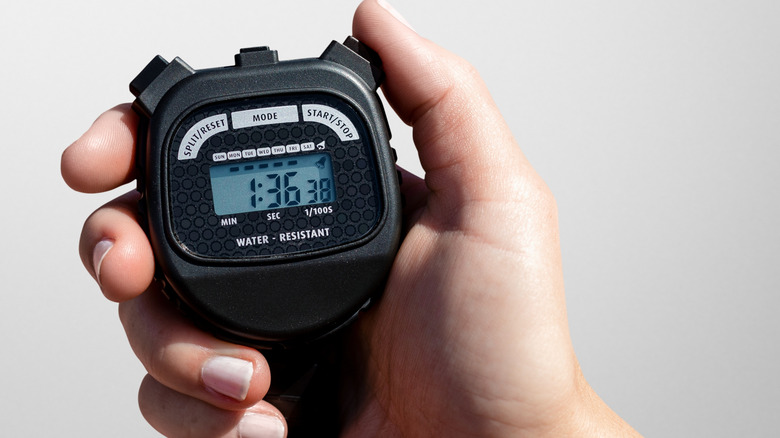
A good way to make sure you're utilizing your time efficiently for any given task is to track how long it takes to complete, or at least how long you're spending on it. You can do this with a digital clock, alarm, or a tracker app on your desktop or smartphone. What you want to do is track how long you naturally work on something, and then begin to divide that up throughout a day. For example, you might spend an hour cleaning part of your house, stop at that hour mark, and then jump into responding to emails or working at your desktop for an hour. Setting strict times and keeping track of them throughout the day is a good way to make sure you're not wasting time.
An application you might want to use for this could be Toggl Track, an application that you can use on Android, iOS, and Windows, and you can even add as a browser extension. It features a free plan where it can track how long you perform certain activities, so long as you have them set up in the application. If you were to install it on your browser, it tracks how long you use that browser, based on how long it stays open. It's an effective way for you to see how long you spend on tasks and how much time you use for each project. Other potential options include Memtime or Tracking Time.
Discover keyboard shortcuts for all applications

You can cut down the time you spend performing certain actions with the help of your keyboard. On a computer, nearly all applications have some variety of keyboard shortcuts that you can use to make your work faster and easier, especially in Microsoft Windows applications or Google Docs. Sometimes, it's as simple as learning to use your laptop's function keys more effectively. Spending time to discover these shortcuts and how you can use them to optimize your time makes it easier to complete tasks, and can shave off a lot of extra clicking and searching you might do whenever you're working on a project. These keyboard shortcuts vary from increasing the size of your font, to allowing you to modify a picture, to even highlighting a particular section to a preset color.
While you don't have to learn all of the shortcuts for any particular application, it's important to know a handful of things that you regularly use for your projects, such as how to comment in a document, add a link, find your current word count, or find and replace certain words throughout a document without going to each one individually. Sometimes, even a single shortcut, like opening the tool finder in Google Docs using the control and forward-slash keys, can make a big difference. This lets you pull up a search bar in the document to find any tool you want to use, rather than forcing you to memorize them all.
Use a digital calendar to track to-dos
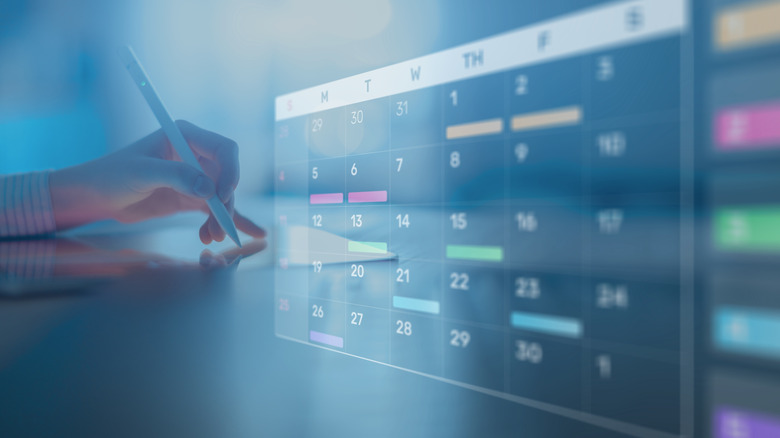
Similar to tracking your daily activity, making use of a digital calendar is a good way to make sure you're always on top of what you need to do next. What's also nice is that, depending on which one you use, a digital calendar can transfer over from a desktop to your smartphone, ensuring you don't miss anything important when you change devices. You can treat your calendar entries like digital notes, but rather than long-form text, they can help you remember your obligations for a day, or where you have to be at set times. As you regularly use digital calendars, you'll prevent tasks from sneaking up on you, which can help you stay on track in a larger project as larger deadlines loom.
There are a handful of digital applications you can pick from for your calendar needs, including Google Calendar if you want a free, cross-platform option, Microsoft Outlook Calendar for those who have multiple Microsoft devices, Apple Calendar for Apple users, or Fantastical to work across multiple programs. You want to find one that works for your style and schedule, and that allows you to focus on daily and weekly events, set up recurring events, and receive reliable updates. Whether you want a free or premium option, the choice comes down to what you need the most, and how you can strike the right balance. If you want your schedule front-and-center all the time, you could also consider using a digital calendar with a physical display and locate it in a prominent spot in your home or office.
Use a password manager

Passwords are a crucial component in modern online security measures, but keeping track of every single one you ever make can be an exhausting task. You might be able to save them on your browser, as those programs can keep track of passwords you use for various websites, but they can't account for all of the applications you use. Browsers also aren't the most secure method of holding your passwords. A good way to get around this and to have a program that keeps track of everything you do, regardless of application, is a password manager.
You can grab a password manager to remember and keep your more sensitive passwords for your desktop, smartphone, banking, personal, or at your job. As a bonus, many of these applications save you from having to always come up with a new password, as most have a password generator built in. A password manager ensures everything is always accessible for you, and they let you copy and paste the password where you need it without ever revealing it in plain text.
Some potential options for password managers include NordPass, Proton Pass, 1Password, or Dashlane, to name a few of the best ones users recommend. It all comes down to what features you want, how stringent you need the security to be, and how much you're willing to pay. Just be aware that there can be some security and privacy concerns with using online password managers, and that password managers may not always be necessary as the computing landscape continues to evolve.
Consolidate important files into one application
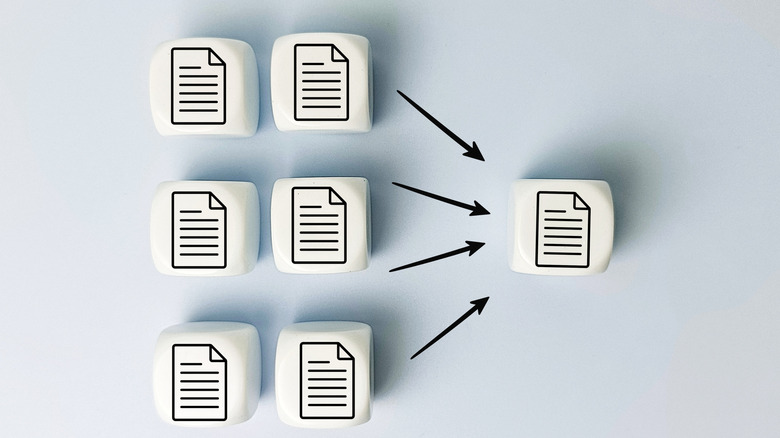
These days, there are tons of options for creating and storing files, and it's easy to end up with documents stashed everywhere from Google Drive to your desktop or laptop to other cloud services like Dropbox. But having your files spread out across all of these applications and locations makes them difficult to find when you need them. To avoid that hassle and confusion, you're usually better off choosing one location where you keep your docs and avoid adding others to the mix unless it's really necessary. Probably the most convenient approach is to use one cloud service to consolidate your document storage so that you can access files regardless of which device you're using at any given time. An important document will always be in your chosen location, and it should be much easier to locate, especially if you keep yourself organized by giving them systematic, memorable names and utilize the application's search function to find anything you need quickly.
Options for using cloud storage to organize your files include OneDrive, Google Drive, Dropbox, Multcloud, and many others. Most of these offer free plans but require a premium if you go beyond a certain storage limit. Many of these cloud services also offer direct integration with others, so you could technically store your docs in multiple locations but access them all through one interface, like OneDrive — that would still give you a consistent, consolidated experience. If you do opt for a cloud solution, make sure you stay aware and avoid the common mistakes users make with cloud storage.
Use browser bookmarks and tab groups

A browser typically remembers the general website or a specific page you frequently visit, but it's much more effective to make a bookmark to that webpage rather than typing it into your URL. By making it a bookmark, all you have to do is click it in your browser, and you'll immediately drop into the set page you want to use. It saves you time typing it in on your URL, and you're not trying to click through other pages to reach the exact location you want to visit. The bookmark is exactly where you want to be. Also, when you start adding multiple tabs on your browser, you can group the various tabs based on how you're using them for easy retrieval later. In Chrome, for example, you can do this by right-clicking on any tab and selecting "Add tab to new group." Other browsers have similar functionality.
Organization is always key when you want to get the most out of your browser bookmarks. You want to stay on top of the ones you add by regularly going through them to delete ones you no longer use and doing some quick sorting as it makes sense. For example, putting the ones you use on a daily basis at the top of a browser is a good idea, as you'll be able to click on them as soon as you open your browser. Other, less frequently used ones can stick to the bookmark dropdown menu. You also want to keep these names short, editing them rather than having the full URL link. Finally, and as mentioned above, organize your browser bookmarks into tabs, specifically for your activities, such as labeling them work, finance, or hobbies.
Give a digital assistant more work
It can be helpful to offload as much information or smaller tasks to someone — or something — else as often as you can. This way, you're not using precious brain space or energy to keep track of every little detail. A good way to do that is to use a digital assistant like Google Assistant or install a voice assistant in your smart home.
These digital gadgets are designed to help you with busy work, such as answering questions, managing your schedule, or organizing information, and they can also deliver information you need right now. Many of these assistants also respond to voice commands. Rather than typing in something, you can vocalize what you need the digital assistant to do, and it should begin doing it much faster than you can type it out or do it yourself.
Small tasks that you can have your digital assistant do for you include setting reminders, sending quick text replies or small texts to friends and family, creating calendar appointments, creating shopping lists, getting directions, and more. You want to offload small, minor things to a digital assistant that otherwise eat up your day, one small chunk of minutes at a time. Of course, you should do your research and be aware of potential drawbacks of using digital AI, like the privacy concerns and potential wrong answers some users have encountered with Google Gemini.
Use focus mode tools

As much as you might want to sit down and dig into a project, it's easy to find yourself distracted by multiple online siren calls. This can be a question you want answered or a simple five-minute break from your work (that turns into 20 minutes ... or two hours). A good way to help cut down on these time-eating activities is through a focus mode application.
There are multiple focus mode tools you can add to your PC, Mac, or smartphone if you want to remove the multiple distractions that might pull you away from work. These are good, effective ways to limit what activities you can do at these locations for a set amount of time, ensuring you optimize the time you're spending on these tasks, preventing you from getting off-task.
There's Do Not Disturb (previously Focus Assist) for Windows and Focus for Mac, which lets you create however many different focus settings you need to get you through the day. There are also focus tools native on smartphones, including Focus Mode, which is a game-changer for many iPhone users. For third-party choices, there's Cold Turkey or Freedom. You'll be able to choose what type of focus activity you want to do, and the type of notifications or interruptions you still want to see while in this mode. The same goes for the types of applications you want to continue using during this time. You can even block applications only at set times, allowing you to match the natural rhythms of your workday while still sometimes having access to your favorite apps.
Only use social media during set times
Doom-scrolling or tumbling down the social media rabbit hole is an easy trap to fall into at any time during the day. You may not even know that you're in trouble until you suddenly find yourself continually scrolling through your feed when you should be working. A good way to avoid getting stuck in these cycles is to allow yourself to participate in social media only during set times during your day. It's a good rule to ensure you're making the most of the time at your desk, or to stay focused on your current task instead of compulsively checking your phone. Good options for your dedicated social media time include early in the morning or at the end of your day, when you're finished with all of your work.
Some phone users who want to pull away from social media have found success using focus modes on their computers or smartphones to help prevent them from accessing these websites. Other applications that are a bit less draconian include One Sec, which helps you monitor and limit your overall screen time (not just social media) using various alerts and schedules. You'll have to experiment to find what works best for you, but taking notice of how long you're on social media, and when, can highlight areas and times that might be compromising your productivity.