

Here's What You Should And Shouldn't Plug Into Your Monitor's Built-In USB Ports
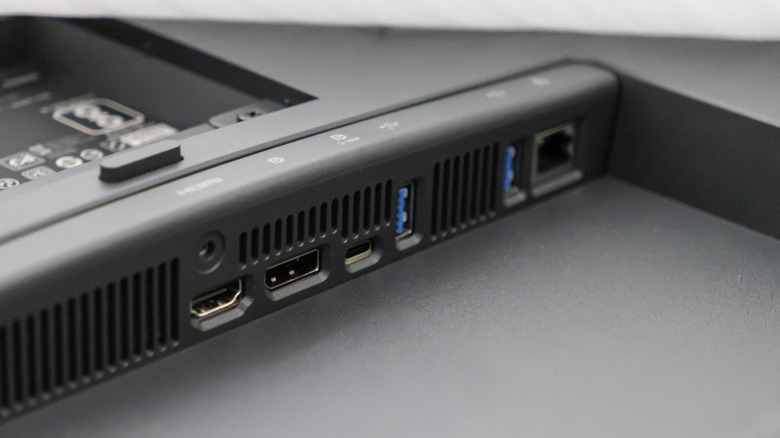
If you have a relatively modern monitor, chances are it features one or more USB ports. Surprisingly, these are often overlooked, while users spend money on USB hubs and docking stations. If you, too, have never explored the USB ports on your monitor, it's high time you did, because these can really streamline connectivity, shorten cable runs, reduce clutter on the desk, and improve your workflow. Common devices you can plug into your monitor's USB ports include wired keyboards, mice, controllers, webcams, microphones, speakers, USB hubs, and even flash drives.
At the same time, it's important to understand the limitations of the USB ports on your monitor. For example, if the monitor doesn't support USB passthrough, devices like storage drives, keyboards, and mice won't work when plugged in. The good news is that most modern monitors that feature multiple USB ports also act as a USB hub. You simply need to connect the monitor to your PC using the USB upstream cable or the USB-C cable that came along with the monitor. Even so, some devices don't work best with your monitor's USB port. This includes SSDs and other devices that benefit from a direct, high-speed connection to the PC.
Before you proceed, verify whether your monitor supports USB passthrough and that you have set it up accordingly. In the absence of either, the USB ports on your monitor will have limited functionality.
Should: Keyboards, mice, and controllers
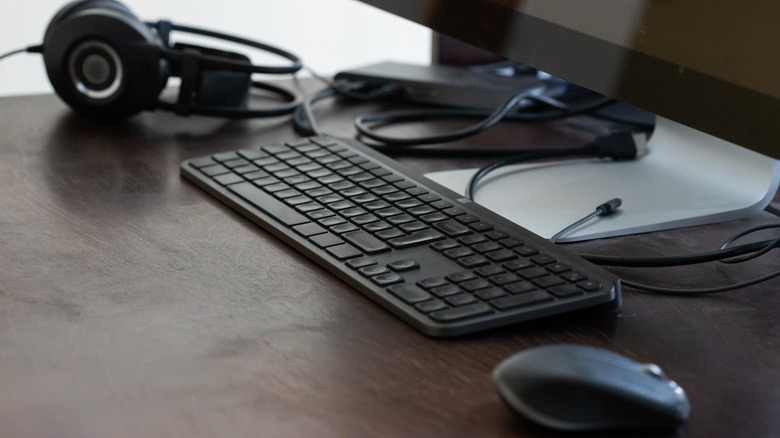
Keyboards and mice are among the devices that are most commonly connected to the monitor's USB port. They are perfect matches for the port, given that they are low-bandwidth devices and consume little power. So if your keyboard and mouse are the reason your desk looks too cluttered, consider plugging them directly into the monitor's USB ports. Even if you use wireless ones with a dongle, plug the adapter into the port. Besides, if the monitor's USB ports are closer to your keyboard and mouse than the ports the dongles were originally plugged into, this can make the connection more reliable.
You can also plug your wired gaming controllers into the monitor's USB port. This is the most convenient location since the cable and connection are always nearby. And if you are into competitive gaming, the reliability of wired connections can improve the overall gaming experience. All these devices are lightweight in terms of data transmission and power requirements, making them ideal for your monitor's USB ports.
The best part about using your monitor's USB port instead of those on the laptop is that even when you switch laptops, you don't have to swap or rearrange a lot of cables. This way, it's just one or two.
Should: Webcams, microphones, and speakers
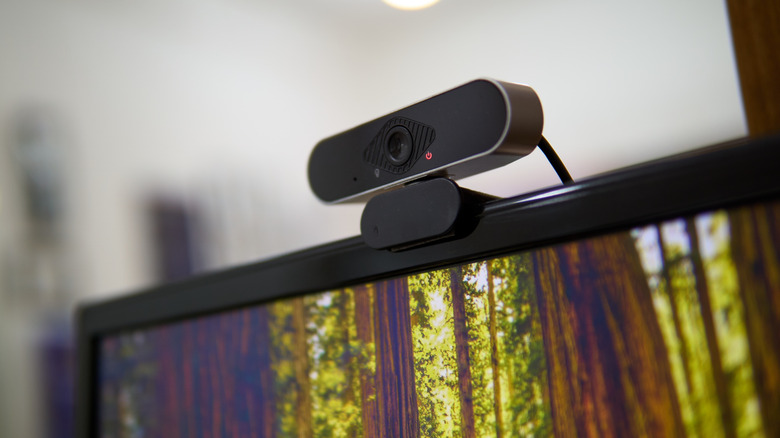
Webcams and microphones, among other peripherals, sometimes have shorter cables, and running them through to the PC's USB port or those on your laptop can be a hassle. That's why plugging them into the USB ports on your monitor makes sense, as they remain fully functional. Webcams, anyway, are typically mounted on top of monitors or your laptop's screen, making this arrangement all the more practical. And if you regularly switch webcams and microphones, it makes the process quicker since the monitor's ports are relatively more accessible than those on the desktop.
Apart from that, you can connect speakers to your monitor's USB ports, provided they rely on a USB connection for both power and audio. They function the same way, just as if the speakers were directly connected to the PC. All that said, it's important to remember that you shouldn't plug professional-grade microphones or speakers into the monitor's USB ports; they usually perform best when connected directly to the PC. But for everyday use, the setup will be more than adequate.
Should: Low-power lamps and fans
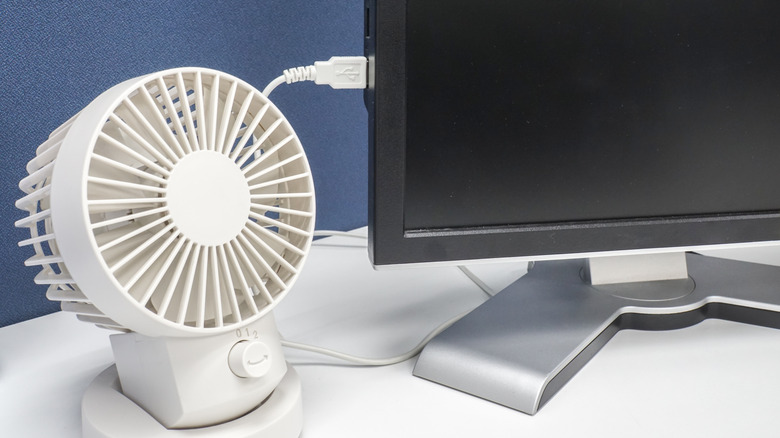
If you have USB-powered LED lights, lamps, or portable fans on your work desk, these, too, can be connected to the monitor's USB ports. It's actually a smart move since these are low-power devices and are not affected by the data transfer speed in any way. So, even if your monitor's USB ports don't deliver the best transfer speeds, they can be used to power small LEDs and fans. Again, these devices are usually positioned around the monitor, so connecting them to its USB ports can save your desk from a lot of clutter.
However, you need to make sure that your USB port's power output meets the requirements of the connected device. If it's a USB 2.0 port, it can deliver up to 2.5 W (5 V, 0.5 A), while USB 3.0 ports have a power output of 4.5 W (5 V, 0.9 A). If the device requires more power to operate, it may fail to power on or not work reliably. That's why it's important to verify power draw and voltage requirements beforehand.
Shouldn't: High-speed storage drives
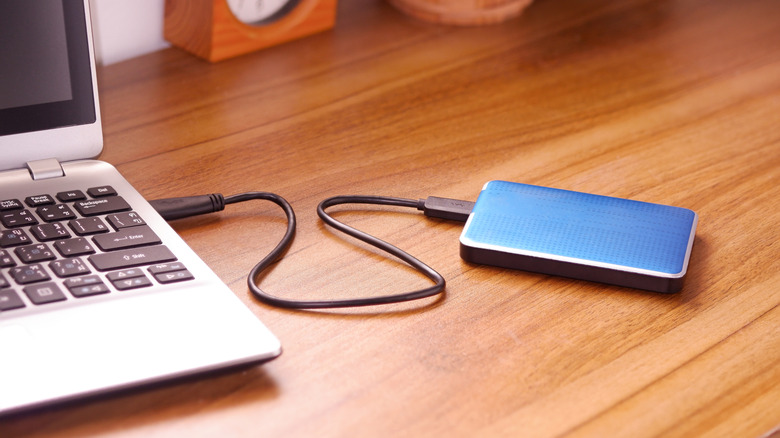
SSDs and other high-speed storage drives are among the devices that should ideally be connected directly to the PC instead of the monitor's USB ports. It's also something you should never plug into a gaming monitor. That's because the USB ports on the monitor can act as a bottleneck, lowering the transfer speeds. Modern SSDs, say one rated for USB 3.2, can easily deliver up to 20 Gbps, but when they are connected to a USB 3.0 or USB 2.0 port on a monitor, the transfer speeds take a hit. It may not be noticeable for small, occasional file transfers, but for content creators and professionals who transfer large amounts of data every day, SSDs should be plugged directly into the system.
Apart from that, there's also the risk of data corruption, especially if the monitor loses power or enters standby mode. When a monitor enters a power-saving mode, it typically cuts off power to the USB port and any active file transfers are abruptly terminated, which could corrupt the data on the drive.
The same goes for high-speed flash drives. However, if your monitor supports it, you can directly plug in a flash drive to stream media files. Additionally, you may need to connect the flash drive to your monitor's USB port to update or reinstall the monitor's firmware.
Shouldn't: Smartphones and tablets for fast charging
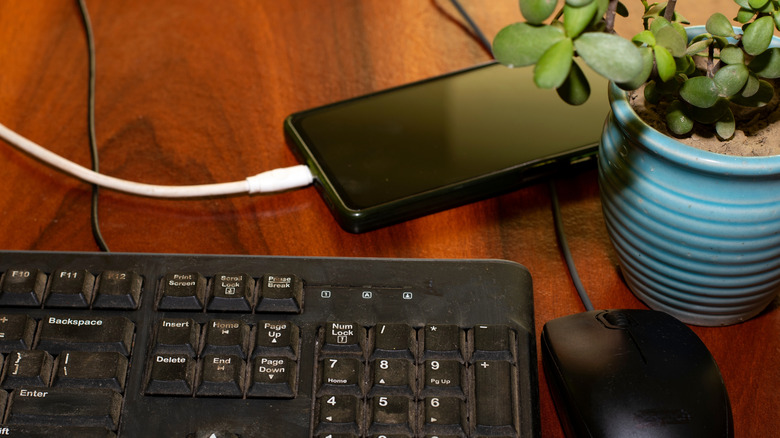
Unless you have an expensive, high-end monitor with a high USB Power Delivery rating, say anywhere from 27 W to 140 W (as is the case with the Dell U5226KW), your smartphone or tablet will charge really slowly when plugged into the monitor's USB ports. That's because older-gen USB ports can't deliver the power required for fast charging devices, even if you are using the right cables. However, if your monitor features a USB-C port with Power Delivery, that might change things. You should, of course, verify the port's Power Delivery rating using your monitor's manual.
Remember, for most mid-priced monitors, the USB ports are best suited for low-power devices like webcams, microphones, speakers, lights, or fans, and not anything that requires a higher power output. If trickle charging works or you just want to maintain optimal battery levels through the day, the monitor's USB ports will do. But for fast charging, it's best to rely on wall adapters or ports with the required Power Delivery rating.