

Why Your Fire TV Stick Has Gotten Slower (And How To Fix It)
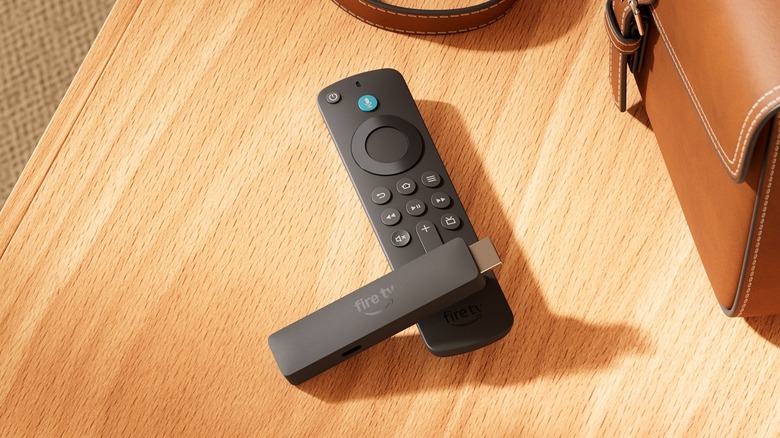
Amazon's Fire TV Stick lineup offers an affordable way to add smart TV functionality to your non-smart TV or to bring your own ready-to-use smart TV experience on the go. While Fire TV Sticks typically offer a snappy experience, one of the most common problems with them is that they can start feeling sluggish or laggy after months or years of use. This can happen for several reasons, from hardware limitations to software bloat. Sometimes even the streaming apps you're running can be a culprit behind things becoming less responsive.
A slow Fire TV Stick may cause you to think about upgrading it with a newer Fire TV Stick model or something a little more powerful, like the Apple TV 4K. However, as gadgets are getting expensive because of the component price hikes caused by the AI boom, it makes more financial sense to try to identify the reason for your Fire TV Stick slowdown and fix it (or at least make it better). Beyond the financial sense, having Android-based Fire OS with sideloading support is a good reason to hold on to your older Fire TV Stick, as the company is moving to Linux-based Vega OS in its newer models.
Major causes for Fire TV Stick slowdowns

If you're running a really old Fire TV Stick, a likely cause for the slowdown is hardware limitations. The Fire TV Stick models typically have just enough processing power to keep everything running smoothly for the current generation of apps on the market. However, as your Fire TV Stick hardware gets older, it has to keep up with app updates every few months, which can become more demanding, particularly in terms of the memory requirements over time. After a certain point, your older hardware with limited RAM can start becoming a bottleneck.
Another major reason for a sluggish Fire TV Stick is the reduced storage space. Except for the current-generation Fire TV Stick Max, all Fire TV Stick models come with only 8 GB of storage space, which isn't a lot, and only about 4.5 GB is actually available for use. As you install apps and games, this storage can quickly fill up. Moreover, downloaded apps and games also store data for caching, further reducing the capacity of the Fire TV Stick. However, your Fire TV Stick's operating system needs some empty storage for its effective functioning. This spare storage is used to store temporary files, cache, and memory swapping. When there is limited storage available, it hampers performance and can cause everything to slow down.
Background processes and bloatware on your Fire TV Stick can also cause lag and sluggishness. Even when you're not actively using apps and system features, certain app and system functions run background processes to check for updates, synchronize data, and download new content. This can hog processing power and system memory and stop your Fire TV Stick from running smoothly.
How to fix a sluggish Fire TV Stick
While it doesn't seem like a big step, it's a good idea to start with a simple reboot. It can be pretty helpful in clearing out system memory and stopping rogue background processes. You can navigate to Settings > My Fire TV > Restart to reboot your Fire TV Stick.
After the reboot, it's time to take stock of the apps and games you have installed on your device. Navigate to Settings > Applications > Manage Installed Applications and uninstall any apps or games that you don't actively use. This will not only clear storage but also stop the unnecessary apps from hogging system resources via background tasks. You can also use this opportunity to clear the cache of your most used apps. Select an app while on the "Manage Installed Applications" screen and use the Clear Cache option to remove temporary files and other data. You can alternatively use the Clear All Application Caches option to clear the cache of all installed apps. Don't worry, unless you use Clear Data, you won't be logged out of apps.
Another big step you can take to reduce the burden on your Fire TV Stick's processor is to stop home-screen autoplay. This will stop ads and trailers from autoplaying on your home screen. Navigate to Settings > Preferences > Featured Content to disable autoplay for both video and audio.
If none of this works, the nuclear option is to factory reset your Fire TV Stick and set it up again with just the essentials, then go through each setup option carefully to disable anything you don't need. You can navigate to Settings > My Fire TV > Reset to Factory Defaults to reset the Fire TV Stick. Remember, this will delete everything.