

10 Of The Best iPad Widgets, According To Tablet Users
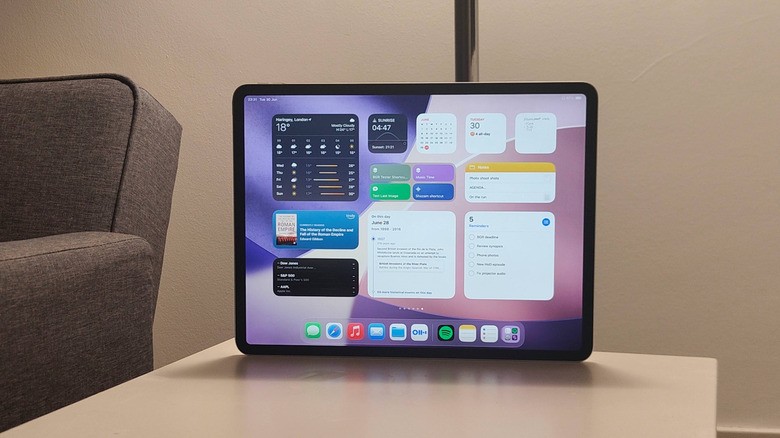
Ever since iPad widgets were introduced in 2021, users have been discovering various ways to make the most of these home-screen tools. These home screen icons — which can be found by pressing and holding on the menu, then Edit, then Add Widget — offer slivers of an app's functionality but on your tablet's home screen. For any app installed on your iPad, you can add its widget to your home screen in order to enjoy the added functionality it brings.
While there are plenty of iPhone widgets that can help you get more done, iPads are a different beast entirely. Compared to a smartphone, their larger screen size, different use cases, and range of accessories all mean you're bound to use the device in different ways, and that means the widgets, too. Setting up these widgets is one of the best tips for setting up a new iPad, and it'll help you use your slate in a variety of ways.
So, where do you start? Well, you listen to users, and that's exactly what we did when coming up with this list of the most useful iPad widgets. To help determine the list and give you some added insight into how they work, I either installed the widget on my iPad or, in many cases, was already using them.
Shortcuts, for one-tap automations
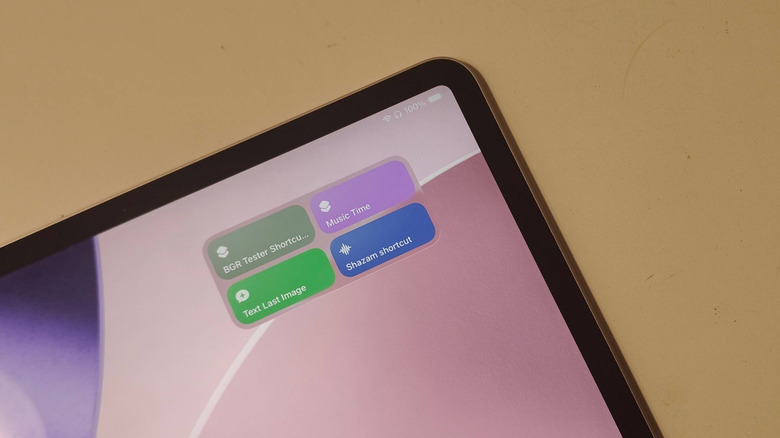
Perhaps the most popular iPad widget, recommended quickly after anyone asks for widget recommendations, is Shortcuts. This is available on your iPad straight out of the box, as it's based on the Shortcuts app, which is pre-installed on your tablet. The app lets you build automations: you can set chains of functions like lights turning off if you play from a certain Apple Music playlist, dark mode being enabled when you arrive at the gym or, as one Redditor revealed, turning off orientation lock when you open Netflix.
The Shortcuts widget gives you another way to trigger these automations, with a big icon appearing on the home page for you to select. Different widget layouts let you display one, two, four, eight, or sixteen buttons, and pressing any will trigger the respective shortcut. That Redditor could open Netflix, lock the orientation, dim the lights and turn on Do Not Disturb, all from a touch of a button on the home page, saving plenty of time. The only problem with the app, which I discovered when I began using it for this article, is that it takes quite a lot of set-up time to fully appreciate its tools. I'd recommend taking online advice to find the best set-ups — thankfully we've found plenty of iOS Shortcuts you didn't know you needed, which will save you a lot of time.
Reminders, for impossible-to-miss notifications
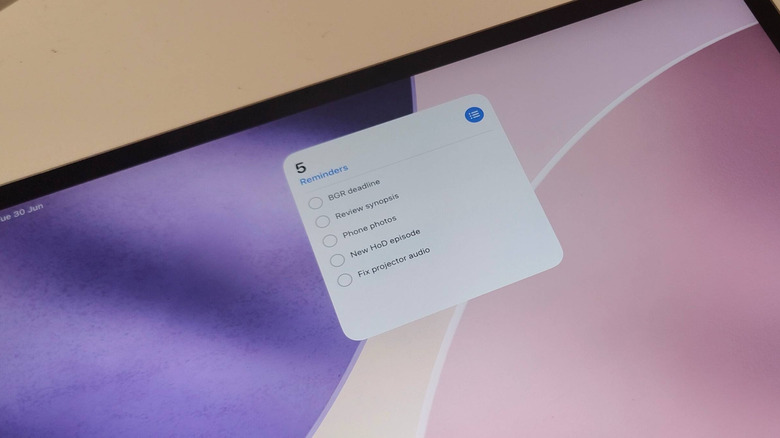
Another oft-recommended iPad widget is Reminders, which a Redditor referred to as a game changer. Like Shortcuts, this comes as a pre-installed app, but it's a lot simpler to use — even if there are some things you didn't know Reminders could do. Reminders, as the name suggests, lets you set notes to yourself to remind you of an event, task or occasion; you can schedule them for certain days and times, and the app won't let you forget a thing.
The Reminders widget gives you a little window into what's due for you with a small, medium and large options to choose from, each of them fitting more tasks into the box. Fitting the widget onto your iPad home screen allows you to get at-a-glance reminders of upcoming tasks, so you can see what your future holds before the notification arrives. You can also tick off completed items, like deadlines or tasks.
Having used Reminders for years, I can attest that the widget is just as useful for personal notes like birthdays, holidays, and parties, as it is for professional reminders like meetings, deadlines, and trips. But as many Reddit users point out, there are a few little quirks that are worth knowing about: the widget isn't scrollable, so you can display see a set number of reminders and it's rather easy to accidentally check off reminders you haven't actually completed.
Weather, so you always know if it's rain or shine
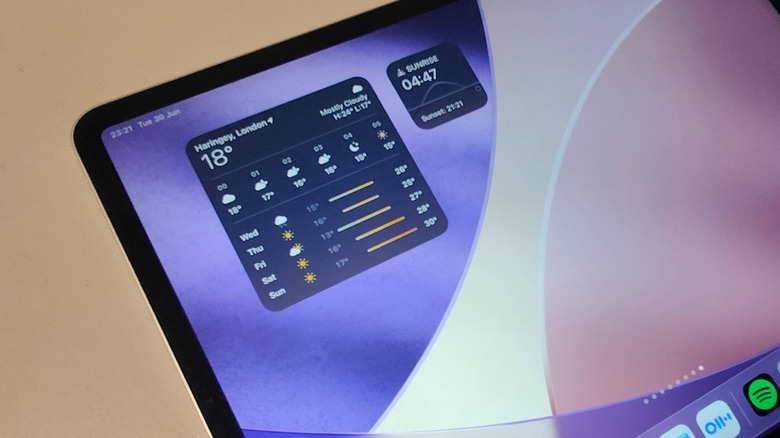
Some widgets aren't for functions or tasks, but serve better as reminders or notifiers, and that's certainly the case for the Weather widget. Its six different options sit on your home page, giving you information about different metrics depending on which you pick: a daily or long-range forecast, sunrise and sunset times, UV index, precipitation chance, and more nuggets of information are available, in small or medium-sized widgets. This data comes from the Weather app, another pre-installed Apple tool, which is also where the widget stems from.
This option is a popular recommendation due to how simple it is, giving you snippets of information without overloading you. I found it handy for this reason: you only have to devote a small amount of your iPad's main menu to it, and its clean interface means you don't need to spend a long time parsing its information. In fact, some Reddit users find weather widgets so useful, they even recommend getting multiple versions, so you can show different types of information at once.
Batteries, to control your accessories
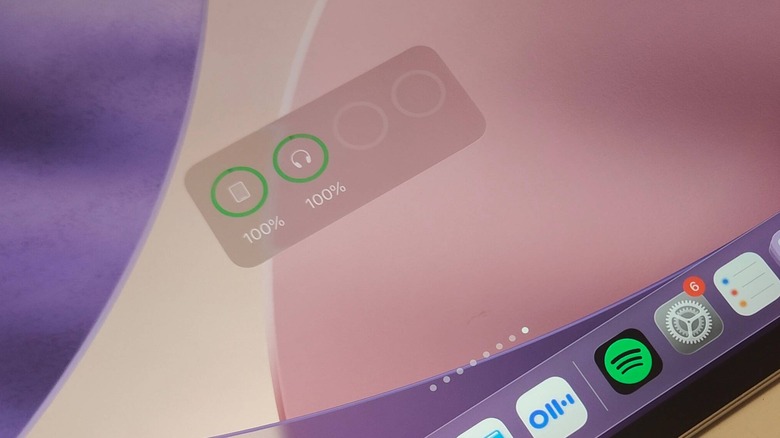
If you own multiple Bluetooth accessories, the Batteries widget is a must-use — it's a tool this writer has used for years now. The Batteries widget tells you the battery percentage of both your iPad and any peripherals connected wirelessly to the slate. If you own any of the iPad accessories people use every day, like the Apple Pencil, headphones, a wireless keyboard or external display, you'll find it incredibly handy to know which will need a charge soon
I've used it for years to keep tabs on my stylus and earbuds for that exact reason, and users often recommend it as a way to keep tabs on your AirPods or keyboard. Different widget sizes cater for different numbers of accessories: if you don't have any, the simple square iPad status box will do, but two larger widgets give you percentage rundowns of four devices, or more in-depth lists of multiple gadgets.
Photos, to display memories or moments
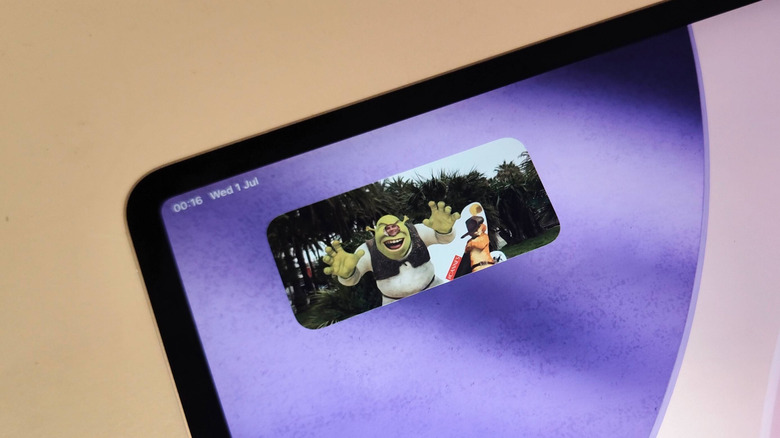
If you have a particular image you like seeing, you can use the Photos widget to keep it displayed on your iPad's home page. There are a range of size options, so you can fit a little thumbnail amongst your apps or throw up a massive banner-sized image. The widgets are broken into two categories: Featured and Album. Featured widgets show a slideshow of Featured Photos and Memories, while the Album widgets let you pick an album for the widget to cycle through.
Reddit users recount using big Photos widgets to revel in happy memories, and as someone who's had a medium-sized Photos widget on the first page of their iPad since they turned it on, it is fun as a way to remind you about the old days. However, it can be quite confusing working out which photos are included in the Featured slideshow, so I'd recommend using the Albums function instead so you know which photos will and won't appear on your tablet's main menu.
Notes, to easily jot or find ideas
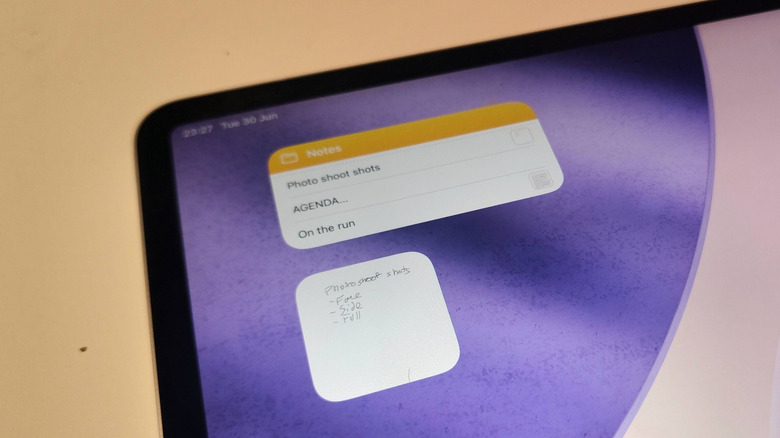
It's easy to dismiss the Notes app as a quick jot-board for reminders and ideas, but if you use the hidden iPad Notes app tricks you've been sleeping on, you'll find that it can be a useful tablet tool — and making the most of its widgets is a important way of doing just that. There are two key types: Folder lets you see a list of your most recent notes, which you can select to open them up, and Quick Note gives you a one-press button that opens a recent quick note so you can keep hammering out an idea. Each come in a variety of shapes and sizes.
Since I use my tablet professionally for work, I find the Folder function very useful as a way to get easy access to documents, note lists or drafts that I've been working on recently, and many Reddit users concur that, if you use Notes recently, the widget is a must-get. If you own an Apple Pencil, using the Quick Note widget to speedily open up a blank slate is an underrated iOS Apple Pencil function that lets you write down ideas as quick as possible.
Calendar, to find your place in the month
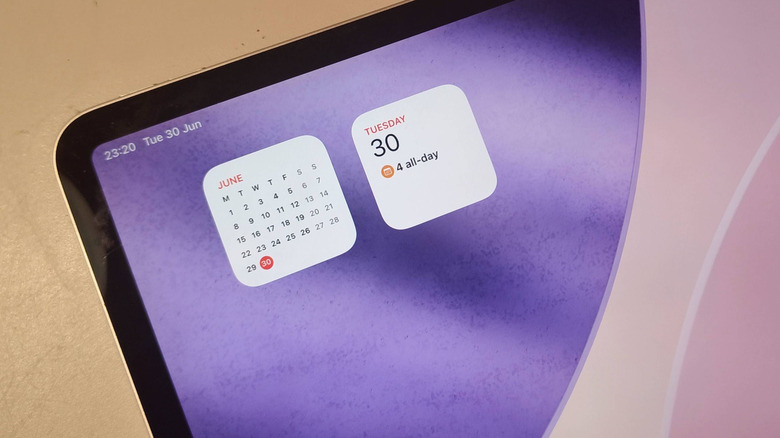
On the surface, the Calendar widgets seem to serve a similar purpose to the Reminders one. Since they both show the days of the week with a list of important occurrences, I initially planned only to include one. However, after using both a while, the differences between the two showed themselves — Reminders is useful for professional users who have work commitments they need to be pestered about, but Calendar is a gentler reminder of what's coming up
There are seven Calendar widgets in total, displaying a varying number of future dates and listing events you've saved to your calendar. Some other options also simply show you the current date, or where we are in the month, so it makes sense to add multiple for different purposes. On Reddit, users mention using the smaller calendar to easily see where we are in the month, though recommend playing around with the widget's settings to customize it as much as possible.
Stocks, to keep informed of the economy
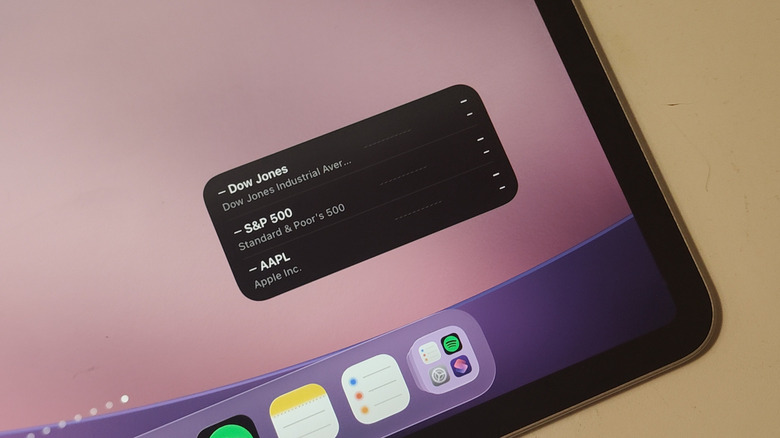
If you like to keep on top of the stock market or the economy, you probably already check out Apple's Stocks app frequently. Like many other apps on this list, Stocks comes pre-installed on iPads, and it lets you track the market and gain financial data on major companies or funds. The widgets come in a range of sizes, and two main forms: Watchlist, which lets you monitor a select range of companies, or Symbol, which gives you in-depth data on one specific company.
While perhaps not useful for everyone, the Stocks app's widget is occasionally recommended by tablet users. No, it's not just useful for people who invest in the stock market, but it's mentioned as a way to keep up with a country's currency values and exchange rate. I also find it interesting as a way to monitor the economy as a whole — even if I don't own shares in any of the companies, seeing raises or declines in values can inform me as to the state of the world. If you do own shares or stocks, though, it's likely a vital tool.
Wikipedia, to learn more about the world
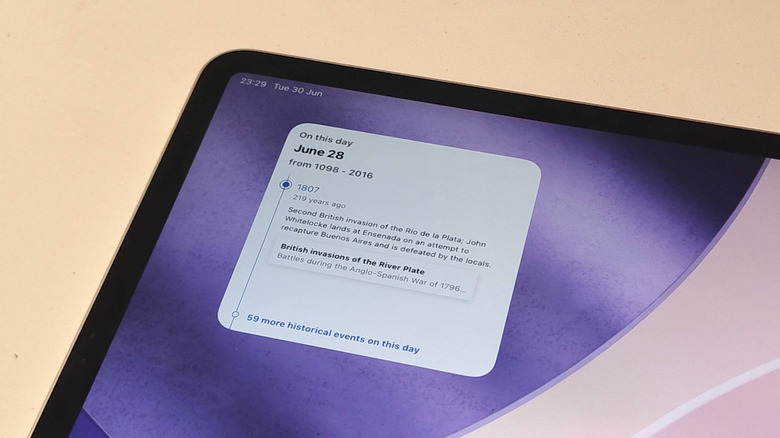
If you have the Wikipedia app to learn more about the world, then you'll be glad to know that the online encyclopedia's fun facts can sit straight on your home page. Tablet users often recommend the widget as a way to gain new information each day, with some users saying they find them informative.
The site's app offers a range of widgets: Picture of the day gives you an interesting image each day; On This Day tells you what happened on the same day of the year in history, Featured Article lets you jump straight to Wikipedia's featured article, Top Read lets you see what's popular on the site at the moment, and occasionally new ones appear too. Each widget is available in a range of sizes, to suit your home page, and so you can choose what kind of information you'd like to learn... or, if you're like me, you'll add loads of them so you can stay informed. My favorite is the Top Read list: not only do you know what's in the zeitgeist right now, but you learn by reading the article too. A close second is Photo of the Day, which functions like the Photos app, but puts onto my home screen a far more professional image than I could ever capture.
Kindle, to encourage you to read more
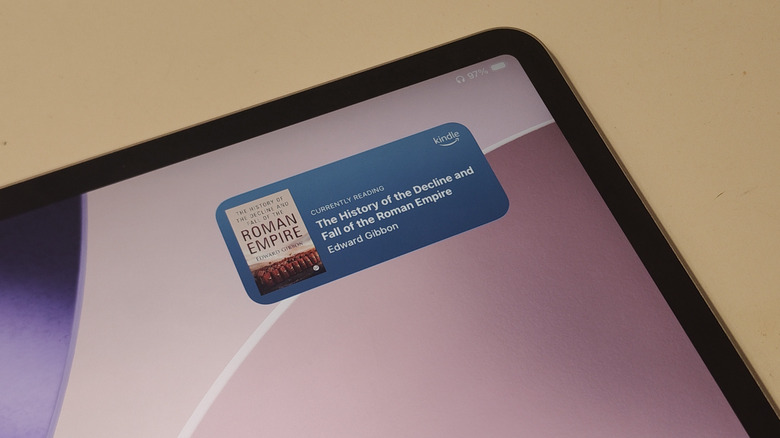
Compared to some of the other widgets on this list, the Kindle app's home screen companion has an incredibly simple function. Rather than reminding you of reading deadlines, giving you a book forecast for the week, or looking back at books you've previously read, the Kindle widget's main purpose is the Currently Reading tool. It's simple but effective, and it lets you jump back into what you're currently reading at the tap of the widget. There's a second widget that basically does the same, but it's for audio books.
Kindle app readers love the iOS Currently Reading widget, stating that it reminds them to read more, and that's exactly why I use it too — it's a lot easier to use the widget, than to open the Kindle app and then open your most recent read. The ease of use makes jumping back into your current novel a tempting alternative to doomscrolling, since they're both equally accessible. The Kindle widget doesn't always appear at the top of iPad users' widget recommendation lists, but it is a handy extra if you read via the Kindle app.
Methodology
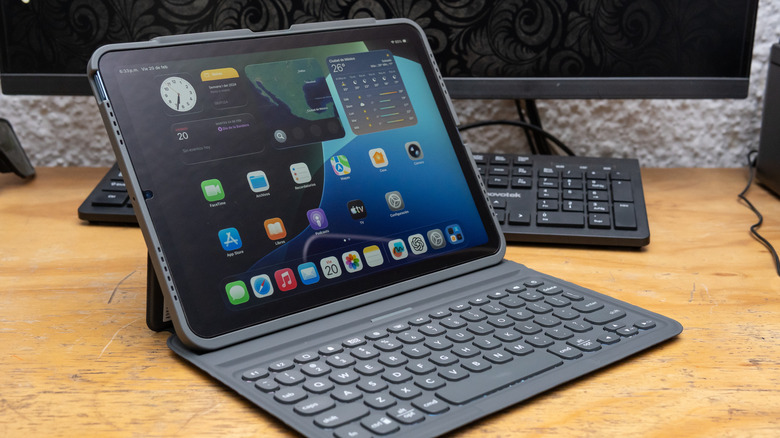
The 10 app widgets listed in the above article were all found by browsing various threads on Reddit to find suggestions, including iPad and iOS subreddits as well as ones for the particular communities like weather fans or Kindle users. The opinions of these users were considered to deem a widget worthy of the list, while the author's opinions and prior experience — nearly a decade as a tech journalist — were tapped to add color and insight into each of the widgets.
The author is a tech journalist of nearly a decade, who has reviewed iPads and frequently covers tablet hardware and software for various brands. All the images used in this article, with the exception of the one used at the top of the methodology section, were taken by him using his iPad during the writing of this article. The order of this list isn't dictated by quality, but instead widgets that have been recommended more frequently are mentioned higher in the article.