

5 Browser Settings You Should Review More Often
Browsers remain our primary gateway to the internet, allowing us to access millions of websites within seconds. But this reliance on browsers has its downsides. A wide array of internet-based techniques and threats exist that could track your activity, build a profile of you, and steal stored data, including passwords. The problem isn't always the browser itself, but the way it's configured and how you use it.
Many simply install a browser and start using it with the default settings. That's precisely the problem because, sometimes, these settings prioritize convenience over security and privacy. Whether it's saved passwords, third-party cookies, performance, startup behavior, sending data back to the developer, or even AI-related settings, it's important to regularly review these for a more secure and personalized browsing experience. Keep in mind that this applies to all browsers, including Google Chrome, Microsoft Edge, Mozilla Firefox, Opera, Brave, and Vivaldi. For some browsers, the defaults are relatively more security-oriented, but it's still worth reviewing the security and privacy settings from time to time, especially after an update.
The good news is that reviewing critical browser settings isn't as tricky or time-consuming as it seems. In most cases, it takes only a few minutes, and the settings are pretty much self-explanatory. In the sections below, we have explained the steps for reviewing several critical browser settings in Google Chrome since it has the biggest market share, but the idea remains the same for other browsers.
Saved passwords and other sign-in data
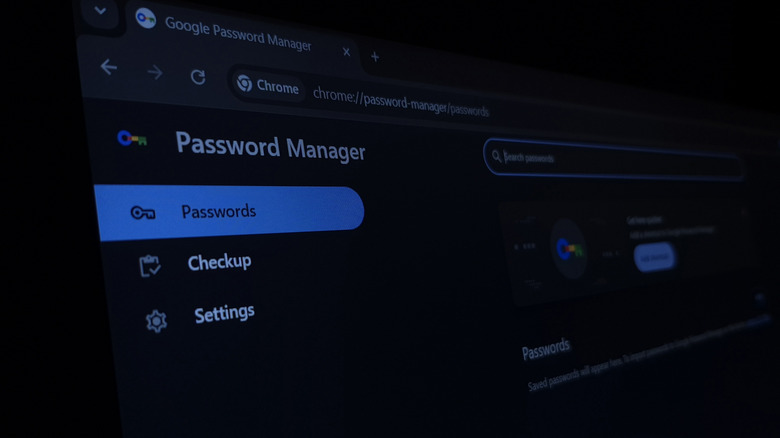
Almost every browser now offers a built-in password manager to streamline your sign-in experience to websites and services. You can quickly save passwords and auto-fetch them on subsequent logins. But these built-in password managers, though convenient, aren't always the most secure option compared to available alternatives. That's the reason many privacy-conscious users go with top-rated dedicated password managers instead. Remember, though, that browser-based password managers have improved significantly over the years. For example, Google Chrome's Windows Hello integration adds another step to the authentication process, making it harder for anyone to misuse your passwords.
If you are saving passwords to your browser, it's worth checking them every once in a while, especially to look out for passwords that might have been exposed in a data breach. To do that, open Google Chrome, click the ellipsis near the top right, select Settings, go into "Autofill and passwords," select Google Password Manager, navigate to the Checkup tab, and look under compromised passwords to see whether any of your passwords appeared in a data breach.
Also, within Google Password Manager, go to the Settings tab and enable the "Use Windows Hello when filling passwords" option. As explained earlier, Chrome will now ask for your Windows PC's PIN or biometric authentication before filling in a password. This helps if you share the PC with others. Lastly, you can turn off "Enhanced autofill" under "Autofill and passwords" on Chrome if it's currently turned on. This is largely a privacy-oriented change, since with enhanced autofill enabled, your browser sends back some data to Google.
Third-party cookies

Cookies aren't inherently bad. They allow websites to remember your login sessions and language preferences, and to make suggestions based on past activity on the website. All of this is essential to a personalized browsing experience. Without cookies, your browsing sessions wouldn't be nearly as streamlined as they are today. But third-party cookies generally have a different purpose, and you'll want to consider disabling them if you prioritize privacy.
Third-party cookies, as the name suggests, aren't created by the webpage you are visiting, but by another website. These cookies are often used to collect data about your web activity and then serve ads that match your interests (as determined by some algorithm). So, the next time you are shown ads for something you searched online, you will know why. The good news is that browsers now offer more control over third-party cookies.
To disable third-party cookies, go to Chrome's built-in Settings, head to "Privacy & security," then click on "Third-party cookies," and select the "Block third-party cookies" option. Under it, disable "Allow related sites to see your activity in the group." Next, turn on the option that allows you to send a "Do Not Track" request while you're browsing. Also, from now on, make it a point to consider rejecting cookie requests instead of allowing them whenever possible from websites you don't trust.
Performance and startup settings
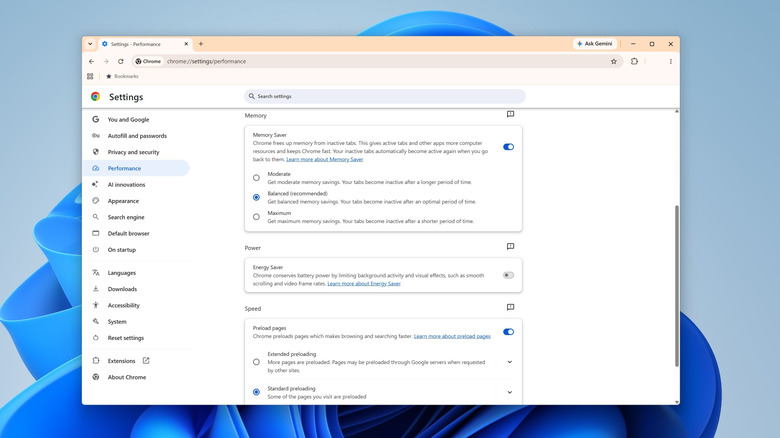
If we were to look beyond security and privacy, probably the second most important aspect for any web browser is performance. And it's not just the browser's performance but also that of the device it runs on. So, if your browser feels slower or consumes significant system resources, such as RAM or CPU, it's worth reviewing the performance-related settings.
For that, open Chrome's settings, go to Performance, and enable Memory Saver if it's turned off. This feature is designed to free up memory being consumed by tabs you are not actively using. The freed-up RAM can then be used by the active tabs or other programs you are running on the PC. As for selecting a Memory Saver mode, Balanced works best for most users. You can also experiment with Moderate or Maximum. The idea is to find a mode that works best for you. Additionally, if Chrome feels slow when your laptop isn't plugged in or when the battery level is low, consider disabling Energy Saver. That option is available on Windows, macOS, and ChromeOS devices featuring a built-in battery.
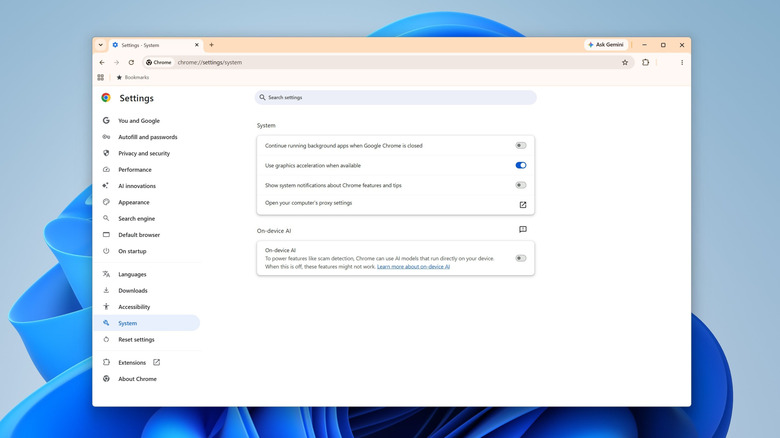
Now, go to the Startup tab of Chrome settings, and select "Open a new tab." This can help Chrome launch faster since it doesn't have to load a bunch of webpages from your previous session. Lastly, under System, turn off "Continue running background apps when Google Chrome is closed" to disable background activity after you have closed the browser.
Installed extensions
Most of us install extensions to expand the browser's functionality without thinking twice. This includes extensions for essential functionalities like blocking ads, managing passwords, checking grammar, or simply streamlining the browsing experience. But browser extensions can often be a security risk if you take into account the permissions most extensions have and the fact that they can be compromised. This does not mean that all extensions are risky, but those from small publishers without the required resources may sometimes lack robust security safeguards. There have also been cases where popular extensions were sold to malicious actors and then used to harvest user data and serve potentially harmful ads.
When it comes to extensions, the approach is simple: the fewer, the better. And make sure to only install extensions from the browser's dedicated store. For Google Chrome and other Chromium-based browsers, you have the Chrome Web Store. For Firefox, it's Mozilla Add-Ons. Other than that, you should periodically review installed extensions and remove any that you no longer need. It's also a good idea to avoid extensions that haven't been updated in a while. To review and remove extensions, launch the browser, click on Extensions in the toolbar, select Manage extensions, look through the list, and remove any you don't trust or no longer need.
AI-related settings
Most browsers now come with some degree of AI integration, and while that's not necessarily bad, there's no denying that not everyone benefits from it. There are also some aspects of AI use that are often overlooked. For instance, when you use Chrome's "Help me write" feature, it sends much of that information back to Google, which may be seen by a human reviewer and will definitely be seen by machines.
Apart from that, Chrome recently installed a 4GB AI model file on PCs. Many users quickly removed it once they realized what had happened, but the episode serves as a stark reminder that browsers can be invasive at times, often at the cost of your system's privacy, usability, and performance. So, you need to periodically review the AI technology and related settings within your browser. It's becoming increasingly important as AI integration is on the rise, and your browser may add more features without you even realizing it.
To see what your browser has going on under the hood, open Chrome's settings, go into AI innovations, look through the available options, and disable any you don't need. If you want, you can also navigate to the System tab and disable the "On-device AI" option. This setting, when enabled, allows Chrome to download and run AI models locally on the system. You will find similar settings in other browsers too, although a few, like Vivaldi, have avoided adding AI features so far.