

You Can Play Epic And GOG Games On Your Steam Machine - Here's How
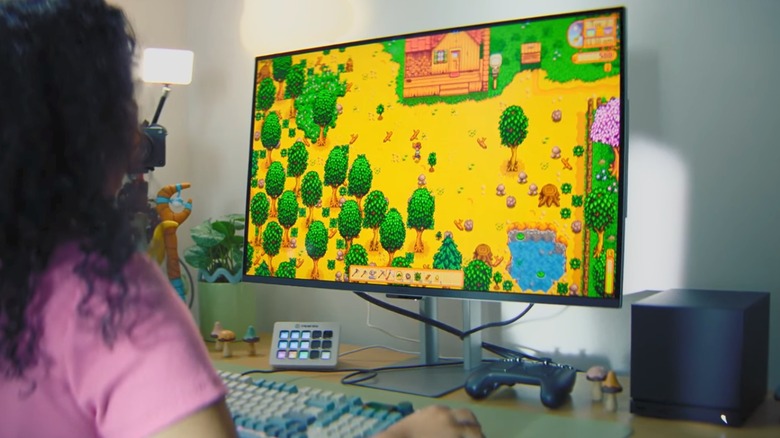
While the Steam Machine is an expensive device, it is still cheaper than buying a high-end gaming PC. Plus, you can play all your games on your TV. However, you are limited to Steam's library. What if you want to play "Alan Wake 2" or "Genshin Impact?" Either use a different console or install a special (and free) app on the Steam Machine.
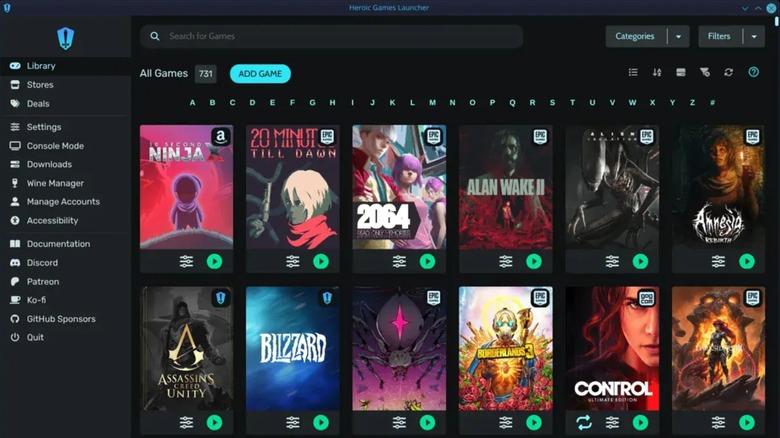
While the Steam Machine looks like a cross between an Xbox Series X and a Nintendo GameCube, at its core, the platform is little more than a computer running on Linux instead of Windows. It uses a custom Linux operating system known as SteamOS, but it is a Linux machine nonetheless, which means you can install apps that let you sideload programs (install them from outside the official app store), specifically games in your Epic and GOG libraries. The most popular of these is the Heroic Games Launcher. This program is an open-source launcher that collects your game libraries under one digital roof.
The Heroic Games Launcher was originally designed for Linux, Windows, and macOS, but since the Steam Machine is technically a Linux platform, the program also works on it. However, you will need a bit of time and effort to install the launcher since, like many sideloading programs, just because something can function on a Steam Machine doesn't mean it was meant to.
How to set up the Heroic Games Launcher on your Steam Machine
While you can install the Heroic Games Launcher on the Steam Machine, you can't do so from the main menu. To start, you need to access Desktop Mode, which you might be familiar with if you own a Steam Deck. To activate the Steam Machine's version, press the Steam menu button on the bottom-left corner, select Power, then Switch to Desktop.
Once you are on the desktop, you can begin installing the Heroic Games Launcher in earnest. First, open the Discover store — click on the icon that looks like a blue shopping bag in the taskbar if it doesn't start automatically. From there, search for "Heroic Games Launcher" and click the Install button on the right side of the search result that reads "Heroic."
After the Heroic Games Launcher is installed, launch it. If this is your first time opening the program, close out of the patch notes and decide whether to send "anonymous analytics." Now it's time to start adding games. Select "Log In," pick the account you want to link to Heroic, and follow the on-screen instructions. Repeat for all the accounts you want to use. The app will then populate your library with games. While it's processing, you should install the latest version of Proton (a compatibility layer that lets you play Windows games on a Linux system) by clicking Wine Manager, then clicking the Install button next to the latest version of Proton. Don't forget to go to the Settings menu, followed by Game Defaults, and then select the Proton layer in the Wine Version dropdown menu. All that's left to do is go to the General menu under Settings and toggle on Add games to Steam automatically.
Not all games work right out of the gate ... if at all

If you have done everything correctly, you are ready to install non-Steam games on your Steam Machine. Just press the Install button under a game's thumbnail, click Install in the window that pops up, then click Return to Gaming Mode once the process is finished. You should find your game in the Non-Steam section of your library.
You should be aware before you do all this that not every game works flawlessly on the Steam Machine. Since the Heroic Games Launcher relies on Proton to enforce compatibility, you need to make sure you have the correct version. While the latest one usually works, some games are only compatible with certain versions. If you want to install a particular game, visit ProtonDB to check if it needs a specific iteration of Proton. Then install it via the Wine Manager. When you download a game, click Show Wine settings in the installation menu, then select the compatible Proton version from the Wine version dropdown. Doing so will ensure the game runs as smoothly as possible. In fact, when you want to install any game on a Steam Machine, avoid relying on Valve's rating system and just see what ProtonDB has to say about the game.
Unfortunately, some non-Steam games suffer from issues that not even Proton can fix. Case in point: "Fortnite." You can download the game from the Epic Games Store, but it uses kernel-level anti-cheat software that doesn't work on Linux devices. Without the anti-cheat, the game doesn't run, and no amount of compatibility layers can fix that. If you want to install any multiplayer titles on your Steam Machine, first research the anti-cheat programs they use and whether they are compatible with Linux.