

5 Things Your Android Phone's Power Button Can Do (Besides Turning It On)
Your phone's power, or side button as Samsung calls it, is probably one of the most-used buttons, though you might only be using to turn the display on and off. But it can do much more, from launching your digital assistant and opening the camera to triggering the Emergency SOS feature and loading accessibility features. Really, there are a number of ways you can use the power button to streamline your Android phone experience. Some of these shortcuts are set up by default, while a few need to be configured manually.
Once you start using them, everyday tasks should feel simpler, saving you time and effort. The good news is that most of these shortcuts work across Android devices, including those from Samsung, Google, OnePlus, and Motorola. However, since Android can appear and behave differently depending on the manufacturer, these power button shortcuts may vary. Additionally, the Android version you are running plays a role. But a quick look through your phone's settings will clear that up, and you can generally customize these shortcuts to align with your requirements.
Launch the digital assistant
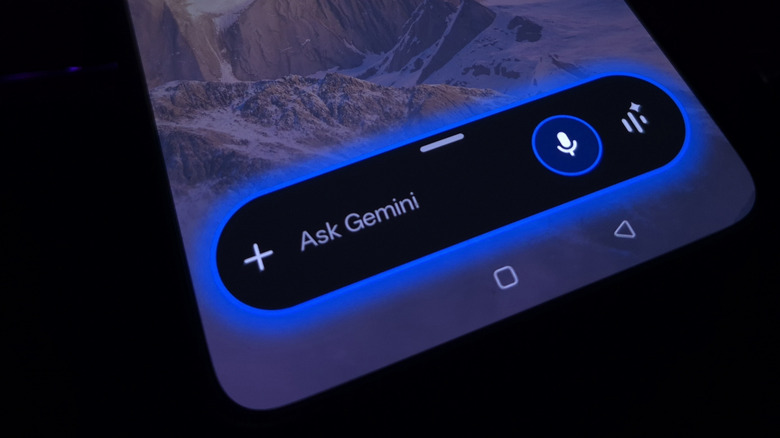
On many of the coolest new Android phones for 2026, including those from Samsung and Google, long-pressing the power button launches the configured virtual assistant, which is usually Gemini. The change is recent, and as a result, many users may simply be unaware of the feature. Not so long ago, holding the power button triggered the power menu. But that functionality is slowly being replaced with the digital assistant, which is practical for people who rely on Gemini. Depending on the smartphone model, you can configure which digital assistant launches upon a long-press of the power button.
To do that on a Samsung phone, open "Settings," go into "Advanced Features," choose "Side Button," select "Long press," and pick from the available assistants. You will also find the "Power menu" option, which reverts pressing and holding the power button to its default function: Opening the power menu with Power Off and Restart options. On other Android smartphones, like the Google Pixel, open "Settings," go to "System," then into "Gestures," select "Press & hold power button," and choose what you want the action to do.
Open the camera
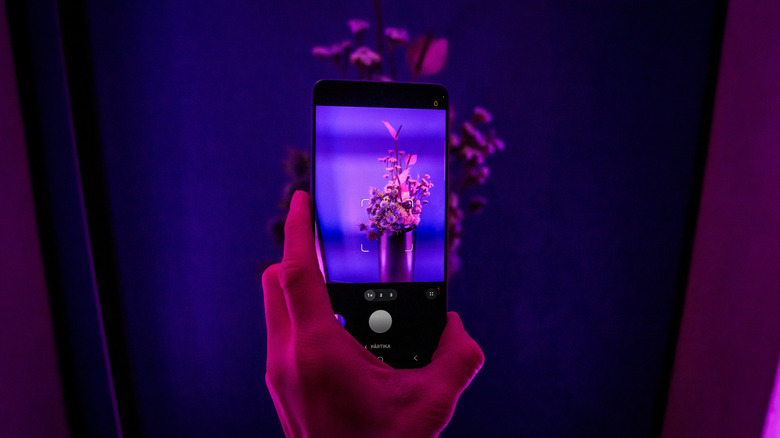
Most of us have at some point missed a perfect shot because the phone's camera took too long to open. This doesn't necessarily mean you need to worry that your Android needs help running like it's new, but turning on the screen and opening the camera app can take a few seconds, which sometimes makes all the difference. That's where using the power button to open the camera comes into the picture. On many Android phones, double-pressing power opens the camera app with the rear-facing view.
With Samsung smartphones, you can customize it further, selecting whether the shortcut defaults to video recorder, front camera view, or portrait mode. To do so, open "Settings," go into "Advanced Features," select "Side Button," then choose "Double press." Press the gear icon next to "Camera," and pick the action you want the shortcut to perform. Apart from that, you can configure this shortcut on Samsung phones for a host of other functions, including turning on the flashlight and launching the Voice Recorder. On Google Pixel, you can configure the shortcut by navigating to Settings > System > Gestures > Double press power button, and choosing between Camera and Wallet.
End calls
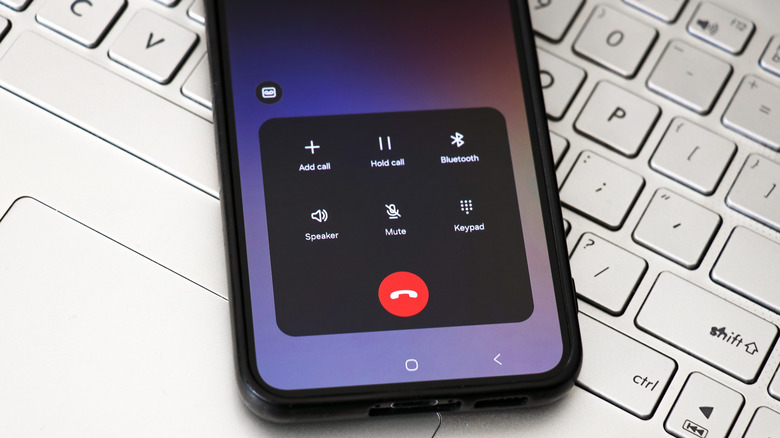
Another smart way to use the power button on your Android smartphone is to end active calls. It's convenient and saves time, especially when using the touchscreen is not a feasible option. On most phones, you need to turn it on under Accessibility settings. To do so on a Samsung phone, open Settings, go to "Accessibility," then into "Interaction and dexterity." Select "Answering and ending calls," and enable the "Press Side button to end calls" option.
With a Google Pixel, launch Settings, select "Accessibility," navigate to "System controls", and turn on the "Power button ends call" toggle. From now on, whenever you are on a call and want to disconnect it, simply press the power button once. Instead of turning off the screen, it will end the call. Remember, on many Android phones, pressing the power button also silences incoming calls. So, if the phone is ringing, pressing the power button will silence the call, but during active calls, pressing the button will disconnect it.
Activate Emergency SOS
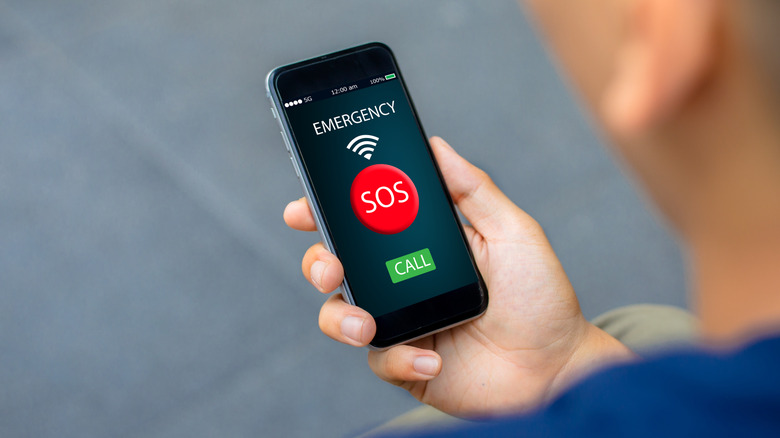
Most modern smartphones, including Android and iOS, include an Emergency SOS feature. As the name suggests, it's a key emergency feature to enable on your Android before it's too late, and mostly works the same way across smartphones. On Samsung devices, you can activate Emergency SOS by pressing the power button three or five times — depending on model — in quick succession. Based on your phone and how Emergency SOS is configured, this feature can call emergency services and send an SOS to emergency contacts along with your location after a short countdown.
If you want to set up Emergency SOS on a Samsung phone, open "Settings," select "Safety & Emergency," and configure the details. Under Emergency contacts, you can add or remove trusted contacts. With Emergency sharing, you can choose whether to attach photos and recordings along with the SOS text. It's also possible to adjust the countdown timer on some Android smartphones.
Load accessibility features
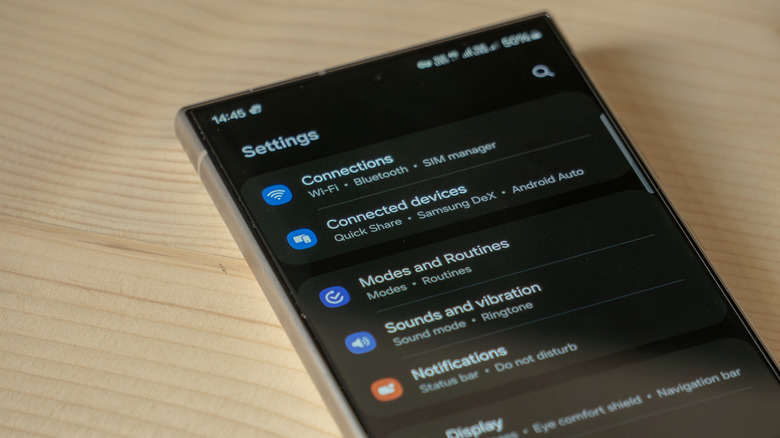
There are a host of Android accessibility features worth trying that are aimed at streamlining your experience. These include TalkBack, Live Captions, Extra Dim, and more. The best part is that you don't have to look through the phone's settings every time you want to use an accessibility feature. On many smartphones, shortcuts tied to the power button can instantly load the desired functionality. To set it up on your Samsung phone, launch Settings, go to "Accessibility," tap "Advanced settings," and select the "Side and Volume up buttons" option.
You can then choose which features you want tied to the shortcut. After setup, you can load these accessibility shortcuts at anytime, including from the lock screen. On Google Pixel devices, you can't tie the Accessibility Menu to the phone's power button, but it can be opened using the volume buttons, the dedicated on-screen button, or a gesture. Similarly, for the other major Android phone brands, this may require a bit of pre-configuration, as is the case with most Android shortcuts.