

5 Ways To Maintain Your Samsung Phone's Battery Health For 7 Years Of Updates
Most people don't keep their phones for very long. Even if the hardware itself can still function well into the future, a lack of software support and the rapid improvement in tech make the average user snag themselves a newer model every two to four years. Fortunately, for those wanting a phone they can depend on for years to come, plenty of companies now promise software updates years down the line.
For Samsung's flagship models, this period of time is an exceptional seven years. If you get yourself a Samsung Galaxy S26 this year, you'll be getting important security updates as well as newer versions of One UI until 2033. However, if you want to continue using the same phone until then, you'll have to treat it with care, since you can only benefit from software updates if your phone is physically well.
There are many different areas you'll need to protect, but one of the most important is the battery. Unlike most other components, your phone's lithium-ion (Li-ion) battery has a limited lifespan, as batteries naturally degrade over time. You can't counteract this degradation, but you can target specific areas that increase the rate at which your battery loses its capacity. You can do this by using proper charging accessories, implementing some habits into your daily life, and avoiding extreme temperatures.
1. Avoid overheating your phone

One of the biggest dangers to any battery cell is extreme temperature. This applies to both extreme cold and extreme heat, but the latter has a much greater permanent effect. Even if you don't mind your phone getting a little toasty and the slight drop in performance that comes with it, you should still be mindful of how heat affects your smartphone's longevity.
Li-ion batteries power your phone with a controlled, continuous chemical reaction. Chemical movement is directly tied to heat; the hotter something is, the faster the particles move inside it. This interferes with the otherwise stable reaction that's happening inside your phone's battery at all times, leading to battery fluctuations in the short run and gradually lowering your battery's capacity to hold a charge.
You can't do much about the temperature outside, but there are still many ways you can protect your smartphone battery against heat. The simplest way is to stop using your phone when it gets too hot; if you're running a game that requires excessive processing and notice your phone's temperature rising, give it time to rest. If you live in a relatively hot climate, we also recommend against using your phone as an Android Auto alternative for navigation in a car, as direct sunlight paired with constant computing can heat your handset very quickly. It's also a good idea to keep wireless charging to a minimum due to how much heat it produces — or get a wireless charger with built-in cooling.
2. Don't overcharge your phone (even up to 100%)
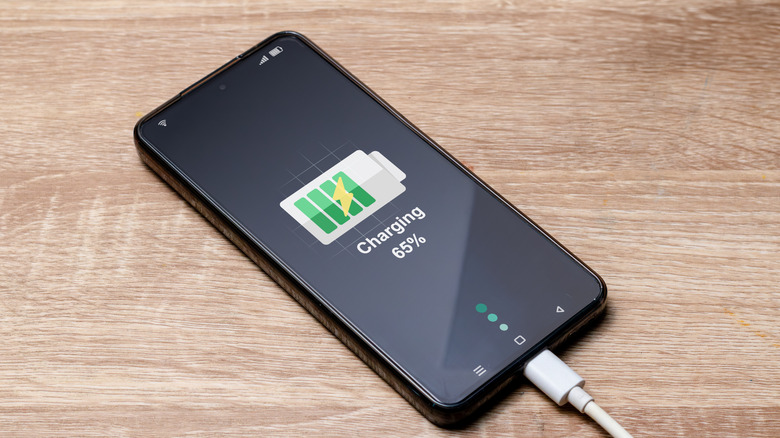
Batteries can be thought of as containers of energy, but the reality is a bit more nuanced. The way they contain energy is more similar to how a sponge soaks up water than how water fills up a cup — the higher the battery percentage, the slower the device will charge, and the more strain it will put on your phone's battery. Batteries also physically increase in size as they gain charge, though the change is usually too insignificant to cause harm. However, if you're constantly charging your phone to full, the extra damage can add up over years.
Most phones already stop taking in power once they reach 100%, but this still escalates battery degradation. There's no specific percentage where it becomes harmful — the more charge the battery holds, the more friction there will be with incoming charge. We consider 80% to be the sweet spot, where you have enough battery to last you the day while also protecting your phone's longevity.
Apart from just consciously taking the plug out when your phone's at a healthy battery percentage, you can also make use of the Battery Protection feature built into Samsung smartphones. This feature is turned on by default and stops your phone from taking in power when it's fully charged, but you can tweak it so it stops at whatever percentage you set it to, which should ideally be 80%. To do this, open the Settings app on your Samsung smartphone, scroll down and select Battery, then tap on Battery Protection. From here, tap on Maximum, and then use the slider to set the percentage.
3. Don't leave your phone's battery drained for long periods of time
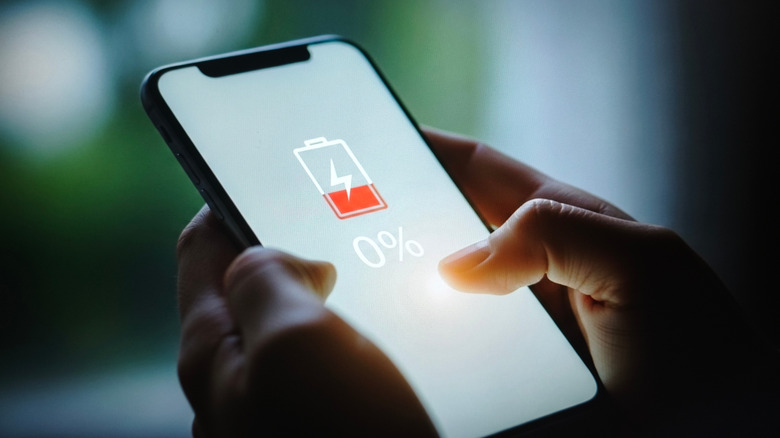
We've touched on how overcharging your Samsung phone's battery can escalate its decay, but the same is true for the opposite as well. Smartphone batteries require a constant stream of energy to continue functioning optimally. They degrade quicker the more charge-discharge cycles they go through, but they also worsen if they don't go through these cycles at all for large periods of time.
This applies mostly to those with secondary phones, but if you have a handset that you don't need all that much, leaving one turned off for days might not seem like much of an issue. However, if you depleted the phone's battery before leaving it and there aren't any positively charged electrons inside it, the battery passively degrades much faster than it otherwise would. This can cause passivation layers to build up on the positive and negative electrodes inside the battery, lowering battery capacity as well as the ability to take in charges.
This isn't a problem if you're only forgetting to charge your phone for a day while you're on vacation, but if you plan on leaving your phone shoved in a drawer for days at a time, you might not be able to make use of Samsung's full update promise — unless you get your battery replaced, that is.
4. Use proper charging accessories
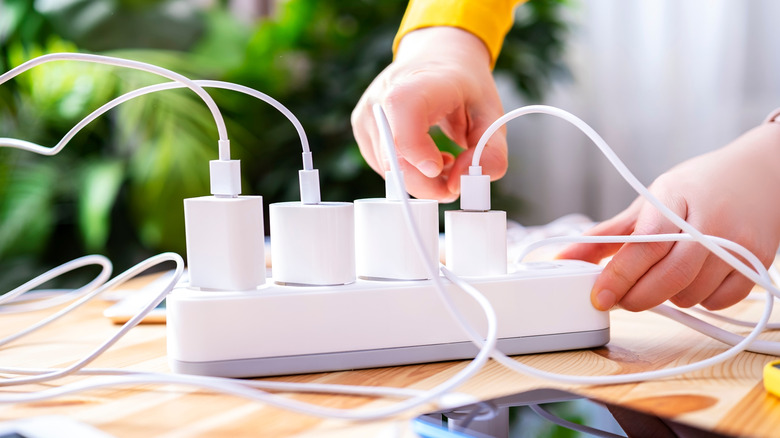
Not all chargers are made equal. While pretty much all of them will make the charging symbol pop up on your phone and will ultimately charge it, using the wrong accessories can degrade your phone's battery health, which is why you should always stay away from cheap chargers and charging cables.
Batteries, at their core, are blocks of chemical energy that produce electricity. This makes them incredibly prone to wear and extremely destructive if something goes wrong. Fortunately, reputable manufacturers will follow strict guidelines to ensure your phone's battery gets the precise amount of power it needs in the exact way that's best for it to process. If you're getting a bargain bin cable or a charging brick without a label on it, there's no guarantee that these guidelines are being followed. If the charger you use daily sends energy in inconsistent voltages or your cable repeatedly disconnects, the damage can add up very quickly.
As such, getting an official charger from Samsung is generally the best option. Anker, Belkin, and Ugreen make good options as well, though always check the labels. We recommend only opting for chargers that have the USB-IF certification. Similarly, for wireless chargers, aim for those that are Qi2 certified.
5. Stop letting your phone die
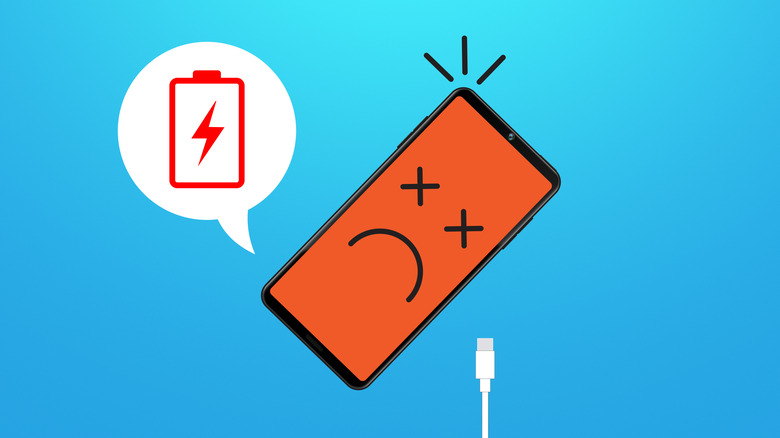
The more charge and discharge cycles your phone goes through, the faster the battery will degrade. Hearing this, you might think that it's more efficient to use up every last drop of your phone's battery before you charge it again. After all, using your phone from 100% to 0% is only one discharge cycle, whereas letting it go down to 50%, charging it to full again, and then letting it reach 50% again is two. This makes sense on paper, but in reality, this would be worse for the Li-ion battery.
The reason behind it is that discharge cycles simply aren't all equal. The time you let your phone charge or discharge also matters, but more importantly, letting the battery drain to 0% takes a toll on its longevity. Samsung already has a safety measure against this, where your phone shutting off at 0% still keeps some battery in reserve, but depending on how frequently this happens and how long the battery stays depleted, the damage can add up over time.
To ensure this doesn't happen, keep an eye out for Samsung's low battery alerts, which, by default, appear when your battery depletes to 15%. When you see one, put your phone on the charger instead of waiting — or at least stop using it for the time being. If you go the latter route, you may want to enable Power Saving mode under Settings > Battery > Power Saving. You can also customize the low battery alert by going to Settings > Modes and Routines > Low Battery. This will let you make the notification much more noticeable. In the same menu, you can make it so that Power Saving mode turns on by default when you hit a certain battery percentage.