

How To Get The Best Battery Life Out Of Your Apple Watch
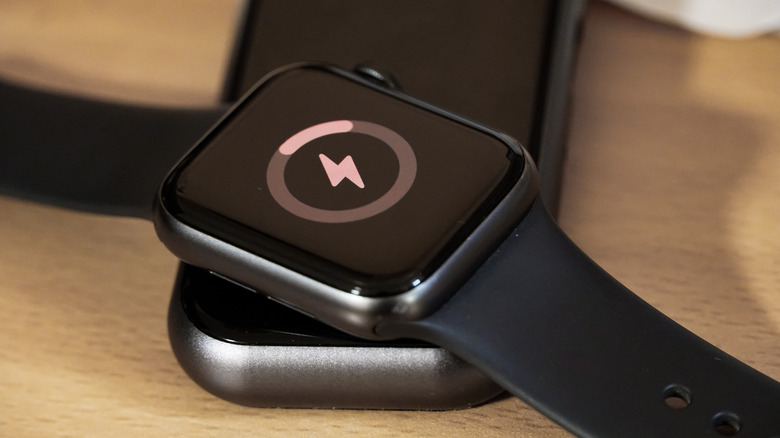
The Apple Watch has a battery issue. While Apple promises all-day battery life – with the latest Series 11 models supposed to last up to 24 hours of usage time — that's when the device is brand new, and tested under perfect conditions. In reality, those used to charging their Apple Watch every night, or every morning before work, might still need to dip into the Low Power Mode come evening time. The Apple Watch is a computer on your wrist, and as the famous saying goes, with great power comes great battery drain.
However, it's not the end of the world, or the time to give up on your Apple Watch. Take some time to delete apps, disable background processes, and turn off some features, and you'll be sailing past the one day battery mark on your Apple Watch. You can manage all of this without sacrificing core features that make the Apple Watch such a wonderful companion to the iPhone.
Assess the battery health of your Apple Watch
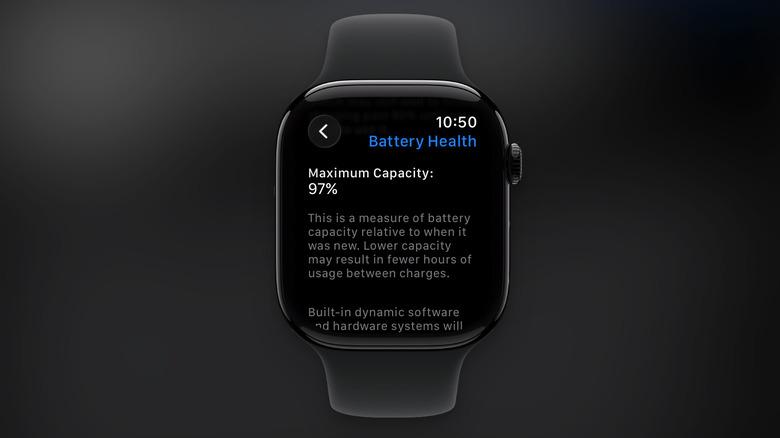
Before you start the optimization process, you should find out just how well your Apple Watch's battery is doing. Your Apple Watch shows the battery health in percentage. Go to the Settings app on your Apple Watch and navigate to Battery. At the top, you'll see the current charge level of the Apple Watch, along with a graph showing the recent charging cycle.
Scroll down and tap on Battery Health. Then, scroll down to see the Maximum Capacity for your Apple Watch. This number tells you the health of your Apple Watch battery compared to when it was new. A brand new lithium-ion battery starts out with 100% capacity, but it degrades with time. If you see that the number is below 80%, it might be a good idea to get the battery replaced. If you're not below 80%, but are still struggling to make it through the day, using the battery optimization tips below will surely help.
Make the most out of Optimized Battery Charging
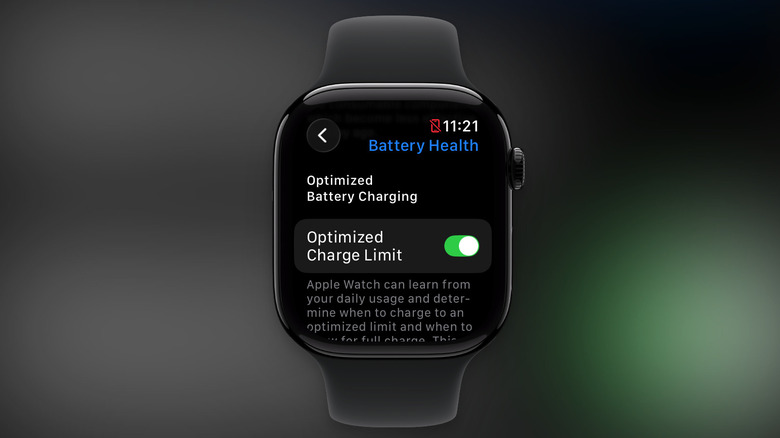
Apple Watch has a built-in feature called Optimized Battery Charging, which is enabled by default for all Apple Watch users. On the iPhone, you can set a specific charging limit to adhere to at all times. But on the Apple Watch, it's all automatic and behind the scenes. The Apple Watch uses machine learning and on-device analysis to figure out your charging patterns and your routine.
Once it has figured that out, it will charge the Apple Watch to only 80%, and will keep it at that level for a prolonged time. Right before you usually pick up the Apple Watch, it will charge the rest of the 20%, and you'll have a full battery ready to go. By not charging to 100% directly, Apple can extend the battery life of your Apple Watch.
But for this to work, you'll need a routine. It will work best if you charge your Apple Watch at night, or at the same time each day. It will only do this if it can predict that the Apple Watch will be on the charger for a long period of time. In case you want to force the Apple Watch to charge fully, tap the charging icon on the Watch screen, and tap the Charge to Full Now button. If you don't like this feature, you can disable it from Settings > Battery > Battery Health.
In a pinch, use Low Power Mode
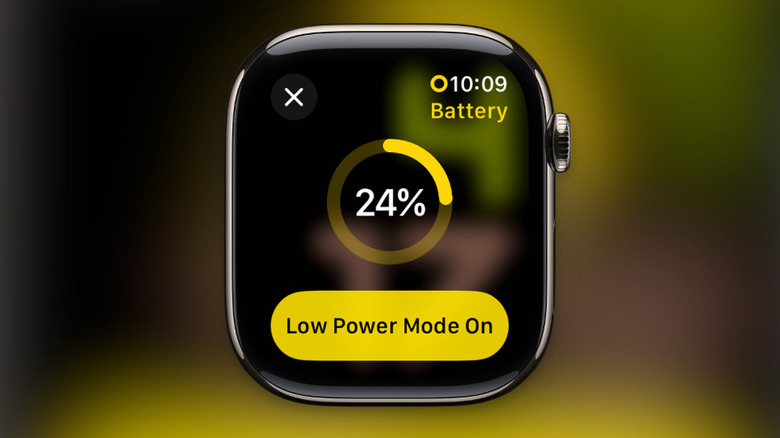
Just like on the iPhone, you should try using the Low Power Mode more often on your Apple Watch (not just when the battery drops below 10%). The Low Power Mode makes some significant changes to how your Apple Watch runs in the background, without compromising on the core functionality. The Low Power Mode disables the Always On display, wrist gestures, background heart health monitoring, and heart rate notifications. If your iPhone isn't nearby, the Low Power Mode will automatically disable Wi-Fi and cellular data (until you open an app that requires a data connection). In general, the Apple Watch will be slower to respond to Siri requests, and it might take longer to place a call, or see Live Activities updates.
This can help extend the battery life on your Apple Watch by hours. If you are traveling and struggling to get through the day on your Apple Watch, this feature can help quite a lot.
Press the Side button on the Apple Watch to open the Control Center. Then, tap the Battery icon and choose the Low Power Mode option. From the next screen, tap the Turn On button. You can turn it on for a day, two days, or three days. The Low Power Mode will stay active until the time runs out, or until you charge your Apple Watch to 80%.
Delete unnecessary apps and block automatic app installs
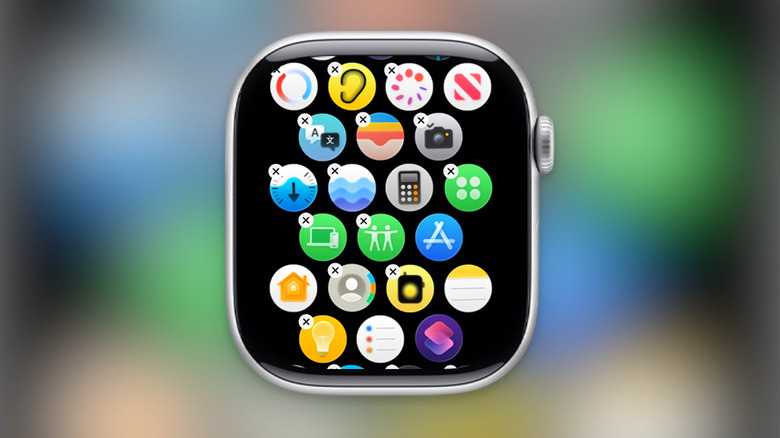
Take some time to get rid of all the apps you don't need. While there are some essential apps that every Apple Watch user needs, there are also unnecessary apps that take up storage space, background processes, and they slowly eat away at the battery as well. Apple Watch worsens this by automatically installing the Apple Watch version of every app that you download on the iPhone, though this can be disabled.
Press the Digital Crown to see a list of all your apps. Tap and hold on an app until you see the apps jiggle. Tap the X button on an app that you want to delete, then use the Delete App button to confirm. Repeat this for all the apps that you don't use. If you find this cumbersome on the Apple Watch, use the Watch app on your iPhone. Go to My Watch and scroll down to the Installed on Apple Watch section. Here, disable the Show App on Apple Watch feature.
Next, let's stop the process of automatically downloading new apps on the Apple Watch just because you downloaded the iPhone version. Go to Settings > App Store and disable the Automatic Downloads feature.
Disable the Always On display
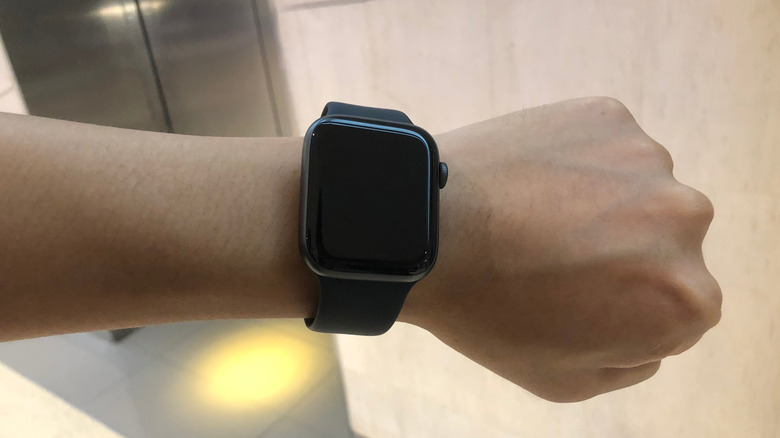
The Always On display is one of the biggest draws of the Apple Watch. It's available on all Apple Watch models from Apple Watch Series 5, SE 3, and the Ultra. Even when inactive, it can display a dimmed version of the watch face, making it easy to tell the time, and to glance at the complications without lifting your finger. As great as this feature is, it's also a huge battery drain. On a brand new Apple Watch, it might not be a big deal, but it's a different story if your Apple Watch is a couple of years old.
To disable the Always On display, go to Settings > Display & Brightness > Always On and disable the Always On feature. Now, when the Apple Watch display times out, or when you put your wrist down, the Watch display will turn off automatically, saving precious battery life. To bring it to life, just turn your wrist towards you, or lift your wrist to see the display.
If you really like this feature, but you still want to save on battery life, here's another tweak. From the Always On section, disable the features for Live Activities, Notifications, Apps, and Complication Data. This will make sure that background activity and app data aren't shown on the Always On display.
Remove annoying notifications
To boost their engagement, apps love to notify you about things trivial and important. And as the Apple Watch mirrors your iPhone notifications (along with showing notifications from on-device apps), this can get annoying quickly. But it's not just about the distractions. Each time your Apple Watch sends a notification, it's using precious background processing, haptic motors, and it's lighting up the display.
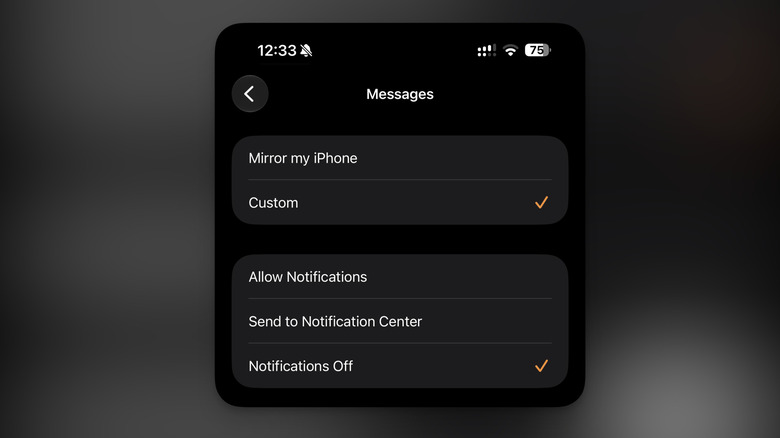
Open the Apple Watch app on your iPhone, and go to the My Watch tab. Here, go to the Notifications section and choose an app that you want to customize. Here, switch to the Notifications Off option.
For some apps, you might see Mirror My iPhone as the selected option. In this case, the notification settings for the app on your iPhone will continue on to the Apple Watch as well. But let's say you don't want notifications from an app like Mail on your wrist, but want to continue getting notifications on the iPhone. In such cases, first switch to the Custom option, then tap the Notifications Off button to disable notifications for the app on the Apple Watch.
Stop background processes
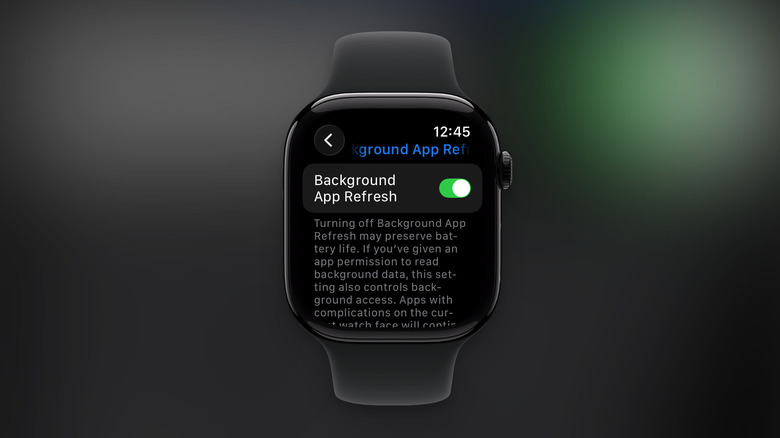
An Apple Watch app refreshing constantly in the background is a silent battery killer. There are some apps like Workout that count on background data processing, but not all apps need to do this all the time. To maximize your battery life, you can disable background app refresh altogether.
Go to Settings > General > Background App Refresh. Here, disable the Background App Refresh feature to disable the feature for all apps. Alternatively, you can scroll down and only disable it for apps you're sure you don't want to use (like the Mail app).
It's important to note that while this applies to all apps, watch face complications are the exception. If you have a watch face with eight different complications for background process-heavy apps like Mail, Weather, Messages, and so on, it might not lead to huge battery savings. Take some time to audit your watch face complications, and remove the ones that refresh constantly in the background. Tap and hold on a watch face, tap edit, switch to the Complications view, tap on a complication, scroll down, and use the Off feature to disable it.
Don't use Hey Siri
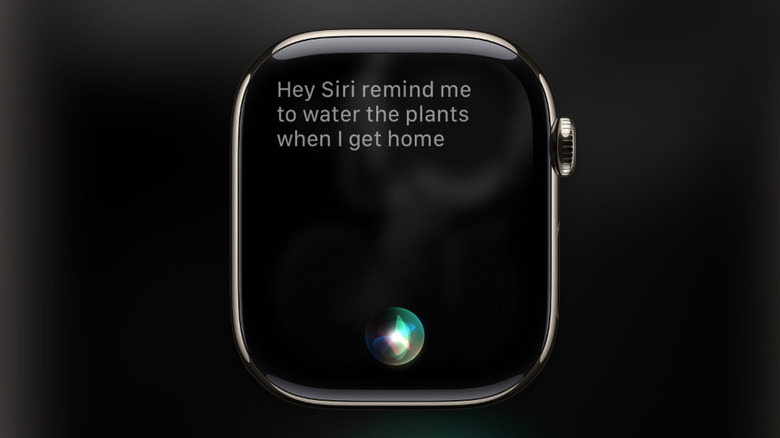
Siri on the Apple Watch is actually quite useful for daily tasks like calling people, playing music, and setting timers. The Hey Siri feature makes the process hands-free. Just lift your wrist, start speaking, and Siri gets to work. Or, use the "Hey Siri" trigger word. While this is convenient, it also consumes battery. In the background, the Apple Watch is always listening for the trigger word, or activating the Siri feature each time you raise your wrist.
If you don't use Siri often on your Apple Watch, you can disable these features to extend your battery life. Siri itself will still be available, and you can call on it any time by pressing and holding the Digital Crown. Go to Settings > Siri and disable the Raise to Speak feature first. Then, go to the Listen for option, and switch it to Off. This will disable the background monitoring for the "Hey Siri" trigger word.
Use Sleep Mode at night
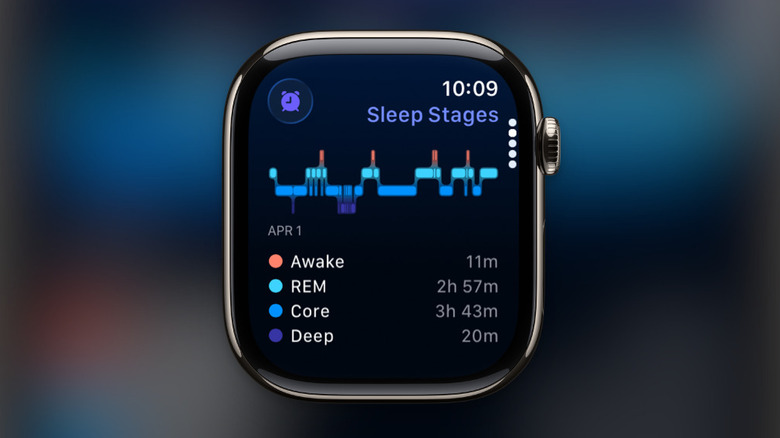
Sleep tracking is one of those essential Apple Watch features that every user should enable. Not only does it give you insights into how you sleep, it can also help save battery life on the Apple Watch. When you engage Sleep Mode, the Apple Watch basically goes dark. The Always On display is disabled, notifications don't reach you, and when you tap on the screen, you just see the time and the alarms. No watch faces, no refreshing complications, nothing.
To set this up, go to the Sleep app on your Apple Watch and enable the Sleep feature. The Apple Watch will guide you through the process of setting up a Sleep Schedule (you can also do this from the Health app on the iPhone if you find the Apple Watch screen to be too small for this setup). First, set up a sleep goal (how many hours you want to sleep), then make sure you enable the Sleep Focus feature, that disables the screen and network activity when you're in Sleep Mode. You can also choose a Wind Down time, an hour or so before your bedtime, when your Apple Watch will be in the Sleep Focus state. The Sleep Mode is quite customizable. You can set different bedtime and wake-up alarms for the weekend, or particular days of the week.
Then it will be an automatic process. Whenever the time comes around, the Apple Watch will go into Sleep Mode, saving battery, and helping you get a better night's sleep.
Customize the watch face so it doesn't eat up battery

What you put on your watch face can influence your battery life. Complications, the little shortcuts, and live data from apps eat up battery just by refreshing in the background. And they do this quite often. If you have complications to show updates about the weather, sports, location tracking, pedometer, mail, and more, the Apple Watch is working in the background for each one.
First, make sure that the only complications on your watch face are the ones you really want. Tap and hold a watch face, tap the Edit button, go to the Complications tab, and remove any complication that you don't really need live data from. You can always open the app to see more information. Instead of dynamic complications, you can use simpler complications that show the date, calendar events, and battery levels.
Instead of using a complex watch face like Modular or Infograph, that is loaded with complications, switch to a simple watch face like Numerals Duo or X-Large that only shows the time, and no other complications.