

7 Easy Ways To Transfer Photos Without Losing Quality
We may receive a commission on purchases made from links.
People who are sticklers for uncompressed, high-quality photos will undoubtedly grimace every time they receive images on a messaging app that compresses them to kingdom come. It's one of the most popular ways to share images... and also the most flawed. Regardless of how convenient it may be, no one wants to lose the quality of the amazing photos they've shot, whether they're on vacation or just having a great time with family and friends.
This is why most people will appreciate ways to send images from one device to another without losing out on quality. Some of these steps are near instantaneous, while others will take a bit of time, but the ease with which you can share photos of the highest quality without any unwanted compression remains constant. Whether online or offline, sharing images will become a cinch with all the technology at your disposal.
Use cloud storage

Cloud storage is useful for a bunch of reasons, other than letting people access an online repository of all their data, including photos that preserve their original quality. Google Photos and Apple's Photos app are perfect for Android or iOS devices, respectively, letting you back up pictures and videos to digital servers that you can access as long as you have your ID and password. They even let you create albums that can be shared with others, meaning that your latest vacation shots can be shared with ease, with other people populating these albums with pictures of their own for greater convenience.
Aside from these dedicated cloud storage apps for photos, you can also check out other services that accomplish the same task for every file you have. Google Drive, OneDrive, and Dropbox are convenient ways to upload any files to the cloud that you can access later on via any device you're logged into. As long as you avoid making a common cloud storage mistake and opt for a plan that includes enough space to back up all your photos, these services will be more than adequate to get the job done and let you share a large number of high-quality photos with ease.
Send photos via email
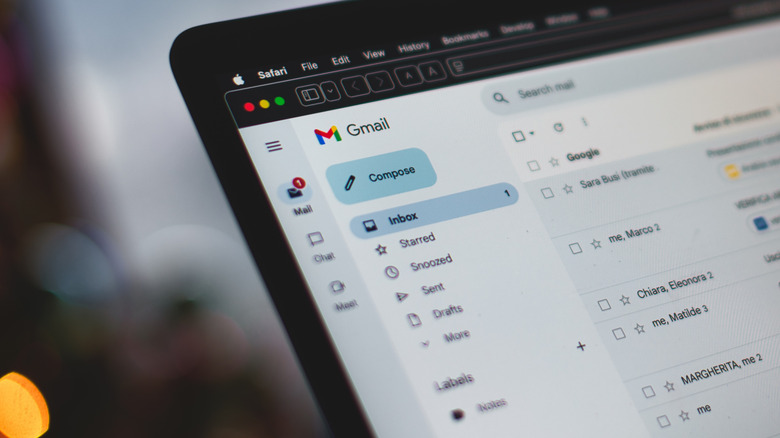
Most people use email for professional communication or to raise complaints as consumers. Sending photos via this online medium seems downright archaic, especially since pretty much every email service under the sun limits the total size of an email and its attachments to facilitate quick sending and communication. However, there is one major perk of sending images via email — as long as you stay within the size limit constraints, you can send images without having to worry about their quality getting diluted.
If you want to send a bunch of images that take up gigabytes of space, then don't assume that an email will be completely ineffective in this regard. Sure, Gmail and iCloud Mail have size limits of 25MB and 20MB, respectively, but these email clients have workarounds in place for sending larger file sizes. Gmail converts any large attachments into Google Drive links automatically, and Apple does the same by converting large attachments into a Mail Drop that uploads these files to the cloud. While the former has no constraints whatsoever, Mail Drop is limited to 5GB, which should be enough space to send a collection of high-quality photos.
Transfer photos with an external USB storage device
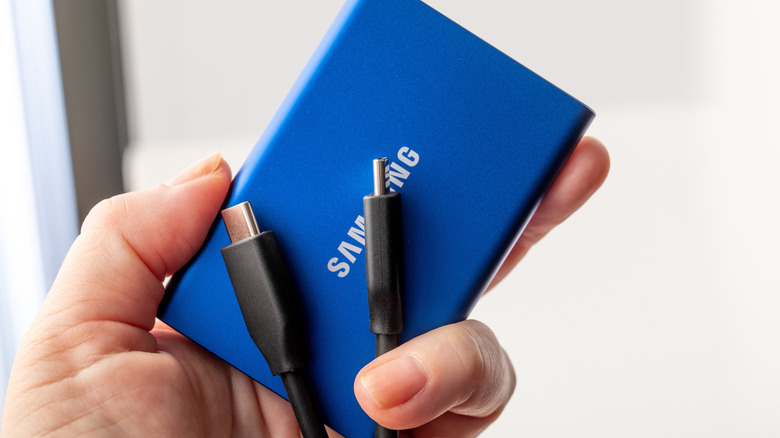
There's nothing wrong with carrying out a file transfer the old-fashioned way, before internet speeds and cloud storage became more reliable than anyone could've imagined. If you have a pen drive or an external hard drive, you can connect it to your PC and copy all your photos to it. Not only is this a simple way to move photos from one device to another, but it also serves as an offline backup of your valuable pictures that you should ideally maintain at all times.
If you want to use a simple pen drive, SanDisk and Lexar have great 128GB portable USB flash drives that come for under $30 and give you an affordable way to transfer your data. However, if you want to use an external drive as a proper storage solution that extends beyond photos, then be smart about what you want. An HDD will definitely have slower read speeds, but it's cheaper. Seagate and Western Digital are easy recommendations in this regard, letting you use drives with up to 8TB of storage space.
If swift copy-paste speeds are your utmost priority, an external SSD is the way to go. These typically cost more and provide less storage space, but do you really need that much space if your priority is to use these drives to quickly store and transfer photos? Unless portability or ridiculously high storage space — that doesn't cost an arm and a leg — is something you desire, a portable SSD from reliable manufacturers like SanDisk and Samsung is the way to go.
Airdrop and Quick Share allow for lossless image sharing
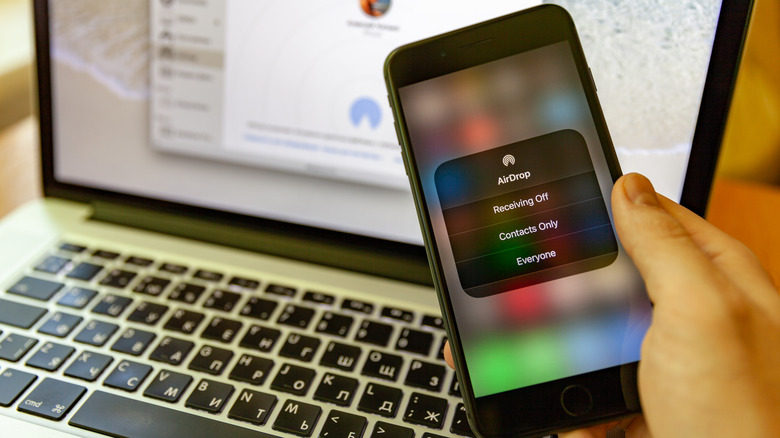
It would be impossible to talk about transferring high-quality photos without mentioning Airdrop. Apple users have enjoyed this iOS-exclusive feature for so long that it has become the easiest way to move files between Apple devices without requiring a USB stick. All they need to do is be discoverable to other iOS users, and they can use Airdrop to send and receive files. This includes photos, which preserve their original quality instead of being downgraded to kingdom come.
It wasn't until almost a decade later that Samsung and Google finally decided to launch their own versions of Airdrop, called Nearby Share and Quick Share, respectively. The lack of uniformity in wireless file sharing for Android devices was still a major pain for a while, but 2024 marked a major change. Google and Samsung decided to merge their services, making Quick Share universal across most Android devices. If that wasn't great enough as is, it only took another year for this merged Quick Share to also start supporting Airdrop. With this convenient file-sharing tech finally becoming device-agnostic, anyone with a modern Android or iOS device can share or receive high-quality photos without any issues.
Don't forget about SD and microSD cards
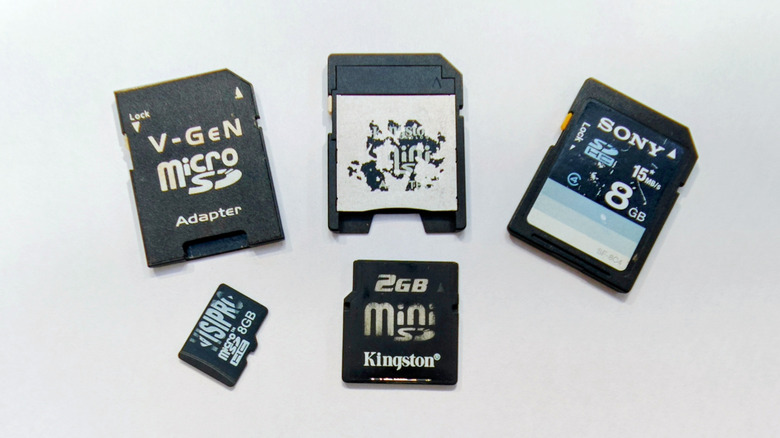
Regular USB storage devices are great for transferring photos from a laptop or desktop to another device, but what about cameras? These professional photography devices can't be too bulky if they want consumers to enjoy using them. It's also very rare to see cameras with internal memory — which, honestly speaking, should be industry standard at this point. So, how do they store photos? Simple — they use SD cards that can be attached and detached with ease. MicroSD cards are also used to enhance phone storage on some Android devices, and you can configure your device's settings so that it exclusively stores pictures and videos on it.
If you're in the market for a good SD card to store your photos — whether regular or the micro variety — then SanDisk or Lexar are great SD card brands that photographers swear by. Even Amazon Basics has you covered in this department! Speaking of which, if your laptop or desktop doesn't have an SD card reader, it's very easy to get one from Amazon. Acer, SmartQ, and Anker have competent devices that can accommodate both regular and microSD cards. Some of these also come with USB-C connectors to make them compatible with phones that don't have an in-built microSD slot. The best part is that these Amazon USB gadgets are very cheap and may even convince you to ditch cloud storage, with the vast majority of them costing less than $10.
Use WeTransfer and other such online file-sharing platforms
Anyone who's either interacted with a client or been one has definitely used WeTransfer a few times to send files that take up a lot of storage space. This cloud file-sharing service is very convenient, letting people send massive chunks of data for free to another person's email. While WeTransfer has some limitations for its free plan — files can't exceed 3GB for every attachment, only ten transfers can be initiated every month, and links expire in three days — it's still one of the most convenient ways to send massive chunks of data. Suffice it to say, people with massive photo libraries can use WeTransfer to quickly send these images to other parties without a hassle... provided the receiving party doesn't sit on these links for too long.
That being said, WeTransfer isn't the only way you can send uncompressed, high-quality photos to others. There are other alternatives worth checking out with attractive free plans of their own, which is great if you've exceeded WeTransfer's data limits. Smash is another file-transfer platform that lets you send up to 2GB of data, with these links being valid for a week after they've been generated. Hightail is a service great for smaller file transfers, allowing users to store up to 2GB of content on its servers and upload files of up to 100MB. Finally, TeraShare is another viable service with a free plan that includes up to 5GB of cloud storage, along with the ability to share this data with others.
Send photos as file attachments on messaging apps
We've already talked about how messaging apps with photo-sharing options are the biggest culprit when it comes to compressing images and downgrading their quality. Does that mean you should never send photos via WhatsApp, iMessage, Signal, Telegram, or any other messaging app of your choice? Well... not really. Sure, you should give the "Pictures" or "Photos" option a wide berth when sharing these images, but you can opt for a workaround to send photos that preserve their original quality.
Depending on the messaging app you use, you should see a "Document" or "File" option when trying to share photos. Select this and manually navigate over to your Photos library to select the pictures you want to send to a recipient. Instead of compromising their quality, these photos retain their original size, making it clear that no compression shenanigans are coming into play here. Just try to facilitate this data transfer over Wi-Fi, since your cellular network's data plan will deplete in no time as you try to download all these high-quality images.