

Should You Use A Screen Protector On Your MacBook Air?
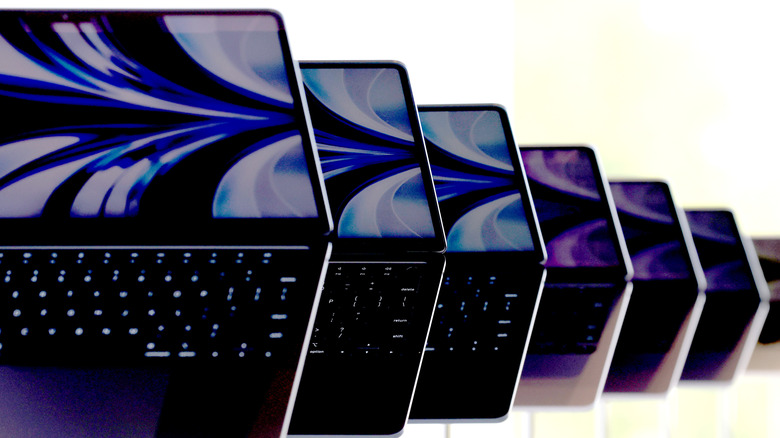
Apple does not recommend that customers use camera covers, palm rest covers, keyboard covers, or even screen protectors on its Mac notebooks. Whether you have a MacBook Neo, a MacBook Pro, or a MacBook Air, trying to give your laptop extra protection can actually do more harm than good. In a support document, the company says, "Leaving any material on your display, keyboard, or palm rest might interfere with the display when it's closed and cause damage to your display."
If you have one of the latest MacBook Air models, you can close the lid and watch how the computer closes. Pretty tight, right? Apple leaves virtually no space between the display and the keyboard, and the best way to open the lid is by using the small lip below the trackpad. Because of that tight fit, even an ultra-thin screen protector can become a problem over time if dust or debris gets trapped between the two surfaces. Likewise, putting your MacBook Air in a very tight backpack could add extra pressure that might break your display. Even though some people say they've never had an issue, including BGR staff, it's better to be safe than sorry — especially if you don't have a proper AppleCare+ plan.
How to properly keep a MacBook Air protected
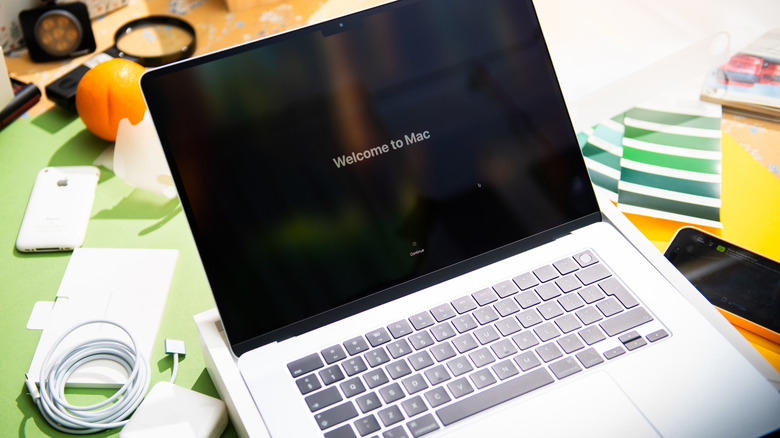
While your next thought could be, "I should put a hardshell case on my MacBook Air," this is yet another common accessory that could have a big impact on your MacBook's lifespan. Even though the MacBook Air doesn't have a fan, it's still designed to dissipate heat consistently through its aluminum enclosure. If you want to keep your MacBook Air protected, there are simpler options.
One of the easiest ways is to use the MagSafe cable. After all, if you — or someone else — trip over the cable, it just detaches without taking the laptop to the ground. Another smart investment is a laptop sleeve with a microfiber interior. This way, whenever you need to carry your laptop around, you have a protective sleeve to shield it from accidental damage and drops.
If you want to personalize your MacBook with stickers, avoid putting them where your palms rest, since they can create the same clearance issues as other accessories. Stickers on the outside lid are a safer choice, but keep in mind that you'll have to remove them before trading in your Mac at Apple.
How to take proper care of your MacBook Air display
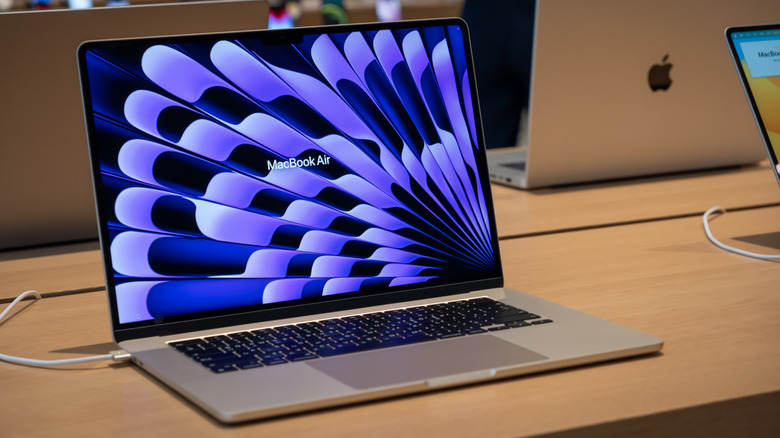
If keeping your display looking new is the goal, the good news is that maintenance is simple. For one, avoid touching the screen unnecessarily, since smudges and fingerprints build up quickly. When it's time to clean your MacBook screen, avoid cleaners with acetone, aerosol sprays, solvents, ammonia, abrasives, or generally anything you would clean your house with. Apple also recommends never spraying liquid directly on the display, as moisture could enter the device and cause damage.
Instead, shut down your MacBook Air and unplug all cables. Slightly dampen a clean, lint-free cloth (Apple's polishing cloth is an option) with water and gently wipe the display. Then use a dry one to remove remaining moisture.
MacBook displays usually have special coatings to improve readability and help reduce fingerprints. Using abrasives and harsh cleaning solutions can damage those coatings and create what is referred to as "Staingate," a cloudy, scratched-haze appearance. In most cases, doing less for your MacBook can do more good, as Apple designed it to be used as is from day one.