

8 Best Uses For The Samsung Galaxy Z Fold 8's Wide Screen
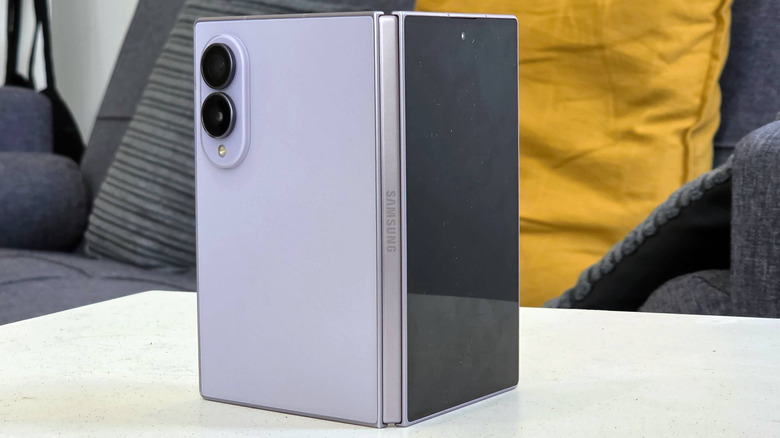
The Samsung Galaxy Z Fold 8 is a phone made for watching content. That's not a guess — the brand designed the folding phone with that feature in mind. That said, its novel form factor and its primary screen's unique aspect ratio means that it has several handy use cases beyond watching videos. In fact, many buyers are likely to find that the Galaxy Z Fold 8 beats Samsung's other foldables at performing several types of tasks.
The phone, which was first announced at Galaxy Unpacked in July 2026, differs from many of the Samsung offerings we've seen before. Alongside the Galaxy Z Fold 8 Ultra (an update of the Galaxy Z Fold 7, which is still ultra foldable), and the Z Flip 8 (an enhanced version of the Z Flip 7), the Z Fold 8 stands out for its distinct shape. With a 5.5-inch, 10:6 outer display and a 7.6-inch, 4:3 inner display — both of which are wider than those on the Z Fold 8 Ultra or previous Samsung foldables — the Z Fold 8 is being referred to by some as a "passport-style" foldable. Barring its redesigned form factor, the Z Fold 8 largely matches the Ultra in terms of specs.
As of this writing, I've been using both the Z Fold 8 and the Z Fold 8 Ultra for two weeks. After plenty of testing, I've found that several common smartphone use cases are significantly improved on large displays like the ones on these devices. However, further to that, all these uses are better experienced on the Z Fold 8 than on its nominally Ultra counterpart.
Enjoying higher-resolution mobile gaming
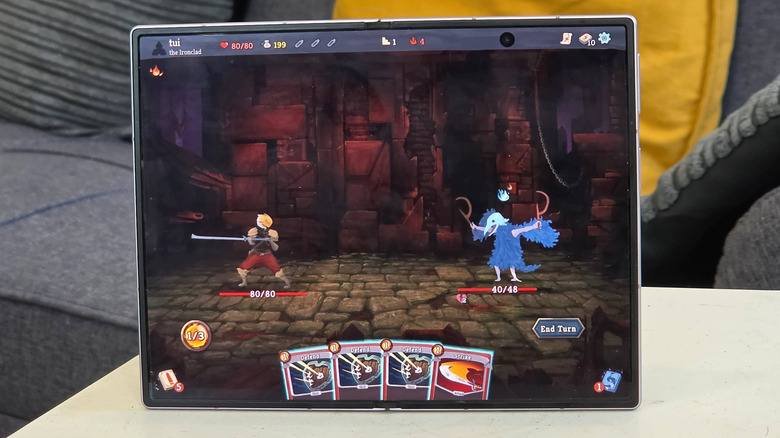
With content scaling, many developers can design mobile games to fit on many types of screens of varying aspect ratios. With their powerful Snapdragon Elite 8 Gen 5 chipsets at work, neither the Samsung Galaxy Z Fold 8 nor the Z Fold 8 Ultra will deliver a poor mobile gaming experience. However, having played plenty of games on both devices, I'm ready to declare the Z Fold 8's wider screen as superior for most titles.
Most mobile games I played on these devices seemed to have a wide but squat playable area, which aligns with the dimensions common to standard smartphones. While the added space above and below this playable area was never empty on my Z Fold 8, it wasn't typically used for important UI elements or commands, though it often featured background art or other graphical effects.
The Z Fold 8 Ultra's inner screen has a 0.9:1 aspect ratio, which is nearly a square. So, when you play mobile games on the device, there's lots of space above and below the horizontal playing area that doesn't get used, which feels uncomfortably roomy. However, on the Z Fold 8's wider main display, it felt like there was far less dead space occupying the top and bottom of the screen. As a result, the in-game action felt like it filled up more of the display, which I found led to a more immersive gaming experience.
Getting up close and personal to edit photos
One of the most essential tips and tricks for foldable phones is bending them while taking photos so they remain stable. While the Samsung Galaxy Z Fold 8 can't quite be used in this fashion because its hinge isn't designed to hold an angle firmly, the aspect ratio on its main display offers another handy photography-related perk.
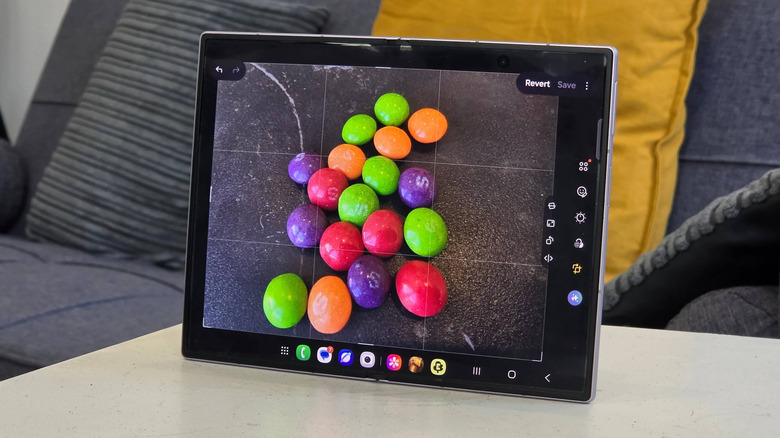
By default, the Android camera app shoots photos in a 4:3 aspect ratio, which matches the size of the Z Fold 8's full-width screen. You can always adjust that aspect ratio to 16:9, 1:1, or an option that matches your display size. However, since the Z Fold 8's full-width display has a 4:3 aspect ratio — and 4:3 is among the most popular aspect ratios used in mobile photography — most users will likely find the experience of photo viewing and editing to be especially clean and satisfying on the Z Fold 8.
When editing photos in your app of choice, whether it's the pre-installed Gallery or a third-party option, you'll find that 4:3 images look much nicer on a 4:3 screen. If your content and your display share an aspect ratio, you can view and edit photos without having to see black bars above or below them — which doesn't apply to the Z Fold 8 Ultra. I found that being able to see full images across the entire screen helped me catch more details and get a better sense of how the image might appear on other devices. This perk would apply whether you shoot in portrait or landscape mode, since you can view full-size images in either orientation with a quick rotation of your phone.
Turning your device into a book-like e-reader
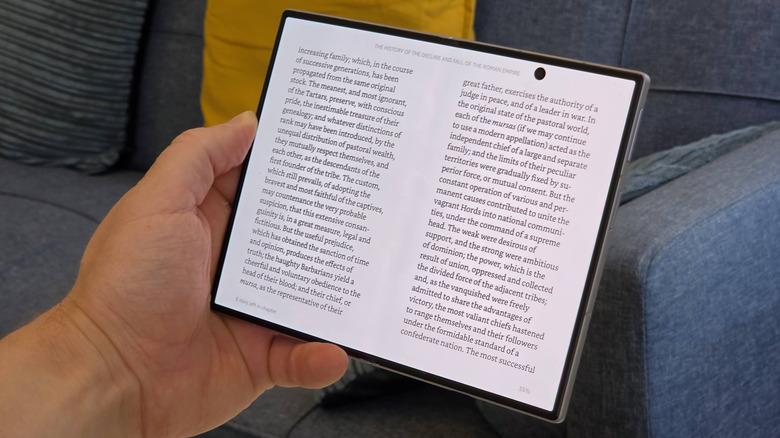
Many book lovers have bought smartphone-sized e-readers for on-the-go reading, but the Samsung Galaxy Z Fold 8's wide main display offers a unique feature that you can't quite enjoy on narrower devices. In fact, avid readers might just consider the phone a must-buy item just for this one selling point.
When you load a book in a reading app like Kindle on the Z Fold 8, it won't simply conjure up a brick-like wall of text like it would on other mobile phones or e-readers. Instead, it'll present you with one text column on either side of the display (just as though you were looking at two pages on a real book). This design helps make reading on the Z Fold 8 feel more like reading a real paperback, especially since you can "close" it in the same fashion.
This perk does also apply to the Galaxy Z Fold 8 Ultra and other folding Galaxy phones, but given the two display halves are longer and thinner on those devices, they don't deliver a book-like experience in the way the wider Z Fold 8 does. Having spent a few hours reading on the Z Fold 8, I can confidently call it the best smartphone for reading that I've used to date.
Enriching your experience with movies and TV shows
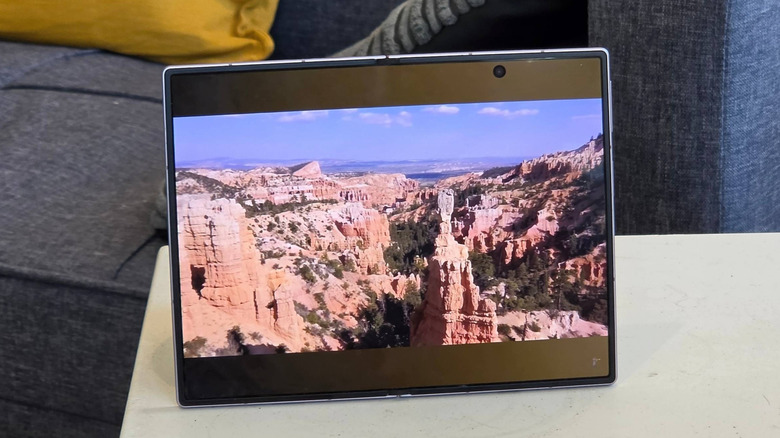
When you watch movies, TV shows, or online videos on the Samsung Galaxy Z Fold 8's main display, they look much better than when doing so on the Z Fold 8 Ultra. This is, again, because of its aspect ratio. On the Z Fold 8, you're less likely to experience large, distracting letterboxing — in film, those are the black bars added to the top and bottom of a wide-screen image to ensure the picture fits on standard-width displays — because its wide display allows the actual picture to take up more of its screen space.
You'll find that Netflix, YouTube, and Prime Video content fills up most of the pixels on the Z Fold 8's inner screen. As a point of comparison, based on my testing, you typically lose more space to the black bars on the Galaxy Z Fold 8 Ultra. Since a video's full viewing area is wider on the Z Fold 8 than it is on the Ultra, it makes for a higher-quality viewing experience when you're streaming shows on the go.
Certain videos exported in a native 16:9 aspect ratio will still come with black bars, but they'll be smaller than they would be on the Ultra. However, there won't be any black bars at all when you watch 4:3 videos. I found myself especially enjoying watching older TV shows, which were often aired in a 4:3 ratio, on my Z Fold 8.
Staying up to date with Samsung's Now Brief feature
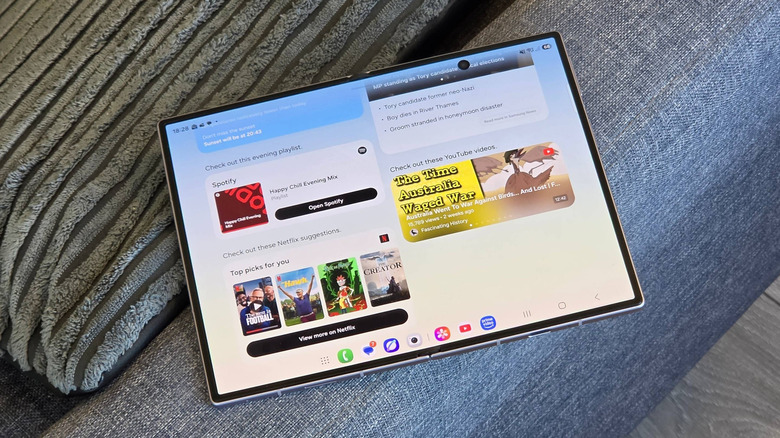
Now Brief is one of those features that only Samsung Galaxy devices have. As a personal assistant, secretary, and news reporter all at once, Now Brief runs you through events in your calendar, important videos you might want to watch, weather and news reports you should check out, fitness and health data, and travel instructions to destinations you might be visiting. You can also view it as an easy-to-access Android widget on your home screen. While some Samsung users have pled with the brand to make it more useful, others seem to find it pretty handy, depending on the integrations and connections they've made with the app.
The Now Brief feature is particularly useful on the Galaxy Z Fold 8, however, especially if you're used to seeing it on a standard Samsung handset. I usually find Now Brief's long lists of information quite tiring to parse through, but on wider foldable phones like the Z Fold 8, it doesn't feel so tedious. On this device, Now Brief's rectangular information bubbles are spread across both halves of the screen, making it easier to glean information and data without having to scroll much. The layout really enables Now Brief to fulfill its goal of acting as a brief, even with multiple active widgets.
Using more than one app at the same time
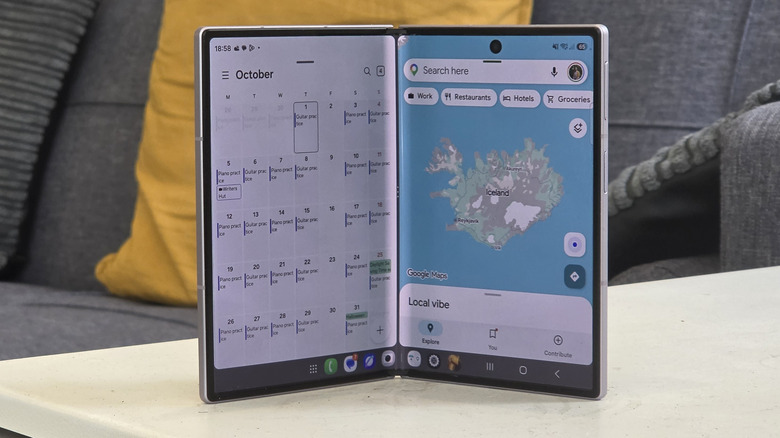
For years now, Android phones have been able to display two apps simultaneously. There are plenty of clever uses for split screen mode on your Android device, but when you throw the foldable form factor into the mix, the world becomes your oyster. Devices like the Samsung Galaxy Z Fold 8 and Z Fold 8 Ultra let you view two apps at the same time, but such that each app takes up the full outer display's worth of screen real estate.
Because the Galaxy Z Fold 8 Ultra's outer display is quite narrow in itself, using its full screen to view apps in a two-column format means you're just getting two narrowly displayed apps presented side by side. However, on the wider Z Fold 8, you're able to enjoy two roomy app windows at the same time on the inner display. This makes split-screen tasks far more user-friendly, whether you want to see more of your social media feed or a larger spread of information in a text document.
I've particularly enjoyed the split-screen experience on the Z Fold 8 while using one side to take notes and the other to view a document. On narrower displays, it's easy for writing to spread quickly across many lines, making it difficult to read and revise without setting the font size too small. On wider displays, though, it takes up document space more economically.
Getting a desktop-like email experience
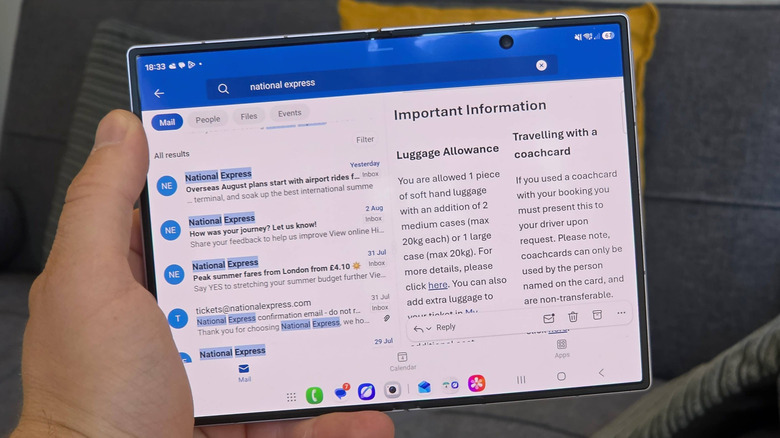
The benefits of the Samsung Galaxy Z Fold 8's width don't just apply when you're looking at two different apps across the screen. Some individual apps have been designed to work especially well across a 4:3 panel. One prime example is Outlook. On the Galaxy Z Fold 8, the app feels far more like a desktop-based email management experience than one would expect from a smartphone.
In the Outlook app on the Galaxy Z Fold 8, you can view your scrollable inbox on the left and an individual email you've selected on the right. Large UI buttons make it easy to switch between inboxes or jump to your Outlook calendar, and you can also expand your current email across the entire screen for improved legibility. You could still view your inbox in a two-column view when you rotate your phone to portrait mode, but the columns would be relatively narrow (and therefore harder to read) in the adjusted aspect ratio.
I've found that, compared to an average Android smartphone and even to the Z Fold 8 Ultra, it's more convenient to answer emails and monitor several conversations on the standard Z Fold 8. Being able to see multiple pieces of information at once reduces how often you have to hop around the screen, as well as making it easy to reply to someone while immediately seeing when another email has come in.
Boosting your productivity with side-scrolling apps
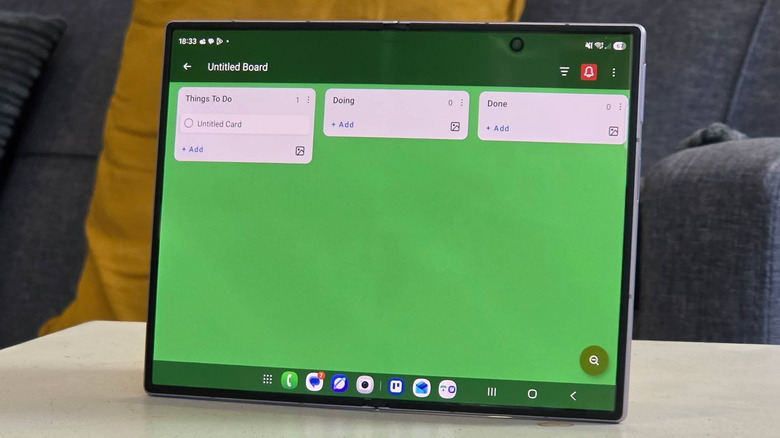
Doomscrolling is ubiquitous to the mobile experience, so much so that the people of New Zealand voted it as their word of the year in 2020 (via The Guardian). However, not all app scrolling entails infinite scrolling, and some apps don't even require you to scroll up or down in the first place. Some tools present information from left to right. An interface like that is much easier to navigate on large and wide screens, such as the one on the Samsung Galaxy Z Fold 8.
One app with a side-scrolling interface that I've used plenty on mobile is Trello. The app presents information in a single row of columns containing varying numbers of cards that stack vertically, but it can be a chore to swipe through loads of these card stacks on smartphones, especially on busy boards. Not so on wide devices like the Z Fold 8. Its full display lets you view three columns at once instead of the usual one and a half columns, which makes it noticeably easier to sort through information in Trello.
In fact, plenty of essential productivity apps on Android can benefit from the Z Fold 8's wider display, especially PC- or tablet-based ones that were primarily designed for a landscape-oriented mobile experience. I've found working on the Z Fold 8 to be far easier than working on most other Android phones, thanks to the productivity boost afforded by its screen's unique aspect ratio.