

9 Clever Uses For Samsung DeX You Should Know About
We may receive a commission on purchases made from links.
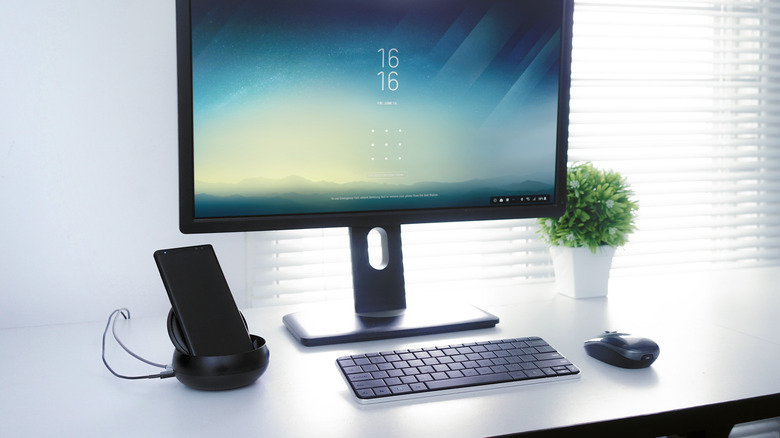
Samsung DeX turns your phone into a desktop experience, and it's one of those features only Samsung Galaxy devices have, or at least it used to be until a new Android update added a native desktop mode to the core Android OS. It's not available to all Android devices yet, but support will expand over time. Meanwhile, Samsung DeX has been available since 2017, alongside the release of the Samsung Galaxy S8. That was the first flagship phone I ever owned and the first time I experienced a desktop environment on a smartphone.
However, the early days of DeX were rather rough. I actually tried to replace my daily desktop with DeX, but that only lasted a week. Most apps didn't play well in DeX mode, and it really was as bare-bones as you can imagine. Still, the start of a good idea was there, and Samsung didn't abandon DeX after the lukewarm initial experience. Instead, in the near-decade that's followed, the company has kept refining and expanding DeX. If you could put that first iteration of DeX next to its current incarnation, you'd hardly think this was the same lineage.
Because DeX has grown so much, and many people may have dropped it after trying it for a while years ago, there are probably many uses for DeX you had no idea existed. If you have a phone or tablet with DeX, you owe it to yourself to learn how this powerful tool can change the ways you work and play.
Use a portable monitor with DeX
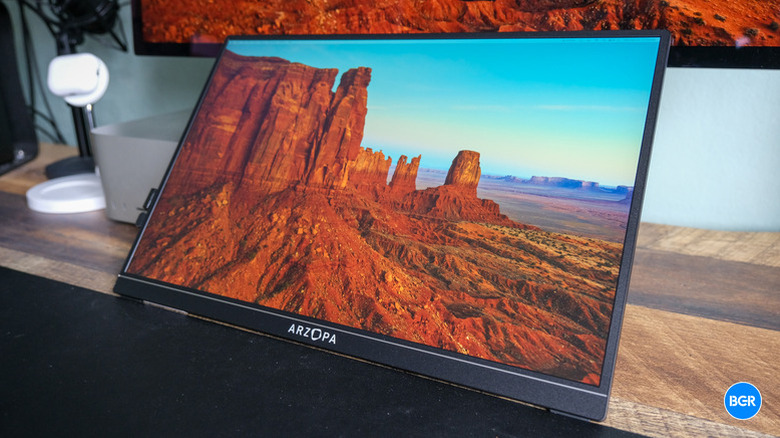
DeX mode can be activated when connected to any external monitor. Your phone doesn't care whether that monitor is a 100-inch TV or a 16-inch portable monitor. As long as you have an HDMI or DisplayPort device, your phone or tablet with DeX will treat it all the same.
This can be a better option than carrying around a laptop, which is much more expensive than just a screen. If you look at the range of the best portable monitors, you'll see that they can be extraordinarily thin and light. In our Arzopa Z1RC review, we saw that even a cheap portable screen can offer fantastic image quality for general use, so you don't need to break the bank.
Depending on your model, your Galaxy phone may already have as much processing power (if not more) than the average office laptop, so this is an efficient way to combine the two. But what about the peripherals? You can use a keyboard and mouse with DeX, though the software allows the phone's screen to act as a touchpad if you like. However, if you're using a USB-C connection to the monitor, and not USB-C-to-HDMI, you can use an external touch monitor. This can effectively turn your phone into a large tablet.
Turn any TV into a smart TV
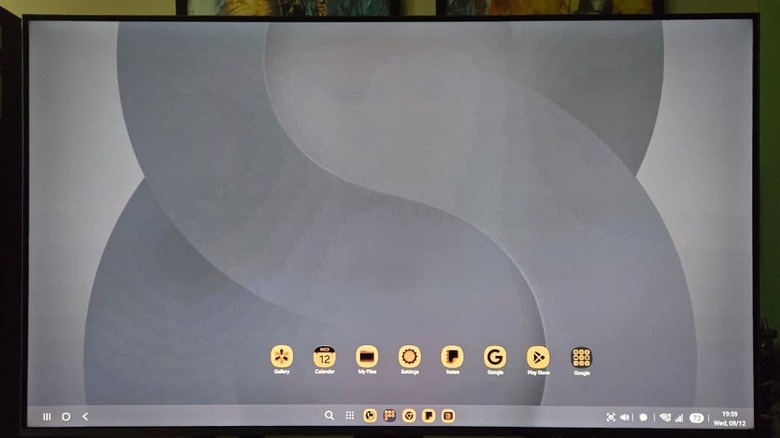
Did you know that you can still buy a "dumb" TV? Not everyone needs smart functionality, and besides, there are still plenty of non-smart TVs out there in the world that work fine, so their owners have had no need to replace them. Perhaps the TV you're considering buying is a smart model, but you can't (or don't want to) log in to the apps and services on it.
This is where DeX can really shine, because you have a whole smart operating system in your pocket with all of your apps ready to go. All you need is the right USB-to-HDMI adapter. Dumb TVs don't support wireless casting, but even if the TV you want to use does support casting, that's not the best choice for smart TV use cases. Many streaming apps use copy protection that will only work if you have a High-bandwidth Digital Content Protection (HDCP)-compliant connection to the external monitor.
If you have an app that refuses to work properly while using DeX on an external monitor, you often also have the option of using a browser instead. Mobile phone browsers like Chrome are just as capable as the desktop version of the software. In either case, though, you still need a compliant HDMI connection to see protected video streams. It's best to test this before you need to try it at a crucial moment, and once you know the adapter you have works, tuck it away somewhere in your travel bag so it's ready the next time you encounter — or buy — a "dumb" TV.
Combine DeX with AR or video glasses
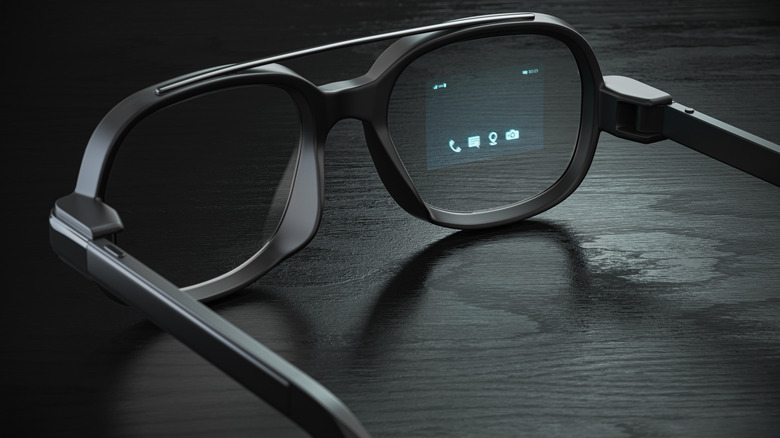
There are some amazing video glasses (like the Xreal One Pro), which allow you to connect a USB-C video source and privately watch video wherever you may be. As long as the glasses offer enough resolution, they should be as usable as a laptop display or monitor. In the case of the Xreal One Pro, for example, you get an image at a resolution of 1920 x 1080 pixels, also known as Full HD. That's perfect for streaming content, and it also leaves plenty of room for a word processor and web browser to share the screen. Basically, if you can get it done on a 1080p laptop screen, you can manage with something like the Xreal One Pro ... and the USB-C option allows you to use these glasses with DeX.
To be clear, these types of glasses do not shut out the world around you. This isn't a virtual reality (VR) setup, but a solution that makes it look like a computer display is hovering in the air in front of your eyes. There are advantages to this in certain use cases. For example, if you're sitting on an airplane with your wireless keyboard and mouse on the tray in front of you, then you can maintain your situational awareness while working with your content in complete privacy.
Sadly, video glasses of this kind are still rather expensive. However, some models are a little more wallet-friendly. The Xreal 1S, for example, sells for around $450 on Amazon. Still pricey, but significantly less than high-end models.
Give presentations anywhere

Imagine you have to give a presentation at a conference or at your next weekly meeting. Everyone's bringing their laptop and taking turns hooking it up to the projector or TV. Some struggle with getting Windows or macOS to play nice with the external monitor, but when it's your turn, there's no laptop in sight.
Instead, you use your Samsung Galaxy phone in DeX mode with Microsoft PowerPoint. If the projector or TV supports wireless casting, you can use your phone itself as your presentation clicker as you move around the room. If you have to use a USB cable adapter, you can still use the phone as your mouse clicker, but you have the option of connecting a Bluetooth presentation clicker or mouse if you need one. Just check that the device works with DeX before you actually do the presentation.
Best of all, you can still make changes to your presentation on your phone if you have last-minute additions or adjustments, and that can be done in DeX mode, too, if there's a free monitor and some peripherals you can grab from nearby. The mobile version of PowerPoint or alternative solutions like Google Slides are not quite as feature-rich. You won't get all the most advanced editing goodies, but then hardly anyone other than hardcore PowerPoint users needs them anyway. It's probably not your advanced slide animation skills that will land you that promotion!
Use DeX with a folding keyboard and your screen as the mouse
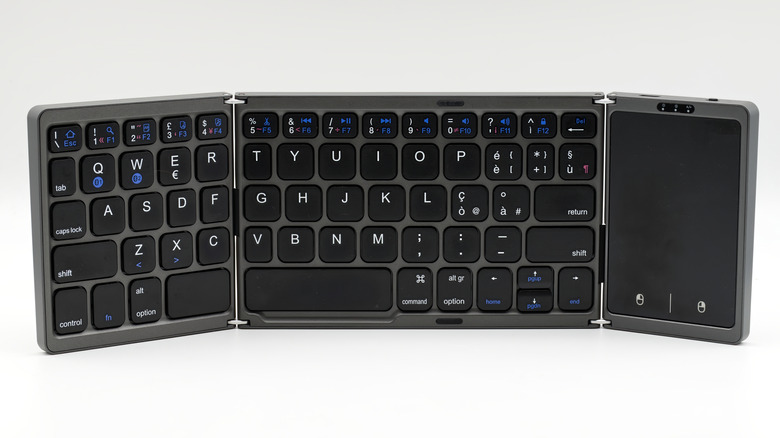
We've mentioned peripherals a few times so far, and to be honest, to get the most out of DeX you really need a keyboard and mouse. After all, the point of DeX is to offer a traditional desktop experience rather than working like a smartphone or tablet.
This is perfectly fine if you have a permanent desktop setup at home or work, where you simply bring your phone, plug it in, and use the peripherals that are already set up and ready to go. In this case, you can even use any wired USB keyboards and mice, with a USB hub acting as the dock for your phone. This is the ideal situation from a battery-charging perspective, anyway, since many people prefer to keep their phones topped off while working at a desk.
But what about a situation like the portable monitor we discussed earlier, or if you want to convert a hotel TV or spare monitor at a conference center into your DeX desktop? Thanks to the existence of folding keyboards, you don't need to carry around a full-sized deck stuffed into your bag. Likewise, you don't need a separate mouse, because you can use your phone itself as a touchpad. In DeX mode, simply tap the touchpad icon to the left of the usual Android control buttons. Folding keyboards like the ProtoArc XK01 also feature built-in touchpads, which combine it all into a single package. Touchpad gesture support can vary, though.
DeX allows for big-screen gaming anywhere
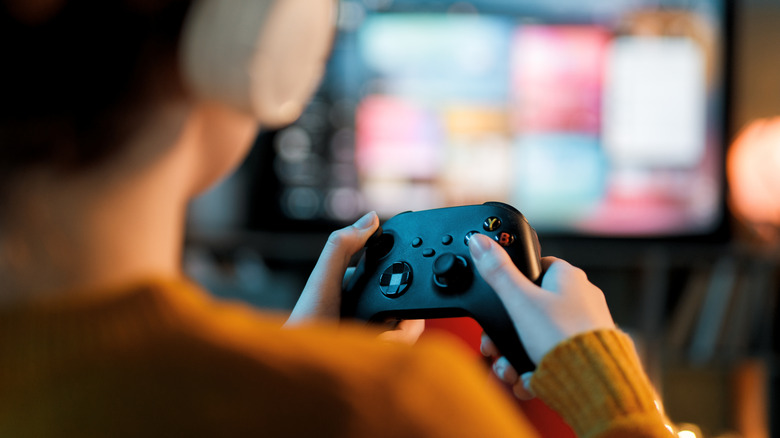
Mobile gaming has come a long way, and the latest flagship Android phones have graphical performance comparable to late-generation consoles. Games like Alien: Isolation and GRID Legends are straight from the world of gaming consoles, and the latest phones really do them justice. DeX offers a different way to play games on an external monitor than simply mirroring your phone. Many games will correctly adjust to the external screen's aspect ratio, and of course, you don't use the touch screen on the phone to play.
A modern gamepad is probably the best all-round solution for gaming on mobile, whether using DeX or not. That said, some games, like Minecraft and PUBG Mobile, support playing with a keyboard and mouse. Other titles, like Genshin Impact, only support touch input on Android, which means you're out of luck when connected to an external monitor. Workarounds for some games exist, but it might not be worth the hassle, and that's something you'll have to decide on a title-by-title basis.
Don't forget all the retro gamer apps for phones, such as RetroArch, which can turn your DeX setup into an amazing retro gaming solution. These days, if you have a phone that's powerful enough, you can even use apps like Winlator and GameHub to emulate many PC games from platforms like Steam, either directly on your phone or on a large monitor or TV using Samsung DeX.
Get desktop multitasking on your DeX tablet
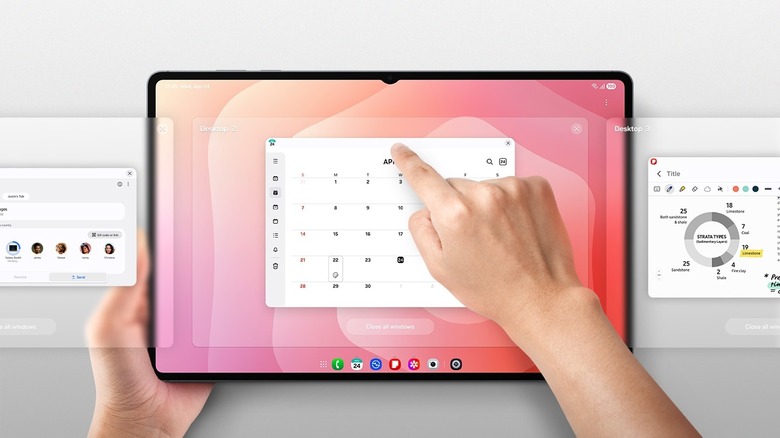
Most people think of DeX as something you use when you connect your phone to an external monitor, but if you have a compatible Samsung tablet, you can actually flip it to DeX mode and have the desktop interface on the same screen where you usually use the standard One UI interface. That opens up computer-like multitasking on a whole new form factor.
Combine this with something like the Dexnor magnetic keyboard case, and suddenly your Samsung tablet is effectively a laptop computer. Some of these keyboard cases include an integrated touchpad, but even if the one you have doesn't, DeX won't lose touch capability, so you can still use your fingers to select text or move windows around. Also, nothing stops you from just using a normal mouse when needed.
While multitasking on Android tablets has improved somewhat over the years, it's never felt quite as good as Apple's iPadOS solution to many users, but DeX on a tablet brings proper window-based multitasking to these devices, taking good advantage of the extra real estate. Given that Samsung makes enormous 14.6-inch tablets like the Samsung Galaxy Tab S11 Ultra, this is even more impactful. On the latest version of DeX (as of mid-2026), using new tablets like the S11 Ultra, you can run things in dual-screen mode. That means both the tablet and external monitor work in desktop mode, letting you move windows between them just like on a dual-monitor PC.
DeX is great with a lapdock
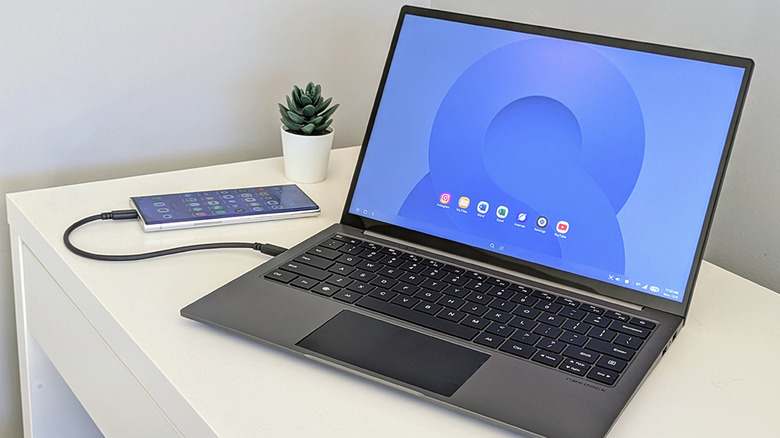
So far we've covered making your Samsung phone into a pseudo-laptop by connecting it to a portable monitor, or making your Samsung tablet into a pseudo-laptop by attaching a keyboard case to it. But what if you just got a whole laptop, minus the laptop guts, and connected your phone to that?
This is the idea behind the lapdock, and the example you see above is a NexDock, which starts at $229 and features most of the visible features you'd find in any laptop. There's an internal battery to power everything and charge your phone. It also acts as a USB hub, giving you access to multiple USB ports and a headphone jack. There's a Mac-style keyboard, trackpad, and screen. To most people, it would just look like a regular laptop that happens to have a phone plugged into it.
This is one of the most elegant solutions if you want to take advantage of DeX on the go, and it's certainly much cheaper than a full laptop with a similar quality chassis, screen, and peripherals. If you have to have a phone anyway but need a laptop for light productivity, then a lapdock can be a net saving no matter which way you look at it. If a premium lapdock like this is too expensive, there are many sub-$200 options to choose from. The Elecrow 14" Lapdock, for example, retails for around $160 and does the same job, while other models even allow you to mount the phone next to the screen.
Replace your desktop PC with DeX
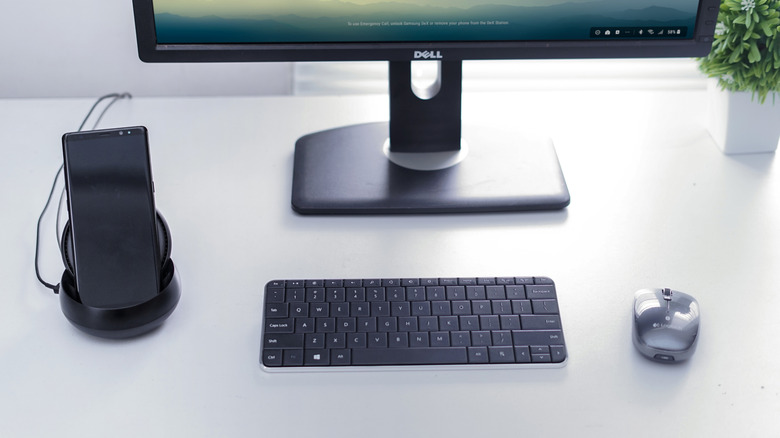
This is the big one. While most people use DeX as a backup or travel desktop computer substitute, what if you just did away with your desktop PC and used your phone in DeX mode? Would that even be possible? Right from the start, many technology writers (including yours truly) have tried to do this on an experimental basis. A decade ago, this was doomed to fail simply because there was software most of us needed to use that would only run on Windows or macOS.
But times have changed. If you could get along with a device like a Chromebook as your only computer, then a Samsung phone or tablet in DeX mode is no less capable. So much of what we do now simply runs in a web browser, making those tasks OS-agnostic. Likewise, mobile apps have grown in size and complexity. There's likely a video-editing app or word processor or photo touchup tool or whatever you can think of for Android that's just as capable as most of what you'd find for Windows or Mac.
On the Apple side of the fence, the lines have been blurred anyway. Apple Silicon Macs can run iOS and iPadOS apps natively, which goes to show that desktop users are happy to use them. We seem to be getting closer to the day when, if you're going to own a phone anyway, it might as well be your everything device. So why not give DeX a shot?