

The Best AirPods Setting To Change If You Hate Background Noise

There's one thing your bedroom with a fan running and a busy cafe have in common: both can get pretty noisy. If you've ever tried working in such an environment, you likely couldn't focus much with all the background noise. Thankfully, Apple offers a nifty solution to this dilemma with AirPods. You might have bought a pair for their impressive sound quality, but beyond listening to music and videos, AirPods can double as earplugs too. There's just one AirPods setting you need to change to do exactly that, a listening mode called Active Noise Cancellation (ANC).
ANC uses the built-in microphones on the AirPods to minimize the background noise that reaches your ears. This makes the surroundings sound a lot quieter as long as ANC is on. It works differently from the other listening modes on the AirPods. Transparency mode, as its name suggests, keeps you aware of your surroundings by passing every sound — including background noise — through to your ear. Adaptive mode, on the other hand, is a dynamic mode that intelligently analyzes the surrounding sounds and decides how much noise to block out.
ANC is available on the AirPods 5, AirPods 4 ANC, AirPods Pro (all generations), and AirPods Max (all generations). If you have one of these models, here's a guide on how to use this must-know AirPods feature.
All the different ways to turn on Noise Cancellation on your AirPods
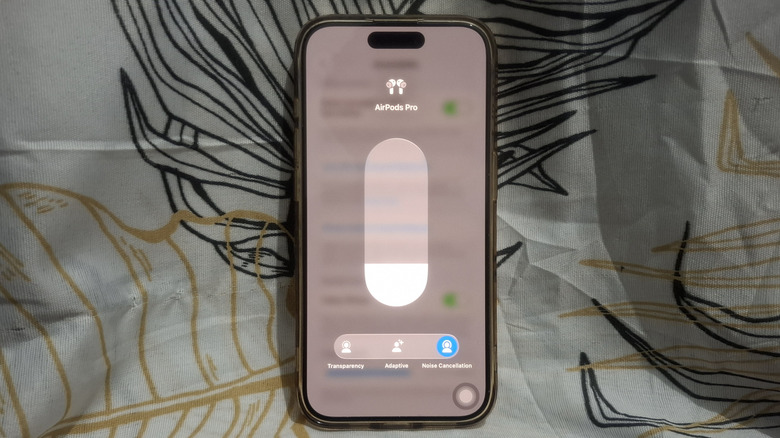
Out of the box, your AirPods are already set to switch between Noise Cancellation and Transparency modes with a simple gesture. On AirPods Pro and AirPods 4 ANC, just press the stem of your AirPods long enough until you hear a chime and the background noise disappears. If you have AirPods Max, press the listening mode button on top of the right ear cup instead. Conveniently, you can also turn on Noise Cancellation on your AirPods via the device they're connected to. Just make sure you're wearing both AirPods before making the changes, as you won't be able to access the listening mode settings otherwise.
To switch on Noise Cancellation using your iPhone or iPad, open the Control Panel with a quick swipe down and long-press on the volume slider. Then, select Listening Mode and tap on Noise Cancellation. You can also make this change in your device's Bluetooth settings. In the Settings app, go to Bluetooth and press the info icon next to your connected AirPods. You should then see the Noise Cancellation option under Listening Mode at the top of the page.
Meanwhile, on your Mac, all you have to do is press the AirPods icon in the upper right of the screen. Under Output, click on your connected AirPods and select Noise Cancellation from the Noise Control section. If you have an Apple Watch, the AirPods' listening mode settings are accessible from the Control Center too. First, play some music, then select your AirPods from the Control Center. From here, tap on Noise Cancellation to activate it. When you want to disable Noise Cancellation on your AirPods, simply repeat the same steps. But this time, choose Transparency as the listening mode.
Can you activate Noise Cancellation with just one AirPod?
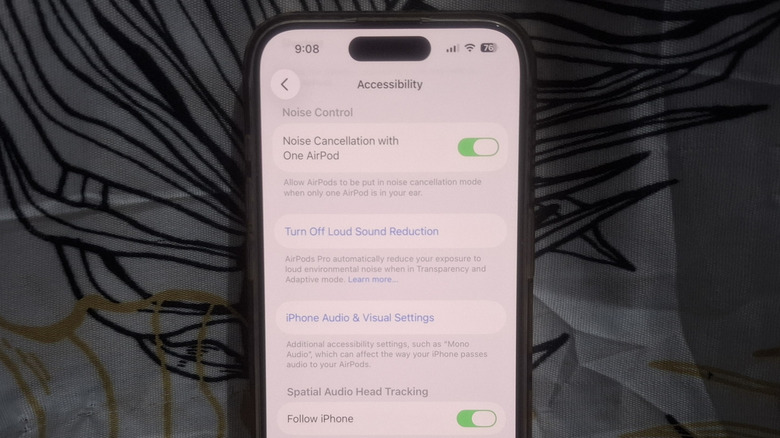
By default, if you try enabling Noise Cancellation with a single AirPod in your ears, an error pops up saying you have to be wearing both earbuds to use the feature. It does make sense; after all, you can't really enjoy the AirPods' noise-canceling feature if your other ear is completely exposed to the surrounding noise. But while this is the default behavior, Apple actually allows you to turn on Noise Cancellation even if you're using only one AirPod. It's one of the AirPods features you have to manually enable, though, so you need to toggle it on first. Follow these steps:
- With your AirPods connected to your iPhone, open the Control Center.
- Long-press the Bluetooth tile.
- Go to Bluetooth settings.
- Tap the info icon next to your AirPods.
- Scroll down to Accessibility.
- Switch on Noise Cancellation with One AirPod.
From here, you can now select Noise Cancellation from the listening modes like you normally do. The active AirPod will start blocking out the noise for that side only. From our tests with an AirPods Pro 3, the noise cancellation performance is still surprisingly good even with just one AirPod.