

Why Does Your UGREEN NAS Have An HDMI Port?
We may receive a commission on purchases made from links.
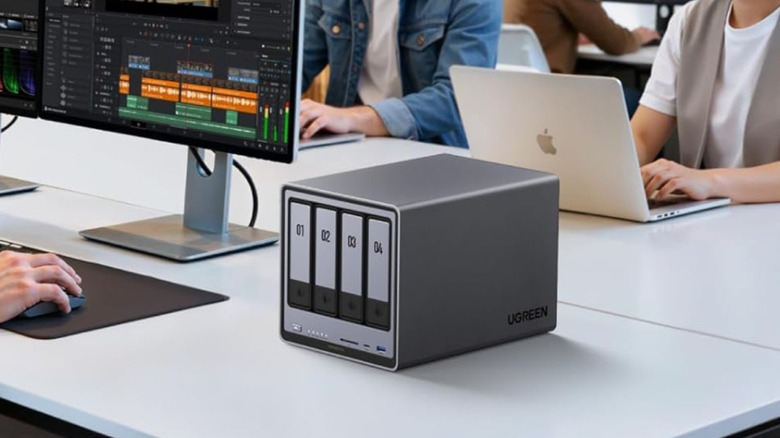
Cloud storage is a convenient method for offloading videos, photos, audio, and many other types of files. The nuisance is that if you need anything more than 5 to 10GB, you're more than likely going to end up paying for a monthly subscription. That's why many folks prefer to use a network-attached storage (NAS) device instead, and UGREEN is one of several brands that make these contraptions. Just connect it to your router, download the app, and enjoy remote access to your media library (required SSDs sold separately).
UGREEN has several NAS configurations to choose from, and all of them include an HDMI port that supports up to 4K/60Hz. "That's great, but why would a NAS device need an HDMI port?" you may be asking yourself, since a NAS is a storage device that lets you make your own makeshift cloud storage. UGREEN doesn't offer much in the way of a port explanation, but the HDMI port has a couple of functions.
One of these HDMI features is the ability to cast media via the UGREEN NAS app to an external display (e.g., TV, projector, monitor). When casting to your TV, the NAS supports direct video playback via most encoding formats, including H.264/H.265 containers. When you select the HDMI input your NAS is connected to, you'll find casting instructions for the UGREEN app, as this is the only way to initiate playback (no NAS device comes with a standard remote).
The HDMI port on your UGREEN NAS can also be used to access the device BIOS
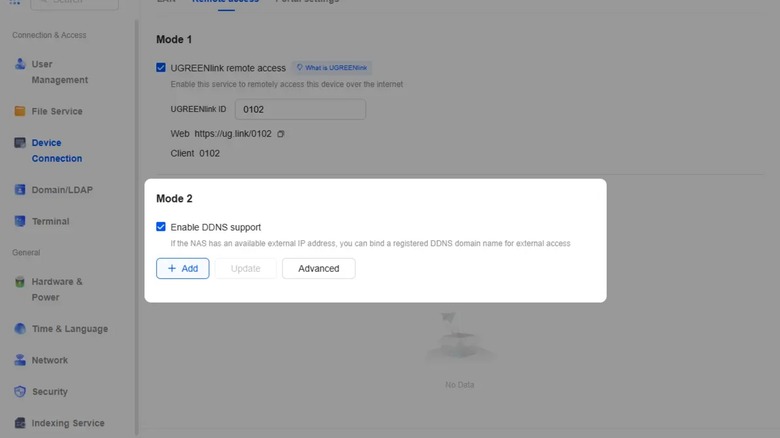
Similar to a wireless router, you can log in to your UGREEN NAS settings by typing the device's IP address into a web browser (many of these same settings are in the UGREEN app, too). That said, you'll also be able to use the HDMI output to access the device's BIOS. One Reddit user watched another individual use the port to update SSD firmware; they had the NAS connected to a monitor and booted into the BIOS to push video to the external display.
You'll need BIOS access for other UGREEN NAS customizations, too, like installing a third-party operating system. To do so, the BIOS watchdog first needs to be disabled; that way your NAS won't automatically reboot when its built-in OS isn't detected. Heed my warning, though: if you're not 100% comfortable with diving into these deeper settings, don't do it. A mishandled BIOS could render your NAS completely useless.
That about covers it for all things HDMI on UGREEN NAS tech. Here's hoping the company becomes a little more transparent on the port functionality moving forward, because when you see "4K/60Hz," your initial assumption would be that the HDMI delivered a complete user interface when plugged into a display. Instead, UGREEN relegates playback controls to whatever device your UGREEN NAS app is installed on.