

How To Optimize Your Monitor Settings For Gaming
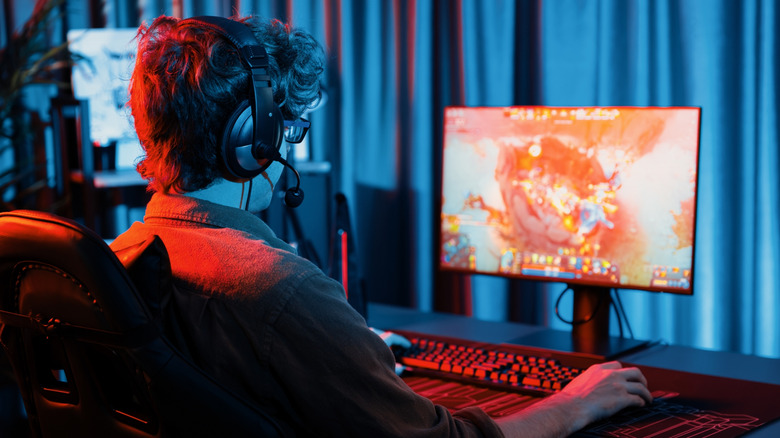
If you own a gaming PC, odds are you've spent hours researching every component, from the graphics cards (and whether it's smarter to buy a flagship model or a less expensive alternative) to the monitors you will use. But even if you purchase the best gaming monitor money can buy, you might need to tweak a few settings before it's ready. Out of the box, most monitors provide an experience best suited to the average user. However, that usually means settings such as SDR, default RGB levels, and sub-optimal refresh rates.
That's okay for a person who just uses a computer for word processing, but not ideal for someone who needs their monitor to refresh images quickly for multiplayer matches and provide enough contrast to find enemies lurking in shadows (or keep them hidden). Before you begin to alter any monitor settings, you should check to see if it includes a preset "Game Mode." These options can take out some of the guesswork and automatically provide excellent color and brightness balance while minimizing latency. If so, always switch to a Game Mode before you start playing. However, there is always room for improvement.
Refresh rate and resolution

Let's face facts: You probably want refresh rates and resolutions as high as your graphics card will allow. Modern monitors are smart enough to know these upper limits, but the best settings are optional and need a nudge to activate. Depending on the game and your GPU, you probably won't achieve frame rates that exceed your maximum refresh rate.
However, sometimes these settings don't get along, which causes screen tearing. You can avoid this annoying visual hiccup with a refresh rate sync function. You can often find these in your GPU's control panel (e.g., activate G-Sync in the Nvidia Control Panel), but it has one caveat: Sync settings only work with compatible monitors. If your new screen doesn't say it supports G-Sync or AMD FreeSync, then you will need to hope your game has a built-in V-Sync function. Otherwise, just set your refresh rate to whatever you like and hope for the best.
While contemporary monitors support a wide variety of resolutions and aspect ratios, you are best off leaving those settings alone and keeping your monitor in its native resolution/aspect ratio. These settings guarantee the crispest visuals and generally prevent scaling issues (i.e., a game's HUD taking up too much space or appearing so small you can't read it). For best results, buy a cheaper alternative to a 4K monitor. You might sacrifice some resolution, but you will receive higher and smoother frame rates as a trade-off.
Brightness and color

Video games are a visual medium, and many horror games utilize ambient lighting and shadows to set an uncomfortable mood. If you're a horror streamer, dimming your monitor's brightness will suit most of your needs, but if you play a wide variety of titles, you might have to play musical chairs with some settings. Whenever possible, you should enable HDR on your monitor.
This veritable all-in-one setting balances colors, shadows, and brightness to create the best visual experience. Like with G-sync, you need a monitor that can actually support the feature, but if you buy one (and use an HDR setup app to tweak the settings), HDR will improve the look of just about any game. Just keep in mind that HDR can only improve the appearance of modern titles; turn off HDR for older titles to preserve their visuals.
Much like how smart TVs include settings that you should change because they aren't suited for every show or movie, not every computer monitor option benefits every genre. If you are playing a highly competitive title and your GPU forces you to choose between color accuracy and high frame rates, prioritize frame rates, even if it means turning off V-Sync. Conversely, single-player titles provide a little more response time leeway (yes, even "Elden Ring"), so you can tweak monitor settings to optimize visuals over latency. More often than not, you will just have to experiment and see what works for you.