

5 Tips Kindle Owners Say Will Upgrade Your Reading Experience
We may receive a commission on purchases made from links.
A Kindle makes for an enjoyable reading experience, and much of that is thanks to its e-ink screen. Compared to LCD and OLED displays, e-ink is significantly easier on the eyes. It isn't too blinding, especially for nighttime use. Plus, the Kindle works considerably better when you're reading under the sun. That means you can readily take it along on your beach days and during quick outdoor errands. Your device will also last a while, letting you sink deeper into your book without interruption.
But more than the hardware, your Kindle actually offers a bunch of other features and customization settings that can further upgrade your reading experience. If you've just unboxed your first Kindle or are looking to make the most out of your old model, here are five tips Kindle users (and myself) swear by. These include simple ways to personalize your device, along with handy Kindle features you might not be using.
Signing up for Libby
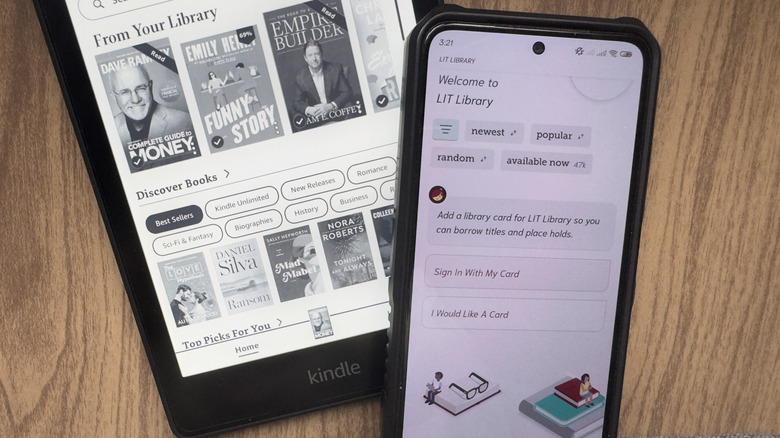
Kindle books aren't exactly cheap. If you're looking to save on books, Kindle owners highly recommend signing up for Libby. The app lets you borrow an e-book from your local library for free and read it on your Kindle. To use Libby, you first need to apply for a library card at your local library. Once you have, install Libby on your phone and go through the setup questions until you're asked to sign in using your library card. From here, you should be good to go. Just follow these steps to start borrowing books:
- Go to the search tab at the bottom.
- Look up the title you want to borrow.
- Click the Borrow button next to the book. Libby will show you how long you can keep the book.
- Hit Borrow again to confirm.
- Select Read With Kindle.
- Log into the Amazon account you use on your Kindle.
- Tap on Get Library Book.
The e-book should automatically be downloaded to your Kindle library, where you can freely read it through the given duration. Once the e-book expires, it gets returned to the local library and removed from your Kindle. You can also return the book manually after finishing it early through the Libby app.
Keep in mind that Libby is only offered in select countries, including the U.S. and Canada. Another limitation to consider is that your local library won't have every single e-book out there. If it does have the book you're interested in, it might not always be available right away. Luckily you can place it on hold, and Libby will tell you how long the wait is and how many people are also on the waitlist.
Customizing the reading interface
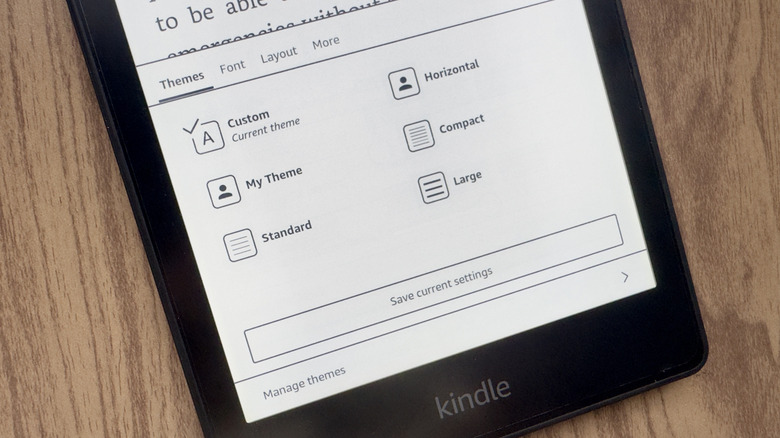
Some of the first settings you should change on your Kindle are the customization options for the reading interface. This is where you'll spend most of your time, so it should fit your needs. To start, open any book and press the empty space at the top. Then, go to the Aa icon. Here, you'll be presented with options to change the themes, font, layout, and more. The Themes tab lets you pick preset themes with different font styles, font sizes, and orientation. You can choose any of the available themes, or build your own theme. Here's how:
- Head over to the Font tab.
- Change the Font family to your preferred style. You can see how the new font looks on the book in the background.
- Adjust the boldness, size, and spacing of the text as needed.
- Tap the Layout tab.
- Set the orientation, margins, and text alignment. The book in the background will change with each option.
- Select the More tab.
- Toggle on "Show clock while reading" to display the clock at the top.
- Choose Reading progress.
- Switch to the option you want to use. I personally have mine show "Time left in chapter," but you can go with "Page in book" or "Time left in book."
- Go back to the More screen.
- Adjust the other settings to your liking.
- Tap the Themes tab.
- Hit Save current settings to save your custom theme with your name of choice.
To make the most out of the custom themes on Kindle, you can create multiple themes for different situations. Maybe you prefer reading fantasy books in landscape and any other book in portrait. Or perhaps a font looks better for you in daylight versus when you have dark mode turned on.
Using a page turner
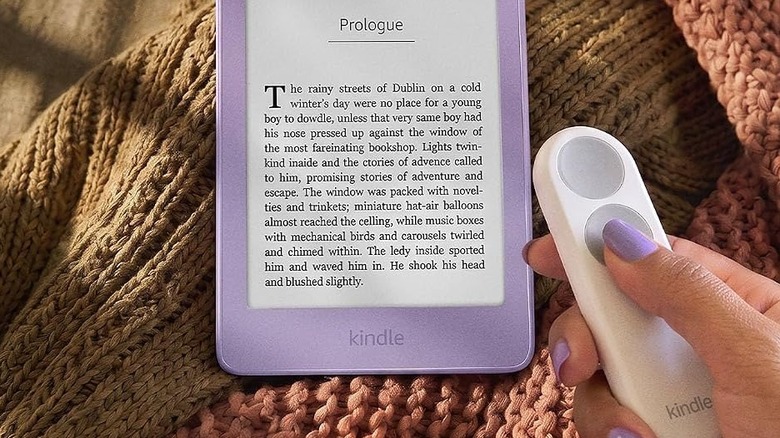
If there's one Kindle accessory users swear by, it's a page turner. It comes in handy when you want to read in bed but are afraid of the Kindle falling on your face or just don't like having to take your hands out of the blanket. Instead, you can leave your Kindle on a tablet mount or pillow stand and click the remote to flip the page forward from afar. It's far more convenient and puts less strain on your hands.
How page turners generally work is simple. You just attach the sensor clip to the empty space on the rightmost side of the Kindle and use the companion remote to control the clip with a press. Each press turns to the next page. Unfortunately, that's all you can do with third-party page turners like the highly-rated Datafy Page Turner and Jimzoo Page Turner Ring.
Amazon, however, has just released its own version of a page turner called the Kindle Click. It doesn't have a sensor clip since it works via Bluetooth. But that also means it can do more than flip the book pages forward. The Kindle Click also lets you go back to the previous page, increase or decrease the brightness of the screen, and even set your Kindle to sleep mode.
Organizing your books into Collections
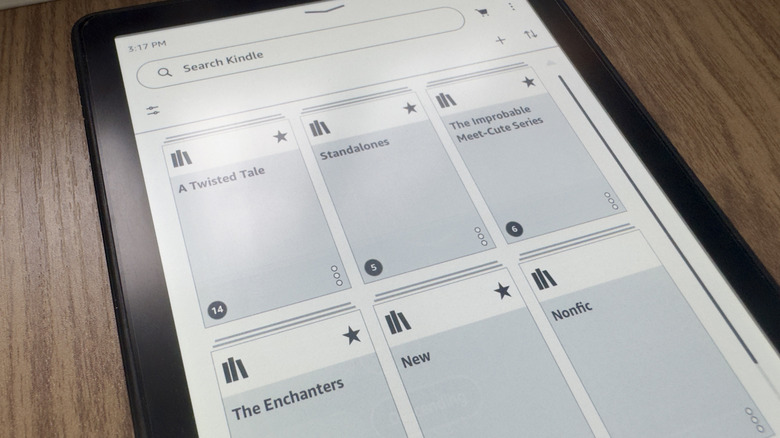
You can always just leave your downloaded books in your library and go about your reading session just fine. But when you're working with hundreds of titles, they become much harder to sort through, and finding one could now take forever. To solve that dilemma, it's a good idea to organize your books. One of the best ways to do so on a Kindle is to sort them into collections.
There are plenty of collections you can make. You can sort by authors and genres. This is useful if you have a couple of books from the same author or genre and typically reach for them when you want to start a new book. Another nifty way to use collections is for keeping track of your reading list. To create Collections on your Kindle, follow these steps:
- Connect your Kindle to the internet.
- In your Kindle home screen, press the three dots in the top-right of the screen.
- Tap Create a Collection.
- Enter a name for the collection.
- If you want to add the collection to your favorites, keep the box for "Mark Collection as favorite" checked. Otherwise, deselect the box.
- Press Create.
- Choose the books you want to add to your new collection.
- Hit Save.
From here, you can set your Library to display collections instead of the individual books. To do so, navigate to the Library tab and press the two arrows in the upper right. Under View options, tap on Collections. If you have books that you haven't added to any collection yet, you can find them in the Uncollected collections.
Installing the Kindle app on your phone
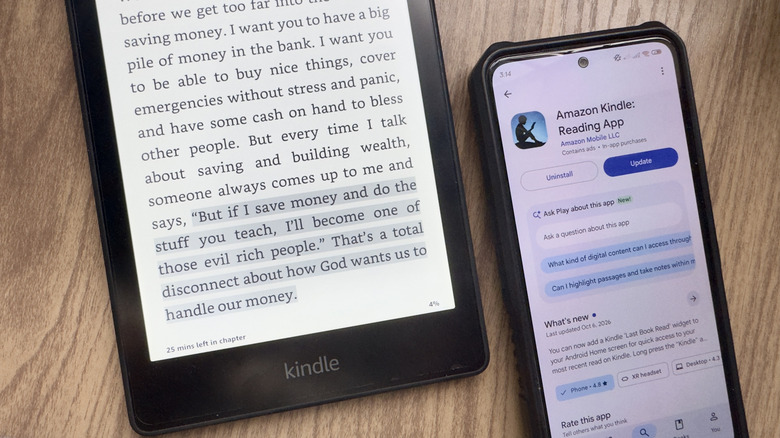
It may seem ironic to use the Kindle app on your phone when you bought a Kindle to avoid reading on your phone and straining your eyes. But hear me out, the Kindle app isn't exactly a complete replacement for your Kindle but an extension instead.
I personally turn to my Kindle app whenever I want to continue reading my current book but don't have my Kindle with me (sometimes it's bulky in comparison). As long as my Kindle is connected to Wi-Fi, it can sync my reading location with the one on the app. This lets me seamlessly switch between the two. I also prefer the Kindle app over the actual Kindle when I need to check my notes and highlights. It is, after all, much easier to scroll through the annotations on a phone than on the e-reader.
Other than convenience, another reason I use the app is the bunch of cool Kindle app-exclusive features you won't find on the actual Kindle. For one, I can only join reading challenges through the app. These vary depending on the time of year, although some are available year-round. My reading streak is only viewable on the app too. Then, there are the interface features like reading ruler that adds a nifty measure for the line I'm reading, and the continuous scrolling option that lets me skip turning pages.