

You Should Try These 5 Galaxy S26 Features If You Travel Internationally
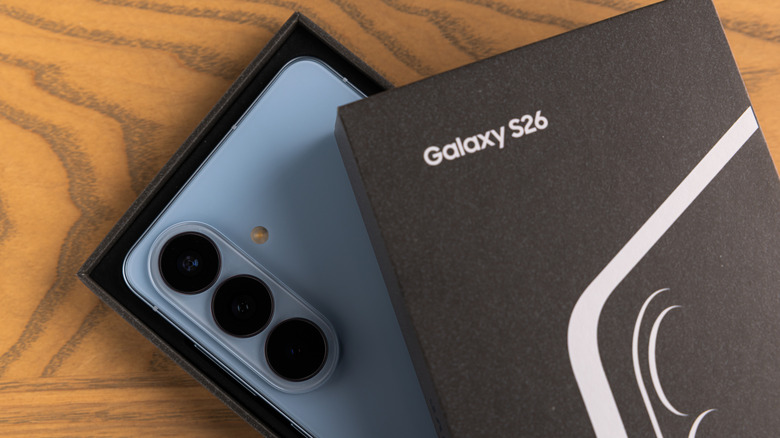
Between going somewhere unfamiliar, worrying about your passport, choosing the right international roaming plan, and umpteen other problems that may arise, traveling internationally can be rather stressful, to put it mildly. Exciting as it may be, an overseas flight still comes with a lot to consider, but thankfully modern tech solutions can help mitigate some issues. For Galaxy S26 owners, Samsung has built in several features to help with international travel.
Across the Galaxy S26, S26+, and S26 Ultra, users have access to a variety of travel tools, including an app that provides live translations in over 20 languages. This app can even translate text from photos in real time, while Samsung's Interpreter app also helps with live conversations. It's not just about software, though; the batteries in these devices can extend a trip, and Samsung's Privacy Display offers extra protection. Naturally, Galaxy AI also has a few tricks up its sleeve for helping you explore new territory.
If you're still shopping for a new phone, we can tell you the major differences between the three phones, but each has plenty to offer when you take it abroad. We'll walk you through these features and show you how to enable or tweak them to your liking. If you're thinking about taking to the skies with a Samsung S26, here's how it can make for a solid international travel companion.
Live Translate helps in a pinch
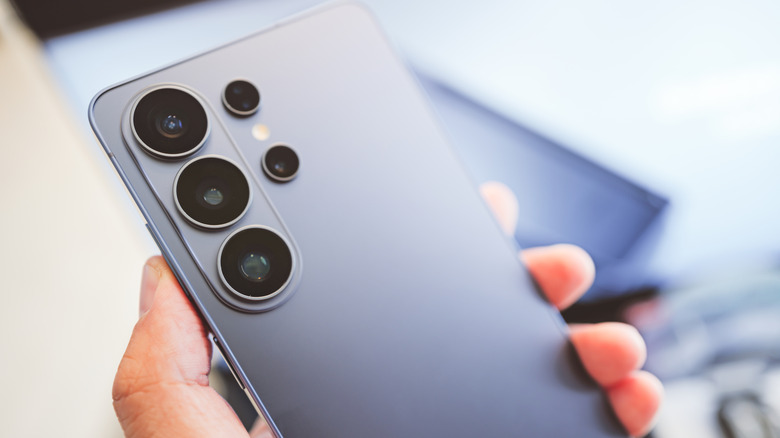
Learning a second language isn't always easy. If you're the type who deals with more than one language, the challenges can compound. Naturally, the Google Translate app has some powerful capabilities, but Samsung S26 owners can also go multilingual thanks to the Live Translate feature. The feature is available across all Galaxy S26 models, and it has surprising depth.
Supporting over 20 languages (along with some regional variations), Live Translate on an S26 can translate images like food menus with your Galaxy camera or even act as an interpreter during a live video call. Live Translate can even help with voicemails, but you should know a few things before getting started. First, download the language packs you need under Settings > General Management > Language Pack. It's best to download them over Wi-Fi.
Live Translate is also able to work within other apps, and you can also add a Live Transcribe shortcut to your Home screen by selecting the Live Transcribe shortcut in Settings. However, if you want to use Live Translate in other apps, you can navigate to Settings > Galaxy AI > Call Assist and then swipe to see Live Translate in other apps. This activates the feature, and you can then choose which apps can use it. This is handy even when you're not traveling.
Interpreter app helps with conversations
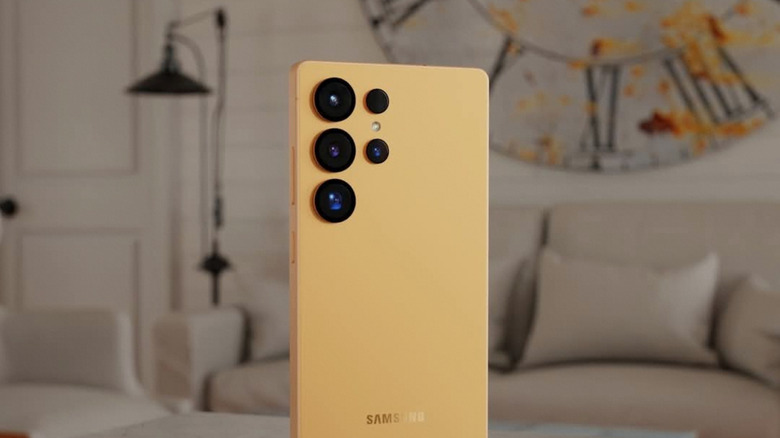
Although the Interpreter app is technically part of Samsung's Live Translation suite, its capabilities warrant its own section. Using Galaxy AI, the Interpreter app can translate real-time conversations between two parties. Essentially, speak in one of the 20 supported languages (including German, Polish, Romanian, Spanish, Swedish, English, Dutch, Russian, and more), and the Interpreter app will present the information in one of the other supported languages.
Remember that the information at the bottom of the screen is for you, while the information at the top goes to the person you're speaking to. Naturally, you'll also need to set it up properly. Open your S26's Quick settings panel and choose Interpreter. With the app open, select the language at the bottom of the screen you'll be using, then tap the language button near the mic at the top to select the other person's language. The Change view mode can flip the top half of the screen to make it easier for the other person to read. You may also want to download the language packs before you begin (outlined above).
The app also lets you view your most recent transcriptions (from the More options section, or three vertical dots), and you can make additional changes, such as adding Tap to talk, under Settings. Like some travel gadgets that frequent flyers swear by, the Interpreter app can be pretty useful outside international travel, too. If you're having communication issues, give it a try.
Privacy Display hides your screen
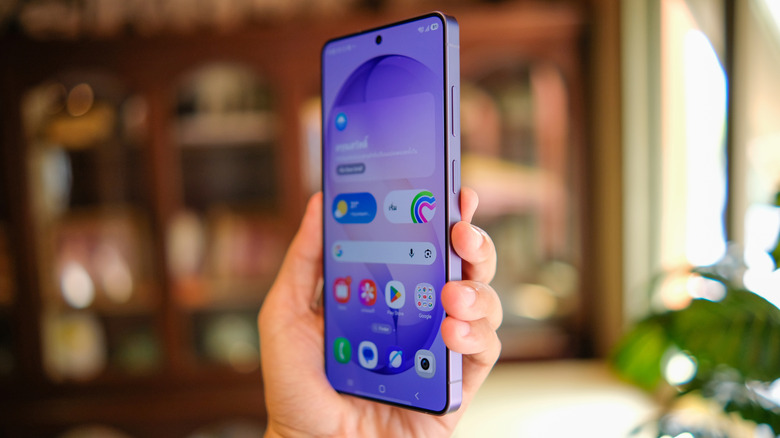
Unfortunately, only the Samsung Galaxy S26 Ultra in the S26 lineup gets Samsung's Privacy Display (see our review here), but those who closely guard their personal information may find the price jump over the baseline S26 worth it. Built directly into the device, the S26 Ultra is one of the first devices to include a Privacy Display. Of course, like others on this list, there are a few things to know.
Samsung's Flex Magic Pixel tech helps control light emissions so you can view the screen only at certain angles. To enable it, swipe down from the top of your screen, press and hold the Privacy display icon, turn it on, then tap Done. Go to Settings > Display > Privacy to adjust additional options. This includes using the display when you enter passwords, PINs, or patterns; applying the feature to certain notification pop-ups; choosing individual apps to use the screen; and even dimming the screen further.
It's not entirely perfect, as you may need to adjust the Privacy Display when using your phone outdoors. You should also avoid applying additional privacy screen protectors to the device. For outdoor use, swipe down from the top of your screen, press and hold the Privacy Display icon, and select Conditions to turn it on. From here, you can make further adjustments. Give it a try if you need to thwart someone's prying eyes.
Galaxy AI can give you a guided tour
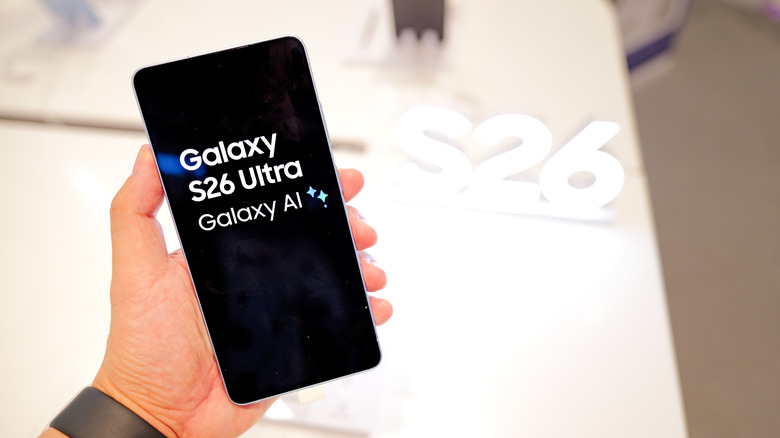
By now, you have likely noticed virtually every tech company cramming artificial intelligence into seemingly anything and everything they can. Naturally, Samsung isn't shying away from AI, and Galaxy AI does its best to make sure you never need to open the Settings app; it can also give you important information about your next travel destination. Galaxy AI also works across multiple apps for synchronizing certain information and actions.
Samsung's Galaxy AI can provide information about a local region, including details about its local culture. Users can speak in natural language to ask Galaxy AI questions about a specific area, and it can even help find locations like local restaurants or even museums. The Now Nudge feature can also implement certain actions across multiple apps. If you need to find a specific itinerary in your email, Galaxy AI can locate it and add it to your calendar.
For those who don't like the idea of Galaxy AI infiltrating their apps, keep in mind there are options. However, if you ever need to review your Galaxy AI features, go to Settings > Galaxy AI. You also need to enable Now Nudge (it doesn't send personal information to Samsung) through Settings > Galaxy AI > Now Nudge. Be sure to toggle the feature to On. Galaxy AI can be handy aside from travel, but getting some additional help in a new territory is rarely a bad thing.
A good battery means good travels
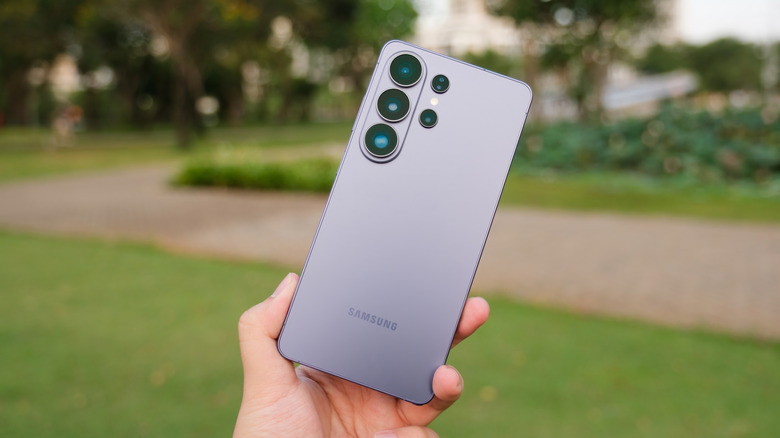
As folks who constantly search through Settings menus, we know plenty of ways to optimize your Samsung Galaxy phone. However, frequent international travelers should also know the S26 lineup packs solid battery specs: the base S26 has a 4,300 mAh battery, and the S26+ and S26 Ultra each pack 4,900 mAh and 5,000 mAh, respectively. Samsung claims each device can handle 31 hours of video playback, but additional settings and features can help keep you juiced on the go.
Every device in the S26 lineup supports fast charging, which can power a device up to a certain level in just 30 minutes (typically above 50%). However, we're interested in Samsung's battery-saving features, as the S26 lineup offers a suite of options that can help extend battery life. Go to Settings > Battery > Power saving to find plenty of options, including Samsung's Power saving feature.
Through this menu, users can set background usage limits for apps, view battery information, and even limit charging to protect against battery degradation. One feature that will be useful for travelers is Wireless power sharing, which lets an S26 device charge other wireless-compatible devices, such as the Galaxy Buds 4 Pro. This can be especially useful if you carry a lot of tech accessories, but still, check your Galaxy's battery settings before you head out on a trip.