

5 Easy Ways To Back Up Your Google Pixel Without Paying For Cloud Storage
For many users, smartphones are the main computing devices they use throughout the day, so they accumulate plenty of personal data they wouldn't want to lose. Having your phone stolen or experiencing hardware failure can lead to data loss. But a simple habit like backing up regularly ensures you have a recent copy of your photos, documents, contacts, and other personal content, ready to transfer to a new device. Pixel phones can back up to your Google Account using Google One cloud storage, but the free plan limits you to 15 GB, so you may need to pay for a premium subscription.
However, several methods can back up your Pixel phone without paying for Google One. These include copying your data to a computer, using portable media storage for on-the-go backups, and moving files wirelessly between devices. Backup methods may also include using the free cloud storage you may get with subscriptions you already pay for. You can also turn old Android phones into backup solutions for your current Pixel.
While some of the options below are easy to do, they may not be as convenient as setting up cloud backups through Google One and other Google apps and services that use storage in your Google Account. Restoring data to a new Pixel device may also be easier through your Google backup. However, not all apps can back up settings and data to your cloud storage. Even if you pay for Google One backups, you may still need to back up certain app data separately.
Backup data to a computer
Unfortunately, Pixel users don't have a local device backup option as iPhone owners do. You can connect the iPhone to a Mac or PC and save an almost complete, encrypted backup of your handset, making restoration as easy as restoring from iCloud. Pixel users will need to back up manually instead. Connect the handset to a Windows computer via a USB-C cable and look for the "Charging this device via USB" notification. Select "File Transfer" under the "Use USB for" menu to open a transfer window on the PC. On your Pixel phone, find "Internal shared storage" and copy the folders to your computer. The list may include folders such as DCIM/Camera, Pictures, Downloads, Documents, and other relevant ones. Copy them all to a specific folder on your computer and name it something relevant, such as Pixel Backup.
You can also back up Chromebooks, and the procedure is similar to Windows. If you're a Mac user, you'll have to install a software tool that lets you browse the Pixel's file system to copy files. OpenMTP is an open-source solution that works. Once you connect the handset to the Mac via USB-C, the app lets you save the same folders mentioned above.
If you have a NAS or a router that supports USB storage, you can use them to save Pixel content. An app like Syncthing (and the Syncthing-Fork for your Pixel) can automate syncing between your phone and computer and ensure the key folders you want to back up are in sync after the original manual backup.
Backup directly to an SSD or microSD card
The method described above will not back up key features like your phone's full setup, SMS database, and app data, but you'll still get plenty of important personal data, including photos and documents. You can eliminate the middleman (the computer) and copy your personal data directly to a portable SSD, USB flash drive, or microSD card. This method lets you back up on the go, as long as you carry the storage solution with you.
For a 256 GB Pixel 11, consider a 512 GB or 1 TB drive to accommodate multiple backups over time. You may also want to protect the backup drives with passwords and, if available, use encryption. These steps are optional and may require formatting the drive on a computer. Connect your Pixel to the SSD, USB drive, or microSD card with a USB-C cable. You may need adapters, like a USB-C dock or card reader. After that, open the Files by Google app, tap the "USB available" notification, and grant access. Use Files by Google to find the Internal storage folder, where you'll find the same folders we mentioned earlier. Select the folder or specific files and copy them to the connected USB drive.
This method lets you back up more often, as you may do several backups during the day, moving any new saved files and photos. You may also want to use a secondary, dedicated SSD connected to your computer to back up Pixel folders. This gives you two separate backups and may help if one drive fails or is lost.
Transfer files wirelessly to your computer
Backing up Pixel content wirelessly to your computer is even more convenient, and the good news is that the handset supports it through built-in tools or third-party apps. Windows users can use Quick Share. AirDrop support is available on select Pixel phones to move files wirelessly to Macs via the same Quick Share feature. Just make sure Bluetooth and Wi-Fi are enabled on both devices. Then open the Pixel apps you want to back up, such as Google Photos and Files by Google. Select the files, tap Share, and then select Quick Share. Choose your computer, then wait for the transfer to complete. You may want to check that the files were transferred correctly. You can combine wireless transfers with the wired file transfer described previously. Then move the files to the appropriate folders within your Pixel Backup folder.
Alternatively, you can use an app like LocalSend, which is an open-source service available for Android, Windows, and macOS. Install the app on your devices, and then use it to transfer photos, videos, and documents to your computer. This method also works well with the first method: backing up data to a computer via USB-C. You'd already have the Pixel Backup folder structure in place, and you'd only need to transfer the new files wirelessly. You can use LocalSend every day to move new files to your computer.
Don't forget the third-party cloud services you may be paying for
You can use cloud services to back up Pixel data without buying cloud storage specifically for these backups. You can use the 15 GB of free storage in your Google Account for targeted Pixel backups, including contacts, SMS and RCS messages, call history, device settings, and supported app data. Make sure this data won't exceed 15 GB. Keep in mind that Gmail, Google Drive, and other account data already use some of that storage allotment.
To start Pixel backups to your Google Account, go to the Settings app on your Pixel phone, tap Google > All services > Backup and restore > Backup. Select Backup by Google One, then choose the data you want to save. Photos and videos will likely exceed your available storage space. You'll want to back that data up using other methods.
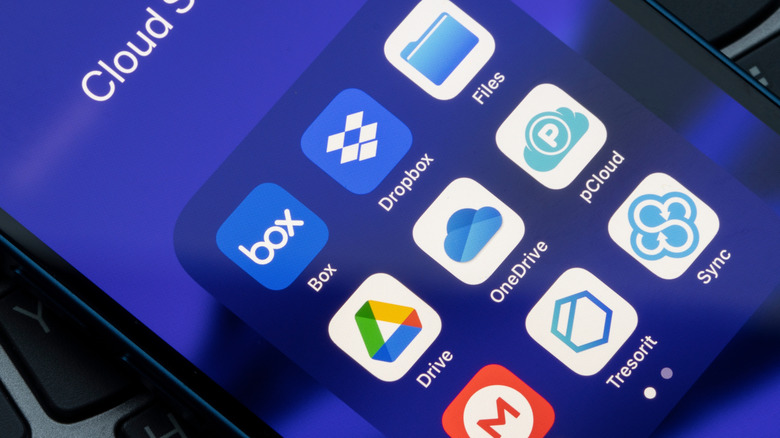
For example, Amazon Photos, Microsoft OneDrive, and Proton Drive each offer up to 5 GB of free storage. You may access premium versions of these services through Amazon Prime, a Microsoft 365 family or work subscription, and a premium Proton subscription. You can then use these separate cloud storage options to back up specific files. If you have unlimited photo storage via Amazon Prime, you can save images and videos to Amazon Photos. Or use your paid Microsoft account to store work documents, and use Proton Drive for personal documents. Repeat the process for other third-party cloud storage solutions, such as Dropbox and Box. Consider creating a document that lists where you've backed up specific Pixel data.
Use a second Pixel phone
You may want to combine the methods above to ensure you save most of your Pixel data. Regardless of your computer's operating system, make sure it has enough local storage. Pixel phones have a minimum of 128 GB or 256 GB of flash memory, depending on model and generation, but some models can have up to 1 TB of memory. Also, you'll need to keep access to the premium cloud storage solutions mentioned above and save the data locally when those subscriptions expire.
One way to ensure a smoother process is to copy your Pixel phone to a second handset. This means either buying a second device, like a mid-range Pixel handset with enough storage, or using an old Android handset sitting around the house. With LocalSend, you can periodically move folders between the two devices. Alternatively, you can use Google's Android Switch process to transfer data from your primary phone to the old phone. This creates an almost perfect copy of your device, ensuring you have a ready-to-go device if something happens to your main phone. However, some limitations may exist, depending on your devices.
Another downside is that you can't sync data between the two phones. You'll either have to repeat the Android Switch process at set intervals (which may involve factory resets on the backup device) or manually sync specific folders. On the other hand, if you also keep local data backups on your computer, NAS, or portable media, you may not have to repeat the Android Switch procedure as frequently.