

4 Signs Your Disc Drive Is Broken
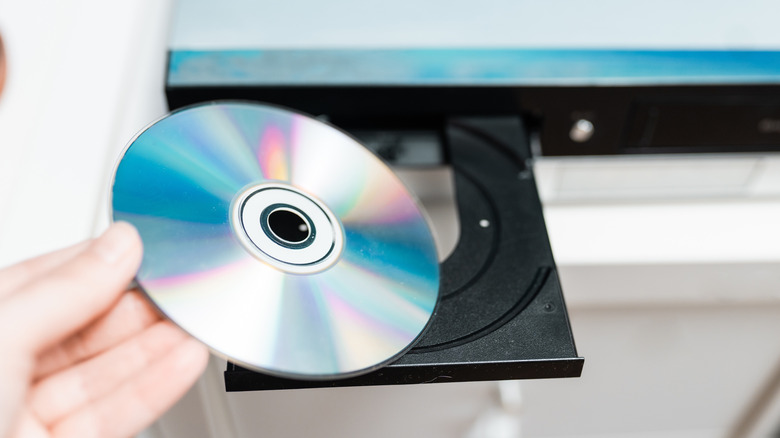
If you were around in the early 2000s, you might have experienced the trauma of burning a CD or DVD, only to find later that it didn't work. All that time and a perfectly good blank disc, wasted! While streaming is the norm these days, physical media is making a comeback, and there are even still a few laptops that include a disc drive, so knowing how to troubleshoot a faulty disc drive is a valuable skill to have.
Despite what you might think, it's not always easy to tell when your drive is having problems. Hardware faults don't always show up as an error message, and playback issues can come from all sorts of things, including the disc brand and its rotation speed. On the plus side, many disc drive faults can be resolved quickly and easily. Even if yours can't, external DVD drives are available for around $20 (though you'll pay more for Blu-ray support). In most cases, you don't need to spend money. With that in mind, let's address some of the most common problems you might encounter with your PC or laptop's disc drive.
The disc drive isn't recognized

If your disc drive shows no signs of life or doesn't even show up in your computer's file explorer, don't panic! If you recently installed a new drive, it might not be connected properly, so the best course of action is to turn your computer off, unplug it, and verify that all connectors are securely seated. While unlikely, the connectors themselves could be damaged, but this isn't a huge problem since you can buy replacements online for a few dollars.
But what if this problem began suddenly? In that case, it could be a driver issue. This software tells your computer how to use peripherals such as disc drives, and if it's missing (or the wrong version is installed), the drive may not appear. Thankfully, solving this problem is usually straightforward: reinstall the driver using the CD that came with your drive, download the appropriate drivers from the manufacturer's website, or scan for suitable drivers automatically using Windows Device Manager.
The disc tray won't open
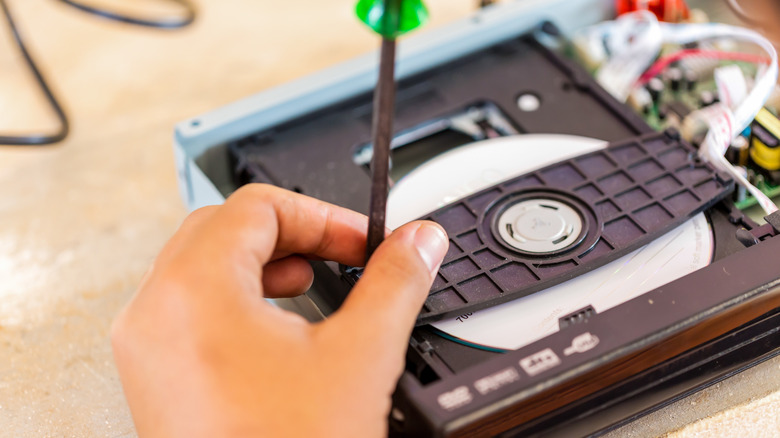
Some problems can prevent the tray from opening, trapping your disc inside. If pressing the physical eject button doesn't work, try right-clicking the drive in File Explorer and selecting the eject option. Still no luck? Restart your device and press the key shown on the screen to enter the BIOS menu (typically F1, F2, or F10, but the exact key varies by manufacturer). If the drive works properly in the BIOS but not when you log into the PC, a third-party application may be interfering with the ejection process.
Next, try the emergency release. Somewhere on the front panel of the drive, there'll be a small hole. Power down your computer, then insert a paperclip into the hole. The disc tray should open slightly, allowing you to pull it fully open. If this doesn't work, the cause is likely mechanical, especially if you're hearing clicking or grinding noises. The drive's mechanism may be jammed, or the CD may have dislodged itself, frustrating attempts to open the tray. You may be able to disassemble the drive and retrieve the disc, but since repairs often cost $40+ per hour, buying a new drive may be cheaper.
The drive struggles to read discs

This issue is harder to diagnose because it can show up in several ways. For instance, you may not be able to view the files on any disc, experience problems only with certain types (or brands) of discs, or notice that discs take a long time to read.
A good starting point is to make sure the disc tray is free of dust, then gently clean the laser lens with a cotton swab and rubbing alcohol, then let it air dry. If you're still having problems, try to pinpoint the issue by testing one CD, DVD, and (where supported) Blu-ray that you know works properly. If some formats work while others don't, the appropriate laser may have degraded and will have to be replaced. While you're at it, take the time to store your discs properly so they last as long as possible.
Let's say the drive lets you view files on a disc but has problems actually playing them. In this case, the disc itself may actually be the more likely culprit. It may not have been burned correctly, may require codecs that aren't installed on your device, or may be from an unreliable brand. Since two discs that appear to be from the same company may have been made by different manufacturers, it's often easier to write off your losses, buy a new spindle of discs, and try again.
The drive doesn't burn disks correctly

If you're having problems writing to discs, check your burn settings. Slower burn speeds typically produce more reliable discs, so if you're burning at anything over 16x, try dropping a notch. It's also extremely important to verify that your burning software knows what type of disc (CD-R, CD-RW, and so on) you're using, as well as its capacity. Not accounting for these variables can cause problems that prevent the burned disc from playing correctly.
Additionally, you might inadvertently buy blank CDs or DVDs that don't work with your drive. This is often the case when you're buying in bulk or opt for a little-known manufacturer. No amount of tinkering will fix this issue, and you're liable to drive yourself crazy trying, so do yourself a favor and try again with a different brand of discs.
Unless there's something wrong with the physical components of your disc drive, most problems are easy to fix. Of course, most people don't actually need a disc drive these days, so your other option is to just get rid of it entirely and fully embrace digital media. Still, for many, there's something about the tactile experience of inserting a DVD into the drive, hearing the whirr as the tray retracts, and waiting, for a moment, as light translates color into code and brings your favorite movie to life. Call them outdated, sure, but old-fashioned? No, these drives are science fiction, right here and now.