

5 Android Settings That Can Have An Unexpected Effect On Your Data Usage
Data caps are annoying, to put it nicely. Whether it's your cellular provider only allocating you a certain number of gigabytes a month or you find yourself on a Wi-Fi network that charges by use, going over any predetermined limits can be costly. Figuring out how much phone data do you actually need can be a challenge, as you have to consider what's essential and what isn't. If you find yourself consistently counting megabytes on your Android phone, know that there are settings that can have an unexpected impact on your data usage.
Google isn't oblivious to users needing data, which is why Android includes a helpful Data saver mode that can automatically set restrictions. Moreover, restricting background data for certain apps and services also does wonders. Even if you're using something like a mobile hotspot, setting up Metered Wi-Fi settings isn't too difficult, and certain apps' auto-sync can impact data as well. Naturally, streaming services can be an issue, but YouTube and third-party apps have data saving options, which helps since there are plenty of popular smartphone apps that can chew through your data plan.
We'll take you through the steps on each of these features, but remember that saving your data may have an impact on how your battery responds. Being restricted on the internet can really ruin a good time, but knowing some of the ins and outs of certain settings can at least get you some better mileage. Additionally, remember that settings may vary by Android device.
Data saver mode
Doing anything involving the internet is pretty likely to impact your data usage, and this can also apply to Android apps. If you want to monitor your data usage, on most Android phones, you need to open Settings, tap Network & internet, select Internet, and then tap Settings by your carrier name. You can also make a Quick settings widget if you want to consistently monitor data (and we also know how to make your own custom Android widgets), but Android also allows users to set a data usage limit if going over a certain threshold is a concern.
Here's the process on most Android phones:
-
Open Settings.
-
Select Network & Internet.
-
Tap Internet.
-
Choose Settings next to your carrier.
-
Choose Data warning & limit.
-
Turn on Set data limit and hit Ok.
-
Select Data limit and enter an amount.
-
Select Set.
Do note that on Pixel phones, the path goes through Network & internet and then directly to Data Saver, rather than Internet and the carrier's settings.
Also, while you're under Data warning & limit, you can choose Data warning to receive a notification when you're about to reach a certain limit rather than disable data entirely. If you want to continue using data anyway after hitting a limit, just follow steps one through five and turn Set data limit off.
Turning off data will impact how you use your phone, so try and set a cap much lower than your actual limit so you have potential data for emergencies (for example, if you have a 30GB limit, consider setting it for 25GB). However, if you're on a data plan that charges overage fee, this setting has the potential to save you some money in the long run.
Background app refresh
Fetching your email or refreshing social media feed is obviously going to take some of your data, but many apps can continue to drain data in the background without you even knowing. For some apps (like your email), you may want this to happen, but you may not want everything to constantly run in the background, especially if it's something you rarely use. If a certain app is hogging data, you can turn off background data usage for that app.
Here's how the process looks on most Androids:
-
Open Settings.
-
Scroll down and tap Apps.
-
Select an app.
-
Scroll down and select Mobile data & Wi-Fi.
-
Disable Background data.
After enabling this, you can also go back to the main app page, select Battery, and then choose restricted. This focuses more on your battery, but it may also help in the long run (as can plenty of other Android settings that can dramatically extend your phone's battery life if battery is a concern).
Samsung Galaxy devices also have this option, and it just involves going to Settings > Connections > Data usage > Mobile data usage. Pick an app, then disable Allow background data usage. Remember that regardless of what device you're using, be sure to do a little research to see what apps may be using the most data as they run in the background. Galaxy devices will show you a graph when under Mobile data usage, whereas you can check stock Android under Carrier settings as outlined in the section prior.
Metered Wi-Fi
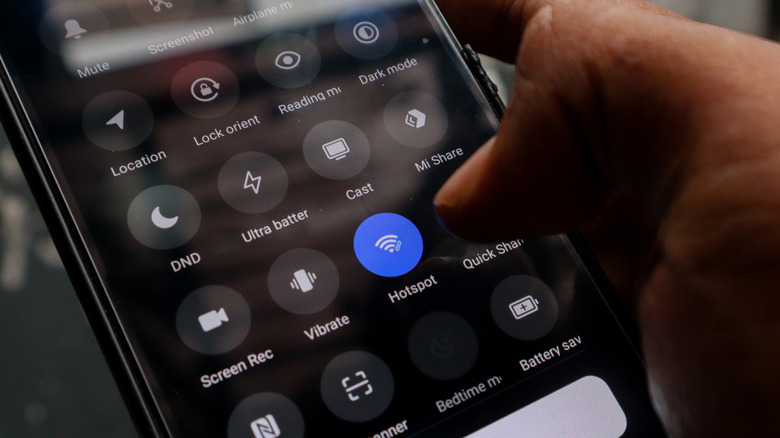
It's easy to assume that being on any Wi-Fi connection automatically means unrestricted access to data use, but those utilizing something like a mobile hotspot or a Wi-Fi connection that also has its own data caps know this isn't always the case. If you're using a Wi-Fi connection that falls into this category, then consider the Metered Wi-Fi option on Android.
When using the Metered Wi-Fi option, your phone will warn you about larger downloads (such as certain apps or system updates), but it also prevents data syncing and certain content from updating. It's also worth noting that users will need to use Android 8.0 or above for this feature.
Here are the steps:
-
Open Settings.
-
Choose Network & Internet (or Connections).
-
Tap Internet (or Wi-Fi).
-
Select the Settings icon next to your current Wi-Fi network.
-
Look for View More, Advanced, or Network usage, then select Treat as metered.
Users may also find this option by navigating to Settings > Network & Internet > Data Usage. Choose more options (three dots), and then select Metered Wi-Fi networks. Enable the option for each network. Again, this one may also have certain use cases (costly hotel Wi-Fi being another great example), but those that need it should notice its benefits after using it for a while. Additionally, those with Android hotspot options should also remember how to turn your Android phone's hotspot on without opening your phone.
Disable auto-sync
Should you find that you're still having data issues, something else you can try is disabling auto-sync for apps. Within Android, certain information is being constantly sent to your Google account, which can make things like transferring to a new phone easier. You're not going to want to disable auto-sync for every app (especially something like Contacts), and Google makes sure all of its apps sync automatically. Third-party apps may vary, but there are naturally ways to check.
If you want to check which apps auto-sync and when they last did, follow these steps:
-
Open Settings.
-
Choose About phone.
-
Tap Google Account.
-
Select Account sync.
-
If you have more than one Google account, select which account.
You'll see a list of Google apps and the time they last synced. To disable them, navigate to Passwords, passkeys & autofill from Settings, then select Account sync. From here, you can disable which apps are syncing automatically.
Remember that you will need to manually sync information for any apps you restricted this access for. This simply involves going back under Account sync following the steps above, selecting More (three dots), and hitting Sync now. This will sync information for all of your Google apps. Again, disabling auto-sync for every app may not be the best idea, but it's worth considering for apps you may never use (though you may want to consider these underrated Google apps for your Android phone).
Use YouTube's Data Saving Mode (and check other streaming services)
As Google's video streaming service, YouTube can be great for devouring data. Like other streaming services, YouTube does have the option to change video quality. You can change the quality of any video you're watching by tapping the gear icon within the YouTube player and selecting Quality, but there's also options to set preferences at the device level. These options include Auto, Higher picture quality, Data saver, and Advanced.
For our purposes, we want to look at the Data saver setting. What's cool about this feature is that you can differentiate between mobile and Wi-Fi networks, so you can set a higher quality rating for when you're on Wi-Fi yet use Data saver on mobile.
Here are the steps:
-
Select your profile picture from the YouTube app.
-
Choose Settings.
-
Select Video quality preferences.
-
Select Wi-Fi or mobile networks.
-
Choose Data saver.
YouTube Premium subscribers can also download videos for offline viewing. Just hit the Download button within the page of any video you're watching. There are also other YouTube Premium features you should be using. Lastly, while not an Android setting, remember that other third-party streaming services may have their own playback quality or offline options. Just as a quick example, you can navigate to your profile on Spotify, select Setting and Privacy, and then change quality settings under Media Quality (you may want to disable auto-adjust if you're concerned about data). You can also download content for offline use through apps like Netflix and Amazon Prime Video, as well.