

5 Powerful PC Tools That Can Help Diagnose Problems
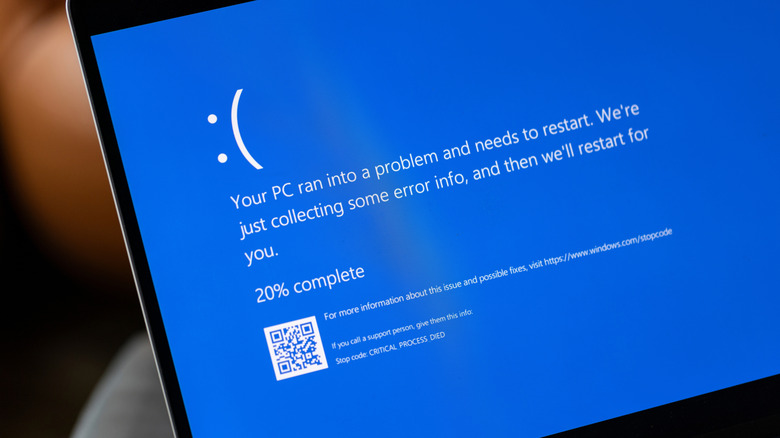
Ever since PCs first started arriving in people's homes, they've come with a need for various kinds of support. Throughout the 1980s and 1990s, PCs came with massive owner's manuals, though they often focused on software-driven issues and weren't necessarily handy if the hardware itself was having problems. If those problems arose in an office, users had access to IT help, but even technicians in those departments needed the right diagnostic tools.
Whether you use one of the best desktop PCs or do your personal computing with a budget PC, staying on top of its health is much easier today. The internet has also democratized understanding of a computer's inner workings. Today's PCs are also more user-friendly than their 20th-century predecessors, making professional diagnostic tools more accessible. You can easily find these tools and, in many cases, use them just as easily.
Windows PCs keep getting improvements, but software can still crash, screens can freeze, memory can fail, files can corrupt, and storage can fill up much faster than anyone expects. Here, we're looking at powerful PC tools to help diagnose the problems behind these situations. While each has a free version, most are free to use. Everyday PC users and professionals can use them to monitor the health of numerous PCs throughout the day.
Reliability Monitor
PC issues can be hard to understand at a glance, and while it can be tempting to immediately search the internet for third-party solutions, you could try a built-in Windows feature instead: Reliability Monitor. While several Windows 11 features focus on more creative and entertainment-based tasks, Reliability Monitor can be used to look into just about everything that's happening behind the scenes on a PC. It's designed primarily to help identify software issues that may affect a PC's overall performance and reliability. It lays out a timeline that sorts and summarizes everything Windows has recorded about application crashes, OS failures, and other hardware and software issues.
Because the program monitors and logs this information, it can also serve as a diagnostic tool. A software crash doesn't tell a user much about what went wrong, but reviewing crash records can help identify patterns. Reliability Monitor monitors components such as the CPU, memory, hard drives, and fans, so you can see what was happening inside the PC when a crash occurred. Reliability Monitor turns it into a visual summary, grouping events by date and sorting them by severity. Each event includes technical details that name the program or file involved, giving PC users specific details to investigate for solutions.
Windows Repair Toolbox
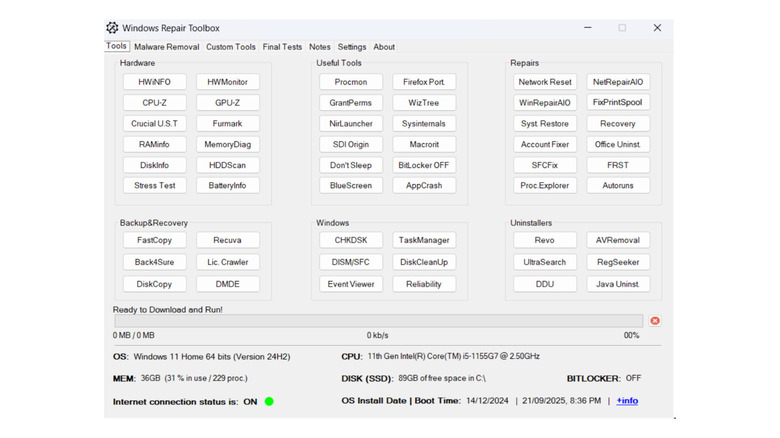
When you turn to third-party tools, you can find just about anything on the internet, and much of it may or may not be helpful. Windows Repair Toolbox is a free aggregator of these tools, providing a dashboard that gives access to third-party and independent programs and developers. Users can find and launch programs based on the issues they're having. Because the program is meant to be a convenient middleman to other PC tools, the developers of Windows Repair Toolbox consider it "portable" software. This means it can be installed and run anytime, anywhere, while you install the software needed for further diagnostics and repairs as needed.
The program's interface is incredibly simple and designed specifically for system recovery. It organizes a massive collection of third-party programs into categories. These include things like hardware diagnostics, backup and recovery tools, uninstallers, and Windows system repairs. The program's dashboard also shows monitors for memory, CPU, hard drive space, and internet connection status. Windows Repair Toolbox can be an incredibly useful tool for technicians, IT professionals, and anyone who regularly works with multiple PCs. But everyday PC users will also find it useful, since it can eliminate the trial-and-error process of finding software to resolve an issue.
HWiNFO
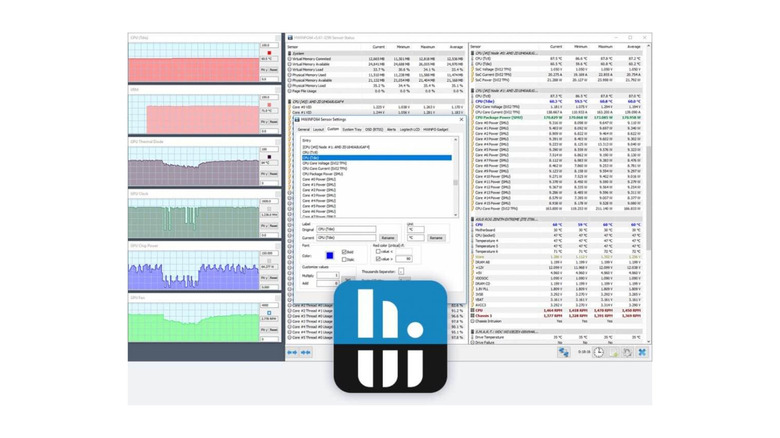
HWiNFO is another Windows program that's free for non-commercial use, and it can identify the hardware that makes up a PC's spec sheet. More importantly, it can monitor each component and report how it's performing at any given time. PC users can view everything from in-depth CPU core activity and GPU usage to basic details like CPU clock speeds and the type of RAM installed. HWiNFO is a hardware analysis, monitoring, and reporting tool; once it's up and running, users can monitor hardware components and diagnose any perceivable issues in real time.
The software supports a wide range of Windows versions, as well as DOS. NASA uses it to monitor its computer systems, but for everyday PC users, the interface is still user-friendly and easy to understand. Users can arrange everything it shows to suit their needs, with tables, graphs, and on-screen overlays as part of the interface. Although it's mostly a monitoring tool, HWiNFO can trigger alerts about a PC's health and even write reports and log them in numerous file formats. It can also share this data with other diagnostic tools and software add-ons. The software has been around for some time, and PCWorld has recommended HWiNFO in the past.
MemTest86+
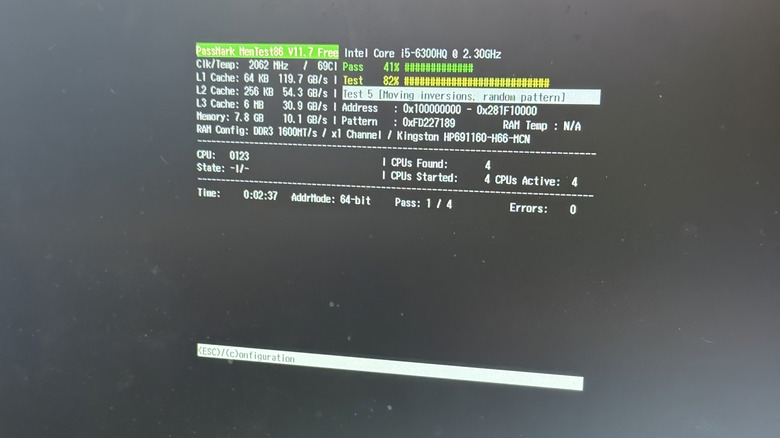
Ensuring a PC's RAM is fully functional goes a long way toward making a Windows 11 computer run faster. Faulty memory is a common cause of PC crashes, freezes, and general system instability, no matter the OS. But MemTest86+ is a free, open-source program that gives PC users an inside look at how their computer's RAM is performing. The program is a stand-alone tester, so you can run it entirely on its own from a USB Flash Drive, a burned CD or DVD, or even over a network. MemTest86+ also isn't restricted by the memory the OS uses, so it can access almost all of the computer's memory.
RAM can fail in many ways, and MemTest86+ can test for several of them. The program can also push memory hard enough to expose problems that would otherwise show up only under heavy use. If anything goes wrong during such a test, an error list can show where the error occurred, giving PC users some concrete information to work with. This is software everyday PC users can use at no cost, and it can even be used in offices or other multi-PC setups for free.
TreeSize
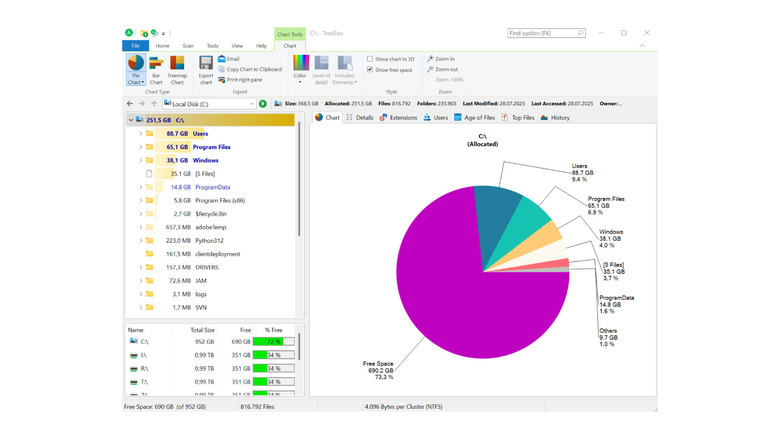
Whether using a solid-state drive or a traditional hard drive for internal storage, PC users whose capacity is dwindling can use TreeSize for help. The program shows exactly where a PC's storage is being used and can even break down which file types take up the most space. It stands out in part because of its user interface, which provides visual breakdowns of storage use, including pie graphs and Treemap charts. Each can help PC users understand where their computer's internal storage space is being used.
But the program is helpful beyond just internal storage diagnostics. TreeSize can also scan USB drives, SD cards, external hard drives and SSDs, and even cloud storage. It can sort files on any of these devices by size, file type, and even age. Displaying things this way immediately shows a PC user the largest and newest files, which, in turn, gives a strong sense of which files can be marked for deletion. While TreeSize can be incredibly beneficial for PC users who simply don't keep up with file management, it can also analyze entire storage systems, making it a handy tool for larger PC networks and setups with shared storage.