

I Tested AirPods' Live Translation In Japan – Here's How It Actually Worked
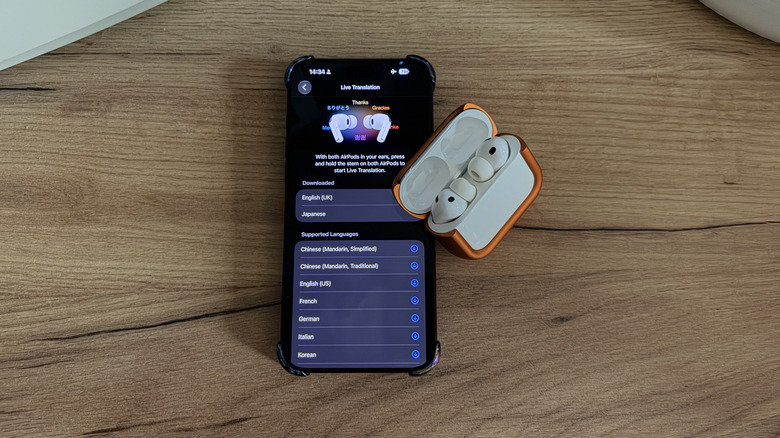
One of the biggest barriers you may run into while traveling is language. Over the past couple of years, earbuds and other live translation devices have tried to solve this problem by translating to and from yours and other languages to help you communicate with as little hassle as possible. But are they any good? To find out, I spent a week in Japan testing Apple's Live Translation feature on my AirPods.
The good news is that the technology worked every time I used it, though setup took a little longer than I'd expected. With AirPods in my ears, I was able to understand what people were saying to me in coffee shops, train stations, and airports. Accuracy was good enough that I never ordered the wrong thing or embarrassed myself (too much).
Understanding what people are saying is only half the job of a translator, however. Replying back to people is where the Live Translation feature runs out of road, though I still don't have a good suggestion for how Apple can fix it without pointing to not-yet-invented sci-fi technologies.
The Live Translation feature has grown since it was first launched in 2025 alongside the AirPods Pro 3. It's now available across most of Apple's current AirPods lineup, including the new AirPods 5. It even rolled out to the older AirPods 4 with ANC and AirPods Pro 2 via a software update. Here's how it actually behaves once you take it somewhere you'd need help.
What Is Live Translation?
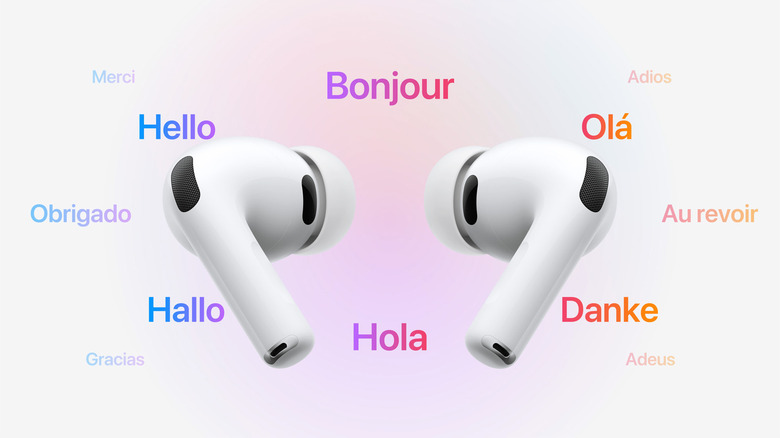
Live Translation is an Apple Intelligence feature that listens to the person speaking to you and plays a translation into your AirPods a few seconds later. It's not quite real-time, but it's about as close as a product like this seems capable of getting. You can use the feature without removing your iPhone from your pocket, although if you do, translated text can still appear in the Translate app on your iPhone.
We've covered in detail how to use AirPods Live Translation, and Apple has plenty of marketing videos that demonstrate how it works. You need AirPods 4 with ANC, AirPods 5, AirPods Pro 2, AirPods Pro 3, or AirPods Max 2, paired with an iPhone 15 Pro or later running iOS 26 or newer. If you're deciding which pair to buy before a trip, our guide to choosing the right AirPods model for your needs can help. You must also have Apple Intelligence switched on, the latest AirPods firmware installed, and Apple's Translate app downloaded — you can't substitute it for Google Translate, I'm afraid.
Live Translation supports English in US and UK variants, French, German, Italian, Japanese, Korean, Brazilian Portuguese, Spanish, and Mandarin Chinese in both simplified and traditional forms. Apple seems to be regularly updating language support for Live Translation; Japanese wasn't available at launch. Also, despite Live Translate shipping more than a year ago, Apple still labels the feature as being in "beta."
How Does Live Translation Work?
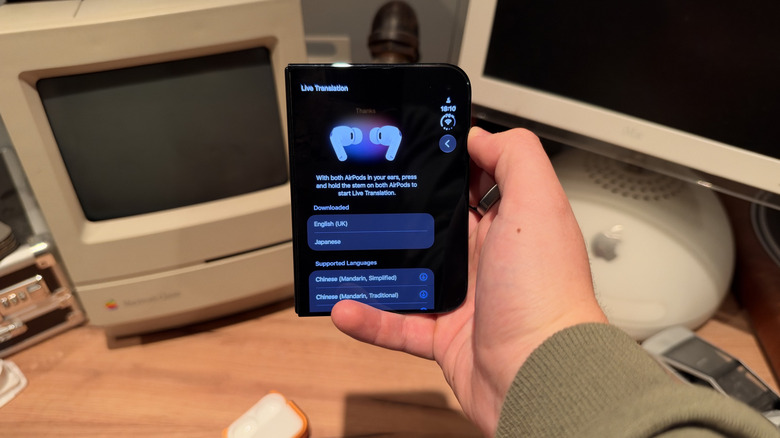
Before you can use Live Translation, you'll have to set it up, which takes a little longer than I'd expected. First, put your AirPods in and connect them, then go to Settings > your AirPods > Live Translation (Beta) and select the languages you want to download. You'll need to download both the language the other person speaks and your own. The files are quite large, so I recommend you download them over Wi-Fi rather than cellular — especially if you're roaming. Next, open the Translate app, tap Live, and choose the language the other person is speaking along with the language you want it translated into.
Once you're set up, there are four ways to start using Live Translation. The easiest way is to press and hold the stems on both AirPods at the same time, which I used almost exclusively. You can also open the Translate app, tap Live, then tap Start Translation. You can ask Siri to start Live Translation. Or you can set the Action button on your iPhone to launch it.
All the processing takes place on your iPhone, with Apple specifying that all conversation data remains on your device. That also means you don't need a network connection for the feature to work, and I found no speed difference between using it on my roaming eSIM and using it with data switched off. Apple also notes that in loud environments you can move your iPhone closer to the person talking, so its microphones help out the ones in your AirPods.
How Did Live Translation Perform In Real Life?
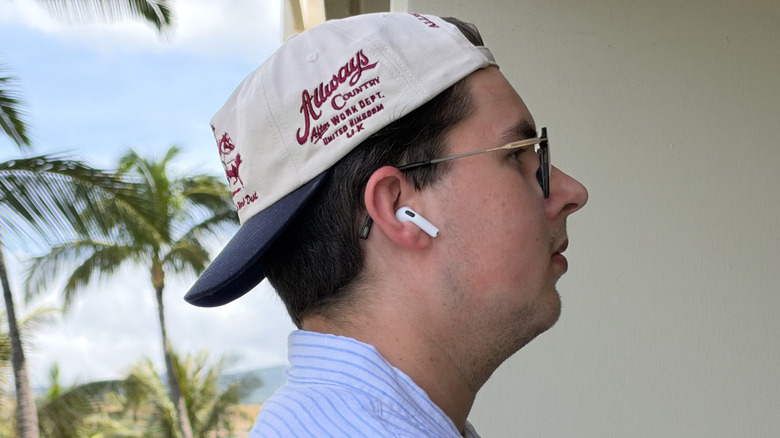
Overall, Apple's Live Translation works quite reliably. It's not instant, as translations are fed back to you after a delay of roughly 2 to 5 seconds, and the AirPods usually waited until a speaker was in the middle of a sentence before starting the translation. That delay isn't too noticeable, since when you're mid-conversation, it feels like a short pause rather than an awkward silence
I always understood what had been said to me and always got the right order in stores and cafes. Japanese is a difficult language to handle well, so that counts for something. I was sure to use Live Translation in everyday interactions rather than in a controlled setting, so I never had a Japanese speaker checking the output word for word. Its most useful moments came in train stations and at the airport, where announcements weren't always repeated in English.
If you have several languages downloaded and previously used a different setup, your AirPods may default to the wrong languages. You'll need to head into the Translate app on your iPhone to fix it. Replying is the biggest problem. In an ideal setting, the person you're talking to might also be wearing AirPods so they can hear your English translated back. But in practice, baristas don't usually work with AirPods in their ears. So to reply, I had to pull out my iPhone and show my translated words on screen.
It was accurate and quicker than typing, but holding a phone up to someone's face is a poor substitute for talking to them. The only fix I can picture for this problem is a display in your field of view, like the one on Even Realities' G2 glasses. Perhaps Apple's long-rumored smart glasses will solve this problem.
Does the AirPods Model You Use Make a Difference?
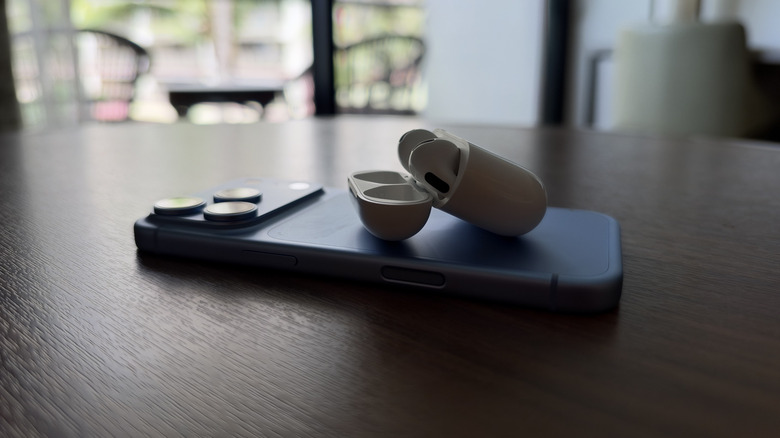
In case you're wondering, even though Apple supports Live Translation across a range of its devices, the technology itself seems to operate the same with each device. Both the AirPods 5 and the AirPods Pro 3 run on Apple's H2 chip, so the processing is identical. Your iPhone does most of the processing anyway, so I imagine having a newer iPhone could makes a bigger difference in some situations. Anyone expecting the more expensive pair of AirPods to translate faster or more accurately should probably save their money. You can check out our other four reasons to skip the AirPods 5 upgrade if you're debating a future purchase.
However, I noticed that one of the AirPods works slightly better than the other in practice because of the fit. You see, the AirPods 5 do not come with a silicone tip to effectively seal the sound inside your ear canal. This actually makes them better for listening to actual conversation, even with Transparency switch on. You can hear the person's real voice and the translation together, plus your own voice sounds normal to you too. My review of the AirPods 5 and their open-ear noise cancellation goes deeper into how they fare day-to-day. For station announcements and airport gate calls, the AirPods Pro 3's stronger seal and better noise cancellation make translated audio easier to follow in a loud concourse, as one of my colleagues found after three months of using the AirPods Pro 3.
AirPods 5 start at $129, or $149 with the Wireless Charging Case, while the AirPods Pro 3 start at $249. If you want to use Live Translation for face-to-face conversation abroad, then AirPods 5 are the ones I'd pack.