

The 5 Most Common Problems With Smart Speakers (And How To Fix Them)
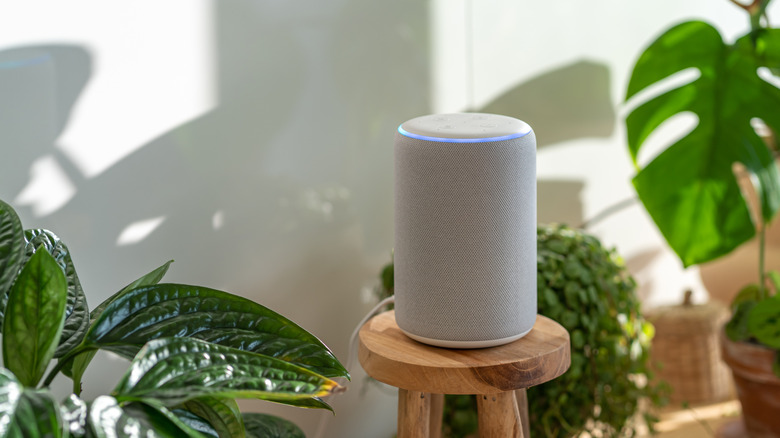
Smart speakers from companies like Amazon, Apple, and Google are meant to help simplify your life, but they can quickly devolve into a nuisance if they're having a problem. Something like the Google Home Speaker is great for controlling smart lights or getting quick answers, but any smart speaker is still capable of experiencing common issues that need to be remedied. Whether you've been using smart speakers for a while or are still deciding if you need smart home automations in the first place, knowing how to resolve these problems can come in handy if you're in a pinch.
Given that smart speakers typically rely on wireless connections, knowing how to fix Bluetooth or Wi-Fi issues can ensure a smart speaker is operating smoothly, whereas making sure the device is actually listening to your responses is vital to an experience. Those with multiple smart speakers may also discover that too many of their devices are listening at once, but other users may also grow irate at exactly how a virtual assistant responds to certain requests.
As you make your way through these common problems and solutions, keep in mind that we did our best to make the answers as adaptable to different devices as possible. However, some solutions may only work for specific devices, especially as you start diving into settings menus. For what it's worth, we pulled solutions directly from manufacturers whenever possible. If you're the type who worries about the average life of a smart speaker, exploring the concepts discussed below can be a great first step in preserving the longevity of a device.
Your smart speaker's Bluetooth won't connect or drops out
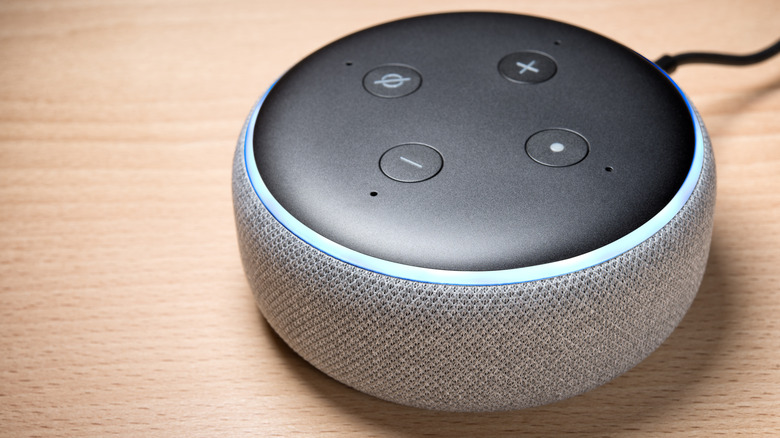
If you enjoy tech, wireless connections have likely benefited your life in some facet, but everything still has its limits. Despite its connectivity perks and ubiquity in wireless communications, Bluetooth's reliance on the 2.4 GHz frequency band can make for some spotty connections due to numerous other devices relying on the same spectrum. It's one reason Bluetooth will always be unreliable, but other minor problems can create issues as well. Bluetooth can be crucial for speaker support or initial setup, so let's make sure it's working properly.
Looking at Amazon's documentation for Echo devices as an example, the company recommends ensuring the device is up to date (just say "Check for Software Updates" around your Echo), moving the Echo away from potentially interfering devices (such as microwaves), and removing paired devices from the Echo and reconnecting them. For Google Home and Nest devices, Google recommends that you ensure Bluetooth is enabled on your paired mobile device while also not being connected to other Bluetooth devices.
It's also important to remember that certain smart speakers may require additional peripherals for making connections. With an Apple HomePod, for example, an iPhone or iPad is necessary for completing setup. What operating system it's using will also factor into the equation, depending on the device. Of course, when it comes to Bluetooth, simply restarting your devices may do wonders, though you may also want to check for hardware defects. If necessary, make sure that all devices are appropriately charged or properly connected to a power source, as well.
Your smart speaker won't connect to Wi-Fi
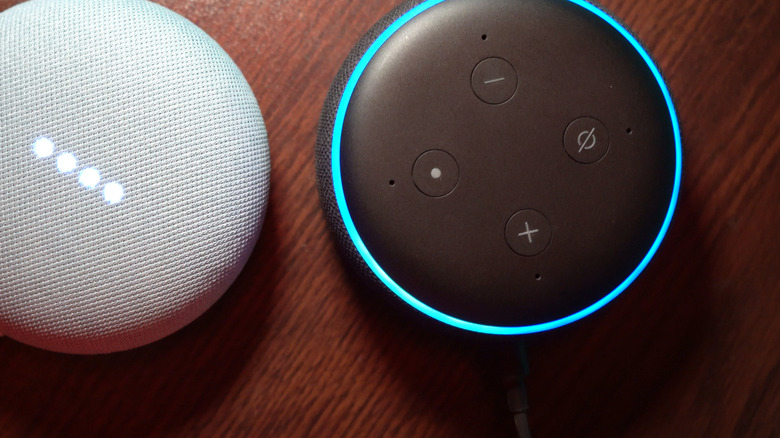
Bluetooth may help with certain features or connectivity options on a smart speaker, but a solid Wi-Fi connection is often its lifeblood. Unfortunately, plenty of things in your home may be interfering with your Wi-Fi, but that doesn't mean there may not be some quick solutions with the smart speaker itself. To start, you can always try power cycling the speaker to see if this clears away any minor bugs, but you can also restart your home router to see if that alleviates any issues (or you can test the connection with another device).
Of course, manufacturers also have their own suggestions. Starting with an Amazon Echo device, the company recommends troubleshooting steps like turning off devices on your Wi-Fi network to see if it's overcrowded or checking to see if your router has 2.4 GHz and 5 GHz bands and trying a different frequency if so. For Google Home and Nest devices, the company's support page recommends checking that all necessary cables are securely attached or contacting your service provider.
Apple also has its own suggestions for checking Wi-Fi connections on a HomePod, including making sure all necessary devices are connected to the same network or making sure HomePods remain close to your router or access point. Figuring out why a device won't connect to a network can be annoying, but starting with simple solutions can help shorten the diagnostic process or help avoid more complicated issues. There's also always the option of contacting your ISP if you're really having issues.
Your smart speaker isn't listening
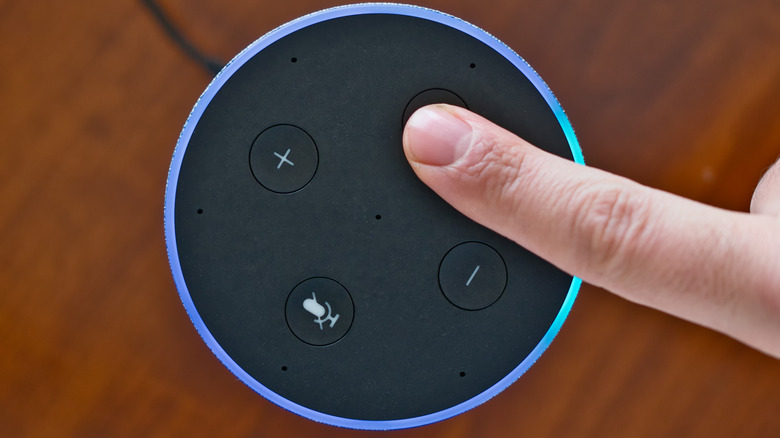
Smart speakers are usually pretty useful for answering requests thanks to the virtual assistants that ship with them, but an assistant is only helpful when it's actually hearing your requests. For example, Apple's assistant Siri can help with numerous tasks such as controlling smart home accessories, but it won't do you much good if your HomePod isn't picking up "Hey Siri" commands. We've had our own problems with the new Siri AI experience, but there are some general steps you can take if your assistant isn't picking up what you're laying down.
Looking at what Apple has to say if Siri isn't working, some basic steps for a resolution include restarting your HomePod, iPhone, and iPad, or making sure that "Recognize My Voice" is only enabled on one Apple Account should you have two devices set up with the same voice. You can also reset Recognize My Voice by navigating to More (three dots) > Home Settings > [Your Name] > Recognize My Voice and turning it off and on.
Amazon offers similar advice if users are having a hard time with Alexa, though the company also suggests using the power adapter that came with your device while also ensuring you have an active internet connection. Amazon also recommends making sure you're close to your device and that it's away from background noises, walls, and speakers. It's also important to remember that, depending on your settings, your smart speaker may not sound an audible cue to let you know when it's listening — instead, there may be a visual indicator like Echo speakers emitting a cyan light with a blue ring.
Too many speakers are listening
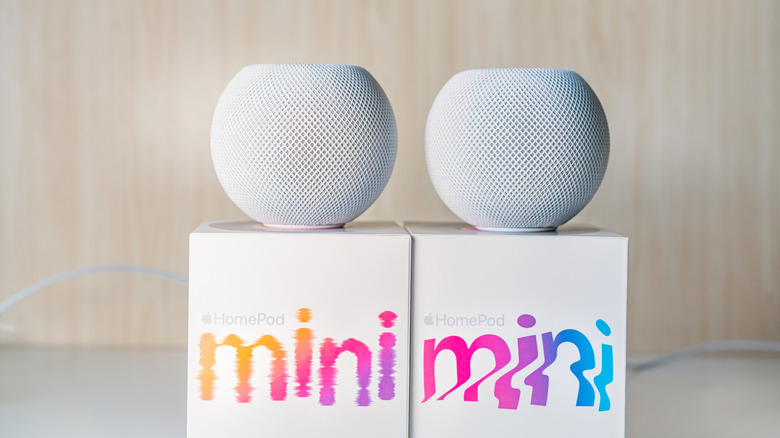
Smart speakers that refuse to listen are frustrating, but users can also have the inverse problem where too many speakers or devices are answering all at once. Obviously, this problem will depend on how many devices you actually have in your home, but there may be instances where you're trying to engage one device only to find yourself talking to another. Considering all the clever uses smart speakers have in homes, there's no doubt plenty of users have their own setups, meaning knowing what to do if the wrong one replies can ultimately make for a better experience.
Many of the solutions involving your smart speaker not listening may help, but there's also some specific steps you can take. With Amazon Alexa-enabled devices, for example, you can change the wake word on individual devices, allowing you to speak directly to one device. Just open the Alexa app then navigate to Devices > [Select Device] > Device Settings > Wake Word. On certain Google Home speakers, you can adjust the sensitivity of a device's mic. Open the Google Home app and navigate to the speaker, then head to Settings > Audio > Hey Google sensitivity and adjust the slider.
There are more general options available to users, as well, such as potentially disabling the microphone or the virtual assistant on specific devices. Some Google Nest speakers have a physical microphone switch, whereas something like the HomePod will need Siri shut off (from the Home app, select your HomePod then head to Settings > Listen for "Siri" or "Hey Siri"). For this problem, mileage may vary depending on the device, but options are available.
Your smart speaker talks too much
Several smart speaker manufacturers tune their virtual assistants to be a bit overly enthusiastic for some users' tastes. For example, an Amazon Alexa may verbally confirm your request while performing. If you find that your smart home is being a little too chatty, Amazon has a feature that can make confirmation statements shorter, but Apple and Google smart speaker users may need to rely on a workaround.
Those tired of a verbose Alexa can rely on Brief Mode, which shortens the assistant's responses. Just open the Alexa app and navigate to More > Settings > Voice Responses > Brief Mode to enable the feature. Alexa will then give shorter responses and emit a sound rather than repeat your command.
For Apple HomePod and Google Home smart speakers, there are two workarounds here. The first involves putting the speaker and the devices you're controlling into the same room within your smart home settings ([device] > Settings > Room for Apple and Home settings > [room] > Choose devices for Google). Once you've done that, issuing commands to control devices in that room will cause the speaker to simply emit a chime instead of verbal confirmation.
If the device you commonly control isn't in the same room as the speaker, however, you may want to set up custom automations. For Apple, use the Shortcuts app on an iPhone to create a "Control Home" automation, select devices and the desired states, then add Speak Text as the final action, making sure to leave it blank. For Google Home, create a new automation with a "Hey Google" starter and the voice command and actions you want it to use. When your automations are invoked by voice on either platform, the actions will trigger without a verbal response.
Methodology
Several factors came into play while determining this list. For starters, we set out to find the most common problems reported by smart speaker users online. When it comes to things like smart speakers that rely on a remote UI for settings management (in most cases, their corresponding smartphone app), issues with connectivity are particularly prevalent. But we also looked into the types of chronic problems that affect users in the long run — the everyday "pain points," if you will.
With these problems in mind, we pored over product pages and service manuals for popular options from some of the leading brands to find solutions that would work for most users. This included looking for support information from manufacturers like Amazon, Apple, and Google. Along with reviewing official documentation to address the most common problems, we also did our best to look for solutions and workarounds that other users and critics have suggested from around the web.