

5 Common Reasons Your Blu-Ray Player Won't Recognize A Disc
Gen Z may be ditching digital streaming for physical media, but that doesn't mean the latter isn't without its drawbacks or that watching movies from disc is always a flawless experience. One issue you might run into is that sometimes your Blu-ray player won't recognize the discs you're trying to play, no matter what you try. It can be frustrating enough to make you want to throw the whole thing through the nearest window.
But if you find you're having these types of playback issues, you may want to save a window by exploring some of the most common reasons why that may be happening, and how you might overcome the problem. Note, however, that manufacturers may have their own ideas about what to do when it comes to addressing the problems below, so you might also check those sites if you still have issues with playback. Either way, you may just end up being the hero of your family's next movie night.
Discs that are incompatible with your player
An important thing to remember about Blu-ray is that not all discs are created equal. For starters, one of the disadvantages of Blu-rays discs is that they can be region-locked. This means Blu-ray discs have region codes that correspond to certain Blu-ray players. For example, a disc labelled Region A is typically only going to work on Region A players in specific areas of the world (the Americas, in this case). Blu-rays marked as Region ABC, however, are typically region-free, meaning they should work everywhere. Check the manual of your Blu-ray player to see what it supports, but the media should have its region code printed on the back of the disc case.
Keep in mind that this typically doesn't apply to Ultra HD Blu-ray discs, which are normally region-free. However, this does bring us to our next point: Not all Blu-ray players support all Blu-ray disc types. For example, not all Blu-ray players can play 3D Blu-ray movies, and users will need to distinguish between Ultra HD Blu-ray discs and standard discs. Ultra HD Blu-ray discs can support 2160p resolution, whereas typical Blu-ray only supports 1080p. Fortunately, Ultra HD Blu-ray players are usually backwards compatible, whereas some Ultra HD disc releases also include a standard Blu-ray copy.
Users who burn their own Blu-ray discs may also have issues playing them. In certain Sony Blu-ray players, for example, users need to ensure they're creating their discs with BDMV, BDAV, or DMV formatting. Sony recommends using disc-creation software, though you may want to do some additional research. Essentially, make sure the disc you're using supports the Blu-ray player you're using.
Damaged or dirty discs
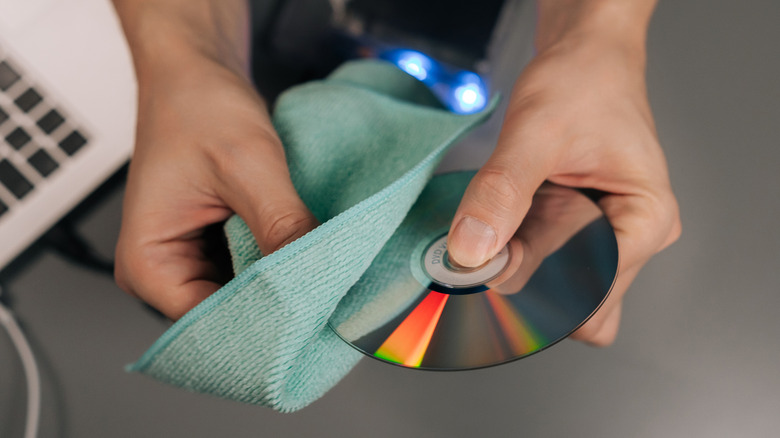
A disc not working due to region errors is one thing, but the condition of the overall disc also plays a role in how it functions with a Blu-ray player. Most of the time, a Blu-ray disc is built to resist problems like dust, scratches, smudges, and fingerprints, but that doesn't mean you're free and clear to treat them however you like. A damaged disc can be a great source of playback issues, including the disc being inoperable altogether.
We know plenty of ways to preserve your DVDs and Blu-rays, but manufacturers can also offer their own ideas. Disney, for example, recommends storing discs in their protective case while also making sure you handle the disc from its hub or outer edge. Do your best to make sure the disc is sitting uniformly inside a Blu-ray player's tray. Meanwhile, Sony recommends making sure a disc tray is clean by wiping it with a soft dry cloth before use, and you can also do the same for the playing side of a Blu-ray disc. Just make sure you're wiping the disc from the center outwards.
As for cleaning disc players, make sure to read your Blu-ray player's user manual, as companies may have their own rules and suggestions. Going back to Sony, for example, it warns against using disc cleaners on certain Blu-ray players. You should also avoid using solvents on Blu-ray discs, especially thinners, benzines, or even third-party disc-cleaning chemicals. Blu-ray discs can be rather resilient, but they still need proper care.
Overzealous parental control settings

The quality of a Blu-ray disc can ultimately impact whether or not it functions, but depending on what settings your player is running, the actual content of the disc may prevent it from playing, as well. Parental controls are helpful for keeping your kids from snooping too deep into applications like ChatGPT, but certain Blu-ray players also offer parental controls that can restrict the playback access of certain Blu-ray discs.
Various Blu-ray player manufacturers have their own parental control features and rules, so what applies to one system may not apply to all. Be aware that video game consoles, such as the PlayStation 5, also have parental controls you may need to disable or bypass in order to play certain discs. Looking at Sony Blu-ray players once again as an example, owners can set their own parental control restrictions and then bypass them with a password. If the disc crosses the age-restricted threshold, it won't play without intervention.
How you disable parental controls depends on the player, but on Sony systems, it can be as simple as pressing the Home button on your remote and navigating to Setup and then drilling down to Parental Control Settings. The company also notes that a full factory reset may be necessary in some cases. However, keep in mind this will likely wipe out all of your settings. Parental controls serve a useful purpose, but they may do their job too well on occasion, so be sure to check if any are enabled when you're troubleshooting playback issues.
Outdated player software or firmware
It's important to check your Blu-ray player for any software or firmware updates. Like updating the operating system on a smartphone, Blu-ray players can receive firmware updates that may improve the functionality of the device by delivering new features or bug fixes. Manufacturers sometimes introduce upgrades to Blu-ray discs, too, which can leave players running old software unable to play the newer media.
Typically, updating a Blu-ray player involves an internet connection. For example, with certain Sony Blu-ray players made after 2014, users can check for software updates by pressing the Home button on their remote and navigating to Setup and selecting Software Update, then Update via Internet. Manufacturers sometimes also provide ways to upgrade a player manually, but this is often a more involved process requiring a clean USB flash drive or writable/re-writable CDs or DVDs. Manual steps vary by manufacturer, but the process often involves finding the firmware for your device, adding it to a writable disc or USB drive, and then injecting the update into the player.
Installing updates with the internet will likely be the easiest method, but be sure to check your player's manual for more information. Similarly, users should remember this may apply to certain copies of physical games, too, as in the case with PS5 owners needing an update to ensure a third of the console's library would still function. Regardless, you may find your system performing a bit better after the update completes.
A dirty disc player
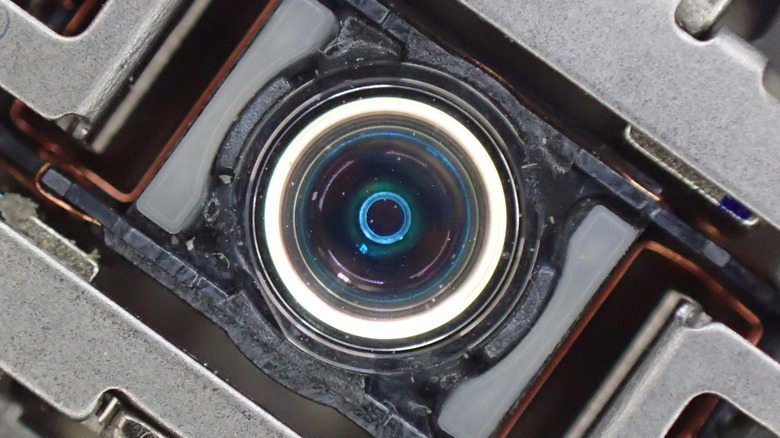
Dirt, dust, and fingerprints on a Blu-ray disc may impact overall playability, but this same concept also applies to the lens inside your player that actually reads the disc. A dirty lens can cause small issues like poor picture quality or long load times, but it may also be the source of disc read error warnings or the disc freezing altogether. Naturally, we've got some ideas on how to safely clean a Blu-ray or DVD player, but given that a Blu-ray player's lens can be incredibly sensitive, be sure to check your manual for details about your specific model.
Not all manufacturers agree on the best method to clean a player lens. For example, Panasonic recommends relying on a lens cleaner disc kit for keeping a player's lens spotless, whereas Sony warns against using both wet and spray cleaners. However, if a manufacturer does suggest the use of a lens cleaner, make sure you are using one that's meant for Blu-ray players and not DVD players. For cleaning, consider using a cloth over brushes, as a dry brush may accidentally scratch the lens of your player.
Remember to keep your player unplugged while you're cleaning it, and removing the player from its home on your media setup and placing it somewhere where you have space to work can also make the job easier. If you're not comfortable working on your own Blu-ray player, you might consider taking it to a professional for cleaning. Either way, make sure you're giving as much consideration to the health and hygiene of your player as you do your discs.