

10 Best Uses For Your Steam Deck (That Aren't Gaming)
We may receive a commission on purchases made from links.
The Steam Deck isn't a powerful gaming PC, but it is a remarkable little device that's convenient and capable of far more than you'd expect (especially when you combine it with these under-$50 handy accessories). These are the coolest uses of a Steam Deck we can find that don't involve gaming — some hardware, some software — but all brilliant, showing off exactly how versatile the Steam Deck is.
Let's start with the basics, though: Nearly all of the other uses we'll highlight today rely on desktop mode, so what is it, and how do you use it? The Steam Deck runs Linux under the hood, and runs a custom interface on top of a traditional KDE desktop. To access it, just press the Steam button, then select Power, then Switch to Desktop. If you've never done this before, it might be a bit disconcerting to find an entire desktop OS is running in the background. There are some differences from Windows, but most functions should be familiar. The most important feature to learn is the Discover store, KDE's official app store, where you'll find most of the software mentioned today. It's the little blue shopping bag icon, third along in the bottom left. Click that, and a world of software will be open to you.
Broken deck? No: cheap mini PC!
While Valve can be extremely generous with hardware replacements outside of warranty, sometimes accidents happen and you'll be left with a dead Steam Deck. But it's not useless. ETA Prime demonstrates by buying a broken, parted-out Steam Deck, then strips it bare to essentially just the motherboard. With an external USB-C dock, it just works: plug in a controller, keyboard, and monitor for a full Deck experience. The only downside if you want to try this project yourself is the cost: If you don't already have one, even broken Steam Decks seem to be going for $200 and up.
It's also worth noting that this is the entire premise of the upcoming official Steam Machine, a fresh push to get a Steam OS-based mini gaming PC into your living room, launching next year. It'll purportedly have six times the processing power of the Steam Deck. It should be powerful enough to run some basic VR, even.
Remote turret controller

Who needs "Battlefield 6" when you're on the front line of a real-life "Battlefield: Ukraine"? While we're probably all familiar with how commercially available DJI drones have been transformed into deadly instruments of war (and come ready-made with their own POV goggles), Steam Decks have also reportedly been repurposed as actual remote turret controllers. The ShaBlya system mounts an M240 machine gun or grenade launcher on a two-axis turret, along with thermal imaging cameras. Other details are scant, but we'd guess some custom Linux software for viewing and control.
The Russian war on Ukraine has redefined what modern warfare means with extensive use of cheap consumer drones that have been retrofitted with armaments. Now, the line between video games and real-world combat has been blurred even more with the launch of a gamification system called "Army of Drones Bonus." Once kills have been confirmed, drone operators can exchange points for more weapons and equipment. Points are also awarded for capturing an enemy soldier, while Recon units are rewarded for marking enemy locations. Better equipment leads to better performance, and the most skilled units rise to the top of the leaderboards.
DIY cyberpunk deck
The Steam Deck nomenclature is undoubtedly a nod to the "cyberdecks" of "Neuromancer" that hackers used to access cyberspace. The cult novel is arguably the origin of the entire Cyberpunk genre, which depicted the idea of an internet well before it existed in the public mind. "Neuromancer" is currently being filmed for an Apple TV+ drama adaptation, and personally I can't wait.
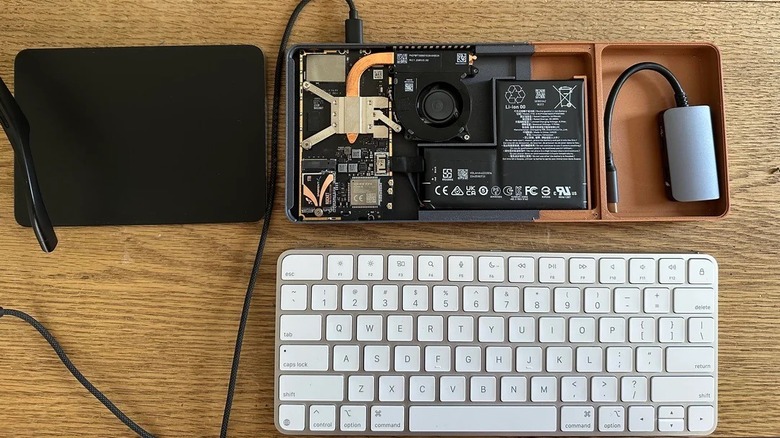
But this Steam Deck mod by Michaelthatsit takes you even closer to an actual cyberdeck by stripping the screen and controller bits, and packing an Apple Magic keyboard in its place. The modder then uses some AR glasses to "jack in" for an authentic Ono-Sendai experience, though he calls it Bento (which is Japanese for lunchbox). There's no software modding involved, so you don't lose any of the standard functionality (you can still game with a Bluetooth controller), but the addition of a keyboard makes dropping to desktop mode and doing some real hacking in the Terminal easier than ever.
Run a Minecraft server for a LAN party
You've got a LAN party coming up, and everyone wants to play Minecraft. You're the only one that knows how to set up a server, but you're travelling light — no massive gaming rig this time. Not to worry, classic Java Minecraft is compatible with the Deck — but there's a better way to do it. Docker is a quick and simple way to deploy pre-built virtual machines; and you'll find a ready-made image for a Minecraft Server. You'll need to configure a little on the Steam Deck side for networks and tunneling and such, but that's not hard. 4 to 6 GB of RAM should be sufficient for a small group.
If you're going to leave the server running, you should know that the Steam Deck loves to go to sleep if you're not actively prodding it, so remember to disable that, or your server might die mid-game. You can do so from Settings > Power, or by clicking the little battery icon in the bottom right in desktop mode.
Of course, you can also run Minecraft on your Deck, and it turns out it runs pretty well — capable of 60 fps, anyway.
Read books and comics
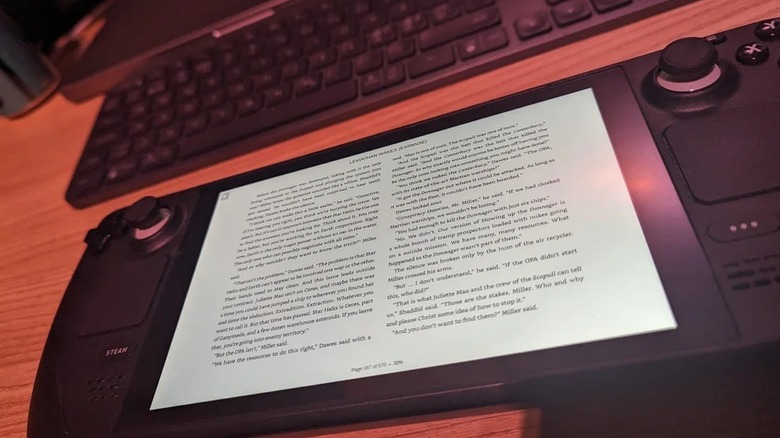
Opinions are divided on whether the Steam Deck is a good eReader or not, but in the absence of anything else suitable, then it's better than nothing. Yes, it's got a short battery life, weighs a ton, and has a relatively low resolution that can be tricky to render text at smaller sizes... but let's remember that some of us grew up reading eBooks on a Palm Pilot, with a mere 160 x 160 greenish-grey pixels. The 1200 x 800 pixels of the Steam Deck is a luxury!
Basic text is easy; manga and comics are trickier. Many comic apps have a magic "panel" reading mode, where you can scroll between panels automatically rather than page by page. Some users report reading full pages by using the Komikku app and flipping the Steam Deck on its side to give a proper portrait orientation. Mcomix is a desktop app (find it in the Discover app store), with a broad range of file type support. Failing that, other users report reading online with the built-in web browser.
Make music (and perform it)
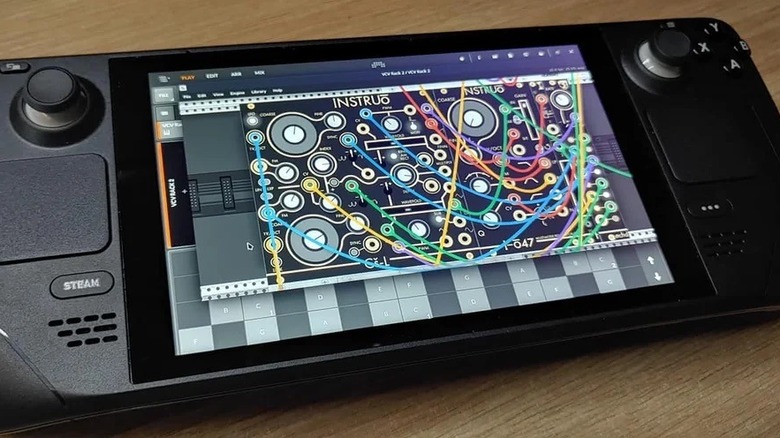
The Steam Deck might not scream "portable studio," but most major DAWs run beautifully under Linux, including Bitwig, Reaper, and even Ableton with a bit of Proton tweaking. In practice, this means you can actually make proper music on the go: synths, drums, samples, and even whole tracks. For recording real inputs, a USB-C audio interface can work, but you may need a BIOS tweak. One user, u/naju on Reddit, showed off their full production setup running Bitwig with VCV Rack 2 on the Deck, noting that the touchscreen was great for pads, while the trackpads are perfectly usable instead of a mouse.
Obviously, it's never going to replace a real studio (and realistically, most of us would probably be better served by GarageBand for the iPad), but the Steam Deck offers more than enough to play around, build loops, or perform simple sets anywhere.
Portable media player
As ever, the ubiquitous VLC is the recommended media player app for the Deck — you can grab it from the desktop Discover store — and though it's not the only competent media player available, it does have the broadest file type support. If you're on the go, rather than trying to transfer files to Deck, load up an SD card with your favorite (legally obtained) media files. For at home or if you have remote access, your best bet is to stream media from a home server with Plex or Kodi. Battery life isn't bad; expect about 5 hours of local playback, though less if you're streaming over Wi-Fi.
The Deck is handy for making a dumb TV smart, but you'll need a docking hub to get HDMI output, since most TVs won't support direct USB-C video. The Steam Deck isn't a perfect replacement for a streaming dongle by any means (it's not even in the top 12 streaming devices) — there's no native Netflix app, for instance, so you would need to use the web browser. But it'll do in a pinch.
Portable workstation

Typing on the Steam Deck touchscreen is a horrific experience, but once you start plugging in an actual keyboard and trying to prop up the Steam Deck to view the screen properly, the brilliant ergonomics of that chunky case with a built-in game controller will start to go all wrong. You could use the official Steam Deck Docking Station, but a cheap USB-C docking hub works fine, too. Then the humble Steam Deck can turn into a fully fledged desktop replacement. Just hook up a monitor, keyboard, and mouse, and you've got a Linux desktop machine — no need to cut your deck apart in the process, mod anything, or dual boot.
While there are ways to extend your Steam Deck battery life, if you're using it as a desktop, you'll definitely want to plug the power in. Performance won't be stellar, of course, but if your desktop is broken and a Steam Deck is all you've got, it's a functional desktop PC for all but the most demanding of applications.
Socialize in VRChat

Before I get flamed for clickbait, let's be clear upfront: VRChat can run... but only in desktop (non-VR) mode. Still, if you've got a virtual date planned, it'll work if you can't otherwise get to your headset.
In fact, the Steam Deck does support VR. At least, the SteamVR app will run, and if you connect a headset or stream it using Steam Link, you'll get some video output on the headset. The software side is functional, and you can get some very primitive titles to run, like Beat Saber. But even then there'll be frequent frame drops and an overall frustrating experience; you can forget anything more graphically demanding.
The upcoming Steam Machine should be more than capable of many modern VR titles at full performance. There's no technical hardware reason it can't or incompatibility in Steam OS — just a performance bottleneck on the Deck. VR is essentially rendering the same game view twice — one slightly different for each eye — and though it doesn't quite need twice as much power to run, it's not far off.
Run all the Linux(es?)
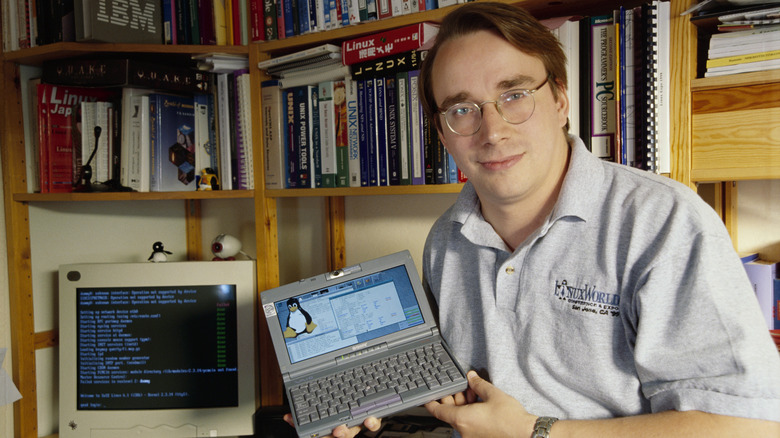
Let's get real geeky for a moment. SteamOS is based on Arch Linux, and the Discover store is the easiest way to install a huge range of software. But sometimes you want to try some software that's only available in, say, Debian Linux, and hasn't been ported to the Flatpak format for the Discover store. Since you can't install .deb packages in SteamOS (it's like trying to install a .exe on a Mac), you'd normally be out of luck.
But you can run Distrobox, which is a virtualized Linux distro installer; in fact, it's built into Steam OS. Each virtual machine has full access to the host graphical system, USB devices, etc. That means you can install other Linux packages seamlessly inside their own VM, and they'll run more or less as if they were installed natively. Finally you can tick off "run seven different Linux distros while riding the bus" from your bucket list.
Avoid: Windows
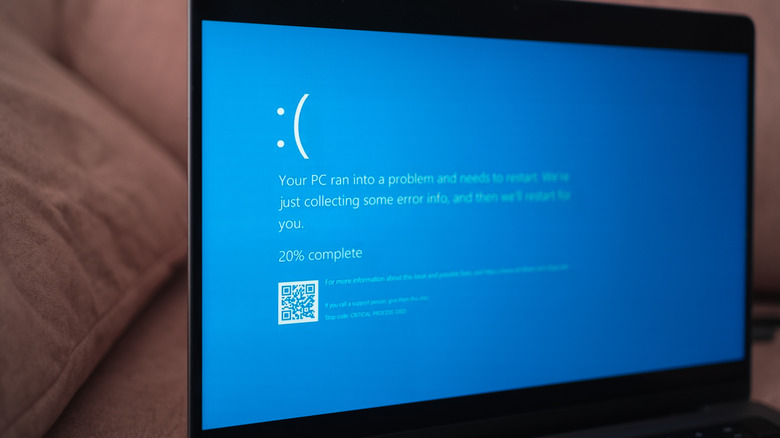
For the real masochists among you, you can fuss around with drive partitioning, dual-boot the Steam Deck, and use a full version of Windows 11. But you really shouldn't. For one, it's a terrible handheld OS (I mean, arguably Windows is a terrible OS, period, but that's another article). There's a reason that these Steam Deck alternatives are consistently reviewed as worse than the Steam Deck — despite superior hardware. It's fragile in the sense that a random Steam update might break Windows — or even worse, a random Windows update might break Steam. Is it really worth the hassle? At the end of it, you'll just end up with a slow Windows PC. Windows is not optimized for the Steam Deck like Steam OS is.
It's not a simple process, since it involves dual-booting and configuring EFI boot partitions. That's tricky enough to do on a desktop; imagine how much worse it is on a portable system. Sleep/resume doesn't work, battery life is horrendous, and the on-screen keyboard is barely functional. The only reason to do it is if you want to run games that rely on certain anti-cheat software that isn't compatible with Steam OS, like Fortnite. If it doesn't have anti-cheat software, you can likely use the free Heroic Games Launcher to run non-Steam games.