

10 Reasons Your Bluetooth Headphones Keep Disconnecting (And How To Fix It)
It can be frustrating when your tech unexpectedly stops working, especially if you can't figure out why. If problems with your Bluetooth headphones disconnecting are ruining your music streaming, gaming session, or TV binge, you'll want to find out why the problem's happening and how you can stop it from ever occurring again.
Tech, sadly, doesn't always work flawlessly, even if you've bought the best headphones on the market, or went out of your way to purchase the best earbuds that experts or friends recommended. There are plenty of reasons why your wireless headphones or earbuds might unexpectedly drop out or disconnect, some of which are problems with your gadget and others of which are simple limitations of wireless tech.
Thankfully, there are just as many solutions as problems to the age-old Bluetooth headphone disconnection issues, so if you're getting frustrated by your headphones playing up, there could well be a fix out there that'll have you back up and listening in no time. We'll run through 10 common reasons your Bluetooth headphones might be disconnecting and, just as importantly, what you can do to fix the situation.
Just note: here, we'll be running through issues that can cause headphones or earbuds to disconnect from a phone, computer, tablet, or laptop that they're already paired with. If you're having problems connecting your tech in the first place, these solutions won't address that specific issue — but they could still be worth knowing for when you get your new purchase working.
Bluetooth has turned off on your device
Most of the reasons included in this list will be unintentional ones, in which something outside of your power causes the disconnection. But it's worth beginning with a cause of disconnection that you may have enacted yourself, because it's a possible effect from changing settings on your phone — and you might not have known it would have the impact it did.
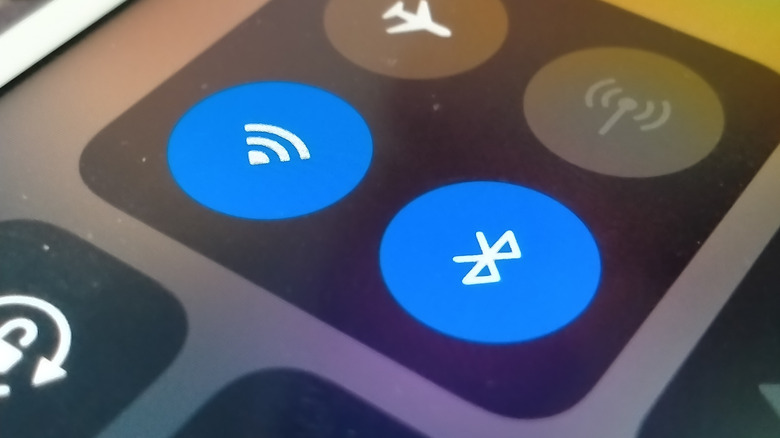
Any source device that you pair your headphones to will have a Bluetooth toggle, which you can use to quickly turn off or on its ability to connect via Bluetooth. For iOS and Android devices, you can find this by swiping down to the quick settings menu, while on Windows PCs it's in the bottom bar on the far right, and on Macs it's in the top bar, again at the far right (and on all devices, it'll also be accessible via the settings menu or app). Many TVs, e-readers and smartwatches have such a button hidden somewhere in their interface too.
For your headphones or earbuds to be paired and playing music, Bluetooth must be turned on. But if you turn this toggle off, either intentionally or accidentally, your headphones will immediately disconnect.
The solution to this is easy: while you're listening to music, avoid fiddling with any of the Bluetooth settings. If you're trying to connect another speaker or improve audio on your Android phone, be advised that one small accidental press could sever your current connection.
Your headphones are too far from the source

A benefit of wireless versus wired headphones is that you don't need to stay too close to the music-streaming device, but there's a limit on how far you can go. Unlike a cell or satellite connection, Bluetooth has a comparatively limited range which varies quite a bit by the kind of gadget you're using it on.
As a general rule of thumb, the connection between an audio product like headphones, and a smartphone or laptop, is about 30 feet or 10 meters.. This isn't a hard and fast rule, though, and it's advisable to keep as close as possible.
If you're listening to music using your headphones, and you wander further than this distance from the audio source, your headphones will disconnect as they can no longer pick up the Bluetooth signal. It can be quite easy to tell when this is happening: it won't be a clean cut, but your audio will stutter as you reach the upper limits of the Bluetooth range.
Rectifying this issue is simple: you need to get closer to the phone or computer you're streaming the music from, and the stuttering should quit. However, it's possible that your headphones will have fully disconnected if you've strayed too far, so you may need to manually reconnect them.
Your Bluetooth connection is blocked

We've already explored how distance can affect a Bluetooth connection, but other factors can also have an impact on signal strength and, at times, cause your wireless headphones to disconnect. The effect will largely be the same as mentioned before, but for different reasons.
The maximum connection range can be affected by your environment; if the Bluetooth has to travel through walls, or is near devices which could interfere with the signal such as wireless routers, its signal strength will drop. According to Bluetooth's own range estimator, outdoor settings offer the best range, while the limit is lower at home and even further reduced at the office.
Again, solving this issue is simple: keep near the audio source, and when possible maintain a line of sight between your headphones and whatever gadget they're playing music from. This ensures no doors or walls are affecting the connection.
Your headphone battery has run out
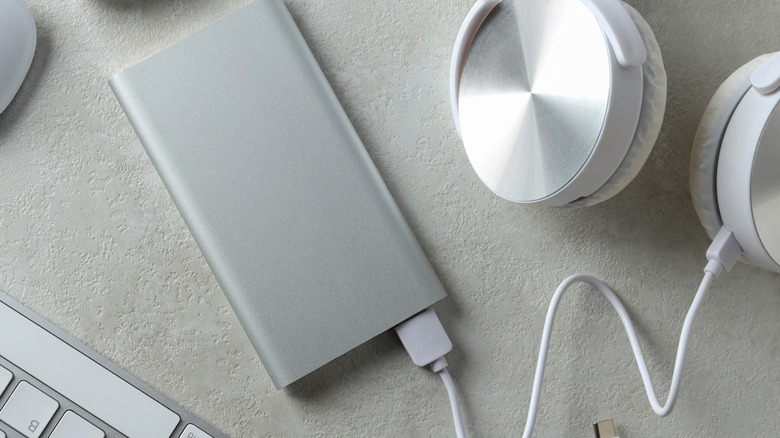
This is a simple one: just like any other gadget, if your headphones or earbuds run out of battery, they'll disconnect from the audio source and will remain unusable until you power them back up. It's always worth checking how much charge your headphones have when you start using them; often your phone or computer will tell you.
Many earbuds like the AirPods Pro 3 have indicators on the case or body which lets you quickly see how much power is left, and understanding this is one way of mastering the AirPods Pro 3 features. If your battery is low or empty, charge it back up to stop Bluetooth disconnection problems.
Sometimes, your earbuds will run out of battery quicker than you think, making them disconnect prematurely. The battery capacity of tech deteriorates over time, but if the use time is drastically lower than you'd expect, it could be the fault of battery-intensive extra features like Active Noise Cancellation, Spatial Audio or LDAC streaming. Turning these features off in your headphone companion app can improve your battery life.
Another reason your headphones might be out of battery is that they're not charging properly. Try to clean fluff out of ports and off jacks, and on earbuds, make sure that the shiny charging pins in the carry case are unobstructed. Give the buds and case a wipe with a static-free cloth every now and then, to avoid build-up of anything that could affect charging.
Different headphones have connected to your device
Generally speaking, your phone or computer can only beam music to one pair of headphones or earbuds at once. In some cases you can output to multiple devices simultaneously — usually Bluetooth LE gadgets or hearing aids — but for the most part, Bluetooth is a one-to-one tech.
If you're listening to music on your headphones and they suddenly disconnect, it could be because the source device has instead decided to output audio through another pair of headphones it's connected to. Most times this happens, it's because when you turn on headphones or earbuds, they automatically try to connect to known gadgets they've paired with in the past. If you do this to a second pair of buds, they'll sometimes bump the first pair off their connection.
This shouldn't happen, but it can from time to time. Audio switching like this is annoying, but it'll only happen with other outputs that your phone has paired with in the past. So your office mate turning on their cans won't affect it, but if you boot up your own headset or open your earbuds' case, there's a chance it could happen.
If this does happen, go into your phone or computer's audio settings menu and switch it back to the intended device, or turn the second device off so your intended headphones are the only output option. If it happens frequently, it may be worth unpairing the second device in the Bluetooth settings menu.
Your headphones have connected to a different device
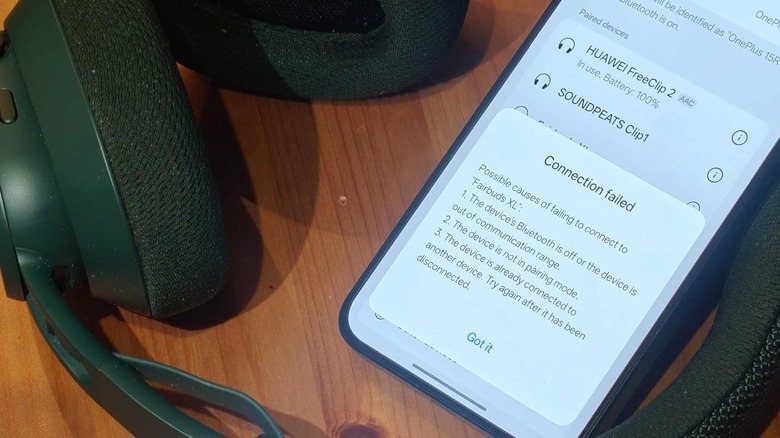
As we've just explained, your phone or computer can sometimes get cold feet, and pick up a different pair of headphones to play on. But the same can occasionally be true of the headphones you're using, causing them to drop their Bluetooth connection and stop playing music, in favor of a different device.
When a gadget is turned on, it will scan for Bluetooth accessories it's usually paired to, including headphones. In doing so, it can sometimes pull those devices away from their current task and to it. This isn't intended behavior, but is a bug that's commonly reported on various forums online.
For example, if you're watching a movie on your tablet, and then turn on Spotify on a phone which usually uses the headphones, the cans might decide instead to jump over to this second device by accident. It'll seem like your Bluetooth headphones have disconnected, when in reality they've just paired with a different device.
To solve the problem, turn off Bluetooth on the second device and reconnect your headphones to the first one. Keeping Bluetooth turned off on the other gadget will stop this issue from happening in the future — although there's been no reported fix for the occasional issue of headphones connecting to unfamiliar devices.
Wear Detection or Auto-Off is playing up
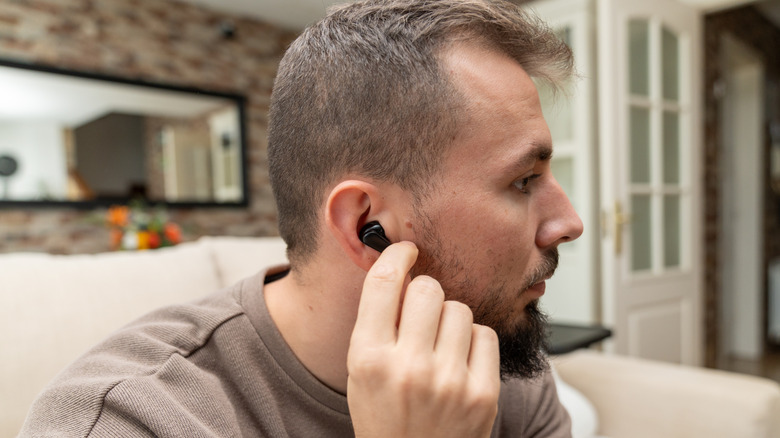
A neat feature of modern headphones and earbuds, like the Google PIxel Buds 2a, is Wear Detection — which will automatically pause your music if you remove them from your ears. This is usually paired with Auto-Off, which will turn the gadget completely off if they're not used for long enough.
Not all gadgets are created equal, though, and on some devices, Wear Detection can work poorly. It could think you've taken your earbuds out when you haven't, and stop your music or disconnect your headphones even though you were still listening. Make sure your buds are tight in your ear, and if the issue arises because they're slipping out of your ear, try using different tip sizes to avoid that happening.
This doesn't always happen to poor-quality buds though. If you listen to your music through accessories — say, if you put your headphones over your beanie hat — Wear Detection might not recognize that they're on your head, and turn them off. This can even occur to people with lots of hair, or those that listen with one cup on their ear and the other to the side. Headphone manufacturers recommend listening with both cups over your ears, with nothing in the way.
In either case, if you're having Wear Detection issues, there is a reliable fix. This feature can almost always be turned off, using the buds' or cans' companion app.
Your headphones have been connected via a wire
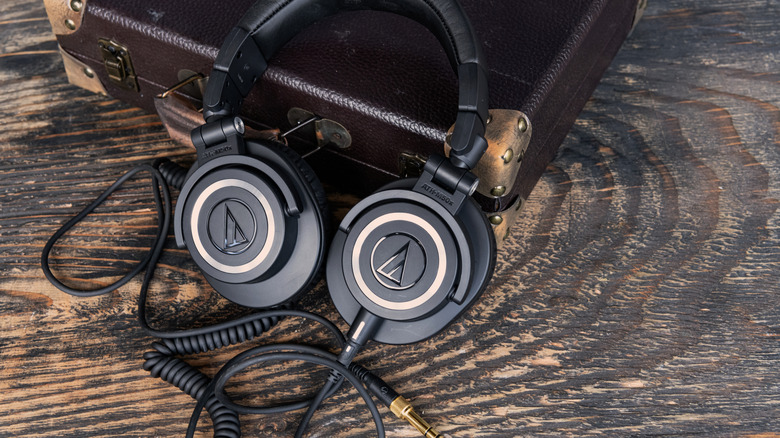
Except in some very rare cases, your headphones can only play from one audio source at once. We've already explored this in point 6: there's a one-on-one rule between audio input and output. This rule isn't just in place between wireless connections though.
Many headphones support a wired connection: 3.5mm is the most common, but plenty let you connect it to a device via USB-C, and a good few have an XLR port as well. This functionality is in place for audiophiles, because wired connections allow for much higher-quality music than wireless. Headphones will generally prioritize wired over wireless connections for that reason, dropping the latter for the former. So if you're listening to music via Bluetooth, and plug in a cable, you might find that your connection drops out. It's not a bug, it's a feature.
A similar thing can happen for a different reason: many headphones can't play music while they're charging up. If you plug in a cable, they'll immediately turn off, even if you were listening to a song. In both cases, the fix is the same: remove any cables plugged into the headphones, and turn them back on to resume listening to music over Bluetooth.
Your headphone app needs updating
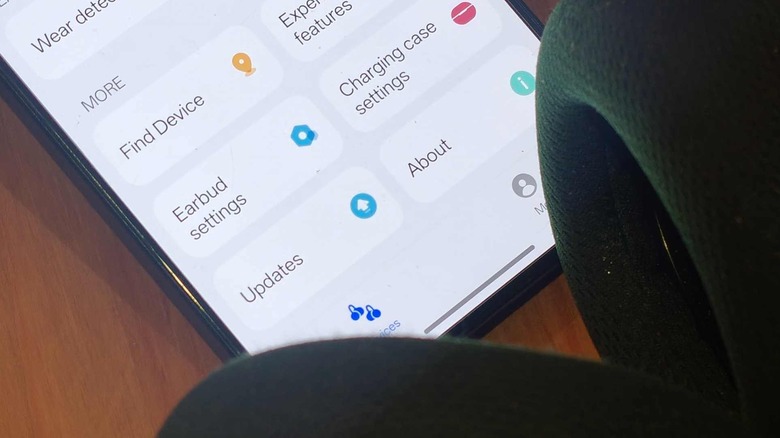
If you use your earbud or headphone companion app, you'll have noticed that you're occasionally prompted to update the firmware or app. This can be for a few reasons: fixing bugs, adding new features, or increasing their compatibility are the most common.
These aren't always required in order to keep using your headphones, and as a result, you can sometimes only realize that a new update is waiting when you look at the app. But one potential effect of out-of-date software is that the Bluetooth connection might not be as stable as possible. And if an update is being pushed through to fix connection issues, that too will be a reason to update as soon as possible. In short, if your Bluetooth headphones are disconnecting, it might be time to give them a software update.
To update your headphone or earbud firmware, head over to the companion app on your phone. The option to update will be in a different place depending on app and brand, but most will display the update button quite prominently if one is due.
Don't have the companion app installed? The user guide you received with your headphones should tell you which to download, but if in doubt, check online as the company will have literature making it clear.
You have a faulty product
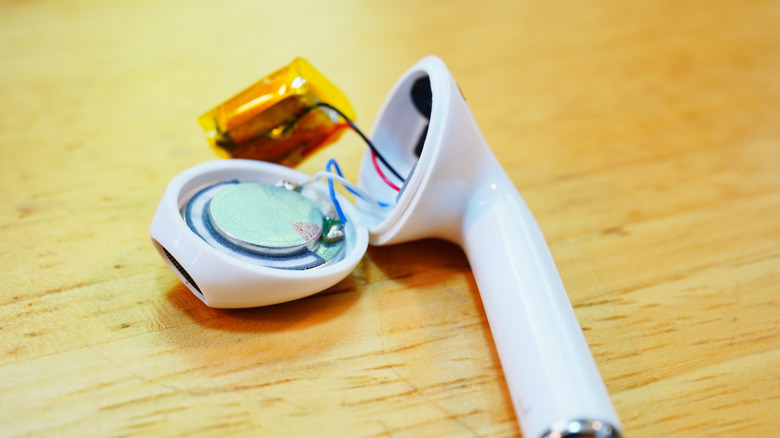
If you've run through all these options, and none are helping you with your Bluetooth headphone disconnection issues, then you may have to face it: you may just own a faulty pair.
This isn't a testament to the quality of your headphones. No matter whether you've bought some budget buds or have picked up options from the most reliable wireless headphone brands, there's always the risk that something may be faulty. Perhaps it's been that way from the factory, or perhaps a bump during shipping or use caused something to stop working properly.
Unfortunately, this isn't something you can fix yourself (unless you happen to be a tech repair specialist, of course). Instead, you'll have to reach out to whoever you bought the product from — which is why it's worth keeping emails or receipts, to be safe. If you're under warranty, and your tech isn't working properly, you can contact the seller to resolve the problem. They're allowed to try to fix the issue before offering you a refund, and you can find out more about your rights at the FTC's website.