

10 Ways You Should Be Taking Care Of Your OLED Display
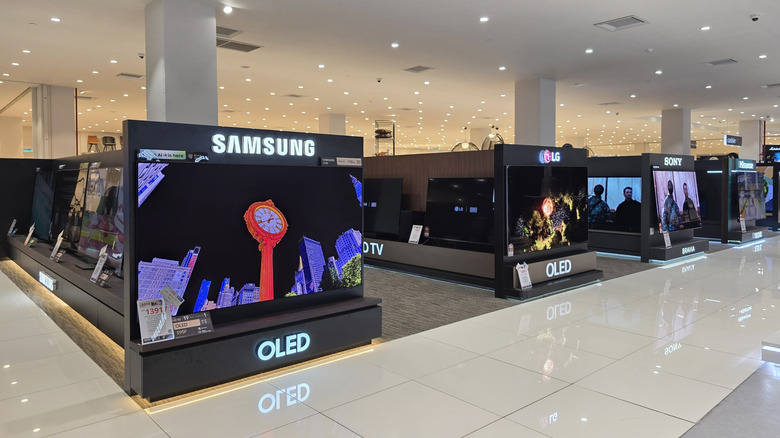
OLED screens have become the standard for smartphones, as well as high-end monitors and TV screens. Unlike standard LCD and LED panels, OLED displays have self-illuminating pixels that can be turned on or off individually. As a result, OLED panels can produce crisp, inky blacks and offer noticeably better color quality than their older counterparts. That color difference alone can transform the experience of watching shows and films or playing video games.
OLEDs, however, are also susceptible to permanent image retention (aka burn-in). Unlike traditional LED panels, OLED displays require many different care steps to look and perform their best over time. Thankfully, OLED screens come with several built-in protection settings and maintenance tools that help with preserving their display quality. When you couple those features with some mindful practices and habits of your own, you'll end up keeping your OLED screen looking great for years to come. The good news is that keeping your OLED in tip-top shape isn't complicated, either — you can see a world of difference just by making some simple adjustments to your device settings and usage habits.
Adopt gentle cleaning practices
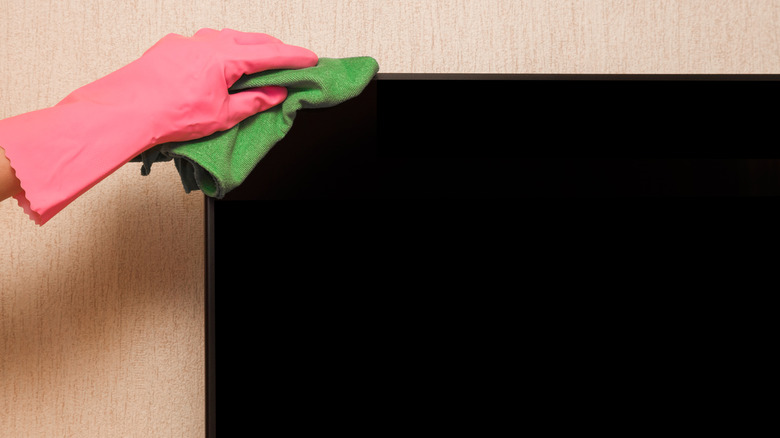
To enjoy crystal-clear picture quality, it's important to regularly clean OLED screens to remove dust, smudges, and fingerprints. When doing so, there are a few things you should keep in mind. First, many OLED panels have special anti-reflective coatings, so you should only clean them using dry or lightly damp microfiber cloths. Be sure to avoid harsh cleaners like alcohol- or ammonia-based products, as they can strip coatings and ruin your screen. Avoid using tissues or paper towels, as they can scratch your display.
Before cleaning an OLED TV, you should first unplug it from its power source. Start cleaning your screen with a dry microfiber cloth to remove dust. To target fingerprints, streaks, or oil smudges, lightly dampen a microfiber cloth with lukewarm water; that should be all you need to remove light grime without damaging your screen. Gently clean your display with the cloth and avoid applying pressure. You can place one hand behind the screen to steady it and avoid flexing it by mistake. Don't spray anything directly on the TV, either, even if it's just water. If liquid drips to the bottom of your screen, it could enter the device interior and cause damage. Dry your screen with a fresh, clean microfiber cloth before plugging it back into a power source.
Disable energy saving mode
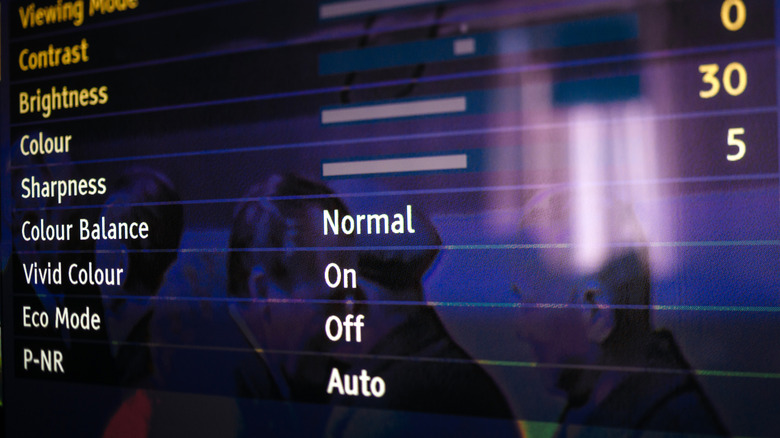
While energy-saving features can help you cut down a smidge on electricity bills, they have caveats. Many OLED TVs offer energy-saving modes that restrict power consumption, but those settings might actually be ruining your screen's brightness.
Low power settings tend to result in washed-out, less vibrant picture quality when you're watching HDR content in bright spaces. After all, your display produces darker images when peak brightness is lowered, making for dull images in well-lit rooms. You might not notice degraded picture quality in darker rooms, but other visual artifacts — like loss of detail, reduced clarity, and color accuracy problems — may be evident. You could also experience blurry visuals during fast-paced action scenes. These effects prevent you from getting the best visual experience and performance that your OLED display can deliver with little benefit in return.
If you never tweak your OLED TV's display settings, you could face subpar visual performance without even realizing it. If you want to unlock its full potential for true-to-life picture quality, disable energy saving mode. It's typically enabled by default from factory settings, so chances are, you'll have to toggle it off manually.
Avoid keeping static images on the screen for extended periods
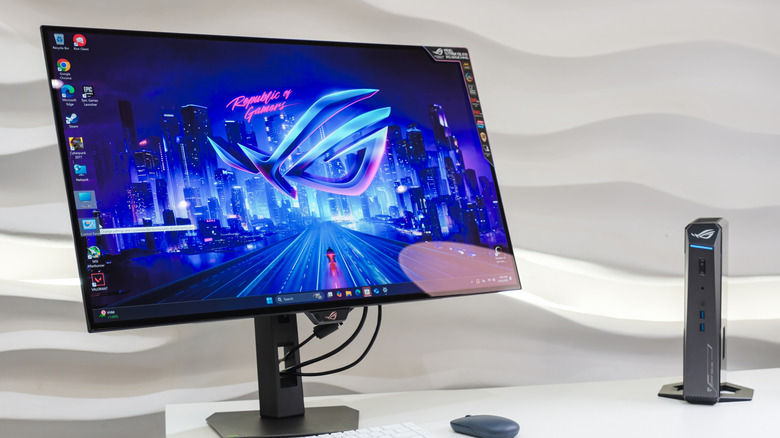
On OLEDs, allowing onscreen static images to stay put for extended periods is a major contributor to burn-in. That's because when bright pixels stay fixed on a panel for a long time, they degrade faster than they would normally. Channel logos, news tickers, menu overlays, paused content, and other non-moving screen components count as static elements. While any TV can suffer unwanted visual effects from displaying static elements for hours or days on end, OLED panels are more likely to be negatively impacted by such habits.
If you're serious about taking good care of your OLED screen, don't leave static images on for a long time. Common examples include pausing shows or video games for hours, or leaving the news channel on all day without watching anything else. You can obviously play games or keep the news on for extended periods, but you shouldn't stick to the exact same interface all the time.
On an OLED computer monitor, we advise hiding desktop icons and enabling autohide for the taskbar. Otherwise, you risk etching faint but permanent ghost images of those UI elements into your screen. You can also shift windows around to prevent uneven pixel wear. If you own an OLED gaming monitor, you could also disable static HUD elements on games that have the option to do so — persistent UI elements like health bars, mini-maps, and score overlays can contribute to uneven pixel wear on OLED displays when they're on the screen for a long time. For the same reason, be sure to avoid pausing games for extended periods, as well.
Don't skip built-in pixel refresh cycles

It's important to run pixel refresh cycles to maintain an OLED screen's image quality and longevity. Since OLED pixels emit their own light independently, they wear out at varying rates based on how often they're used and at what brightness levels. Pixel cycling balances the wear across individual pixels to combat image retention and prevent permanent burn-in. It's an essential maintenance step for keeping OLED panels looking their best, so it's important to understand how often you need to perform pixel cleaning on your OLED displays.
Major smart TV brands that produce OLED screens bake automated background pixel refresh functions into their displays. For instance, LG OLED TVs automatically perform a pixel refresh after four hours of continuous use. You can also run a manual pixel refresh on LG OLEDs by navigating to the panel settings and selecting Pixel Refresher. Note that routine pixel refreshing is distinct from pixel cleaning, which is an extended pixel management feature designed to run only after thousands of hours of use.
Sony explicitly mentions that you should not perform intense pixel cleaning more frequently than once a year. Otherwise, it may do more harm than good by shortening the panel's lifespan. Other factors impacting OLED TV longevity are total hours of use, frequency of static content, and brightness levels.
Don't disable any built-in protection settings
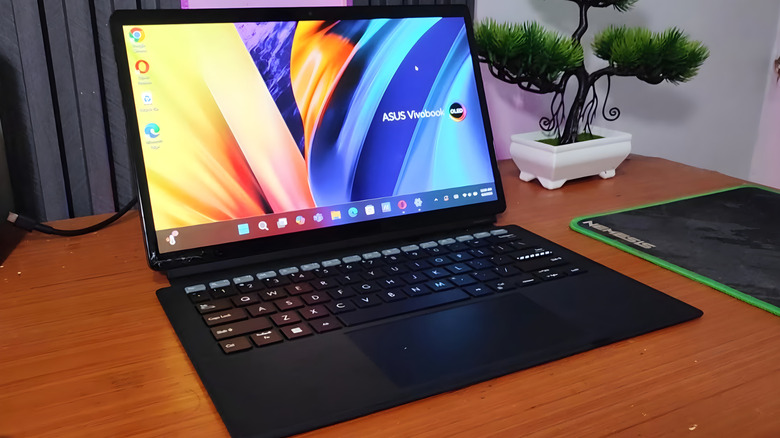
Most OLED displays include built-in protection settings that help ensure image uniformity and balanced pixel aging, which, in turn, maintains picture quality and extends the lifespan of your OLED TV. OLED panels contain organic materials that can degrade unevenly, but built-in OLED protection settings are there to manage pixel health as seamlessly as possible. These tools work in the background and don't impact picture quality. By significantly reducing the risk of burn-in and image retention, they help keep your panel in pristine condition well after you've purchased it.
Pixel orbiting, for instance, is a feature that slightly shifts pixels so that static elements don't wear down specific pixels. Almost all modern OLED TVs and monitors have built-in screen savers that automatically dim the screen after a period of inactivity, which prevents image retention. Some OLED displays even have logo luminance adjustment features that automatically detect and dim bright, static logos to prevent unnecessary wear. As for pixel refreshing, it's so important that many manufacturers explicitly do not allow the feature to be disabled.
Switch to dark mode when possible
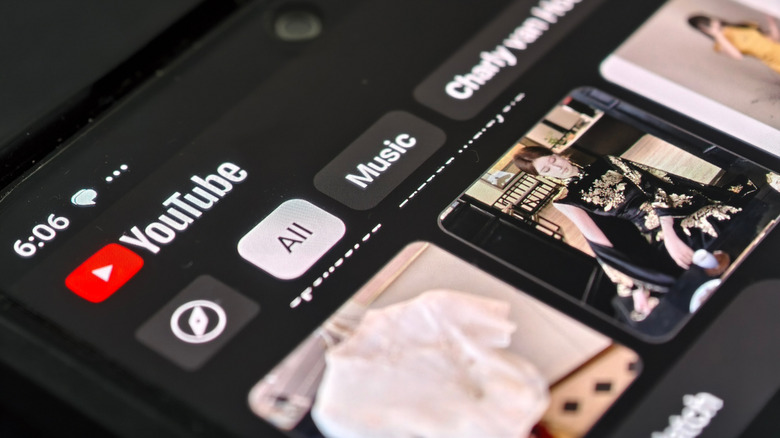
This is one of the easiest ways to take care of OLED displays and prevent burn-in problems. Since OLED pixels switch off when they're displaying black images, using dark mode on an OLED screen helps reduce the overall load on pixels. Dark mode is a display setting that reverses the standard color theme throughout an OS and any supported apps. With this setting enabled, your screen will display light-colored text and icons on a dark background. This yields reduced stress on pixels, which helps prevent uneven pixel wear following daily use. It also helps prevent ghosting or burn-in.
Using dark mode has several other benefits. It looks aesthetically pleasing, enhances visuals, and reduces eye strain. That's not all — if you keep your phone at 100% brightness and switch to dark mode, you could see a 42% improvement in your phone's power consumption, per Forbes. If you own a smartphone with an OLED or AMOLED display, using dark mode is therefore one of the best ways to extend your phone's battery life. Plus, it reduces glare and prevents eye fatigue in dimly lit rooms to deliver a better visual experience.
Adjust pixel brightness levels
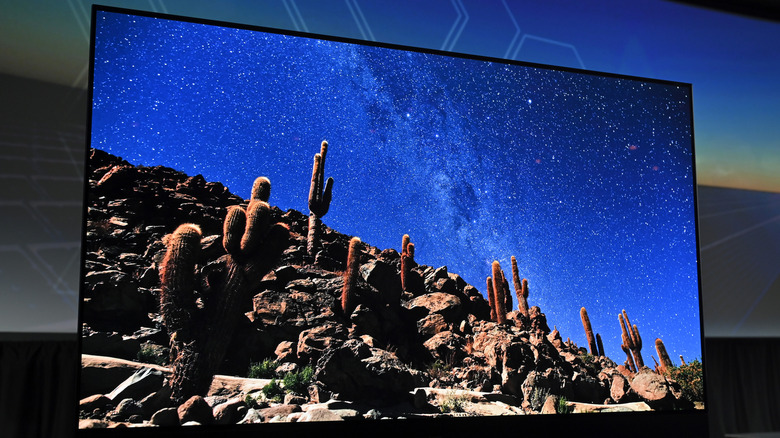
An overly bright display may look stunning, especially when you're playing colorful video games or watching your favorite Netflix shows. However, running an OLED panel at maximum brightness all the time accelerates pixel wear. That's because higher brightness levels consume more power and generate more heat, placing stress on the display's electroluminescent layer.
Lowering your display's brightness extends pixel lifespan and improves visual comfort by preventing jarring automatic dimming during bright scenes. You don't need to completely dim your display, either — just switch to a less intense brightness level, ideally at or under 60%, that feels comfortable to you. Lower brightness will reduce material stress on the organic materials used in your OLED panel and increase its overall lifespan.
You can also enable adaptive brightness features, which automatically adjust display brightness according to ambient lighting. These types of settings minimize the time pixels spend at maxed-out luminance, which is the primary reason for uneven pixel wear. It will also lower the brightness in dim environments to reduce eye strain. If the auto-brightness feature yields results that are too bright or too dim for your liking, you can always revert to manual settings.
Keep the OLED in standby mode
Some users have a habit of unplugging their TVs when not in use. If you're among them, this tip is extremely important to follow — you should actually avoid unplugging your OLED TV or monitor immediately after turning it off. Important pixel refresh processes tend to operate in standby mode, so when you unplug your TV prematurely, that update process is interrupted. When you're finished using a Philips Google OLED TV, for instance, you should leave your display in standby mode for around 30 minutes to allow automatic routine maintenance to finish. If you continuously bar your OLED panel from refreshing its pixels, you may observe permanent burn-in over time.
As an added benefit, your display will start up faster from standby mode than it would from a full reboot. Leaving your OLED display in standby mode also allows the system to manage cooling and other shutoff functions, ensuring the OLED is ready for its next use. Modern OLEDs consume very little power in this state, so you won't have to worry about increased energy bills if you forego unplugging your device at all.
Maintain proper ventilation
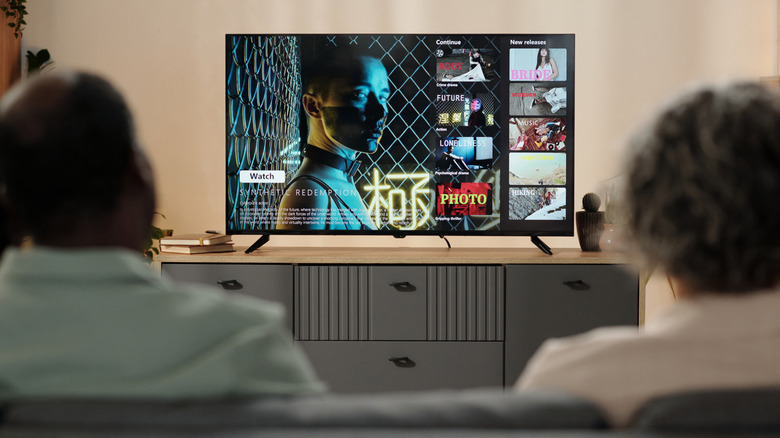
Yes, OLED panels generate heat, but extreme heat is a major cause of accelerated pixel degradation. So, it's important to make sure your OLED screen gets proper airflow and is kept within a certain temperature range in your space. Compared to LCD panel types like IPS and VA, OLED panels are more sensitive to harsh environments and temperatures. Be sure to keep your OLED display away from direct sunlight and other heat sources, too.
Don't place your OLED display too close to a wall or box it into a tight, enclosed space. This could ultimately impact display quality and reduce the overall lifespan of your OLED. Your OLED screen also needs space to dissipate heat. High temperatures can degrade the TV's built-in organic materials, leading to reduced brightness and greater chances of burn-in. On the flip side, excessively low temperatures can stress the delicate materials found in OLED panels, impacting the display's responsiveness and overall performance. Make sure the ambient temperatures you're exposing it to don't go beyond the manufacturer's specifications.
Regular firmware updates
A smart TV needs firmware updates just like smartphones, tablets, and laptops do. Such updates do sometimes bring about unwanted interface changes, but that's not always the case. There are several good reasons to update your TV software. First, TV manufacturers often release improved burn-in mitigation algorithms via firmware updates. When you install the newest firmware updates, your OLED can benefit from the latest pixel management improvements, bug fixes, and other kinds of performance enhancements. You might get a fresh new home menu design that you may or may not want, but you could also get a permanent fix for an annoying software bug you've been agonizing over.
Many TV manufacturers add useful features to their products via software updates to offer existing product owners a smoother experience. For instance, Samsung added HDR 10+ and Gaming Hub on compatible TV models through firmware updates. If you disable firmware updates, you could lose out on some exciting features that could be enjoying for free. Keeping your TV software updated also helps prevent app incompatibility. Convenience aside, though, firmware updates are also important for security reasons. TV manufacturers patch bugs, security vulnerabilities, and other common issues via updates to keep you protected from potential threats.