

4 Things You Should Do With Your New Smart TV Right Out Of The Box

There's nothing quite like the excitement of unboxing a brand new TV. Chances are you've probably been doing lots of research, and we're willing to bet you've visited one or several stores to see your smart TV in action before welcoming it home. But now that it's hanging out in your entertainment center, you might be wondering if you should do anything specific with it before launching into a movie, show, or video game.
It only takes a few minutes to perform a TV's initial setup, but there are a number of other features and settings worth examining before you start watching or playing. These are the kinds of extra steps that could make all the difference when it comes to things like picture quality and your TV's web-connected performance.
If you'd rather hold off on adjusting features and settings for now, you can always revisit our following list of suggestions in the future. For those who want to start optimizing immediately, let's get started.
Install the latest firmware
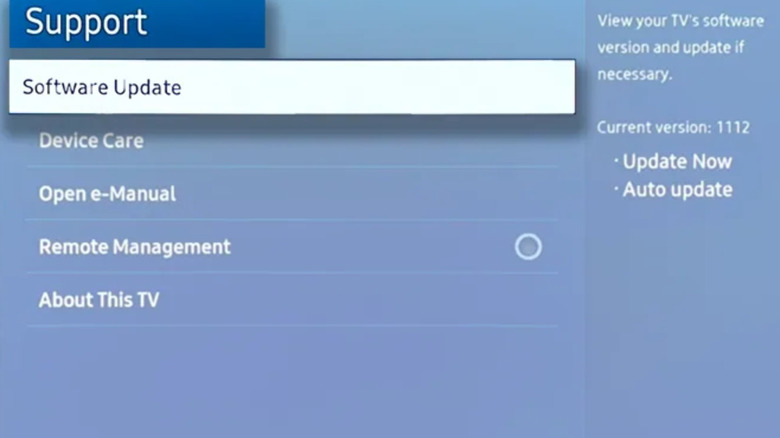
Connecting your smart TV to the internet is probably one of the first things you'll be prompted to do when setting it up. As you can guess, a network connection is required to access streaming apps and smart home features, but it's also one of the main ways to download and install firmware updates. Before doing anything else with your smart TV, we highly recommend installing the latest firmware.
There's a good chance you'll be prompted to perform an update before exiting the setup wizard, and may even be able to set up automatic updates. TV firmware can affect everything from format support and app performance to user security, and it's one of the only ways for manufacturers to address bugs and glitches remotely. That said, if you didn't plan on connecting your TV to the internet, most TV makers maintain a support page, which often includes the latest firmware files.
You'll need access to a web browser to download these update packages, and it's usually best to offload to a 32GB USB drive or smaller that's formatted to exFAT or FAT32. Once the firmware is on your drive, connect it to the USB port on your TV, at which point the actual updating should begin.
Adjust your picture settings
Getting a lay of the land is important for any new consumer tech product with a built-in user interface, especially TVs. First and foremost, you'll want to take a look at whatever picture tools your smart TV comes with. Most sets have a handful of presets to choose from, and trying them all out is one of the only ways to see which of these overlays best suits your viewing space.
Presets like Standard (often what a new TV is set to by default) often provide a decent balance of brightness, colors, and contrast. Options like Cinema and Filmmaker Mode are better for watching movies in darker rooms. You may also come across Vivid or Dynamic, usually one of the TV's brightest presets. And a lot of the time, you'll be able to adjust sub-settings — such as tint, sharpness, white balance, etc. — within these main presets.
For best results, we recommend adjusting picture settings at whatever point in the day you watch the most TV; that way, you'll have a good grasp on the types of ambient lighting your TV will be up against (e.g., in-room lamps and fixtures, sunlight, other screens, etc.). We recommend testing your tuned-up picture with different types of content, too. Run some 4K demo videos on YouTube, and stream some 4K HDR movies via apps like Netflix and HBO Max. You should also test any game consoles, streaming devices, or Blu-ray players you plan on using.
Enable HDMI controls
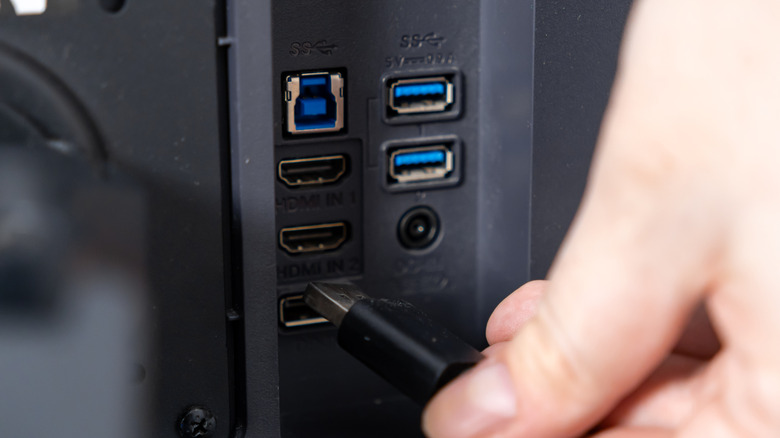
HDMI technology is very impressive these days, especially when you consider all the automating it's able to do. Thanks to features like HDMI-CEC, you can turn on a game console like the PS5 or Xbox Series X, and your TV should automatically switch to the correct input and optimize picture settings for the connected source. For consoles and gaming PCs, that last step may also involve activating features like Variable Refresh Rate (VRR) and Auto Low Latency Mode (ALLM).
In order for any of those HDMI automations to work, you'll need to make sure each component in your AV chain has CEC controls turned on. Unfortunately, not all CEC functions are called "CEC," with brands like Samsung and LG labeling the feature as Anynet+ and Simplink, respectively. But a quick Google search should just as quickly reveal the CEC-adjacent option you should be looking for.
We briefly mentioned HDR above, and it's one of the main ways modern smart TVs are able to deliver such vivid colors and impressive contrast levels. Oftentimes, CEC and HDR go hand in hand. For instance, the writer of this article has a Roku Streaming Stick 4K connected to an LG C5 Series OLED, both with CEC enabled. When I wake the Roku, HDMI-CEC automatically switches the device to Dolby Vision HDR.
Listen to the sound quality
Not all TV speakers are created equal, but most aren't very good. This isn't to say you'll experience horrendous audio quality when you initially turn your TV on, but it's best to temper your expectations. Because of their relatively small size, TV speakers aren't able to generate much bass, and many sets can start to sound distorted at higher volumes. But that's putting the cart before the horse: your first order of business is figuring out if you and yours are satisfied with the sound your TV speakers deliver.
Believe it or not, some TV speakers sound halfway decent, and you may be able to adjust one or two audio settings to dial the audio in even more. Similar to picture presets, many smart TVs have a few sound presets to choose from (e.g., Movie, Music, Sports, Amplify, etc.), and one of these sound modes might work great for your viewing space and the content you watch, play, or listen to.
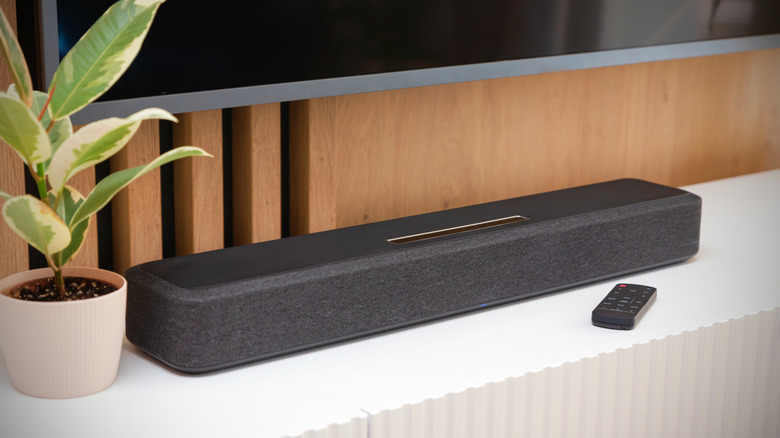
Should you decide that your TV speakers aren't going to cut it, one simple solution is to invest in a soundbar. Some of the most basic systems will give you a boost in overall volume and dialogue clarity, while more advanced soundbars are capable of virtualizing entire surround sound. Speaking of which, you can also hook up an AV receiver with speakers as a replacement for your TV speakers.