

5 Hidden PlayStation 5 Features You Should Be Using

The PlayStation 5 is well worth the time and money for most gamers. It has a sizable library of quality exclusive titles (now more than ever since Sony is abandoning plans to port these games to PC), and previously we stated the PS5 DualSense is the best controller on the market – a claim we still stand by. And then there are the features. There's nothing wrong with just hooking up your PS5 to a TV, inserting a game's disc (or downloading it from your library), and playing the game. After updating the files, that is.
However, that only scratches the surface of the console's capabilities. You can install an SSD for additional storage space and control the PS5 with voice commands, but these somewhat hidden options were there from the beginning. For over half a decade, Sony has rolled out updates that improve the PS5 experience, and not all of them are obvious. Some hide behind specific menus, while others are hidden in plain sight. They're just waiting to be discovered.
Enhance Image Quality

When Sony announced the PS5, almost everyone predicted the company would release an updated version in a few years. After all, Sony did just that with the PlayStation 4 via the PS4 Pro. However, at release, the PS5 Pro didn't quite justify its own price, but over one year later, it had finally received improvements that make it worthwhile. Assuming you activate these features, that is. A recent update added an upgraded PlayStation Spectral Super Resolution (PSSR) upscaler to the PS5 Pro.
The program uses AI to upscale rendered images, making them sharper and clearer without negatively impacting performance or framerates. While the PS5 Pro had PSSR prior to the update, this new version is more efficient and pushes graphical fidelity even further. "Resident Evil Requiem" is the only title that uses the new PSSR at the time of this writing, but others will join it eventually. To activate PSSR, open the console's Settings menu, scroll down to "Screen and Video," select "Video Output," and toggle "Enhance PSSR Image Quality." This option is only available on PS5 Pro, and you might need to purchase an upgraded TV with higher resolution to get the full effect.
Moreover, under the "Enhance PSSR Image Quality" option, you can also find "Enhance Image Quality for PS4 Games." As its name suggests, toggling this option heightens graphical fidelity for PS4 titles, but the feature isn't compatible with every game.
Keep an eye on original game prices

Sony came under fire for trying out "dynamic pricing," giving certain customers preferential prices on games. However, a genuinely beneficial change to the PS5's built-in store snuck under the radar and has been staring most users in the face without them realizing it. In February, Sony updated the PS5's store to show a game's launch price. You don't need to do anything complicated to reap the benefits of this feature; just make sure your console has installed the latest update, and the PS5's built-in store will show the original price the next time you go shopping. Probably.
The feature is on a rollout schedule, so some users might need to wait before they're given access. But once your console offers you the option to update, take it. Not only does this new pricing history feature help you determine if you're getting a good deal on a title, but it also provides a handy "lowest price in last 30 days" notification to tell you if you missed an even better sale in the past month.
Unfortunately, the system is far from perfect. Obviously, the new store function won't tell you if an upcoming sale will drop the price even further, so you must decide for yourself if you're willing to pay the current cost. Plus, if a game hasn't gone on sale in the past month, the store will state that the title's current price is its "lowest price," which can be inaccurate. Still, this update gives you another way to check whether a "deal" is actually worth it before buying a digital game.
Play offline

Depending on who you ask, game consoles like the PS5 don't really need disc drives anymore. All the necessary data lives on the SSD; modern game discs are little more than DRM. However, physical media has one advantage: You can use discs to play certain games offline when PlayStation servers go down. But you can get the same effect with digital games if you set them up first.
To activate Offline Play, open the PS5's Settings menu, then scroll down to and select "Users and Accounts." Select "Other," and toggle "Console Sharing and Offline Play." Now you should be able to play your games, whether the PlayStation Network servers are down or if you are experiencing a connection problem you can't seem to fix.
Turning on Offline Play has another benefit: the eponymous "Console Sharing" feature. This option consolidates game libraries and subscriptions on one console. If one account on a PS5 with Console Sharing has an active PS Plus membership, all other accounts can use PS Plus to play multiplayer titles online — so long as the game is played on that console. An entire family can run off one PS Plus membership so long as they're okay taking turns playing their games.
Improve audio quality with Dolby Atmos
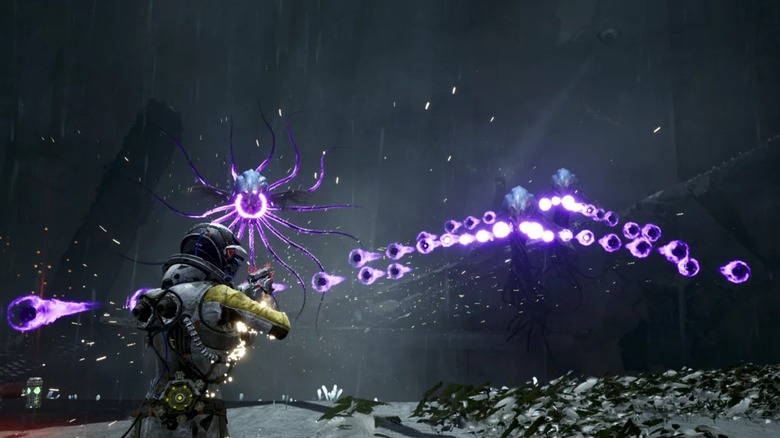
Before the PS5 launched, one of the console's selling points was 3D audio that provides a more immersive soundscape. However, it was limited to the proprietary (and expensive) Pulse 3D Wireless Headset. In the years since release, Sony has integrated other sound systems into the PS5 landscape. In 2023, the PS5 received an update that added Dolby Atmos support to the base experience.
Before this patch, the console could only use Dolby Atmos with Blu-rays, but thanks to this update, PS5 games can now benefit from the rich soundscape of the Dolby Atmos system. Assuming, of course, you have compatible Bluetooth headphones and speakers. After connecting the appropriate audio components, you can set up Dolby Atmos by opening the "Settings" menu. Then navigate to "Sound Audio," select "Audio Format (Priority)," and pick "Dolby Atmos." Depending on the audio device hooked up to the TV — physically or via Bluetooth — setup might require additional steps to tweak audio settings.
Sometimes these must be done manually, but devices such as the Sonos Beam Gen 2 have an automatic calibration tool that adjusts sound settings to each room's unique acoustics. Regardless, the time you spend adjusting individual sound levels will be worth it in the end.
Share game sessions and voice chats

The majority of the PS5's must-play exclusives are single-player games, but the console isn't short on multiplayer experiences. Owners can play with friends, but depending on the game, they might need to jump through some hoops to join parties already in the thick of things. But the PS5 has one way to lessen the sting of cooperative matchmaking.
Session Share is a feature that lets you create an invitation link on your PS5 or the PlayStation App. Anyone who receives the invite can join a multiplayer party already in session without much hassle. The easiest way is to visit a player's profile, select "Invite to Game," and follow the on-screen instructions. Alternatively, you can press the PS button on the controller to open the Control Center, select "Game Base," highlight the person you want to invite, and select "Invite to Game." This second method also lets you invite multiple players at once by highlighting a group instead of one person at a time.
In 2024, Sony added another way for PS5 owners to team up with friends: Discord voice chat integration. Granted, you can initiate a voice chat from your phone or computer. But if you would rather use the console, you only need to open the Control Center, select "Game Base," open the Discord tab, pick "Direct Voice Chats," highlight the player or players you want to chat with, and finally select "Start Voice Chat" (or "Join" to join an ongoing session). Of course, you can't use Discord voice chat on a PS5 without linking your PS5 and Discord accounts, but that's so easy you can do it in your sleep.