

10 Tips And Hidden Tricks Every Amazon Fire TV Stick User Should Know By Now
We may receive a commission on purchases made from links.
The Amazon Fire TV Stick has been a living-room stalwart for over a decade now, making up some of the estimated 250 million devices out there running the company's Fire TV operating system. The streaming dongle is an affordable part of the home theater ensemble, but many users may take it for granted and miss the hidden tricks it can perform.
That's right: The Fire TV Stick isn't just useful for watching movies and TV shows from your favorite streaming service, and it has plenty of hidden extras to make it a more useful part of your smart home. These aren't all just things you need to know before buying an Amazon Fire Stick, but functions that might surprise even the most frequent Fire TV user. Ever wondered how to browse the web on your TV, get your own pictures to appear as the wallpaper, or play video games without a console? It's all in here!
Some Amazon Fire TV Stick veterans might know a handful of the tips and hidden tricks below, but a few of them are buried in menus or have been added to Fire TV relatively recently. There will likely be at least one option that surprises you, and you might even discover an unexpected use for your old Amazon Fire TV Stick.
Navigate Fire TV Stick with Alexa -- or your voice
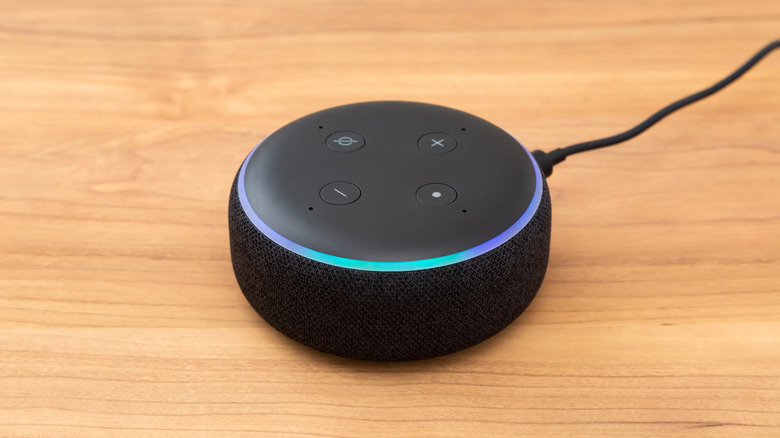
It's one of the key selling points on certain Amazon Fire TV Sticks, but not everyone knows its true potential: You can use Alexa to navigate your Fire TV using just your voice. Certain first-party remotes have a blue Alexa voice button, and pressing and holding this lets you give voice commands to open certain apps, find specific shows, or just bring up a recommendation list based on a genre. There are even third-party remotes that have this functionality, too. A handy Amazon help list gives you an idea of some of the available commands, including pausing playback, searching movies by actor, looking for free shows, or fast-forwarding at a certain speed.
The voice command helpfulness doesn't end at remotes, though, because any Alexa-enabled device can also offer the same functions. Your Echo smart assistant, mobile, smartwatch, or smart speaker can also hear your commands and boot up a show or movie. There are plenty of things Amazon Alexa does better than Google Home, and its ability to get your Fire TV loaded and ready with TV shows is one of the most convenient.
Turn off your Fire Stick instead of leaving it idle
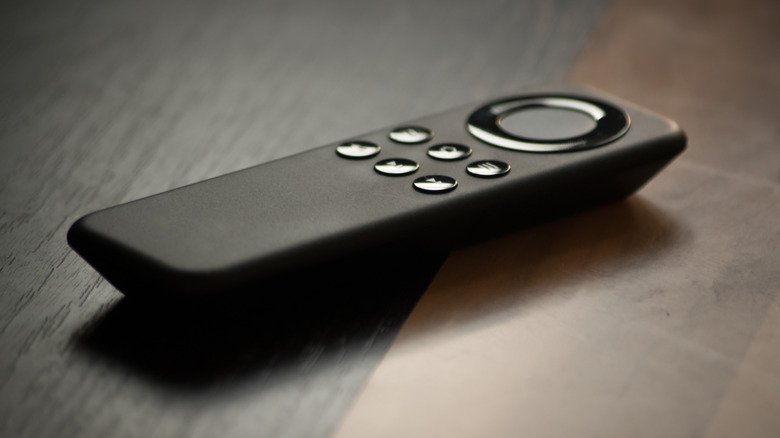
Something new Amazon Fire TV Stick owners will have noticed is that the remote's power button doesn't actually turn the stick on or off. Instead, it just powers down a connected TV. This isn't a bug, but a feature, as the device is intended to be left on at all times so you can easily summon it at the touch of a button. Sleep mode is the power-saving option, but the device falls into that state naturally after a period of inactivity — you can't put it there yourself.
However, there are plenty of reasons you might actually want to turn the Fire Stick off or put it into Sleep mode sooner. In fact, there are a few problems that can arise if you leave your Amazon Fire TV Stick plugged in all the time. You may want to turn it off for privacy or energy concerns, too. Thankfully, there's a quick way to put the device into Sleep mode, instead of leaving it alone to power down into that state on its own.
You can turn off the Fire TV Stick by pressing and holding the Home button for several seconds, then scrolling across to Sleep mode and selecting it. Now your Fire TV Stick will power off easily. Alternatively, you can simply unplug the device, cutting it off from the TV's power.
Upgrade your Fire Stick remote or consolidate your remotes
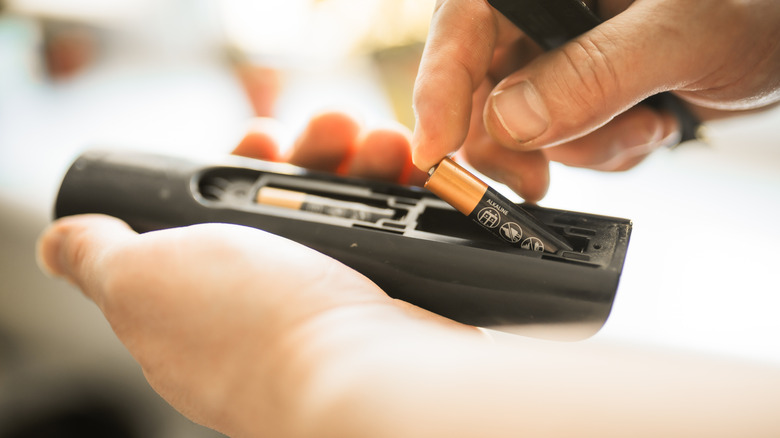
When you buy an Amazon Fire TV Stick, you'll get a remote in the box, but there are plenty of reasons why you might want a new one. The default could be damaged or lost, for example, or you might prefer a remote that offers more features. You don't even have to buy a direct Amazon replacement, with plenty of third-party alternatives available online. Heck, you don't even need a separate physical remote at all, as Amazon offers a Fire TV Remote app that controls your Stick from your mobile device.
Connecting a new remote to your Fire TV Stick is simple. You just need to press and hold the remote's Home button until the set recognizes it. You'll probably also want to unpair your old remote if you haven't already. To do that, find Controllers & Bluetooth Devices under Settings in the Fire TV app, then pick Amazon Fire TV Remotes. You can also reset a remote by holding the Left, Menu, and Back buttons for 10 seconds, waiting for a minute, and then removing all the batteries.
What's more, your Fire TV remote can replace your TV's remote if your set supports HDMI CEC, which your TV's specifications list should tell you. You set this up through the Fire TV app under Settings, Display & Sounds, then HDMI CEC Device Control, and it lets you change the volume on your TV and turn it on or off, so you don't need to juggle two controllers to watch a show.
Stop offensive or disturbing trailers from autoplaying
A Fire TV Stick can be a noisy thing, and that's because videos and trailers autoplay when you're navigating the interface. The internet is awash with stories of these autoplay previews swearing loudly or showing horrifying or otherwise inappropriate content to unsuspecting channel surfers. Even when rolling out appropriate content, many criticize the feature for simply being annoying or loud, and there's also evidence that it slows down your streaming stick. In all, this feature is not exactly ideal for most users.
You'll be glad to know that you can stop videos from autoplaying on Fire TV, which will transform these previews into silent slideshows until you select them. To change this option, go to the Stick's Settings menu, then press Preferences, then Featured Content. Here you'll see two options, for Allow Video Autoplay and Allow Audio Autoplay, both of which will be on by default. Turn them off, and the problem will be solved ... mostly, although some users report that Autoplay continues even when it's supposedly switched off, with apps like Prime Video having separate toggles you'll need to use.
Connect Bluetooth devices like headphones and speakers
A way to really get the most from your Amazon Fire TV Stick is to bring more gadgets into the fold. You can do that by connecting an array of accessories to the device via Bluetooth. Just head into Settings, then Controllers & Bluetooth Devices, then Other Bluetooth Devices, then Add Bluetooth Device, and you can easily set up a variety of extras.
Audio devices are a popular add-on, and you can connect headphones, earbuds, a soundbar, speakers, or a gaming headset, and have them connected to the Fire TV Stick instead of your TV set. This means that if you buy a new TV or move your Fire TV Stick to a new set, your audio setup will still be paired, and you won't need to go through the process of connecting it again. It also means you can take the Fire Stick on trips and still have your headphones connected automatically.
Another thing you can connect is a gaming controller — spoilers for a later point, but your Fire TV Stick has a built-in games console that you can use once you connect a handset. You can also connect a gaming controller to navigate Fire TV in lieu of a remote, letting you put on a TV show or browse the web when you don't have your remote handy.
Use parental controls to block content on your Fire TV Stick
An Amazon Fire TV Stick is very simple to use — not just for you, of course, but for any little ones running around your house, who may find a remote within reach and like the click of those buttons. You can reduce the worry about anything violent or vulgar showing on the screen, though, if you set up parental locks to prohibit adult content. This also allows frequent TV users to get limited access to the Fire TV interface if you want to grant them some freedom, but not allow them free rein over the entire world of streaming.
Setting up these protections is easy. In the Fire TV settings menu, head to Preferences and then select the Parental Controls option. This lets you protect certain types of content behind a PIN, and you can customize what's locked. Making purchases, streaming videos, or watching specific types of content can all get their own controls. As we've established, some users report trailers being too scary even for younger users, so it's worth changing your Auto Play Preview, too, if you want an even more childproof Fire TV Stick.
Manage your Fire TV Stick through the Amazon website
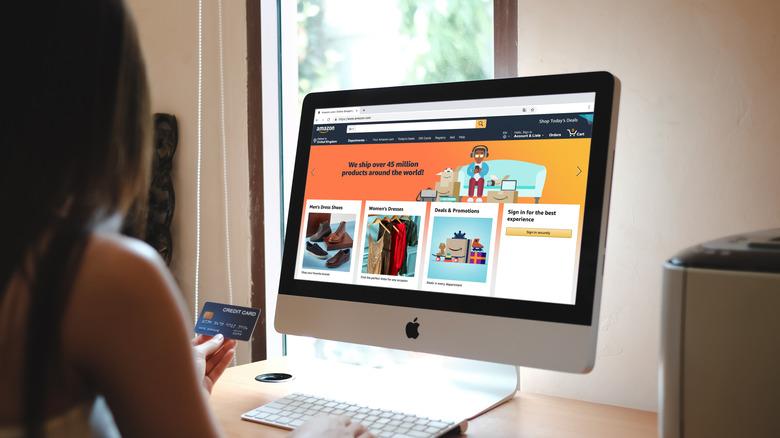
Using the Fire TV interface is one way of changing various settings and checking your data, but if you want a quick overview of your streaming stick without using the remote, you can head to Amazon's website. Click Account, then Devices, and you'll see a list of your owned content and devices. On this menu, you can see your Fire TV devices and check metrics about them, like their connection, amount of storage space, and remote status. But you can also change accessibility settings, mark your device lost or stolen, and see an overview of the voice commands you've used to navigate.
You can protect your privacy on the Amazon Fire TV Stick by deleting the voice recordings or deregistering the device if you plan to sell it. Other important information on this page is how long Amazon will support your device with software updates and when your manufacturer's warranty runs out. Both have links to further information if you'd like to dig deeper.
Not only does the Amazon website give you another quick and easy way to control your Fire TV device, but you can manage all your sticks, TVs, and cubes in one place, rather than booting them all individually to change settings. It's worth noting, though, that not all settings can be changed this way. For instance, you'll have to turn on the Fire Stick to change wallpapers or set up parental controls.
Change the default screensaver and use your own pictures
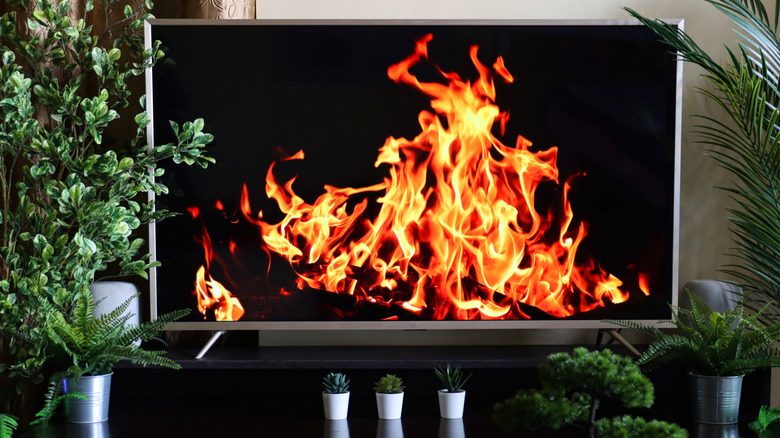
Fire TV has a default screensaver, which turns on after a set amount of inactivity — you can choose how long in the settings. By default, it shows you sweeping natural landscape shots that users are rather fond of, although it also sometimes shows you ads. Some people might want a more bespoke experience, and that's where Amazon Photos comes in. One of the hidden Amazon Prime perks is unlimited photo storage on Amazon Photos, and many people use it to back up their snaps, but it also lets you transform your TV.
If you head into your Fire TV's settings menu and press Display & Sounds, then Screensaver, you can select one of your Amazon Photos folders to be the screensaver instead of Amazon's nature shots. Alternatively, you can allow it to shuffle through all of your files on Amazon Photos, which may include all your phone backup shots if you've allowed that option. In this menu, you can also change the speed at which you flick through photos, which is handy if you've got lots of snaps to get through or want to linger on each image.
Use the hidden internet browser on the Fire TV Stick
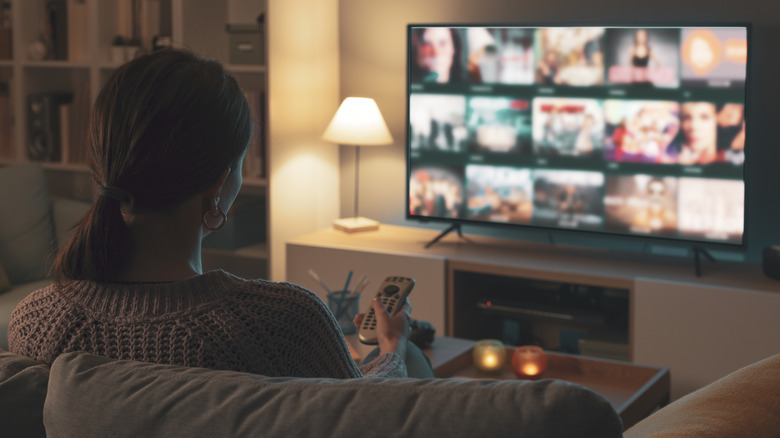
When you first set up and start using your Fire TV Stick, you'll probably stick to the reliable few streaming services that house your chosen movies and shows. But veteran Fire TV users will have played around with the other options available via the interface, and so will know that amongst the extras, there's actually a pre-installed internet browser.
That browser is called Silk, and it's the first and only Amazon Fire TV Stick browser you should be using. It allows you to search the web using your voice, so you're not reliant on the Fire Stick's remote and on-screen keyboard to write in URLs or Google searches. This lets you easily check on social media, find an article on Wikipedia, or even stream videos from websites that don't have Fire TV apps.
Adventurous Fire TV users can also use the Silk browser for a secret Fire TV hack that Amazon doesn't want you to know about: You can sideload apps onto the Fire TV Stick from the internet using an APK, or Android Package Kit. Doing so isn't without risks, including security and privacy concerns, but it can let you use thousands of apps not available on the built-in store.
Play popular online video games using the Fire TV Stick
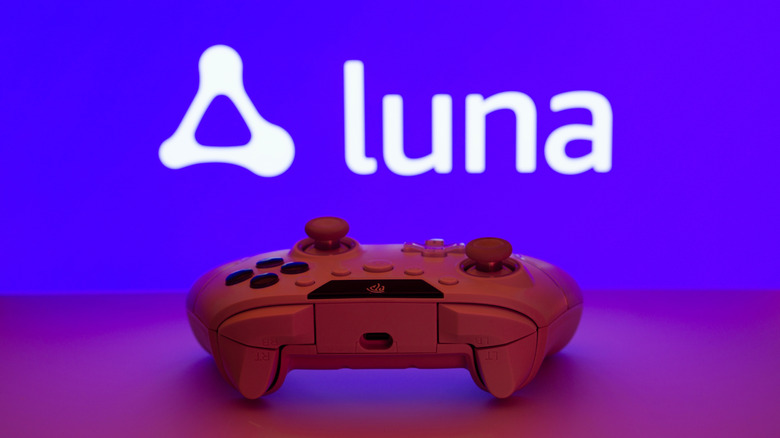
Most people will buy a smart TV device like the Fire TV Stick for ... well, streaming TV. However, there's a totally overlooked Fire TV feature that shouldn't be a secret. Amazon Luna is a built-in video gaming service that uses cloud streaming to play games over the internet, which means you don't need to download them. You can use Luna to play blockbuster video games, indie hits, and classics, all on your Fire TV Stick. You don't need to pay for an expensive games console or complicated PC rig, because the computing is all done in the cloud.
You do need an Amazon Prime subscription to get access to Luna, as well as a good internet connection and a game controller. Luckily, you already learned how to pair a controller with your Fire TV Stick. Once you have these things, you can find Amazon Luna on your Fire TV Stick's apps menu, so it'll be quick to sign up and start playing. Soon, you'll be able to enjoy the service's fantastic roster of games, including Hogwarts Legacy, Indiana Jones and the Great Circle, and Assassin's Creed Valhalla.
Some additional subscription packages, like Luna Premium or Ubisoft+ Premium, let you enjoy an even wider selection of games. Those come at a higher monthly cost, but the basic Prime packages include a large number of titles.