

Never Do Any Of These 8 Things On Your iPad
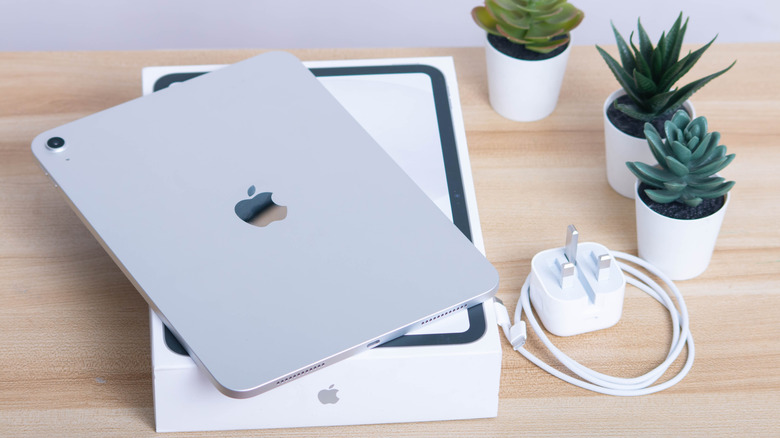
The iPad has greatly evolved since the original device was unveiled in 2010. In addition to the base model of the iPad, Apple has since released the iPad Air, iPad Mini, and iPad Pro, each catering to different audiences. However, while you may still be finding out things you never knew your iPad could do, some people are making bad decisions when using the tablet.
More tech-savvy iPad owners wouldn't make these mistakes, which may result in reduced reliability and compromised security for the tablet. There's always a good idea behind them, like saving time or making the device more convenient to use, but at an expense that's going to be too much to pay.
For this article, we've gathered eight things that you should never do on your iPad. We provide explanations on why you should avoid them, and in some cases, we also offer safer alternatives to achieve similar results as these potentially dangerous lines of action.
Drain battery to 0%
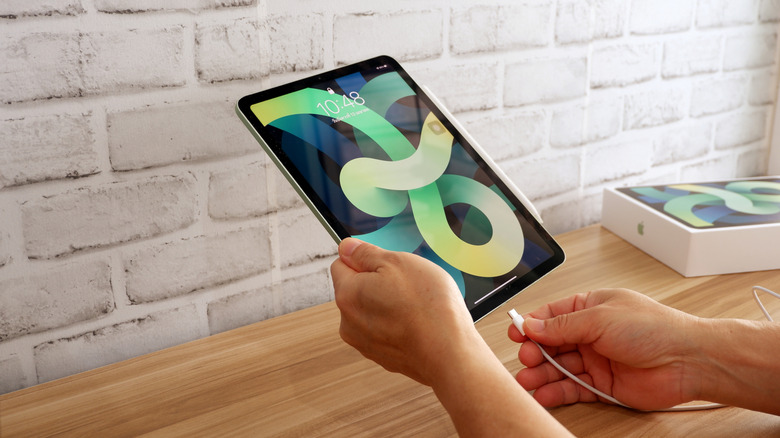
Whether you're doing it on purpose or you just keep forgetting to charge your iPad, you shouldn't let its battery drain all the way to zero. Called a deep discharge, this accelerates the aging process of the lithium-ion battery in your tablet. The battery's ability to hold a charge diminishes over time, so you're going to have to plug in your tablet more often. Performance may degrade along with the battery, too, as the device Performance may also degrade along with the battery as the device tries to conserve resources to avoid crashing when the charge is depleted.
When you see your iPad's battery running low, you should plug it in to charge to avoid an empty battery. However, keeping the device at 100% all the time can also shorten the battery's lifespan. That's why Apple introduced a feature in newer models that lets you set an iPad charge limit of 80%, which you can activate as part of checking your iPad's battery health and history. You should also avoid bad habits that are draining your phone battery, as many of these apply to your tablet as well.
Use or store in extreme temperatures

Apple designed the iPad to work at temperatures of 32 to 95 degrees Fahrenheit and stored where it's anywhere from 4 degrees below zero to 113 degrees Fahrenheit. Most people won't use their iPad outdoors when it's this cold or hot, but these temperature limits may come into play for those who often leave their iPad in a car. The interior of a vehicle can quickly reach 120 degrees Fahrenheit while parked under the sun, which is definitely not a good place for any electronic device.
Exposure to intense heat not only would result in software malfunctions, but it may also cause physical damage to your iPad. This includes discoloration and permanent burn-in to the screen, and swelling in the battery that may make it catch fire. You may also see some warping or cracking, and parts may come loose due to weakened adhesives. The next-gen iPad Pro may feature a vapor chamber cooling system, but even that technology won't protect the device from these dangers if you subject it to extreme temperatures.
Forget to back up data
If your iPad is filled with irreplaceable memories and important files, you should make sure that you've got a data backup. Even if you're extra careful with your device, you can never tell when it might meet an unfortunate incident, such as being damaged beyond repair or getting stolen. If you haven't backed up your data, the loss becomes even more painful.
Backing up your iPad isn't reserved for tech wizards. There are two options for this, and the easier one is to use Apple's iCloud. You can activate iCloud Backup through your iPad's Settings app, and you'll get 5GB of cloud storage for free and up to 12TB for a monthly fee. The second option is to use your Mac computer to make the backup and store it there. Using iCloud is more convenient because the service automatically backs up your data, though you should remember that there are things you should never keep in cloud storage.
An iCloud backup is also extremely helpful if you decide to replace your old iPad. Once you've logged in with your Apple ID on your new tablet, it will start downloading everything. You'll end up with a device that has all the same apps and files as your previous one, but with the added features from the upgraded hardware.
Ignore app and system updates
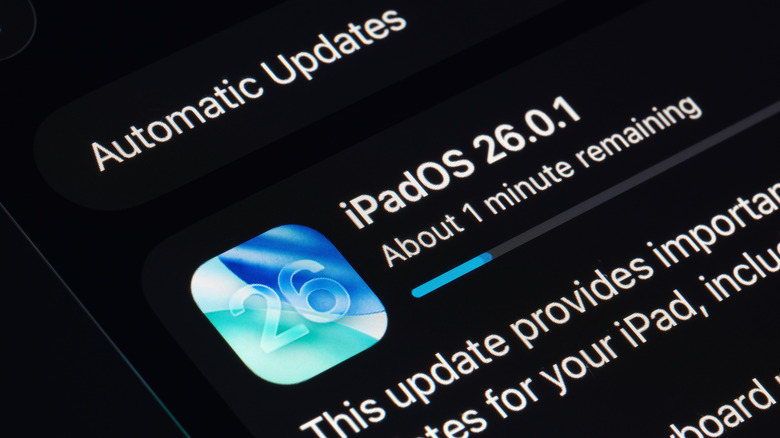
Whenever you see that there are available updates for your iPad's apps or iPadOS, you need to proceed to download and install them as soon as your device is on a stable internet connection. While these updates can add new features and improve performance, more importantly, they can also fix any security issues. As hackers will keep trying to find ways to break into your systems, making sure that your iPad has the latest versions of its software is one of the most effective ways to stay protected.
Phones, tablets, computers, and other devices aren't static. Instead, they evolve over time, mostly through system updates that include both functionality enhancements and security fixes. So, while cybercriminals are developing their weapons, installing updates is your version of sharpening your defenses.
It only takes a few taps to get your iPad to download these updates. While there are rare instances of apps malfunctioning afterwards, it's better to patch vulnerabilities and wait for a fix for any problems that arise than to keep your iPad open to an attack.
Remove password protection
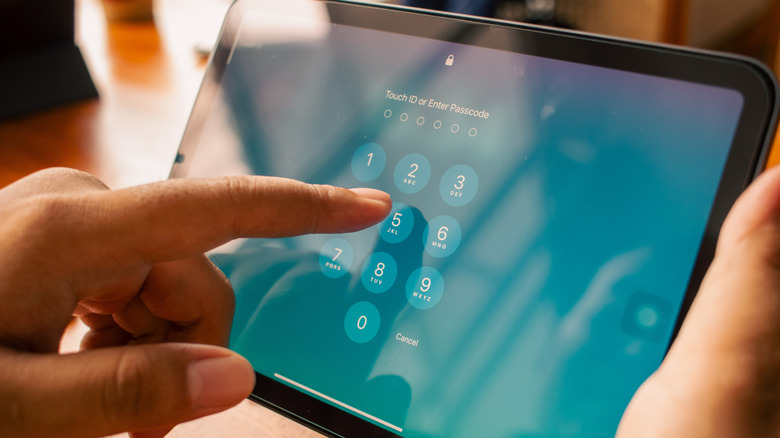
If you can't be bothered to enter a passcode every time you unlock your iPad, the solution should be to activate Touch ID or Face ID, whichever is available on your device, not to remove the passcode altogether. This holds true even if you'll never take the iPad out of your home. That's because several functions of the tablet won't work if you haven't set a passcode, including the aforementioned Touch ID and Face ID, and you won't be able to access the passwords that you've stored in the Keychain app. You also won't be able to use Apple Pay on your iPad, though it's really not advisable to go anywhere with the device when it's not protected by a password.
For those who really don't like entering passcodes, combined with an aversion to Touch ID and Face ID for whatever reason, you may consider turning off the iPad's auto-lock function through the Display & Brightness menu in the Settings app. With this feature deactivated, you'll be unlocking your tablet less often, but you'll have to remember to manually lock it whenever you leave the device unattended.
Turn off Find My
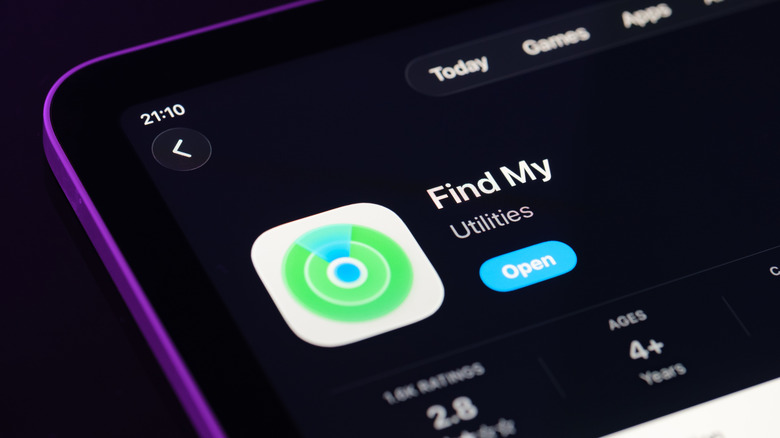
Apple's Find My is an incredible safety feature that should never be turned off. Once you've set it up, the app will let you locate your device if it's lost or stolen, with the help of a network of hundreds of millions of iPhones and iPads. You can use the app to check the location of your iPad if you misplace it, and if you have enabled the Mark As Lost option, the tablet will be locked with a passcode, and a message with your phone number will be shown on the lock screen. With Find My activated on your iPad, you can also turn on the Stolen Device Protection anti-theft feature, which adds more security requirements to making changes on your device when it's away from your usual locations.
Another feature of Find My is that it allows you to share your location with chosen family and friends. If you don't want them to see where you are at any given time, you shouldn't turn off Find My completely, as this means you won't be able to locate your iPad if it gets lost or stolen. Instead, tap on your Apple account in the Settings app, and under the Find My menu, deactivate Share My Location.
Access sensitive info on public Wi-Fi

Establishments such as coffee shops, malls, hotels, and airports usually have public Wi-Fi networks that are open to everyone. Browsing the internet while connected to these networks is much safer now than it used to be, thanks to most websites and apps using encryption to protect your information. Even so, it's still recommended that you avoid accessing or entering sensitive information, such as your bank accounts and confidential documents.
You'll usually be fine if you're going to connect your iPad to a public Wi-Fi network to watch streaming videos or play mobile games. However, with risks such as fake hotspots that access your internet traffic by pretending to be legitimate networks, and man-in-the-middle attacks that can intercept data like login credentials and credit card numbers, you need to find a more secure network if you'll be entering such information. You can also use any of the premium VPNs to protect your iPad from cybercriminals, no matter what type of network you connect to with your tablet.
Jailbreak the device
Jailbreaking, which is the process that allows you to install apps on your iPad from outside of the App Store, is controversial, to say the least. While there are benefits, such as gaining the ability to choose alternatives to default apps and unlocking more customization options, one of the primary disadvantages is that jailbreaking will nullify any active warranties for your tablet.
Other risks to jailbreaking your iPad include higher vulnerability to cyberattacks and increased chances of crashing. Last and most fatal of all, there's a chance of bricking your iPad, which means it becomes unusable electronic junk.
Every iPadOS update reduces the reasons to jailbreak your device, though. There are iPadOS 26 features that turn the iPad into a touchscreen MacBook, with the latest version of the operating system also bringing exciting design changes and upgraded multitasking capabilities. If you're thinking about jailbreaking your iPad, you should at least check recent OS updates first to see if they cover your use case. No need to take unnecessary risks!