

15 Essential Tips And Tricks For Amazon Alexa Users
We may receive a commission on purchases made from links.
Debuted in 2014, Alexa has become one of the most popular voice assistants available today. Millions of people use Alexa every day, but most of them only scratch the surface of what it can do. For instance, many users only use their Alexa for playing songs or getting weather updates. That's just the tip of the iceberg, though. Alexa can serve you as a smarter everyday companion and make your life easier.
With just voice commands, Alexa can control your smart home devices, manage calendars, create reminders, set up routines, and handle tasks you never knew it could do. You just have to know how to do it. In this article, we'll walk you through 15 useful tips and tricks that every Alexa user needs to know. We will talk about everything from smarter controls to time-saving shortcuts.
Whether you're a long-time user or have recently stepped into the Alexa ecosystem, these tricks will help you learn something new about your Alexa devices.
Change how you interact with Alexa
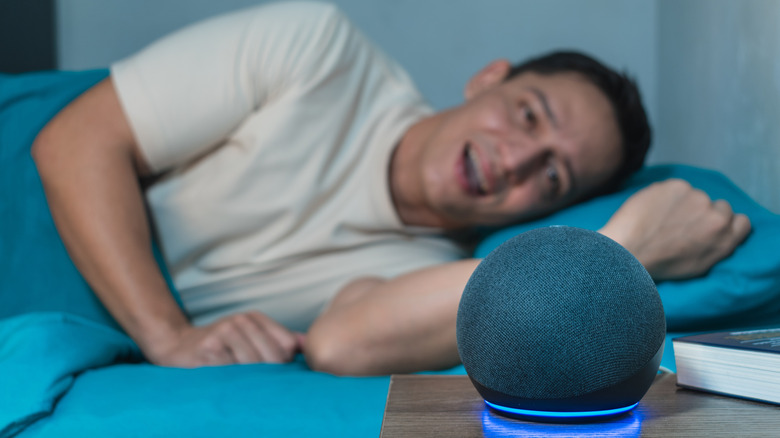
Some users crave a personalized experience. If you also want your Amazon Echo device to feel like your own, start by giving it a new name. Change the wake word to anything you prefer, like "Ziggy" or "Computer." Even better, name your Alexa devices based on location and functionality. If there's an Echo Dot in a kids' room, name it "Kids Room Dot." It comes in handy for users who have multiple Alexa devices at home.
This will also prevent "Alexa" from getting triggered accidentally. Overall, this Alexa trick will reduce accidental responses and make your smart assistant feel a bit more personal. You have to head to the Alexa app, choose Devices > [Your device] > Settings > Wake word, and change the name.
Some users may also not like the default speaking rate of Alexa. They might find it too slow or too fast, which feels like a halting robotic voice. For more natural conversations, choose a preferred speaking rate at which you wish to receive Alexa responses. Doing this is simple: Say "Alexa, speak faster" or "Alexa, speak slower", and it will adjust the speaking rate accordingly. On an Echo Show or Fire tablet, go to Settings > Accessibility and toggle on Tap to Alexa. This will let you type your commands rather than saying them.
Change the default music streaming service
When you ask Alexa to play some music for you, it will automatically play it through Amazon's own platform. If you've got an Amazon Prime membership, it will use Amazon Music Prime. Otherwise, it will use the ad-supported free version.
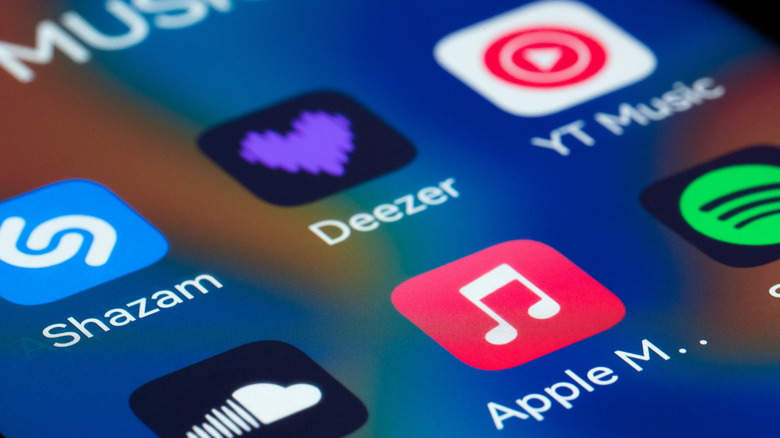
Yes, Amazon Music is the default music player of Alexa, but it also supports several other music streaming services. If you prefer Spotify, Apple Music, YouTube Music, Deezer, or any other third-party app, you're free to link your account and instruct Alexa to play music from them.
Instead of specifying the service every time you ask Alexa to play something, set one as your default, and you're sorted. For this, you have to open the Alexa app and go to More > Settings > Music & Podcasts > Default Service, and select your preferred service. There's also an option to change the default streaming service for your podcasts.
Simplify your day with built-in modes

Many people don't know, but Alexa offers several built-in modes to enhance your experience. Are you tired of Alexa saying "Ok" every time you give a command? Try Brief Mode. Alexa will respond with a short chime rather than a voice confirmation. To use this, open the Alexa app and go to Settings > Alexa Preferences > Voice Responses and turn on the Brief Mode toggle.
When you use Alexa at night and your kids are sleeping, you probably won't appreciate loud responses. Thankfully, there's a Whisper Mode to use Alexa without disturbing anyone around you. Simply say "Alexa, turn on Whisper Mode" or go to Settings. Once enabled, enjoy soft conversations with Alexa. When you whisper your command, she will also respond in a low-volume tone.
One of the most useful Alexa tips is Follow-up Mode. Many users don't like repeating "Alexa" after every command. After all, it breaks your conversation. Just say, "Alexa, turn on Follow-up Mode", and make consecutive requests without saying the wake word for every single command. For instance, ask "Alexa, how's the weather today?" and then follow it up with "What about tomorrow?" after.
Control your smart home devices and create custom routines
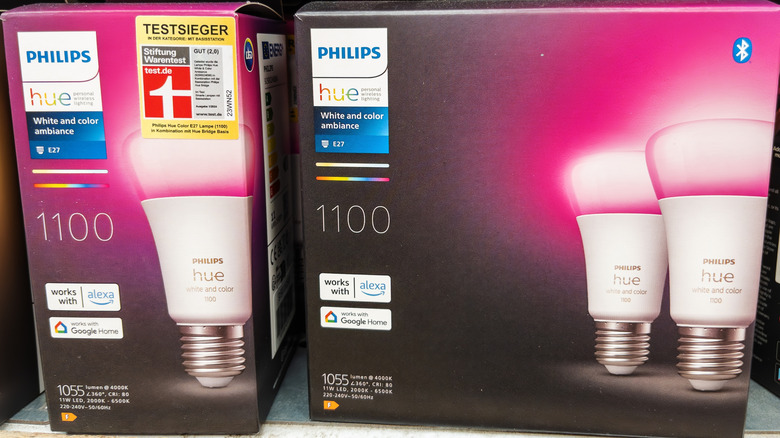
One of the best things Alexa can do is control your smart home devices, such as compatible lights, cameras, thermostats, and televisions. If you've got a compatible device, connect it to Alexa via the app. Go to Devices > Plus icon > Add Device and follow the instructions. You can ask Alexa to turn off specific lights, set the heating to a certain temperature, and more.
Alexa even allows you to build routines that automate multiple actions with a single command. Let's say you give the same commands every morning. In that case, it's better to build a routine that starts itself with a single phrase. Use the Start My Day routine, and it will give you traffic updates, start the coffee maker, and read your Flash Briefing while you're getting ready for the day. This way, you don't have to manage each device separately. You will find Routines in the More section of the Alexa app.
Alexa also lets you group multiple smart home devices for a more seamless control. One example is creating a Living room group that includes your lights, TV, speakers, and other devices you want. When you say, "Alexa, turn off the Living room", it will switch off everything at once. In the Alexa app, go to Devices > Plus icon > Add group to create your smart home device group.
Set up Alexa Hunches for automatic actions
Do you often forget to lock your back door or turn off lights when leaving home? If yes, this Alexa tip will really come in handy for you. Alexa Hunches is one of the most convenient features of your Alexa-enabled devices. Alexa will learn from your daily habits to provide proactive suggestions or perform actions automatically.
For example, Alexa can notify you to switch off lights at certain times or switch your heating off when you leave home. These types of proactive automations reduce the need to control your devices manually, and it also helps you save energy by turning off your devices when they aren't in use or when no one is home.
To allow Alexa to take action on Hunches, open your Alexa app, select More > Settings > Hunches and select Set up Hunches. One of the best things about Alexa Hunches is that they work with a wide range of smart home devices, such as lights, plugs, switches, thermostats, and other smart home accessories.
Add skills to Alexa and explore new features
Your Amazon Echo devices can already do a lot of things by default. Alexa Skills help expand this functionality and get more out of your devices. There are over 160,000 options, including games, news, smart home controls, and fitness routines. Say "Alexa enable [skill]" or head to the Skills & Games section in the Alexa app.
You will find skills across categories like education, health, kids, productivity, shopping, sports, and smart home. Want on-demand headlines, weather updates, or live radio? Enjoy personalized morning briefings with the BBC News skill. Often forget birthdays of your family and friends? Try the Birthday Reminder skill. Philips users can enable the Hue skill and set the mood across their entire home.
Alexa can be a great entertainer as well. Play trivia or word games using Alexa, and have some fun time with your family. Alexa can also respond to funny commands. Go ahead and ask Alexa to tell you a dad joke or sing a song for you. There are also hidden "Easter eggs" which can be triggered with phrases like "Alexa, will you marry me" or "Alexa, make me a sandwich."
Stay secure with voice PIN
We all know that you can use Alexa to place orders on Amazon using your account and default payment method, but there's a nifty Alexa trick that can secure your purchases. Alexa offers a voice PIN feature that ensures only authorized users can perform specific, sensitive actions on Amazon devices, such as making purchases or unlocking smart doors.
The pin is a 4-digit security code that you have to say out loud for sensitive actions. This will keep your account childproof and prevent impulsive or accidental purchases. No more worrying about accidental orders from misheard commands or your kids placing orders without your permission.
To set up a voice purchasing PIN, go to Settings > Account Settings > Voice Purchasing > Purchase Confirmation > Manage. Turn on the "Voice code" toggle and enter your 4-digit PIN. This code is for your shopping orders. To add a security code for your smart home devices, go to the Alexa app > Devices > [Your device] > Settings, turn on "Unlock by voice," and follow the on-screen prompts.
Play music across multiple rooms
Party lovers can set up a whole-home audio experience with their Alexa devices with no special hardware required outside of the Amazon ecosystem. Alexa's Multi-room Music feature lets you group multiple Amazon Echo devices and play music across them. This feature is available on Amazon Echo devices, Fire TV, and even third-party speakers that are compatible with Alexa. When it comes to supported music streaming services, you get to choose from Amazon Music, Spotify, Apple Music, TuneIn, SiriusXM, Pandora, and more.
To use this, you have to turn on the Multi-room Music option in the Alexa app. Go to Devices > Plus (add sign) > Combine Speakers > Multi-Room Music and follow the prompts in the app. Also, make sure all your devices are connected to the same Wi-Fi network. Alexa Cast lets you stream music directly from your smartphone to your Amazon Alexa device. Even better, use your phone as a remote control and manage music across speakers. It's Amazon's direct competitor to Google Cast, and one of the best Amazon Echo Show features you must know about.
Use Alexa to broadcast announcements

Alexa also offers a Drop In feature that acts like an intercom for two-way audio or video communication. It automatically establishes a voice connection, allowing you to talk to someone in another room without having them to answer. There are two types of drop-in: household and contact. The household drop lets you connect to other Amazon devices in your household, like your kids room and living room devices. On the other hand, contact drop-in can connect you to another Alexa device using a contact. It is one of the best and underrated Alexa features most users don't know about.
To use Drop In, you have to set it up and grant important permissions. In the Alexa app, go to Devices > Echo & Alexa > [Your Device] > Settings > Communications > Drop-In. To allow other family members to drop you in, open Communicate > Contacts > [Contact name] and turn on Allow Drop In.
When you want to make an announcement, say "Alexa, drop in on [Contact name or Device name]." When you want to end a session, say something like "Alexa, hang up." It's a great feature for checking in on family or communicating between rooms. Amazon Echo Show devices will automatically initiate a video call. For 10 seconds, you'll see a frosted-glass effect which ensures privacy.
Create voice profiles
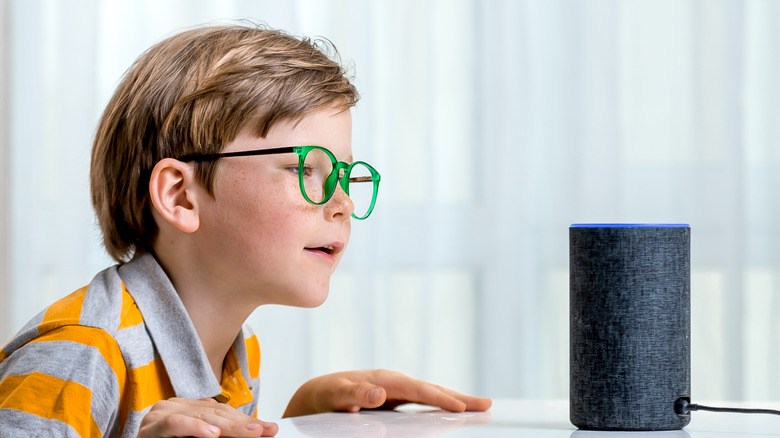
If multiple members use Alexa devices in your home, you'll surely find this tip useful. Alexa allows you to set up multiple voice profiles for a more personal experience. When you set up a profile, it will assign a unique ID to your voice and distinguish you from other members in the household.
Alexa can recognize voice characteristics and tailor responses accordingly. This will allow each member to enjoy personalized results like individual calendars, music recommendations, reminders, and more. Alexa will offer proper responses to things like "What's on my calendar?" or "Can you add butter to my shopping list?"
You'll get personalized skill responses, as well. Like, resuming a game where you left it off. Your voice profile will also provide extra security during shopping. You can set Alexa to allow purchases from recognized voices only, which will help you avoid accidental orders from children or guests. Overall, this will make your shared Alexa devices feel more personalized for everyone in the home. Say "Alexa, learn my voice" or "Alexa, get to know me" to create a voice profile.
Ask Alexa to remember important things for you

Are you forgetful about small things, like the name of the restaurant you want to try or when to reorder your medicines? Ask Alexa to remember them for you. Alexa has a great memory to store small pieces of information you want to remember later.
For example, you can say something like, "Alexa, remember that the garage code is 4321," or "Alexa, remember my phone is at my desk," and ask for it anytime. It's a handy way to keep track of things like Wi-Fi passwords, locker codes, or parking locations without writing them down.
That's not all — Alexa can also remember important things about your family. For example, when you tell Alexa that your partner is on a weight loss journey or that your mom is gluten-free, Alexa will give you more personalized recommendations about those people based on the information you've provided. Alexa's memory can remember facts, locations, and your personal details. Just use the wake word followed by your command (make sure it has a prefix like "remember" or "take a note").
Keep an eye on your smart home privacy

Alexa keeps a record of your voice commands to improve voice recognition accuracy and deliver personalized responses. Now, that doesn't mean you have no control over how Alexa stores and uses your data.
You are allowed to review your voice history, manage your smart home device data, and tweak skill permissions right in the app. You'll find your past recordings to see what Alexa heard. There are options to delete individual voice commands, or the entire history. There are also options for automatic deletion like every three months or 18 months.
You also have control over how your data is shared with your home devices and third-party skills. Alexa allows you to disable skills, review permissions, and manage smart home integrations. You can also access privacy controls and features by asking Alexa directly. Say "Alexa, delete what I said today" or "Alexa, review my privacy settings," to access your privacy controls and features.
Make use of Alexa's multilingual capabilities

Everyone knows that Alexa allows them to set their preferred language, but it also supports a handy multilingual mode. When you turn it on, Alexa can understand and respond in two languages, without having you to change settings each time. The multilingual mode usually pairs English with a second language, which varies by region.
In the United States, Alexa can speak in English and Spanish. For Canada, it's English/French and India has English/Hindi combo. This is especially useful in multilingual households. This mode is also helpful for those who switch between languages regularly.
Turn on Multilingual Mode by saying "Alexa, speak in [language 1] and [language 2]". Alternatively, open your Alexa app and go to Devices > Your Device > Settings > Language and choose a supported option. You will find this mode on almost all Amazon Echo devices, including Echo Show displays and Echo speakers.
Turn your Alexa into a 24/7 emergency assistant

Like the best smart home gadgets, Alexa also offers a safety feature. Amazon Echo device owners can sign up for the Alexa Emergency Assist feature that connects them to 24/7 urgent response agents via voice commands. It's a complete monitoring system that lets you check in on your loved ones.
Alexa Emergency Assist costs $6 per month (or $60 a year), and is currently available only in the United States. It allows you to add up to 25 emergency contacts. They will be automatically notified when an emergency occurs. Critical information for first responders, like gate access codes, can also be added so they are better prepared upon arrival.
Your Echo devices can also be configured to listen for emergency sounds like smoke alarms or breaking glass. When any of these are detected, the Urgent Response Team is alerted right away. This helps you add an extra layer of protection to your home.
Speed up everyday tasks
Flash Briefing gives you short updates like news, podcasts, and weather. Even better, you can select news sources and topics according to your preferences. To set it up, go to Settings in the Alexa app, select News > My Channel News or Flash Briefing. Second, you can also link your calendars to Alexa. This will turn your Alexa-compatible device into a hands-free personal assistant that can read and manage your schedule with voice commands. In the Alexa app, go to Settings > Calendar > Add Account and select your provider. Third, Alexa allows you to set recurring, personal reminders. For example, you can ask Alexa to set a weekly reminder for your team calls at 10 a.m. on Wednesdays.
One of the coolest things that Alexa can do for you is locate your misplaced phone. For this, you have to enable the Find My Phone skill in Alexa, link your account, and verify your phone number. Once you do it, Alexa will ring your phone to help you find it. The only caveat is that the Find My Phone skill is no longer free to use.
Alexa can even simplify your commute. Open the Alexa app > More > Settings > Commute and enter your home and work addresses. Now say "Alexa, start my commute" or "Alexa, get directions home." It will give you traffic updates, transit information, and other details.