

8 Essential Tips And Tricks For Foldable Phone Users
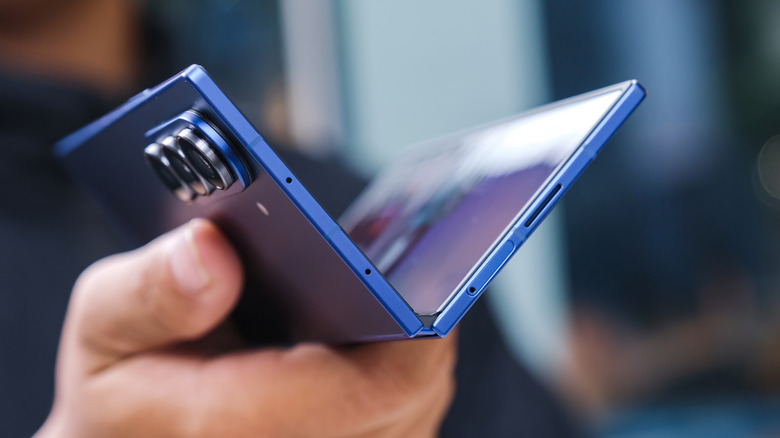
We've come a long way from those fragile, over-engineered first-generation folding phones. Even though they remain a more expensive option than equivalent traditional slab phones on the market, foldable phones have matured enough that the average person can buy one with the confidence that it won't need any special treatment.
Having a foldable phone opens up — literally — several unique possibilities, but these phones aren't quite at a place where you can use one the same as a conventional smartphone. Whether you have a flip-phone style handset like the Samsung Galaxy Z Flip 7 or a folding tablet like the Samsung Galaxy Z Fold 7, you're missing out on a lot if you're stuck in the slab-phone mindset. The good news is that with only handful of tips and tricks, you can turn your folding phone from a novelty to impress your friends into a device that can do what no other phone can.
Master multitasking like a desktop
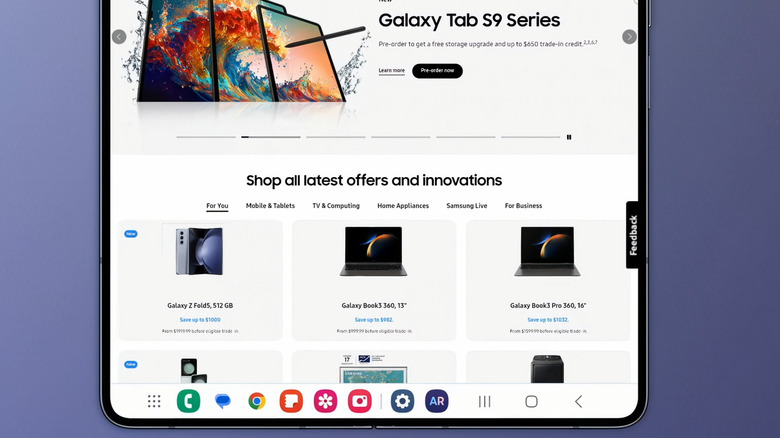
Multitasking is one of those Android features that put iPhones to shame, although a foldable iPhone design leak suggests Apple's phones might catch up through necessity if the rumors of such a handset prove true. If you're reading this in the future from a folding iPhone, most of the tips in this list should still apply!
When we say "multitasking like a desktop" we're not referring to Samsung's Dex or the long-awaited desktop mode Android update that can turn your phone into a portable PC. No, Android has a great split screen mode that lets you run two apps at once, which is great on a Fold-style device, but still pretty cool on a folding flip phone.
Stock Android multitasking is just the start though. Folding phone makers modify Android to fit the unique screens and capabilities of the folding phone in question. Samsung, for example, has its taskbar system for the Fold series of phone and lets you save unique multi-app screen layouts for common tasks.
Fold your phone halfway for unique features
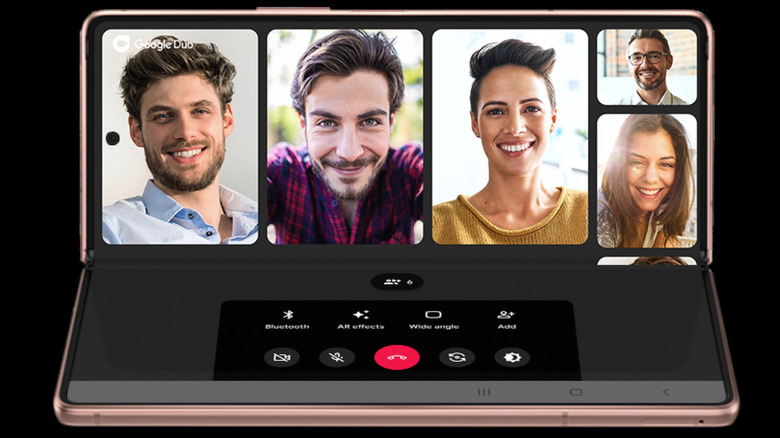
One of the neat things about folding phones is that you don't have to fold the screen out all the way to use the device. Thanks to cleverly engineered hinges, most folding phones can be opened freely to any angle. Many modern models have a folding angle sensor that gives the phone precise information about how open or closed it is.
While the features that take advantage of this varies by phone brand, a good example is Samsung's Flex Mode, which triggers special modes in compatible apps. For instance, a video player might move to the top half of the screen and display playback controls on the bottom half of the screen. In apps that use text input, like a word processor, the bottom half of the screen generally fills up to become a keyboard, making it easier to type, although this tends to be more useful on the larger tablet-sized folding phones.
Take better photos using the fold
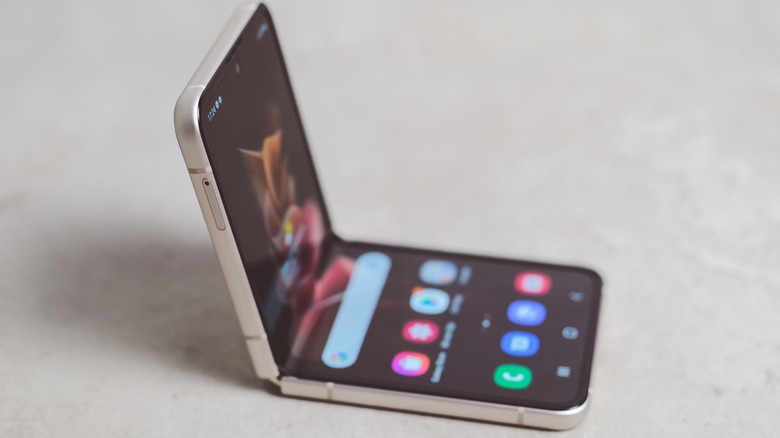
The cameras on folding phones haven't always been the best, but they are getting better. Sensor and lens quality aside, you might be surprised to learn that there are a few ways that foldable phones make it easier to take photos compared to traditional smartphones. First, a foldable doesn't need a kickstand or tripod to provide a stable platform for its camera. If you fold the phone like in the image above, you can take hands-free stable photos using a timer, voice command, or Bluetooth remote trigger.
Since these phones generally have an outer screen when folded up, it also allows you to take selfies with the high-quality main camera. This results in selfies that are a better quality than what's capable on the latest slab phones. Even better, if you have a tablet-style folding phone, editing and reviewing photos is also much easier on the larger screen. Just make sure you're using these essential Android apps for photography.
Switch to apps that optimize for folding
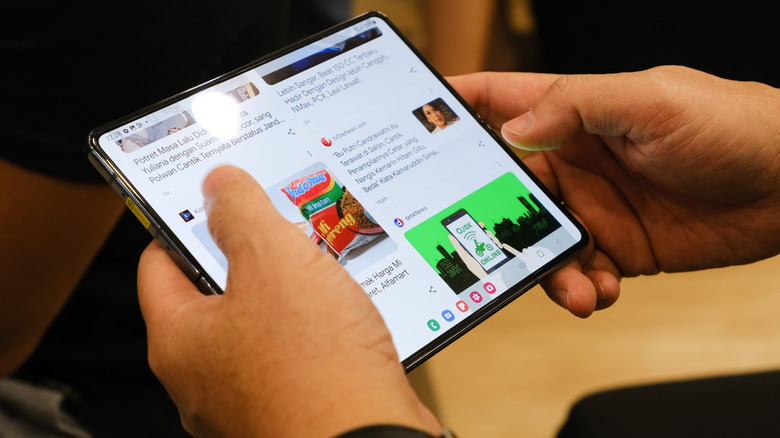
Folding phones may be growing in popularity, but they aren't exactly mainstream yet either. This makes it hard for many developers to provide specific support for folding phones in their apps. The software in a folding phone tries to optimize standard apps to work well with its various screen configurations, so it's ideal to find apps that were developed with the folding phone in mind. It's worth looking at the apps you use most often on your folding phone and then check to see if there is an alternative that will unlock the full potential of your device.
For example, on Samsung Galaxy Fold devices, Samsung's native browser app makes more efficient use of all that screen space. Likewise, Microsoft's suite of productivity apps has specific integration with Samsung folding phones. Apps like SideChef, Deezer, and Google Weather are all examples of apps that have been optimized for folding phones. It's not just about making use of the full unfolded screen. Apps that have been written with folding phones in mind can make better use of the outer cover screen and provide better continuity moving from the cover screen to the inner screen and vice versa.
Customize the experience to fit your workflow
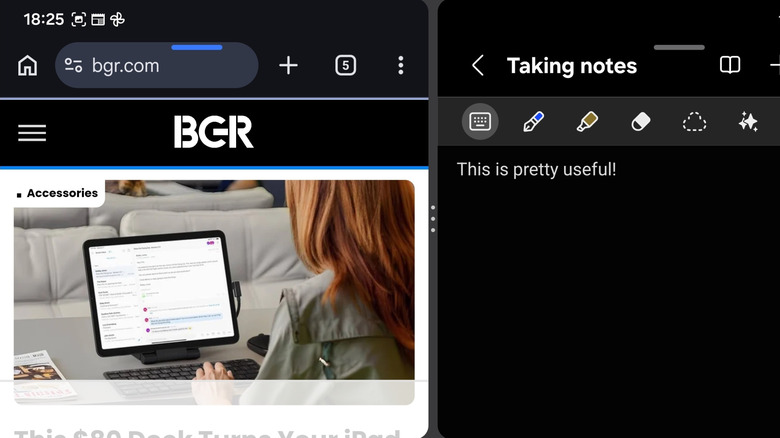
For the folding phones that open up into a screen that's larger than a standard phone, such as the Samsung Galaxy Z TriFold, the greatest advantage is screen customization. While not every app makes full use of the larger screen, it's still possible to mix standard apps together in such a way that new workflows become possible. A great example of this is Samsung's Multi window and App pair functionality. These are features that work on all Samsung phones, but they are more practical on the full screen of a folded phone.
App pairing allows you to save split-screen app pairs, so that you can open them both with a single tap, saving you time and extra steps by skipping the split-screen process. You can open multiple apps and arrange them on screen or open them in a pop-up view to have a floating window you can move around. Dividers allow you to drag app edges to resize them, which allows to fully customize your screen by creating your own personal dashboard.
Treat the cover screen like your first choice
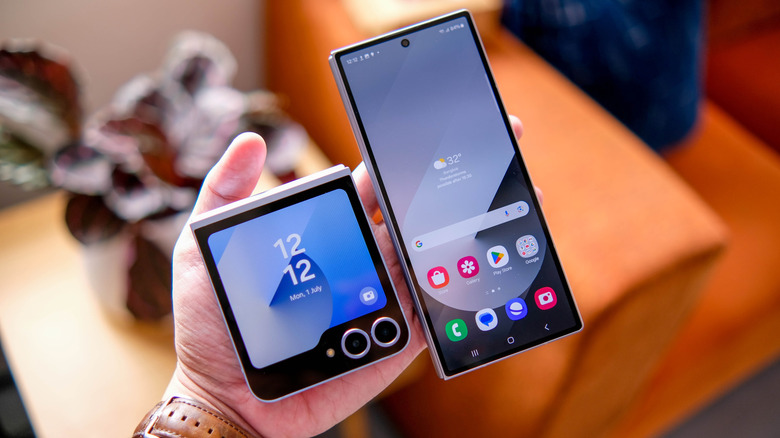
Folding phones have an external cover screen that's visible when the phone is closed and a larger folding screen to display info when the phone is open. Constantly folding and unfolding the screen can feel like a waste of time, but it also wears the phone out faster. For these reasons, it's a good idea to treat the cover screen of your folding phone as the phone's primary screen and only unfold it when needed. That isn't necessarily difficult on a bigger folding phone since the cover screen is about the same size as a traditional smartphone, but the cover screen of a smaller foldable phone can take some time to get familiar with.
We could even make the argument that if you get into the habit of minimizing how much you unfold your phone, you'll be less likely to get caught in a doomscrolling session. It's potentially an effective way to cut down on screen time, if that's what you want. It will take some time to defeat the urge to unfold your screen, so make a conscious effort to try and do whatever it is you want to achieve on the cover screen first. You might be surprised at how flexible it can be.
Widget up your cover screen
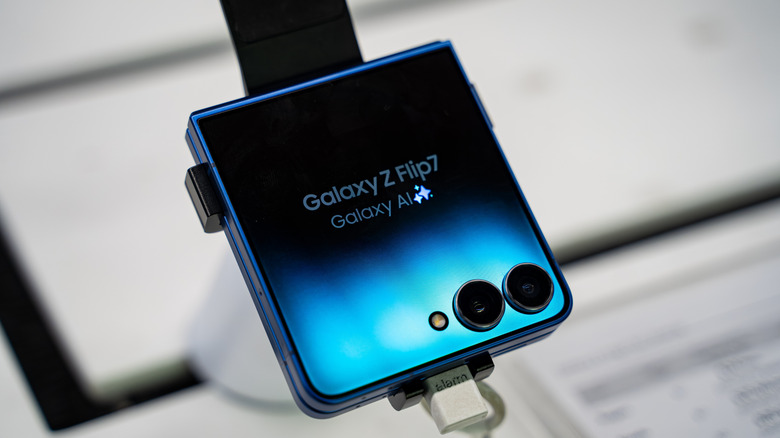
On the subject of cover screens, you can do a lot more than see the time and date or read and reply to messages. It varies from one phone brand and model to the next, but many foldables let you treat the cover screen almost like a smartwatch. You can add and customize widgets, and then swipe between them without even unlocking your phone.
Apps like music players or audiobook apps can have their own widgets, letting you turn your folded phone into a cool little music player. It's another great way to limit how much you unfold the full screen. Adding custom widgets to your cover screen almost turns your phone into an entirely different kind of device. Sadly, for now, phone makers like Samsung limit what sorts of widgets you can have on the cover screen.
This means if there's a main screen widget you love, it might not be on the list of allowed widgets, but you can potentially get around this with an app like CoverWidgets. This app, and others like it, unlocks your phone and lets you put any third-party widget on the cover screen. Of course, some widgets were not designed for this use case, but there's no harm in experimenting. After all you can always remove the ones that don't work out for you.
Fix scaling and app size issues yourself
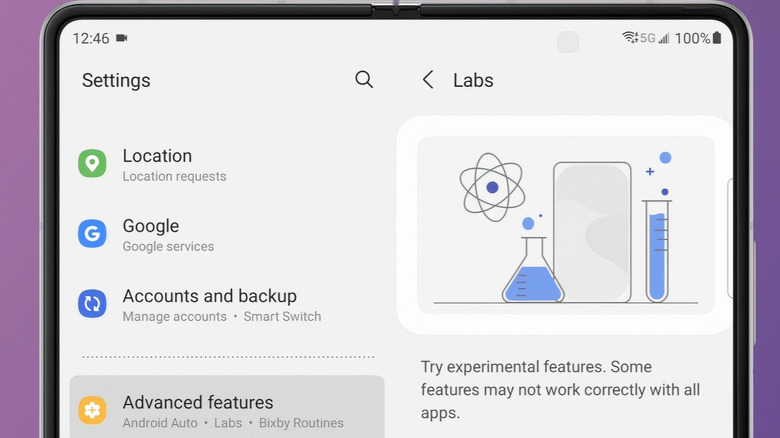
A little earlier, we mentioned that many apps (perhaps even most of them) aren't designed with folding phones in mind just yet, but folding phone software offers you ways to override how those apps behave. For example, Samsung folding phones have a Labs section, which allows you to activate experimental features that can make some apps work and display better on your folding phone. This includes activating the multi-window feature for all apps (whether they support it or not), turning on the landscape view for portrait apps, and even adding more options to the list of allowed apps for the cover screen.
Just keep in mind that if you activate experimental features on your folding phone, apps may behave in unexpected ways. It's not a big deal, you can always just turn them off, but you'll want to be aware of any weirdness or glitches. Over time, as folding phones become more common, expect most popular apps to support them without needing any sort of workarounds. For now, though, you may have to make a special effort to get everything working the way you want it to.