

5 Of The Most Common Printer Problems And How To Fix Them
Printers are one of those devices that seem to fail at the worst possible moment, whether you're printing out last-minute documents or an important project. And when a printer stops working, it can feel like there's not much you can do — but that's not always the case. Many common printer problems can be resolved within minutes, from paper jams and poor print quality to connectivity errors and cartridge issues. Most of these are fixable and don't require technical help.
Sometimes, fixes as simple as restarting the printer and your device do the trick. In other instances, you may have to dig deeper into the hardware or software side of things, but it's not as technical as many believe. This applies to both simple home printers and advanced multi-function office printers. With the right guidance, you can get the printer up and running in no time, even if you have lost your printer's manual. That's because almost everything is now available on the web.
Paper jam while printing
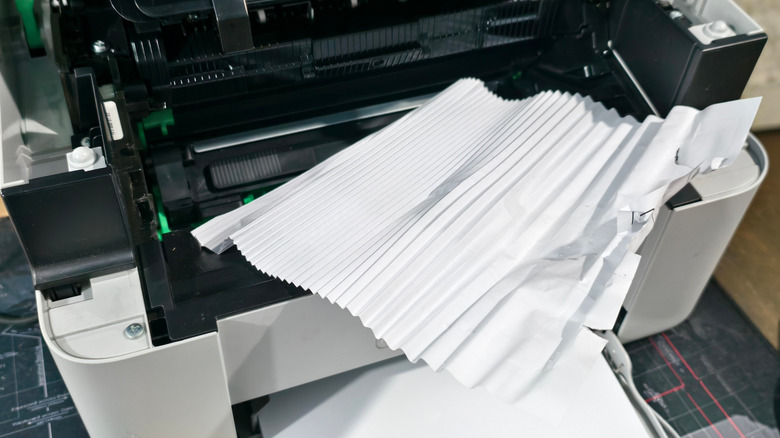
You may have at some point come across a situation where the paper keeps getting stuck while a print job is underway. It's one of the most common problems with home and office printers. When this happens, the printer might make some unusual noises (if there's a mechanical issue) and the prints won't come out.
Most of the time, the underlying cause is something as simple as using the wrong paper size. If that's the case, turn off the printer and carefully remove the stuck paper by pulling it in the same direction as the paper path. Don't apply too much force. After removing it, replace the paper with the size recommended by the manufacturer. Also, never overfill the paper tray. Make sure the loaded paper is within the printer tray's capacity.
If paper jams happen frequently, dust accumulation could be to blame. To address that, you will need to turn off the printer and wipe the rollers with a lint-free cloth. It may also help to know how to remove dust safely from any electronic in your home using tools like canned air. This can also be done preventatively, as periodic printer cleaning can help avoid such issues in the long run and also increase the lifespan of your printer.
Poor print quality
Sometimes, a printer's print quality goes downhill, and the underlying cause is not immediately apparent. It could be due to a wide array of reasons, from low toner or ink, to clogged printheads, misconfigured settings, or even low-quality paper. The issue appears more often on inkjet printers that are not frequently used, as dried ink clogs the printhead. So, if you have an inkjet printer, cleaning the printhead is the first thing you should do right after checking the ink and toner levels.
Many modern printers come with a built-in automatic printhead cleaning feature. For instance, for HP printers, you can use the "HP Smart" app. Simply navigate to the Print Quality Tools section under Printer Settings and select Clean Printheads. If your printer doesn't offer the self-cleaning feature or it didn't work, you will have to clean the printheads manually. So, turn off the printer, remove the old ink cartridges, then clean the cartridge contacts and gently wipe the printhead contacts using a soft, damp cloth. After the excess ink is cleared, wait for 10 to 15 minutes, then put everything back in and check for improvements to the print quality.
If the print quality is still poor, you should check the printer's settings as well as those on the system that's sending the print job. Also, make sure that you are using the recommended paper type for the printer. Using a different paper type often results in low-quality prints.
Print jobs stuck in queue
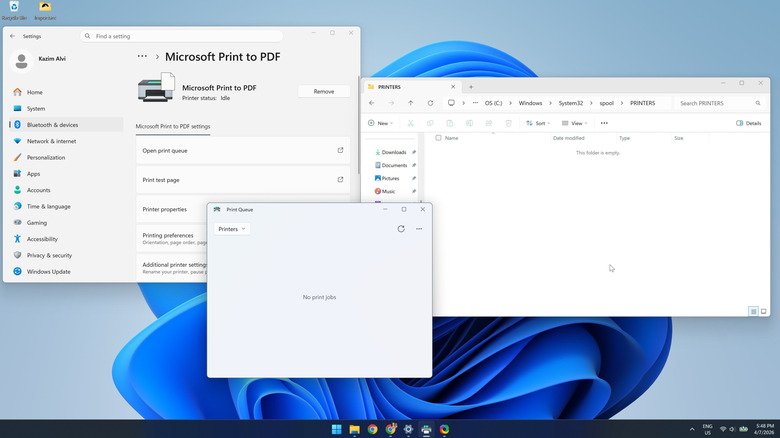
If a print job sent to the printer is stuck or corrupted, it affects the entire queue. This sometimes happens in work environments, where multiple systems use the same printer. Every subsequent print job is also stuck in the queue, and the printer doesn't work unless the queue is cleared.
To clear the print queue on Windows PCs, open Settings from the Start menu, go to Bluetooth & devices, then into Printers & scanners. Select the affected printer from the list, then click on Open print queue and delete the print jobs. If that doesn't work, open the "Services" utility, scroll down and find the "Print Spooler" service, right-click it, and select "Stop." Go to "C:/Windows/System32/spool/PRINTERS" path, delete all the files, then go back to "Services," right-click "Print Spooler" and select "Start." This should effectively clear the stuck print queue and let you print again.
To clear the print queue on macOS, start by clicking the Apple logo in top-left corner of your screen and opening System Settings. From there, go to Printers & Scanners, select your printer, then click on Printer Queue and cancel all the print jobs. Keep in mind that while you can use the dedicated cancel button on your printer to delete a stuck print job, it only applies to the current job. For those in the queue, you would have to rely on the system that sent the jobs.
Driver or software compatibility issues
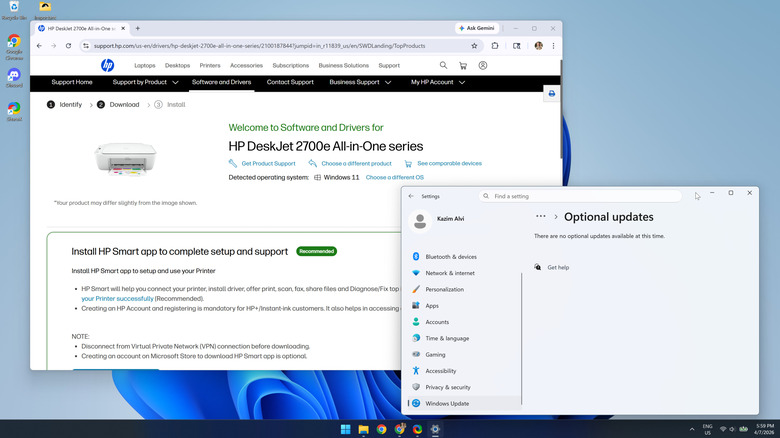
Like other peripherals, printers need to communicate with the host computer, whether that's for print jobs or other functions, and it's the printer driver that facilitates this communication. Given how important it is, an outdated, corrupted, or incompatible printer driver can cause a number of issues. These include printing unknown characters, throwing error codes, not showing up on the system, and the printer failing to work altogether.
A common fix for all driver-related printer problems is to update the driver. On Windows, you can install the latest version through Settings > Windows Update or from the manufacturer's official website. On macOS, you can do so by going to System Settings > Software Update or by installing the software directly from the manufacturer's website. If that doesn't work, remove the printer and add it all over again.
Remember, keeping the printer driver up-to-date can prevent these issues from arising in the first place. Apart from that, manufacturers often release patches for known bugs and introduce new features through these updates. So, running the latest driver version also ensures that you enjoy a seamless and secure experience, even on the more cost-effective printers.
Wi-Fi or connectivity problems
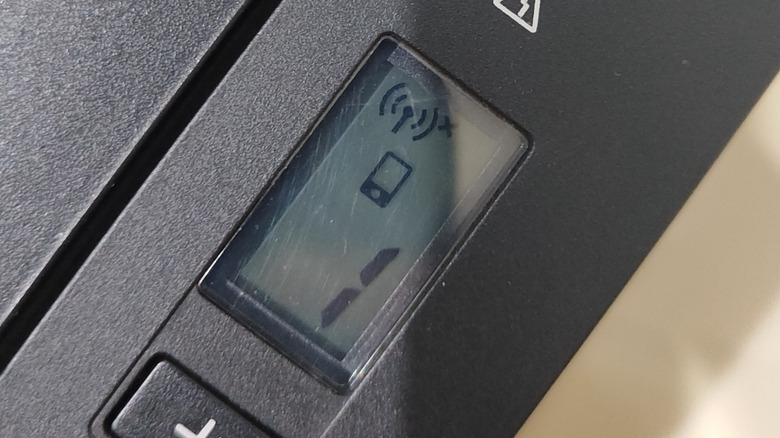
Wireless printers, though convenient, are more likely to run into connectivity errors than their wired counterparts. This is true for most devices and connection types, as Ethernet is generally more reliable than Wi-Fi. Network-related printer problems include the printer not connecting, going offline frequently, or not showing up on the system.
If the printer is not detected, make sure the PC and the printer are on the same Wi-Fi network. Beyond that, power-cycling the printer is an effective fix for frequent disconnects — simply turn off the printer, unplug the power cable, wait for 30 to 60 seconds, then reconnect the cable and turn the printer back on. Some printers also come with a built-in wireless connectivity test. If yours does, run it to check for problems. Additionally, bringing the printer closer to the router may help if the two are currently placed far apart. This can improve Wi-Fi signal strength and prevent frequent disconnects.
As a last resort, you can always temporarily switch to wired connections until the issues with wireless connectivity are fixed. But in most cases, it shouldn't come down to that, and simply changing networks or power-cycling the printer will do the trick.