

11 Things You Should Never Do On Public Wi-Fi
For remote workers who love traveling or coffee shop enthusiasts, a public Wi-Fi network can be very useful. Sure, those users can always turn on their phone's hotspot and browse the web using mobile data, but this is only feasible to a point. Even with Data Saver mode on, working professionals will use up their allotted data in no time, and even casual users won't be able to stick solely to cellular data for too long. This makes a public network appealing to stay connected to the internet without incurring extra charges.
However, this convenience can come at a major cost. Getting too complacent with using public Wi-Fi wherever you go can put both your data and privacy at risk. Man-in-the-middle (MITM) attacks perpetuated by hackers can help them gain access to your sensitive data, which can have dire repercussions. If you want to avoid such incidents on public networks, you need to stay alert while browsing the web and restrict your online activities to keep you and your data safe.
Use your banking app
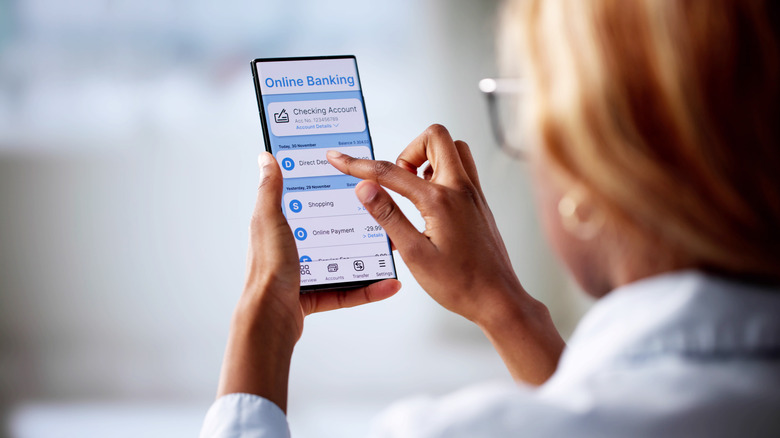
Banking apps have definitely made financial management convenient for internet-savvy users. Gone are the days when you needed to physically go to banks and fill out cumbersome paperwork to do the simplest things. A few swipes, taps, and ID verifications are all it takes for you to pay your bills, initiate money transfers, and bring up your bank statement. As useful as online banking may be, we strongly suggest that you access these apps either on your mobile data or a private Wi-Fi connection.
On public networks, there's a higher chance of an MITM attack that reveals any interactions you're making with your app. Your PINs, passwords, and transaction records become available to a hacker if they manage to exploit the security vulnerabilities of a public Wi-Fi connection. Even your crypto wallet isn't safe, as experienced by one unfortunate traveler who lost $5,000 in crypto while accessing these finances on his hotel's public network. Does this mean you should never use hotel Wi-Fi? Well ... as long as you're not using any banking — or crypto — apps, it shouldn't be a huge deal as long as you take certain precautions, like the other tips in this article.
Keep auto-connect on
For the most part, your device's auto-connect feature is pretty convenient in the comfort of your home. It eliminates the need to manually select your preferred network all the time and helps save mobile data without having to remember to connect to your Wi-Fi every single day. However, one thing to keep in mind about auto-connect is that it's enabled by default whenever you log in to a Wi-Fi network. This isn't an issue for home networks, but keep in mind to uncheck this option whenever you're tapping into a public Wi-Fi connection. Even if you forget upfront, you can always go into your Wi-Fi settings and disable auto-connect for the Wi-Fi network in question.
This prevents you from making one of the most common Wi-Fi mistakes and unwittingly connecting to an unsecured public connection over and over again, just because you wanted to enjoy its convenience for a few minutes once upon a time. After all, it's entirely possible that a public network you've connected to previously was secure back then, but has become compromised since. Without your knowledge, you may give hackers easy backdoor access into your device if it auto-connects to what could be a compromised network.
Shop on online platforms
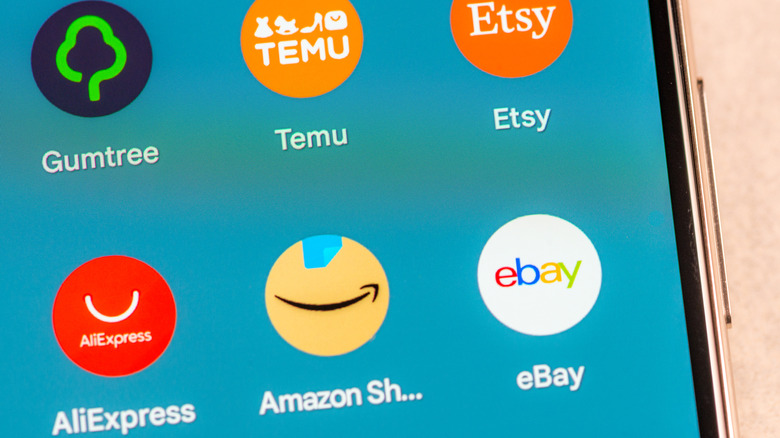
This is yet another area where an MITM attack can be very damaging for you. In fact, expect to see this term mentioned numerous times, since that's what many hackers rely on when they exploit vulnerabilities in a public Wi-Fi connection. There are several mistakes everyone makes when shopping on Amazon, and using a public network while shopping just adds to the list.
You're relaying a lot of sensitive information to your shopping app, such as your email ID and password. Along with this, any saved cards and financial information you've entered in the app are also at risk here. If hackers catch a whiff of this, then expect to see your bank balance become considerably lighter in no time.
Resist the shopping bug for just a few hours until you go back home and buy whatever you want using your private Wi-Fi, or just use your mobile network if you just have to buy something from your favorite e-commerce app that very instant. After all, it's well-documented that cellular data is more secure than public Wi-Fi, since the former isn't an open network. Even using a mobile hotspot with a strong password will help you avoid the hassles of dealing with public Wi-Fi and its numerous security issues.
Let random people send files to your device
The magic of technology now allows for seamless file transfer over the same Wi-Fi network. AirDrop is the most notable use of this technology, becoming one of the many convenient perks of the Apple ecosystem that fans love. In fact, iOS 26.2 brought a much-needed feature to AirDrop in the form of one-time codes to make it even more useful, letting you send files to unknown numbers without saving their contact information. However, file sharing is also possible on Windows, and the settings for the same can be seen in the Network & internet section of your device's settings. However, as useful as this feature may be, don't become complacent about leaving it on when you're connected to a public network.
There's a reason why Windows has separate sections for private and public networks when you click on "Advanced sharing settings." Giving random people permission to send whatever file they want to your device can be worse than an MITM attack. Forget about your data being intercepted — people who send malicious files to your device can infect it with viruses and malware that put your data at risk. Just avoid the headache of wiping all your corrupted drives and change your settings to prevent file transfer on unsecured public networks.
On Windows, turn off "File and printer sharing" in "Advanced sharing settings" after clicking on "Advanced network settings." Meanwhile, on macOS, go to Sharing in the General section of System Settings and disable everything. As a final touch, make sure to choose "no one" in the "Allow me to be discovered by" drop-down menu of your Airdrop settings. If you have an iOS device, you can disable AirDrop from the Control Center.
Surf the web on outdated software

There's a reason why updates are so important for your operating system. Sure, software optimizations and new features are neat, but enhanced security protocols do most of the heavy lifting here. These patches go a long way in preventing any vulnerabilities in your device from being exploited by shady programs. After all, there's a reason why Samsung was scrambling to release a security patch as soon as possible when a vulnerability was discovered in firmware in 2025. It really is that serious.
If you decide to use outdated software to browse the web, then you're already putting your device at risk as is. This becomes exponentially worse on public networks that are riddled with security concerns. Do yourself a favor and download the latest OS updates first before you decide to doomscroll social media. On the same note, it's also recommended that you update your apps, as well. Sure, an outdated OS puts your entire system at risk, but using an app that is in dire need of an update can spell trouble, too. Their security flaws can make it easy for bad actors to attack your system and steal any personal data.
Browse without a VPN
Most people still haven't entered the Virtual Private Network ecosystem. People aren't used to paying for a subscription to hide their data, but the benefits of a VPN are so numerous that your costs will be recouped in no time. In fact, VPNs are recommended for both public and private networks, since they'll safeguard your privacy and help protect your data from being farmed by nefarious organizations and sold to the highest bidder.
Since most public Wi-Fi owners can see what you're doing online, a VPN can be very helpful in such a situation. Of course, simply subscribing to this service doesn't mean that you can do whatever you want on a public network. There's a common misconception that VPNs are a security tool — rather, they're more of a privacy tool that disguises your digital fingerprint. If you don't want anyone else on the public network to see what you're doing online, use a Virtual Private Network to spoof an IP address and fool any would-be attackers. It's one of the most clever ways to use a VPN and makes public Wi-Fi networks feasible ... for the most part.
Carelessly connect to the wrong Wi-Fi
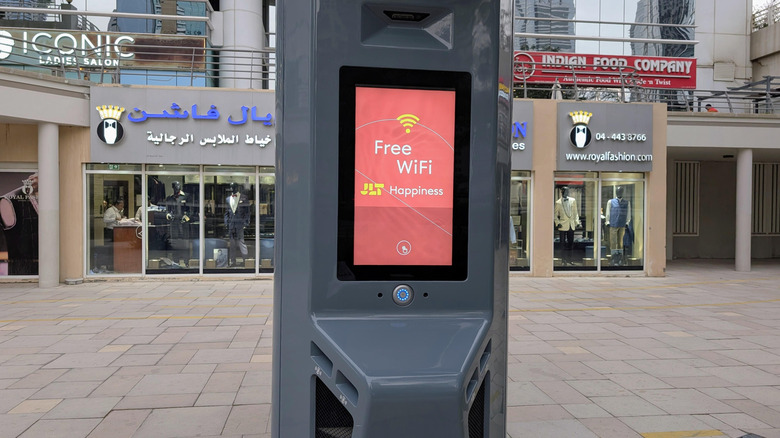
A huge reason why public Wi-Fi networks are such major security risks is that hackers love to confuse users and spoof networks that seem similar to the network in question. Cafes, hotels, and airports are among the most popular places to hang out and connect to public Wi-Fi, and they're also among the most common areas where people have their information compromised. These hotspots serve as an easy place for hackers to set up a fake public Wi-Fi access point that unassuming users connect to, leaving them vulnerable to MITM attacks that can steal anything from their login credentials to their banking details.
This network spoofing has become so popular that it's now known as an evil twin attack, which basically consists of a public network named very similarly to a legitimate public network in the same area. The goal is to get unsuspecting users to connect to the wrong network, then steal their information. This scheme has already claimed several victims, often leading to several hundred (or more) dollars in damages and untold stress when a hacker spoofs a network — or multiple networks — in the hopes of scamming as many people as possible. All of this makes it clear that you should definitely double-check a public Wi-Fi connection to see if it's the real deal before you even proceed to do anything remotely confidential on it.
Check and input your personal details
Using your personal information on digital channels can be far scarier than you'd expect, especially on a public connection. By this point, you're probably familiar with how MITM attacks work, intercepting sensitive data as it moves from a user to a service, like a shopping or social media site. Hackers who pull off an MITM attack will target your personal information and will steal it almost immediately the moment you decide to input anything sensitive into your favorite apps and websites. The common bad habit of using the same password on multiple accounts for convenience only makes this problem worse, because once a hacker has your credentials for one site, they can use them anywhere else that you're using them.
In fact, even checking any private information, including but not limited to your bank records and emails, can make it easy for hackers to appropriate this information and make your life miserable. It's wiser to be prudent and avoid accessing or inputting any sensitive data when using a public network. As mentioned before, your mobile internet and its hotspot are far more secure (though not perfect) for browsing the web if you're not at home.
Work and use your company's tools

Remote workers who like traveling or working from coffee shops are probably used to connecting to public networks. As convenient as it may be to preserve your mobile data and employ a myriad of work-related tools on these networks, though, don't get too comfortable in this regard. We've spoken extensively about the security vulnerabilities of public networks at this point, and it's entirely possible that you aren't just putting your own data at risk, but your company's as well.
Seriously, just use a mobile hotspot or stay home and use a company VPN to get your work done. It's far more secure, and the extra hassle the setup might present is nothing compared to the potentially enormous cost if your actions leave your company vulnerable to a cyber attack. No matter what your status with your company is, putting their data at risk is a very bad idea, and a very real concern when using a public Wi-Fi connection for work.
Log in to social media
Many people spend hours on social media every day, so it's only natural that you might want to open your Instagram or Facebook and check the latest updates from your friends and favorite celebrities, even if you're out and about. However, this is yet another risky action to take on a public network. People are very protective about their social media profiles, and the last thing they want is for a hacker to go berserk and send all manner of questionable messages to their friend network.
It's an even bigger problem if you're inputting your password, email, or other relevant information on a social media app. A cyberattack will compromise all this information in no time and leave you scrambling to change all your login details once you discover that you've been hacked. Every week seems to bring a new story about a hacking victim, and you definitely don't want to be next. Given how problematic social media already is, use this as an excuse to stay logged off when you're not at home.
Use a device that doesn't have antivirus software or a firewall
Using a system that doesn't have any antivirus, firewall, or other online safeguards is a strict no-no. Even if you're connected to a private network, that doesn't mean you can disregard these basic safety measures while browsing the web. Hackers will find it far easier to compromise your device without this basic level of protection, allowing viruses and malware to infect your system and leave all your data at risk in no time.
It goes without saying that all these problems are exacerbated on public Wi-Fi. Don't even think about browsing the web on these networks without proper protection, since you might as well broadcast all your personal information yourself. Defender and XProtect are pretty competent on Windows and macOS, respectively, although you might have to tweak some settings on the former to stay as safe as possible. Aside from this, you can download third-party antivirus software, like Norton and Malwarebytes, for a greater degree of protection. When it comes to firewalls, these protocols are set up properly from the get-go and shouldn't require user intervention. Still, for your peace of mind — especially if you have no choice but to connect to public Wi-Fi — you might want to familiarize yourself with basic firewall settings to see if you're getting the ironclad protection you need.