

5 Costco App Features You Shouldn't Ignore (That Actually Save Time And Money)

In a time where it seems like every company or business expects you to download their app, it can be frustrating to learn that not all of them are particularly useful. Warehouse retailer Costco's app has some pretty useful features, many of which can save you time and money. The Costco app can be useful for checking a store's inventory, but it's also capable of some more complex tasks, such as managing your prescriptions or even ordering items from specific departments. Considering the warehouse retailer can be a good place to get bulk groceries for cheap or even build your own retro arcade, frequent Costco shoppers should definitely take a look at everything the app has to offer.
The Costco app is available on the Apple App Store and requires iOS 16 or later, and the Google Play Store and requires Android 12 or later. Both apps are free to download and receive periodic updates that typically involve bug fixes and new features.
View warehouse inventory
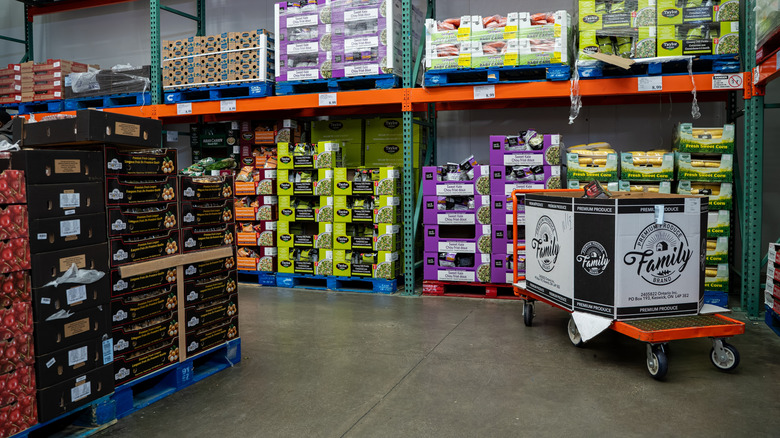
One of the easiest ways to save time with the Costco app is to search its warehouse inventory to see whether the items you want are available in the first place. To fully take advantage of the feature, you'll need to have a default warehouse selected in the app. Fortunately, we can show you how to set it up.
Follow these steps:
-
Open the Costco app.
-
Choose the Warehouse icon from the bottom of the screen.
-
Select Warehouses to bring up a map of Costco stores in your area.
-
You can also use the search icon to find locations by city, state, or zip.
-
Select a warehouse pinned to the map, then select Warehouse Details.
-
Tap the location pin in the upper right corner to set your home warehouse.
Once that's done, you can start checking inventory:
-
Tap the Warehouse icon at the bottom of the Costco app.
-
Select Search Warehouse Inventory under your default location.
-
Begin searching for items through the search page.
-
Scroll the results to check whether an item is available or in Low Stock.
-
Select Find Nearby next to an item to see if other warehouses have it.
Considering we're constantly exploring Costco for items and electronics, such as these computer monitors members swear by, it can also be handy to see if an item is available at your local warehouse rather than ordering it online and waiting for Costco to ship it to you. You'll also see a store's hours when selecting a warehouse.
Use the Costco app shopping list

Shopping lists are a good way to avoid impulse purchases and endless wandering through a store. It's also a good way to remember to grab basic necessities, which helps avoid multiple trips. Fortunately, you can create shopping lists through the Costco app, and once a list is created, you can even order items through it.
Follow these steps to get started:
-
Open the Costco app.
-
Select an item in the Costco app.
-
On the product page, click the heart icon next to the word "Add".
-
On the next page, enter a name for your new list and select Add to list.
-
To view your lists, navigate to the Account button at the bottom of the screen.
-
Select Lists.
-
Choose View Costco.com lists.
-
You can find your created shopping list from this page, or you can create a new list.
If you're signed in, you'll be able to view lists you created on the Costco website, and you're also able to add to a warehouse list without needing to sign in. Once you've created a list, you can easily select items and add them to your cart.
This can be useful if you frequently purchase certain goods or are trying to assemble the best tech gadgets for your bedroom. Shopping lists also work with warehouse items through the Member-Only Savings book; just swipe right on the item or select Add to List. This also works for Online-Only items, though the Add to List button will be to the right of the product.
Find gas and travel for cheap

With gas prices constantly fluctuating, knowing the prices before you need to fill up can save you time and even help you avoid paying too much at the pump. Costco has about 550 gas stations throughout the U.S., and members can usually expect to save anywhere between $0.05 and $0.40 per gallon, which can make a difference when prices spike.
Using the app, finding the cost of gas at your local Costco is pretty straightforward and can give you an idea of what you can expect to pay when out on the road. There's also the little bonus that Costco pumps can help you avoid card skimmer scams, which is always nice.
Here's the process:
-
Open the Costco app.
-
Select the Warehouse icon at the bottom of the screen.
-
Select a warehouse by tapping its pin.
-
You will be taken to the details page for that warehouse, which shows the hours and current gas prices.
-
You can also use the search filter if you're looking for Diesel.
Focusing a little more on traveling, it's worth mentioning that you can also book rental cars, cruises, hotels, and vacation packages through the Costco app. Just open the app, tap Shop at the bottom, then tap Travel. Since the company can offer deals even on vacation, it's never a bad idea to have another source to check prices. The company may also offer cheaper rates than its competitors.
Take advantage of Costco Photo Center

If you have shopped at a physical Costco location before, you may already be familiar with the fact that the retailer offers photo printing services. However, you may not know that Costco partners with Shutterfly to provide members with special discounts. In addition to free shipping on orders of $30 or more, Costco members can save 51% off the retail price of Shutterfly orders.
You can actually use the Costco app to order prints. Getting started in the app is pretty easy, and it also allows you to choose photos directly from your smartphone. Using the Costco app, you can order a variety of items, including prints, photo books, cards, and more.
Here are the steps:
-
Open the Costco app.
-
Select the Shop icon from the bottom of the screen.
-
Choose See All under the Featured Services section
-
Tap Photo Center.
-
Scroll down and select Get Started.
-
From here, you can begin creating prints for delivery.
-
From here, select the Visit External Link button to be taken to the Costco and Shutterfly-branded page.
Once you've properly set it up, you'll be able to have items shipped to a specific location, or you can choose to pick them up directly from the retailer (varies by location). Useful as this is, remember that there are additional perks that come with your Costco membership. However, this one's also good if you ever need a last-minute gift for a family member.
Save time with Costco Pharmacy online
Costco has its own pharmacy, and the nice thing is that you can use it even if you don't have a membership. However, a membership may net you some additional savings thanks to member pricing. Using the Costco Pharmacy, customers can schedule immunizations, move prescriptions to Costco, get pet medications, and more. Even better, you can do many of these things directly through the mobile app, which can save time if you're unable to visit a physical location.
To get started with Costco Pharmacy through the app, follow these steps:
-
Open the Costco app.
-
Select Shop from the bottom of the screen.
-
Under Featured Services, select Pharmacy
-
From here, you can either sign in from the top-right corner or you can access the Costco Pharmacy options from the available list.
As long as you have the phone number with which you used to order prescriptions or the prescription number itself, you'll be able to order them directly from the app. However, you'll also be able to locate pharmacies through the app, along with some additional options if you select More from the Costco Pharmacy list.
Just like there are a number of reasons to take advantage of Costco's Tire Center, properly utilizing the retailer's pharmacy also has its own advantages. Remember that Costco accepts major insurance plans, and the retailer even promises to offer "competitive pricing" for those doing without.