

7 Clever Ways To Use Siri In Apple CarPlay
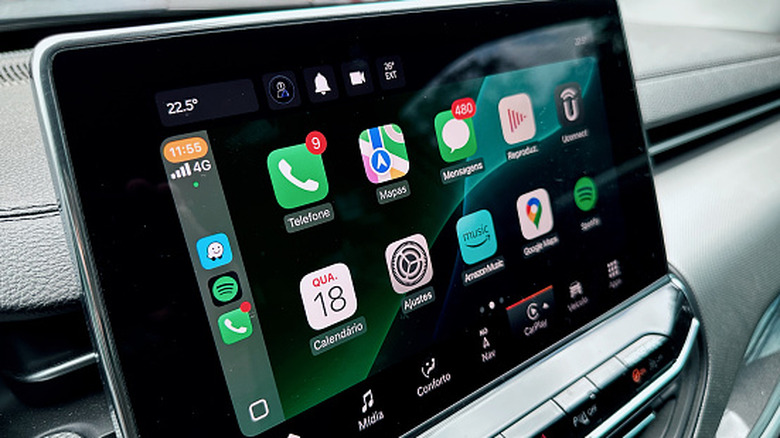
Siri is a fundamental part of the Apple CarPlay experience. Even though a revamped Siri with Google Gemini is expected to arrive later this year with iOS 27, the personal assistant is already useful for CarPlay users to control the infotainment experience, call someone, control music, and more. While Apple didn't really improve Siri with iOS 26, it recently made AI chatbots available through voice control.
With that, users can communicate with ChatGPT by voice, which is useful for getting tasks done and asking questions. Notably, Apple also added new features to CarPlay in April 2026, like Apple Sports and ambient music widgets. So if you drive a CarPlay-supported vehicle, here's how you can use Siri to control your car's features while avoiding distractions when on the road. These are some clever ways to use Siri and make the most of it in Apple CarPlay by simply using your voice.
Navigate around the UI hands-free
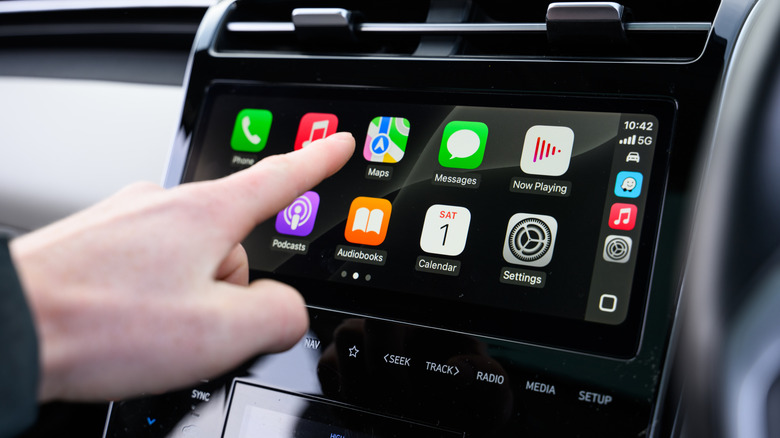
The different apps and functions in Apple CarPlay can be controlled by using the touchscreen display on the infotainment system or by voice. While many people focus primarily on the touch experience, you can simply ask Siri to open apps and navigate across the platform. Users can take advantage of commands like "Open [app]," "Go Home," "Go back," "Tap [item]," and more. Some of these experiences, like asking Siri to tap an item, can be performed like "Tap first" or "Tap second", which means the assistant will tap the first or second icon in the row.
Gestures like "Swipe left" and "Swipe up" can be used between pages in CarPlay Home or CarPlay dashboard, and when navigating up or down in a list. Furthermore, if you're in an app like Apple Maps, you can ask Siri to "double-tap" or to "pan left/right/up/down" to zoom in on or move around the map, making the entire CarPlay experience hands-free.
Call someone or write them a message

The second clever way to use Siri on CarPlay is to call someone. While the Phone app is available on the screen and we usually go through our contacts to call a friend, family member, or even a business, Siri can completely eliminate manual inputs. Not only can you call people from your contacts, but you can also ask Siri to call a business, and Siri will search for the number online for you. You can even set up and use personalized information like "Call my mother" or "Call my girlfriend" if you have added that information on your contact card.
If you have stored several contacts with the same or similar names, Siri will also confirm with you which number you're planning to call before completing the task. Similarly, you can use Siri to write a message to a contact. Even though iOS 26 recently allowed users to react to messages via CarPlay, among live activities and other CarPlay features, you can either delegate that task to Siri or just ask the personal assistant to write you a message. This way, you can dictate what you want to send without getting distracted.
Control your music
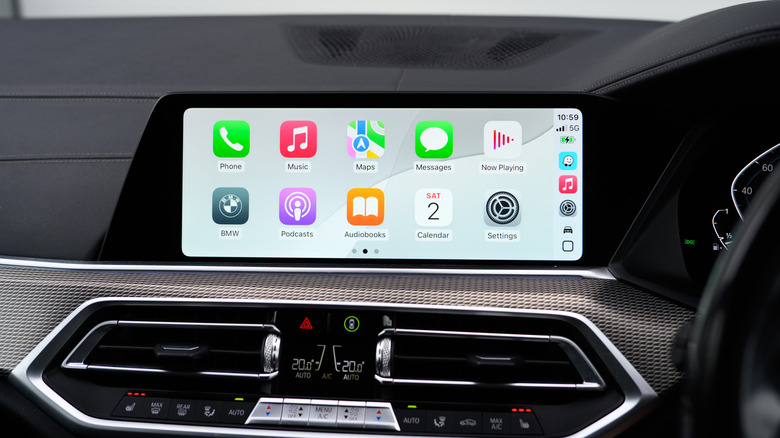
If you're driving to a holiday destination, commuting, or just taking a deep breath after a long day, your main companion while you're in the car is probably your music playlist. If you use Apple Music or other music streaming services, a clever way to take advantage of Siri is to use the personal assistant to control your music.
Most vehicles already have some sort of physical controls for music on the steering wheel, like Play/Pause, Skip/Forward, or volume up/down. However, if you don't feel like it, you can just ask Siri. Additionally, the personal assistant can be really precise, like "Turn up the volume to 63 percent."
Siri can also play your playlists, favorite songs, artists, and albums, and as long as you don't listen to an artist, song, or album with a very hard name to pronounce, it's very likely that the personal assistant will deliver exactly what you're aiming for.
Weather update and reminder alerts
The fifth tip is great if you're on a long trip and you're unsure about the weather at your destination. While there are several cool weather services among essential Apple CarPlay apps, you can always ask Siri to check the weather data for you, such as how long it is going to rain for, what the weather is going to look like at the time of arrival, etc. The good thing about this command, like many others, is that you don't need to take your eyes off the road. Even if you do for a split second, iOS 26's new CarPlay widgets will ensure you see all the required data in a jiffy.
Additionally, you can get reminder alerts based on your location. For example, if you have a task to complete once you reach your destination or you need to be reminded to purchase specific groceries once you arrive at a supermarket, Siri can be super reliable with that. You can simply say, "Remind me to get X once I get to my destination," and the personal assistant will buzz you just after you arrive.
Add a stop to your current route
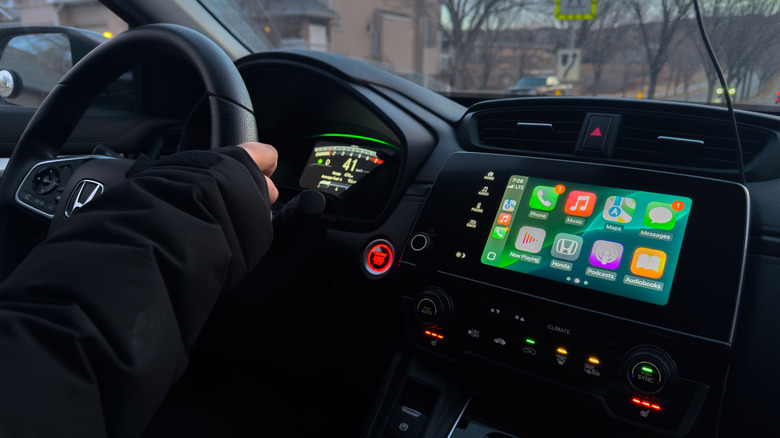
Finally, you can add a stop to your current route using Siri. Imagine you're low on gas, forgot to buy flowers for your grandparents, or you just got reminded by your kids that you need to stop at one of their friends' to pick up an important book for an upcoming project. You can just ask Siri to add a stop on your route, and the personal assistant will recalculate the route so you can later continue on your original journey.
What makes this feature even better is that with iOS 26.5, Apple added a new Suggested Places function into Apple Maps, which recommends places based on what you've recently searched and also what's trending around you. With that, if you're traveling and need to get a coffee to recharge, Siri will tap into this functionality to find a nearby coffee shop. That said, even as we expect a better Siri with iOS 27, the current personal assistant is already reliable for everyday tasks, and can be a good copilot every time you're behind the wheel.