

Never Do These 12 Things On Your Gaming PC
We may receive a commission on purchases made from links.
Given the rising cost of computer components — thanks in no small part to the AI boom — setting up a gaming PC has become a luxury now. If you're one of the privileged few who can shell out a substantial amount of cash to get the most powerful parts for your system, then you'll understandably want to push your gaming PC to the limits every time you play the latest AAA games on it. This isn't just about setting the highest graphics settings possible for your favorite games. You'll also want to tweak several things behind the scenes to squeeze as much performance as possible from your rig, enabling it to run games at high resolutions with blistering FPS and the best possible graphical fidelity.
However, in a bid to try and unlock these performance metrics, people either go a bit overboard in this department or ignore the basics that can safeguard their gaming PC and keep it viable in the long run. There's no point in setting up this high-powered system only for it to become an expensive piece of junk because of mistakes you made. Thankfully, these essential gaming PC tips are easy to follow for beginners and will help keep your PC running as smoothly as possible.
Overclock consistently
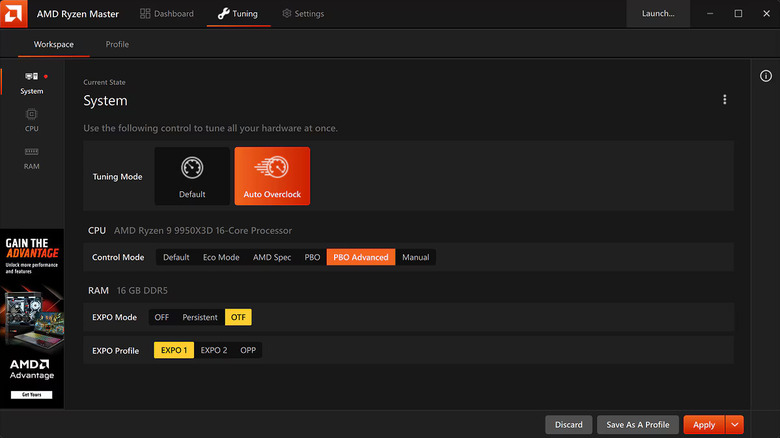
Overclocking is one of the first things you'll hear when searching for ways to maximize your hardware's performance. It basically forces your GPU, CPU, or RAM to operate beyond limitations set by the manufacturer. This boosts their performance and lets you enjoy higher computational power, stronger GPU performance, and faster memory speeds. While this sounds like a no-brainer, there's a reason why most manufacturers limit these clock speeds in the first place.
Some newbies to this feature get a bit too excited and strain their PC by overclocking it to the nines, without considering factors like higher voltage and hardware instability. Without a proper power source, expect to see regular BSODs and alarming signs that your GPU is about to fail. Regular overclocking will also strain these components and shorten their lifespans, forcing you to either book a repair or purchase a replacement if you push your PC too hard.
If you're dead-set on unlocking higher performance levels via overclocking, which makes sense if your hardware is dated or you don't want to wait hours for your editing software to finish its tasks, then a pragmatic approach is recommended. First off, ensure that the power supply for your gaming PC is adequate to handle this higher load. You should also invest in a proper cooling solution to compensate for the increased heat generated by overclocking. Finally — and we can't stress this enough — don't push every overclocking setting to the max, since this is a guaranteed recipe for disaster. Only overclock when required and do it in increments to figure out the perfect middle point where you can maximize your hardware performance without frying it outright.
Run an outdated OS
Operating system updates are rather frequent, and people who aren't in the habit of shutting off or restarting their PC all that often — which, on a side note, is a behavior that you should practice if you haven't already — will eventually end up with a woefully outdated operating system. Don't wait too long to install software updates on your PC, since Windows also adds compatibility features to its OS updates that help smoother operations and make life easier for you.
However, the biggest reason to always keep your OS up to date is to avoid being stuck with outdated security protocols. Hackers tend to target systems running older OS versions with security loopholes that haven't been patched out yet. If they discover that your powerful gaming PC is running outdated software, it becomes a breeding ground for malware and viruses that can, in the worst case, completely incapacitate your system.
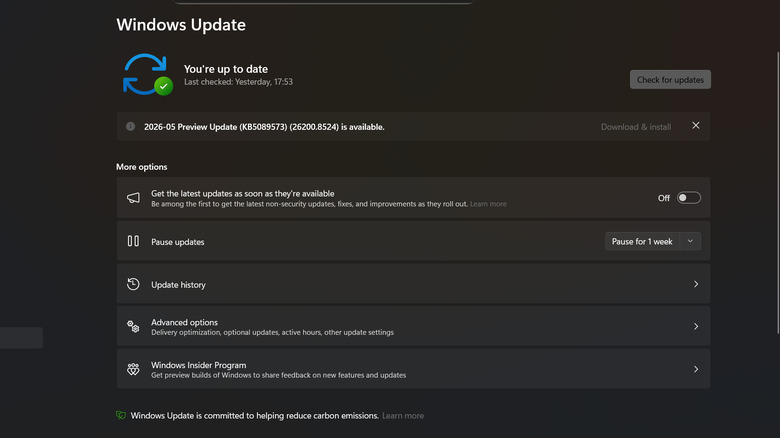
While Windows downloads updates automatically, you can always double-check whether your OS is up to date or not by checking the "Windows Update" tab in your PC's settings. Click on "Check for updates," and you'll either reaffirm that your Windows is safe and secure, or you'll have to download an update manually. You can also enable the "Get the latest updates as soon as they're available" option, although keep in mind that this applies only to recent non-security updates.
Remain in power efficiency mode
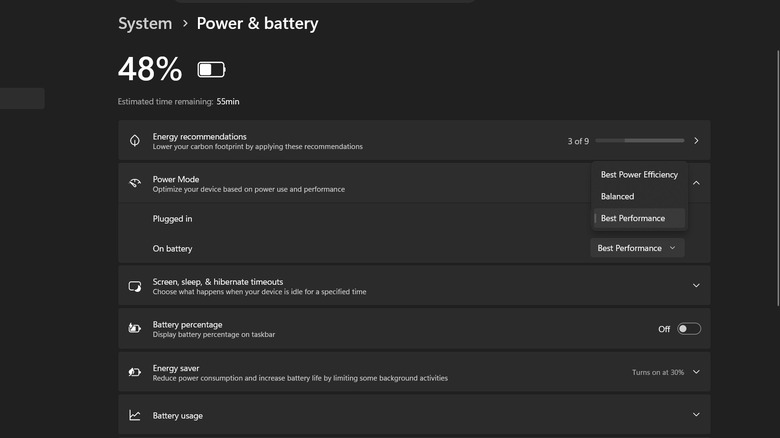
All Windows PCs have three power modes hidden deep in their settings. By default, the system is set up to operate in "Best Power Efficiency" mode in a bid to reduce electricity consumption and conserve battery life on laptops. This may be the so-called "greenest" way to use your PC, but it comes with substantial drawbacks. Lower power consumption means that your gaming PC won't be working at optimal capacity, which leads to performance drawbacks that most people would prefer to avoid.
To change these settings and enable Windows' hidden ultimate performance power plan, head over to the "System" tab and select the "Power & battery" tab. Click on the "Power Mode" option to show a drop-down menu with three options. Aside from the aforementioned "Best Power Efficiency" mode, you'll see a "Balanced" and "Best Performance" option. Any gaming enthusiast should choose the latter to enjoy its self-explanatory benefits and help their games run as smoothly as can be.
Ignore the BIOS/UEFI settings
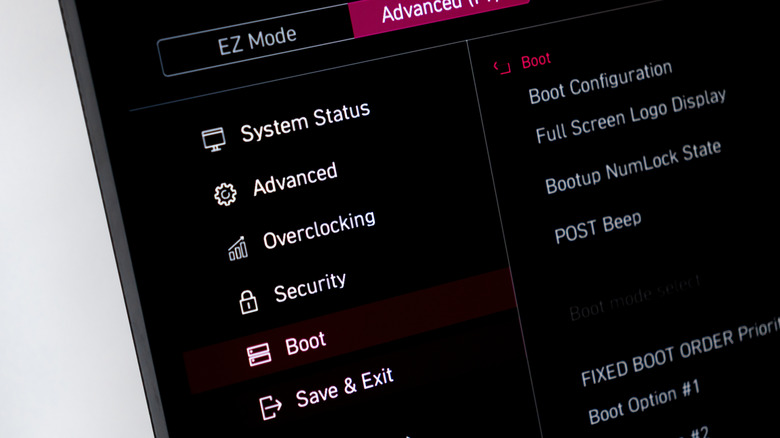
Any gaming PC owner who wants to see just how many facets of their system they can tweak to improve performance should check out their device's BIOS/UEFI. Accessing these settings varies based on your system manufacturer, with the boot screen usually instructing you to either press F2, F10, F12, or the Delete key to access these settings. Alternatively, from the "System" tab in Settings, select "Recovery." Under "Recovery options," you should see an "Advanced startup" option. Click the "Restart now" button next to it, and you should be able to access your BIOS/UEFI directly.
From here, you can access numerous settings, including ones that let you overclock your RAM. It's called XMP (Extreme Memory Profile) on Intel hardware, while AMD devices place these overclocking settings in either the EOCP (Extended Overclock Profiles), DOCP (Direct Over Clock Profile), or EXPO (Extended Profiles for Overclocking) section. Your CPU can also be overclocked by going to the relevant settings, where you can increase the Base Clock speed, Memory Ratio, and Uncore Ratio manually.
If you enabled "Above 4G Decoding" in these settings, then you can also enable Resizable BAR for NVIDIA GPUs and Smart Access Memory for AMD variants. This lets your CPU access all your GPU's VRAM at once, instead of in chunks of 256MB, which is the norm. Speaking of GPU optimizations, make sure that the PCIe standard is set to Gen4 and that M.2 settings are the highest value possible.
That's not all — from your BIOS/UEFI settings, you can configure fan speeds, tweak any power-saving settings for higher performance, enable CPPC Preferred Cores to optimize your CPU core workload, and turn on MCR (Memory Context Restore) for faster boot times.
Operate your system without a power backup
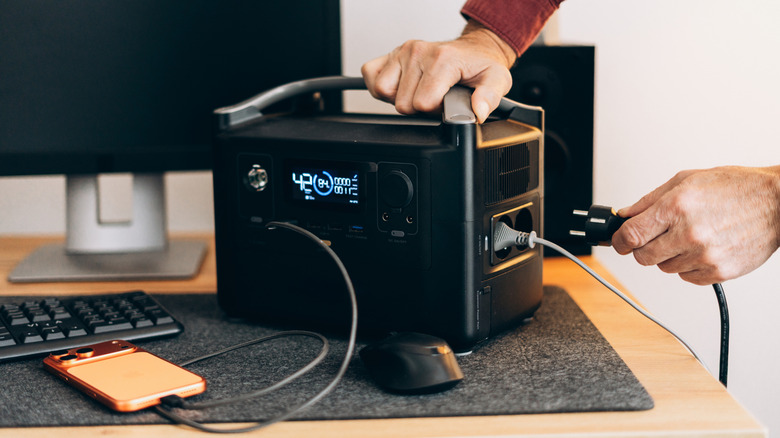
No one — and we do mean no one — should assume that it's safe to use their PC without an uninterruptible power supply (UPS). No matter how consistent the power supply in your location may be, emergencies can arise at any time that may lead to the electricity being cut in your house. This, coupled with a generous helping of bad luck, means that you may find yourself in a situation where your game is in the middle of saving only for a power cut to cause your PC to shut down as you lose all your progress.
Don't put yourself in this situation; get a good UPS you can hook up your gaming PC to. The CyberPower CP1500PFCLCD and APC BE600M1 are two great machines for an uninterrupted power supply that will safeguard your PC in the event of a power cut. On top of this, most UPS machines can also regulate voltage, enabling an added level of protection for your gaming system. If you experience regular electrical spikes and other voltage fluctuations in your area, do yourself a favor and get a UPS to prevent your PC's components from being damaged.
Game on an HDD
Are you hyped for the latest "Witcher 3" expansion? Well, you can say goodbye to your chances of playing "Songs of the Past" if you're one of the three gamers around who still use an HDD, since CD Projekt Red has stated that the minimum requirements for a game that was released more than a decade ago will change to make SSDs mandatory for this DLC. We're exaggerating, but it's become increasingly clear at this point that any serious gamer should shift to an SSD for faster loading times and reduced pop-in when playing the latest AAA games.
While indie games and older titles that aren't resource-intensive make these hard drives still worth buying in 2026, the latest AAA games are tailor-made to make the most of an SSD's swift loading times. Just take a look at "Cyberpunk 2077" — yet another CD Projekt Red title — which loads 10 times slower on an HDD than on an SSD. Only the most patient players will be able to deal with these ultra-slow loading times. If you've invested in state-of-the-art gaming hardware only to try and save money by installing an HDD instead of an SSD, then you only have yourself to blame for this short-sighted frugality.
Undervolt your GPU too much
Overclocking may be a popular trend in gaming PCs, but people who want to enhance the longevity of their GPU — a prudent decision, given how expensive this component has become in recent times — may be interested in undervolting it, instead. After all, your GPU doesn't need to work overtime for every video game under the sun, and judicious undervolting can help reduce the heat generated by this unit, ensure lower power consumption, and even increase the lifespan of your GPU in the long run.
However, as with overclocking, don't go overboard with this feature. Depending on your luck in the silicon lottery, your GPU may or may not perform well at lower loads. Again, incremental changes in voltage are recommended to find the sweet spot where your GPU can operate properly without instability or causing your games to crash all the time.
Depending on whether you have an NVIDIA or AMD GPU, you can use the NVIDIA app or AMD Adrenalin app to access its performance-tuning settings. From here, you can reduce the voltage of your GPU to see just how far you can push things before your games start acting up. Ideally, you should tweak this voltage for each game to achieve optimal undervolting.
Have zero storage space in your SSD
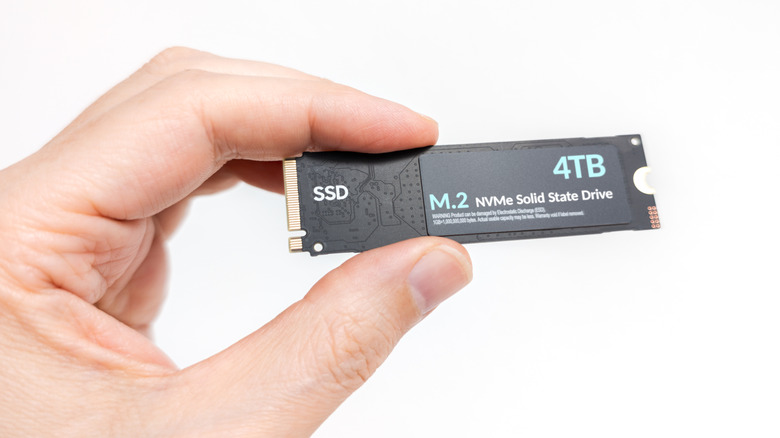
Maintaining your SSD's health is paramount to prevent system glitches, especially if your gaming PC's SSD is your boot drive. One major way you can keep this drive ticking for longer is by ensuring that at least 20%of its total capacity remains unused at all times.
To understand why this is the case, the first thing you need to be familiar with is the SLC (Single-Level Cell) cache. Any written data is stored in the SLC cache first before being hastily moved to another section of your drive. However, the portion of your SSD's memory it occupies isn't fixed, and it reduces over time as storage space lessens.
The other term to be aware of is write amplification. If your SSD is full to the brim, then the garbage collection process, which copies over data from old blocks to new blocks in sections before deleting the old data, takes longer the more your SSD is filled up. If your SSD has limited space, the number of clean blocks available to write data to is also limited. As a result, your SSD has to do more legwork during garbage collection, leading to increased write amplification. This puts greater strain on your SSD, reducing overall write speed in the short run and negatively impacting SSD longevity in the long run.
Ignore overheating

Cooling solutions are a must for any gaming PC. After all, state-of-the-art computer components and resource-intensive games generate a lot of heat. If your PC is placed in a suboptimal location (such as a soft, carpeted floor), isn't ventilated properly, has a substantial amount of dust, or doesn't have an adequate cooling unit installed, it's bound to overheat. If the PC is constantly blowing hot air, your games are stuttering all the time, and BSODs become far too common, then you're making the major mistake of ignoring these overheating problems.
Complacency will just worsen these problems and even lead to permanent component damage in severe cases. Make sure that you've set up your PC on a hard, stable surface that is properly ventilated. Either call a professional or clean the computer yourself with a compressed air can to get rid of dust. While you're doing this, make sure to add a small drop of thermal paste between your CPU or GPU and its cooler if it has dried out to regulate temperatures. Finally, if all else fails, replace your fans with a more efficient variant or go for a liquid cooling solution to reduce PC temperatures.
Let unnecessary background processes run all the time
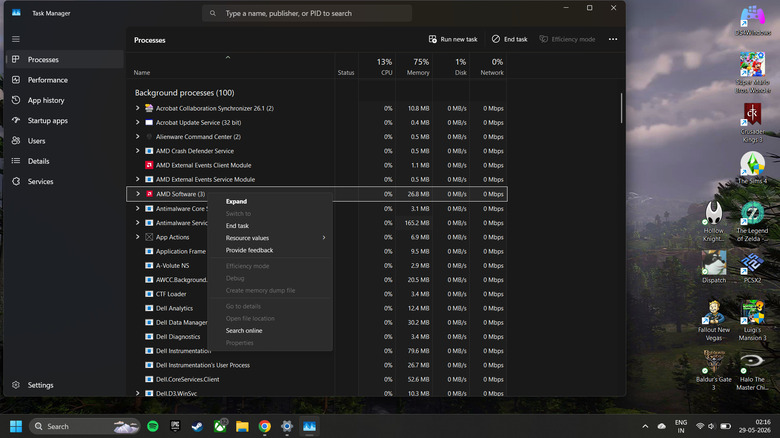
You'll be surprised at how quickly a litany of useless background processes can start wearing down your PC. Aside from the bloatware added by Microsoft and your device manufacturers, it's entirely possible that you may start downloading other applications with limited use cases that stay active on your PC all the time. Try to prevent too many apps from running at startup or in the background to free up as many resources as possible for your gaming endeavors.
Usually, opening Task Manager and killing these processes directly is the way to go, although you should be careful while doing this. Hastily stopping too many processes, including crucial drivers and Windows operations, may lead to everything from improper system operations to outright crashes. Usually, the programs that you don't use a lot are easier to turn off, with the usual suspects being Windows Mobile Hotspot Service, Program Compatibility Assist Service (keep this on if you play older titles), Telemetry, Windows Search (only stops indexing), Windows Biometric Service (if you don't use your fingerprint or face ID to log in), Windows Error Reporting, Windows Update Delivery Optimization (don't worry, this leaves your main system updates intact), SysMain, and Diagnostic Policy Service.
As an additional step, go to the "Apps" section in Settings and head over to "Installed apps." From here, you can select the menu button for some of your programs to reveal "Advanced options." Here, you'll see the "Background app permissions" section, where you can choose "Never" in the "Let this app run in the background" drop-down menu to free up system resources as much as you can.
Use Wi-Fi for competitive online gaming
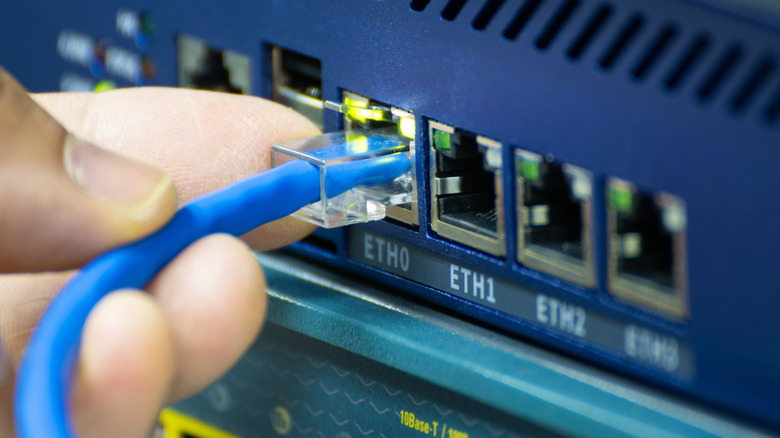
Latency is a pain point for any competitive gamer, so much so that they buy everything from esports controllers to high-end gaming mice just to reduce input lag as much as they can. However, the biggest source of lag comes from high ping, which is far more common over Wi-Fi connections. This may not be a huge issue if you live alone and only have a few select devices, along with your gaming PC, that connect to the internet, but it's an entirely different can of worms if your house is populated with both people and IoT devices.
In this case, it's far better if you use an Ethernet cable to connect your gaming PC to your modem directly. Hooking up a Cat6a or Cat7 Ethernet cable will enable speeds of up to 10 Gbps. This way, the internet connection will face little to no interference because of network congestion on your Wi-Fi. While most routers may boast similar speeds, real-world applications see this speed fall well below the mark, making Ethernet cable connections far superior in terms of pure speed.
Use a gaming monitor at its default refresh rate
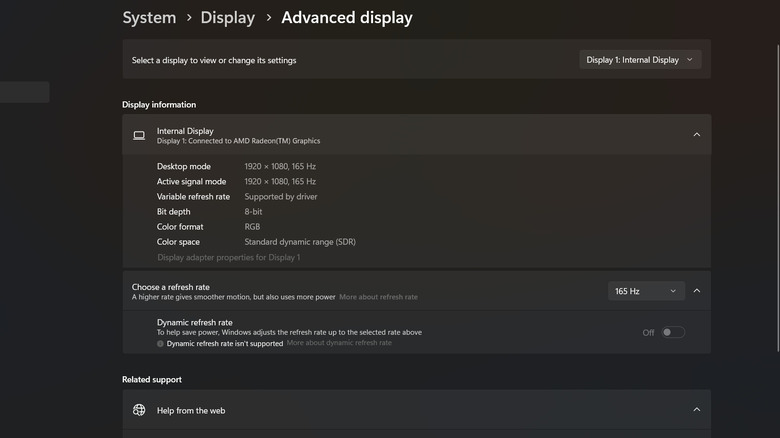
A gaming monitor is one of the most popular accessories — one might say it's a must-have for any gaming setup — that helps you enjoy the highest refresh rates possible on your favorite games. After all, there's no point in investing in the best gaming hardware possible if your monitor can't show anything above 60 FPS! Try out either the ASUS ROG Swift PG27AQDP or the MSI MPG 321URX QD-OLED if you have the money to spare. More budget-friendly options include the Titan Army P2712V and the KTC H27T22C-3.
Whatever choice you make, one thing to keep in mind is that Windows usually reverts to a 60Hz refresh rate by default. Many people aren't aware of this and use their gaming PC for far too long before realizing this mistake. Instead of making the same error, right-click on your desktop and select "Display settings" from the drop-down menu. Scroll down to the "Related settings" section, where you'll see "Advanced display." Click on it, and you'll see an option to "Choose a refresh rate." From here, select the highest refresh rate possible, and marvel at how smooth the motion becomes on your gaming PC.