

10 Of The Most Useful Mac Menu Bar Apps You Didn't Realize Existed
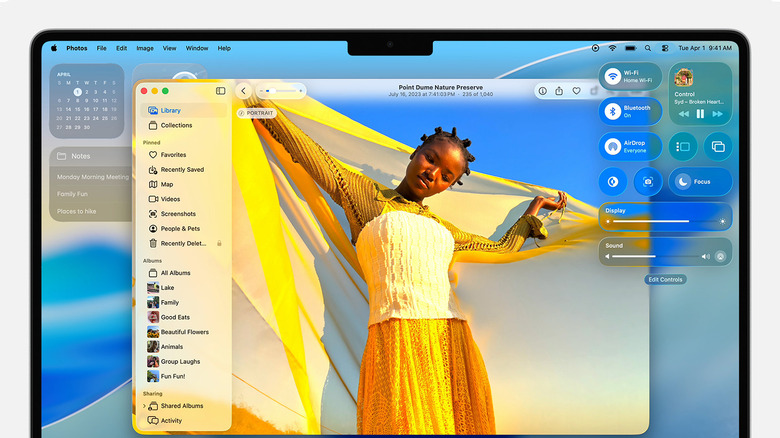
The Mac's menu bar makes up for the thin strip of toolbar at the top of the screen. It starts with the Apple icon on the far left, then shows you the contextual menus for the app you're in as you move across. It makes way for the now-infamous notch in the center, but it's the right side of the menu bar that's the most interesting.
The right-hand side of the menu bar isn't just for a clock. It's not just a place to access Control Center, or switch between Wi-Fi networks. With a considered selection of apps, it turns into an incredibly powerful corner of your Mac. One that you didn't even know could be customized. Add a personal calendar to the mix, attach a Pomodoro app with a live timer, or add an app for managing your MacBook's battery charging, and you're off to the races. How about controlling your entire smart home without opening a single app?
Using iStat Menus, you can also add panels for viewing detailed, live statistics for any and every corner of your Mac. Monitor the network speed to make sure everything is on the up and up, and use the memory panel to find and kill apps that are slowing down your Mac. You can also add an app that provides quick shortcuts to system-level features, and one that makes it easy to capture beautiful screenshots.
Itsycal
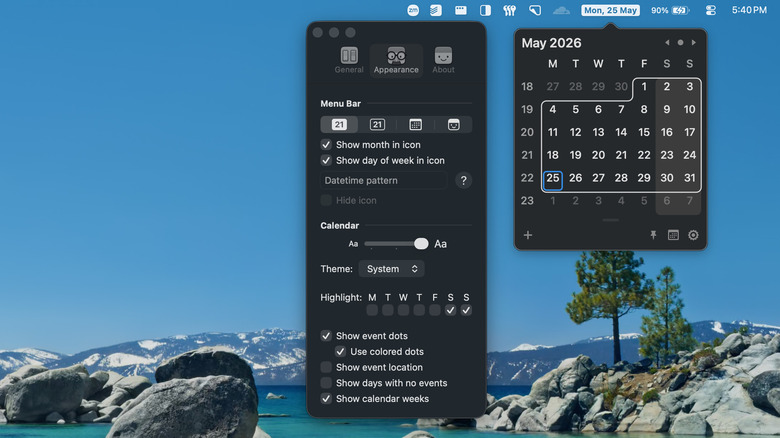
Itsycal is a little calendar app that's completely free and open-source. It lives exclusively in the menu bar, and it works as a companion to Apple's default Calendar app. You can use the app to view, add, and delete calendar appointments.
You'll find it useful even if you're not a heavy Calendar app user. Itsycal has a clean and minimal user interface. It has a customizable menu bar icon that you can set to show the time, day of the week, date, and month. When you click on the menu bar icon, you'll see the month's calendar, along with events. The app supports links for virtual meetings, so you can join a call directly from Itsycal. While you can't edit events inside the app, there's a handy shortcut to open the Apple Calendar window. If you need to refer to the Itsycal calendar for an extended period of time, you can use the Pin feature to keep it floating on top of what's on your screen.
The interface is quite customizable. You can make the calendar font bigger, and you can add a week counter as well. The app supports every macOS version after macOS 11, and it has been updated to support macOS Tahoe.
Flow
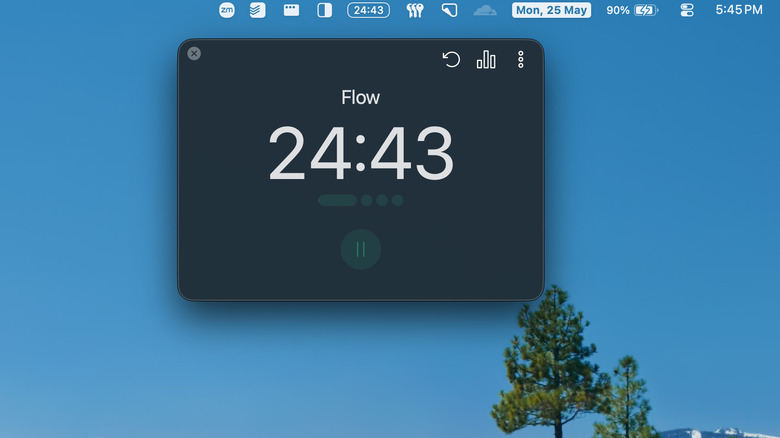
Flow offers a minimalist Pomodoro app that gets out of the way, so you can get the work done. It's one of those essential productivity apps that can help anyone improve their quality of life. Using the Pomodoro method, you can set timers for focused work and planned breaks. Usually, you cycle between four sessions of 25 minutes of work, and five-minute breaks, before taking a longer break. Instead of setting timers manually, you can use the Flow app. The app offers customizable timer durations, and you can monitor the time left from the live timer in the menu bar.
The free app offers enough features for most users, but the optional Pro upgrade ($2.99/month or $1.49/month when billed annually) unlocks features that can help you focus better. Pro users can sync timers between devices using iCloud, and get more detailed analytics for all sessions. Free users can block distracting apps, but paid users can block any distracting websites when a focus timer is enabled. If you find yourself opening YouTube every time you need to work, this can help. There's also an option to enable a notification that takes over your entire screen, forcing you to take a break.
Supercharge
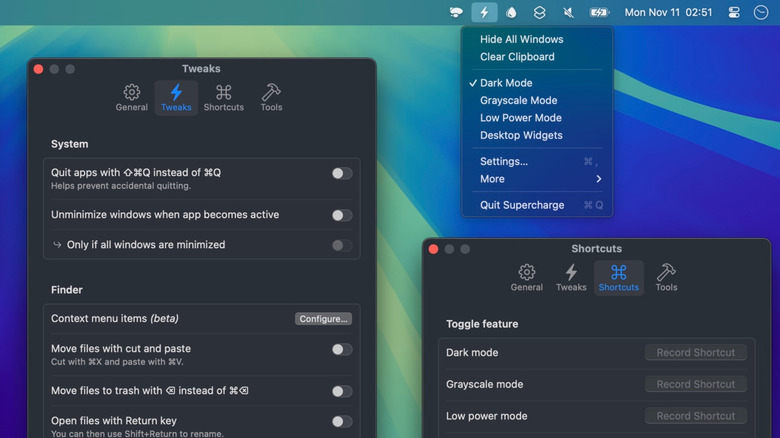
Supercharge is an all-in-one Mac customization utility created by the prolific Mac developer, Sindre Sorhus. The app offers a customizable menu bar dropdown where you can add quick shortcuts for toggles like dark mode, low power mode, and more. But the best part of the app lies in the Tweaks section.
The app offers a slurry of small yet useful tweaks that either fix long-standing annoyances in macOS, or add missing features to the mix. Here are a couple of tweaks that you should enable.
- Finder tweaks: Supercharge fixes known Finder issues and also adds features from Windows. For instance, macOS doesn't have the traditional cut and paste functionality that Windows offers. You can enable the feature, helping you move files between folders without copying them. There's also an option to open files with the Return key.
- Mission Control tweaks: Supercharge adds some action buttons to window previews in Mission Control. You can add new Close, Minimize, and Quit buttons to manage windows and apps directly from Mission Control.
The menu bar app itself is also very useful. There's a long list of shortcuts and actions you can add to it. Go to Settings > General > Show Menu Items and pick out features you want to see in the quick-access menu. You'll also find an option to quickly change the default browser on the fly — which can be very useful if you juggle between multiple browsers for work and personal life. The app is available to purchase from the website for $20, and it's also included in the Setapp Mac app subscription.
Aldente
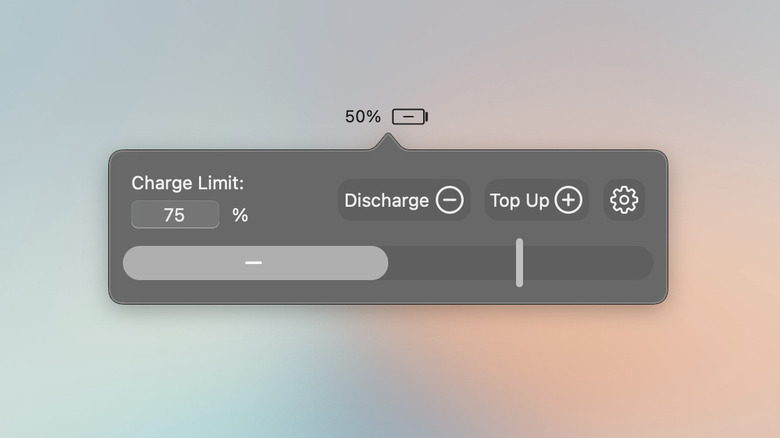
Aldente is a dedicated charging manager app for Mac. While macOS 26.4 recently added an option to limit charging to 80%, there's still room for Aldente in your menu bar. Lithium-ion batteries degrade over time, and how they age matters. Reduced performance on your Mac can be because the battery's had too many full-cycle counts. One way to increase the longevity of the battery is to limit charging to 80 or 90%.
If you don't want to worry about things like full-charging cycles, and you want more control over charging, try using the Aldente app. You can click the menu bar icon and change the charging limit for the current cycle easily. You can also use the Top Up feature to charge the Mac to 100%, if you're heading out.
The app shows you exactly what your battery health is like, and how the power is flowing when you're charging, and discharging. Aldente is available for free, with only the basic features — though these should still be enough for most users. Aldente Pro costs $13.99/year or $24.99 for a lifetime license. You can also access it from the Setapp subscription for $9.99/month. Aldente Pro offers extra features like automatic discharge, discharge in Clamshell mode, customization options, and more.
ToothFairy
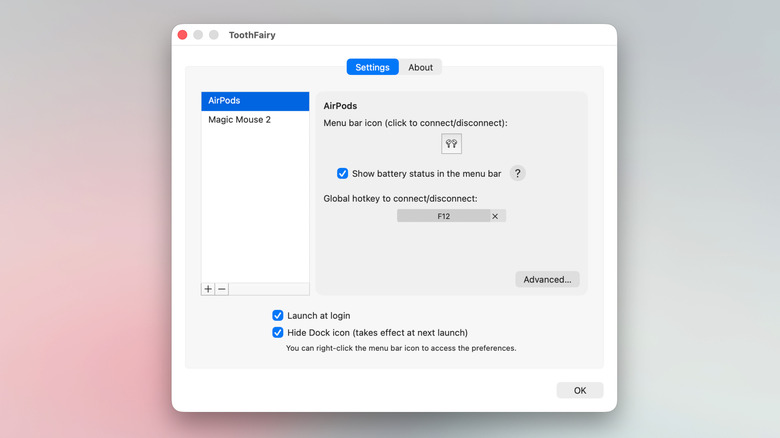
If you regularly use AirPods, Bluetooth headphones, and Bluetooth speakers, you might know how annoying it is to switch between them. Just with AirPods, automatic switching between iPhone and Mac can be unreliable. You have to first connect to the Bluetooth device and then switch to it in the Sound menu. ToothFairy is a little Mac menu bar app that can solve this annoyance.
Once a Bluetooth device is connected, you can add it to the ToothFairy app. This will create a dedicated shortcut for the device in the menu bar. You can choose the icon, if it's not selected automatically. Clicking on the menu bar icon for your AirPods, or your Bluetooth headphones, will connect and switch to it as the sound output. Once connected, the icon will also show the battery level of the device.
What's more, the app supports scripting, so you can create scripts to launch a particular app when a device is connected. For example, if you routinely use Spotify when you connect your headphones, you can set it up so that it automatically launches the app. The world of scripting is massive, so you can do quite a lot here. The ToothFairy app is available to purchase from the Mac App Store for $6.99.
CleanShot X
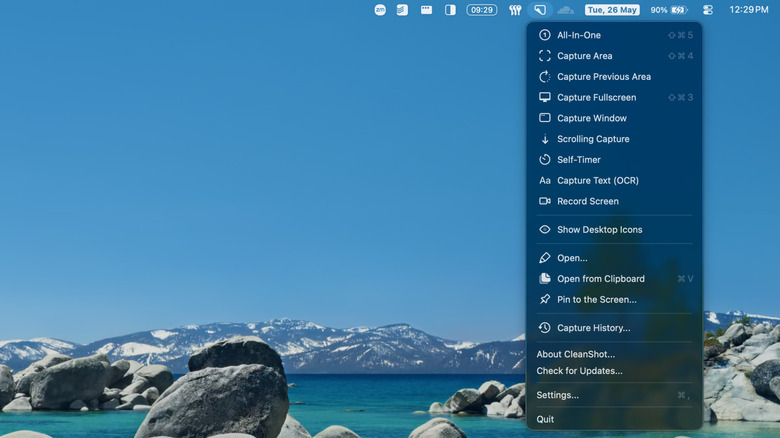
CleanShot X is a feature-rich screenshot and screen recording app that lives in the menu bar. It has a native macOS interface that's updated with the Liquid Glass design language. The app can take over the Mac's default keyboard shortcuts for screenshot and screen capture. But even without that, you can use the apps's menu bar utility to quickly capture various screenshots, including scrolling screenshots and the current window.
Once a screenshot or screen recording is captured, you'll see a little floating preview in the corner of your screen. From here, you can edit the screenshot. The app offers many options for creating beautiful annotated screenshots. You can add a background, blur parts of the image, and adjust the aspect ratio. You can also create templates to quickly apply the same background and effects to an image. CleanShot X costs $29 for a lifetime license, with one year of updates.
iStat Menus
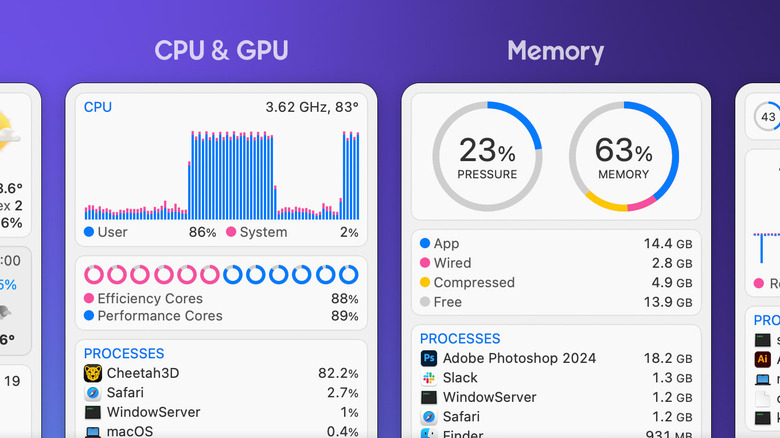
If you're a data nerd, or if you just like to know what's going on with your Mac's internals and network, you'll like iStat Menus. The app provides live, detailed stats for various parts of your Mac. You can see the storage space, the memory usage, CPU performance, GPU strain, and the charging stats. You can have each individual stat show up in the menu bar if you'd like, or you can group it all under the menu bar app. The stats on the menu bar are live, so you can monitor things like network speed, and CPU load, without even opening the app.
Want to find exactly which core is under how much load, and which app is using how much memory? The app provides detailed CPU stats, showing the current usage of all active cores, and a list of all the processes that are using the highest amount of CPU and GPU load. The same goes for RAM too, which is something you might want to monitor frequently if you have an older Mac, or the new MacBook Neo with 8GB RAM. iStat Menus shows which apps are using a lot of RAM; and you can quit any app that has gone rogue.
There's also a useful notification system called Rules. With this, you can set the app to notify you when the CPU or RAM usage goes above a percentage, when your internet connection is down, or when you're close to running out of storage space. iStat Menus is available to buy from the website for $11.99, along with a 14-day free trial.
Thaw
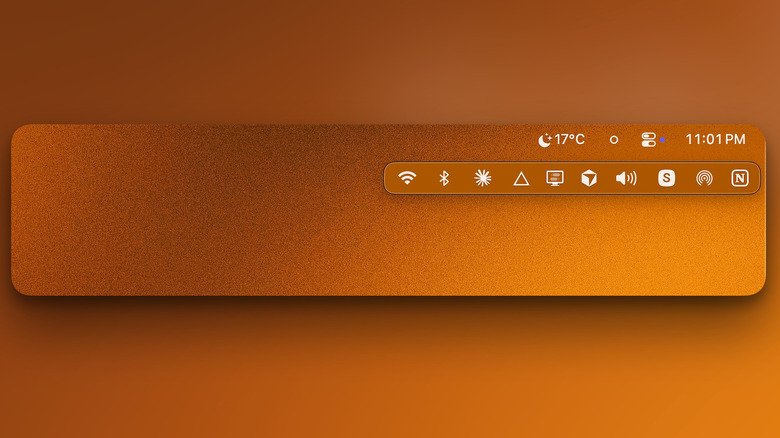
What happens when you install all these cool menu bar apps and realize that you've run out of the menu bar itself? Apple does quite a poor job of managing apps on the menu bar, hiding them behind the MacBook's notch or the app's menu items when the list is too long. Instead of quitting apps or removing them, use a menu bar management utility like Thaw. This app was designed from the ground up for macOS 26 Tahoe, and it's completely free and open-source.
The app lets you hide menu bar utilities that you don't use often, but gives you an option to bring them back with the press of a button, or keyboard shortcut. Thaw divides your menu bar into three neat sections: Visible, Hidden, and Always Hidden. You can also customize the look of the menu bar, making it transparent, or other appearance changes. Thaw is available to download for free from the project's GitHub page.
Dropzone
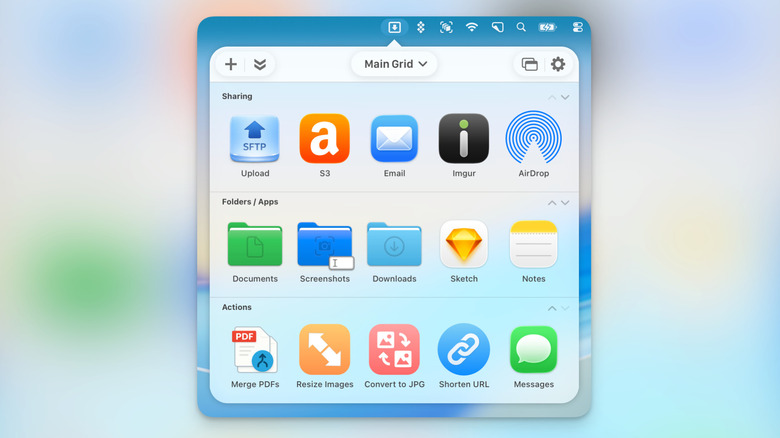
Dropzone is a drag-and-drop utility that lives in the menu bar. It was recently updated to Dropzone 5 with support for macOS Tahoe, and a new Liquid Glass redesign. Pick a file, link, or any object with your mouse, drag it up to the Dropzone icon in the menu bar, and you'll see a floating window filled with options. You can simply drop it into one of the zones to take an action. The whole app is customizable, so you can remove and add actions as you please. You can also bring up the Dropzone window by clicking the menu bar icon, and by using the keyboard shortcut F3 or another you choose.
For example, you can add a frequently used project folder. Simply dragging the files over it will move them over. You can also send the files via AirDrop, Messages, or Mail. Or you can upload them to a cloud service provider. The app offers options for resizing images, converting images to different formats, and for merging PDFs. Dropzone also has a feature called Drop Bar, which allows you a temporary space to collect files together in one place. You can then choose to take an action with all the collected files, or you can drop them into another app. The app offers a 14-day free trial, and a lifetime license costs $25.
Itsyhome
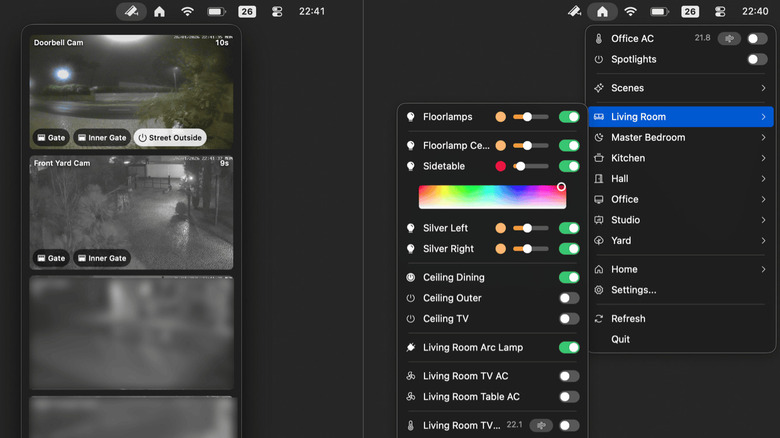
Itsyhome lets you control your entire smart home right from the menu bar. You can set it up to show all your smart home devices by room, and each device will show its own unique options. You can turn your lights on or off, and if there's a dimmer feature, you can change the intensity of the lights as well. If you've connected your smart AC unit, you can change the temperature and modes as well. Itsyhome Pro users get access to the camera functionality too, so you can monitor all your security cameras right from the menu bar, and you can even pin a particular camera (like your front door), so you can see what's going on outside your home with just a click.
The lightweight app is built using native Apple technologies to ensure that it doesn't overburden your system. The app supports Apple's HomeKit framework and the Home Assistant network. The base app is open-source and free to use, but the Pro upgrade with the live feeds and extra customization features costs $12.99 for a lifetime license.