

8 Things Your iPhone Camera App Can Do (Besides Taking Pictures)
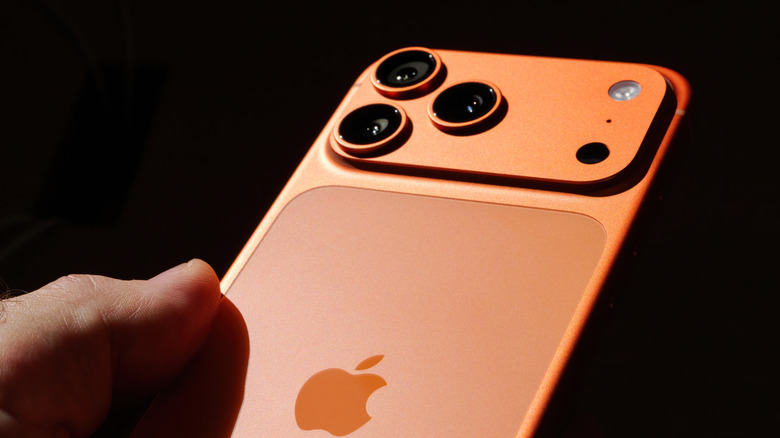
Alongside the latest iPhone 17 series, which is equipped with a 48MP camera system, Apple's Camera app for iOS is more powerful than ever. It's no longer just for snapping photos that you can save in your personal album or upload to social media, as the app has developed into a multi-function tool — if you know everything that it can do.
Taking pictures with the iPhone's Camera app can get pretty deep with all of the settings and modes that are available. However, did you know that the app can also record special videos, make conversions and translations, and give you information about what's in front of you? These are all possible without the need to launch any other app on your iPhone.
Some of these functions require an internet connection, and some of them need to be activated in the Camera menu under your iPhone's Settings. They're all helpful in one way or another though, so read on to find out if any particularly catch your eye.
Shoot movie-like videos with Cinematic Mode
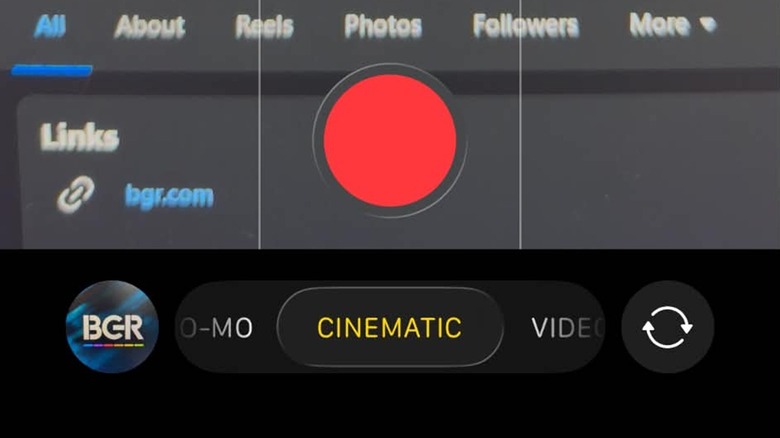
As great as the iPhone's Camera app is in taking photos, it's also an amazing way to record footage. The Camera app's Cinematic Mode, which Apple introduced with the iPhone 13 series, is an entertaining way of making videos, using movie magic at your fingertips. When this feature is activated, it will apply a depth-of-field effect that blurs the foreground and background, while maintaining the sharpness of the subject of the video. This mimics the look of a professional movie camera, but using your iPhone.
To access Cinematic Mode, open the Camera app and swipe left on the screen. Once you start recording, the subject of the video will be in a yellow frame, while other people who are detected but not the subject will be in a gray frame. Your iPhone automatically changes focus if it identifies a new subject, but you can also tap on the gray boxes to switch the focus to that person, and tap again to lock that person as the subject.
Capture fun moments with Action Mode
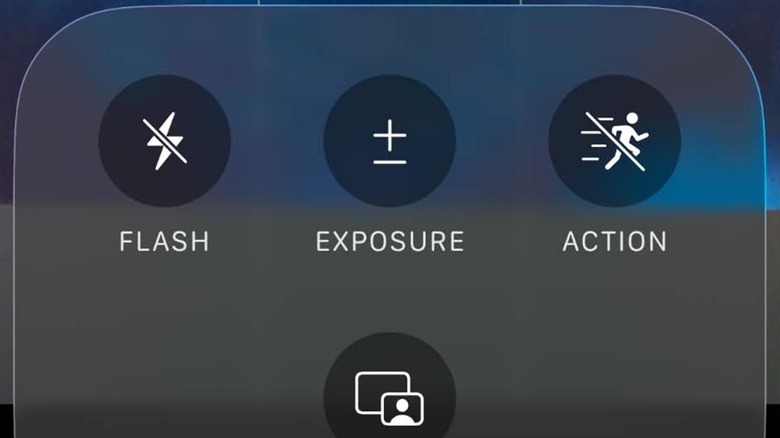
While not as rugged as GoPro cameras, recent iPhones come with an IP68 rating for water and dust resistance. This makes the device a bit more durable for filming outdoors, and with Action Mode activated, you won't have to worry about shaky footage either. The Camera app feature improves stabilization while you're recording, so even if you're running or in a moving vehicle, your videos will not turn out to be a total mess.
The Camera app's Action Mode can be turned on by switching to video and tapping the six-dot icon in the upper right. If you think you'll be using the feature often, you can go into Camera under Settings, go to Indicators, and turn on Action Mode so that its icon will be present beside the six-dot icon. Apple recommends using the feature in bright environments, but if you need it in a low-light situation, you can again go into Camera under Settings, then turn on the Action Mode Lower Light option in the Record Video menu. This decreases the stabilization in exchange for working in darker areas.
Read QR codes
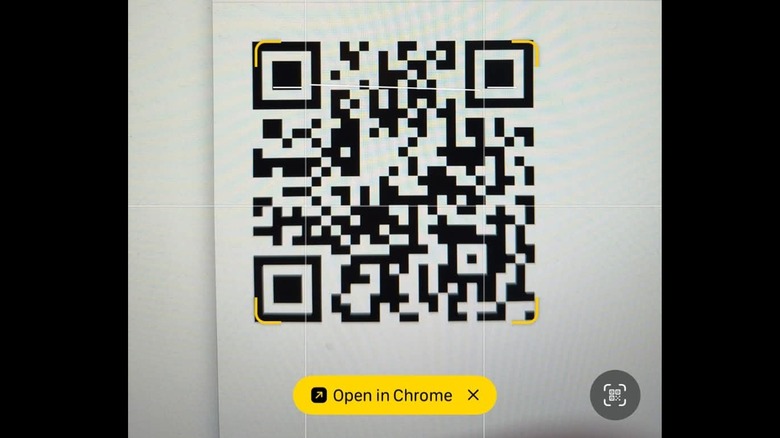
QR codes are everywhere, and that's because they make it more convenient to share data to the general public. By scanning a QR code, you can go directly to a website, launch an app, or access payment details. They're much faster than typing a URL on an internet browser, and they also eliminate the risk of human error when entering account numbers for a transaction — just a couple of the many benefits.
You don't need a dedicated app to read QR codes, even if your iPhone has a Code Scanner app, as the more accessible Camera app can already do so by itself. You'll just have to make sure that Scan QR Codes, which can be found in the Camera menu of your iPhone's Settings, is toggled on. Once it's activated, open your Camera app and point it towards a QR code to read it. A link will appear, which will direct you to where the QR code intends to take you.
Magnify objects
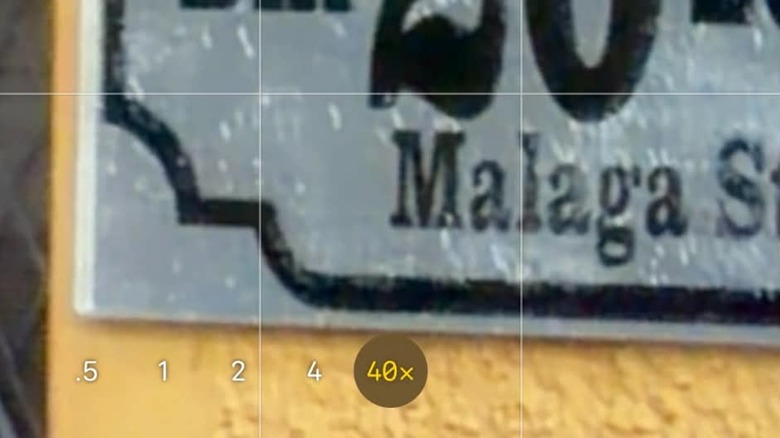
As with the Code Scanner app for reading QR codes, your iPhone has a Magnifier app if you want to zoom in to take a closer look at small text. This will come in handy if you want to check out something in the distance, or perhaps read a sign that's too far from where you're standing. However, you can also do this on the Camera app, which has up to 10x digital zoom on the iPhone 17 and iPhone 17 Air, or up to 40x digital zoom for the iPhone 17 Pro and iPhone 17 Pro Max.
To magnify objects using the Camera app, open it and point towards whatever you want to see up close. You can choose to tap on the preset values, or swipe right along the options for digital zoom up to the maximum magnification that's supported by your iPhone. You won't have to take a picture as you can already see up close through the app, but you can do so if you want to look at the image in the Photos app.
Translate and copy text
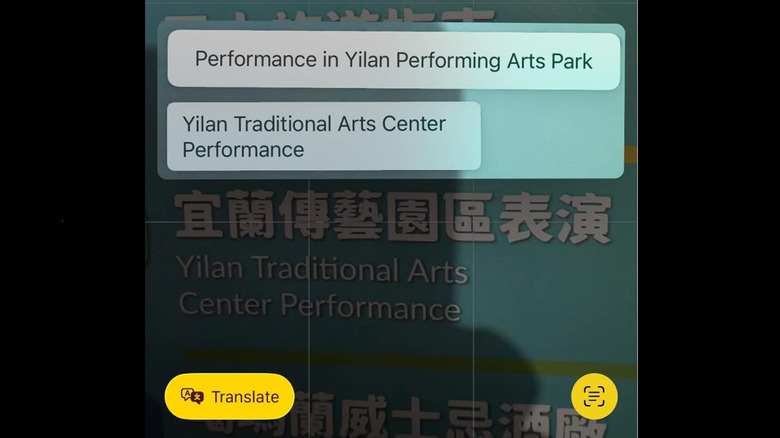
For these next three functions of the Camera app, the Live Text feature should be activated. In the Camera menu under Settings, Show Detected Text should be toggled on in order to access one of the most important functions when you're traveling abroad. You might not even need a standalone translation app when you're visiting a foreign country with your iPhone. You can also use this same feature to copy the text that you're seeing through the app, and paste it into Notes, Messenger, or anywhere else.
To translate text instantly with your iPhone camera, just open the app and point it at the words that you want to understand. Once the text is detected, a yellow frame will surround it, and the Live Text icon will appear on the lower right section of the app. Tap the icon, and the Translate option will appear on the other side of the frame. Tapping that will overlay the translation over the original text. To copy text instead, after tapping the Live Text icon, choose the Copy option that will appear at the top of the frame, then switch to another app where you want to paste it.
Convert currencies and units
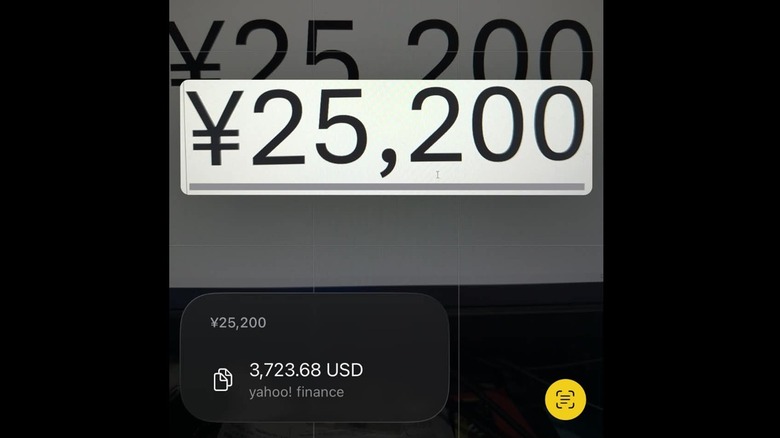
Converting currencies and units of measurement is another function of the Camera app's Live Text feature. This will also be useful when you're visiting another country, as well as when you're buying products on a foreign website. You won't have to launch an app and type the numbers as the Camera will detect them for you, and it will also automatically use your home country's currency for conversions.
Using the feature on the Camera app is similar to translating and copying text. Once it detects the currency or measurement, a yellow frame will appear around it. Tapping the Live Text icon on the lower right will show the detected figure, and tapping on that will bring up the conversion. The app can convert units of measurement for angles, area, distance, temperature, volume, and weight. It can also convert within each system and between systems e.g. when it detects a measurement in centimeters, it can show both its conversion to meters, and to inches.
Visit websites and call phone numbers
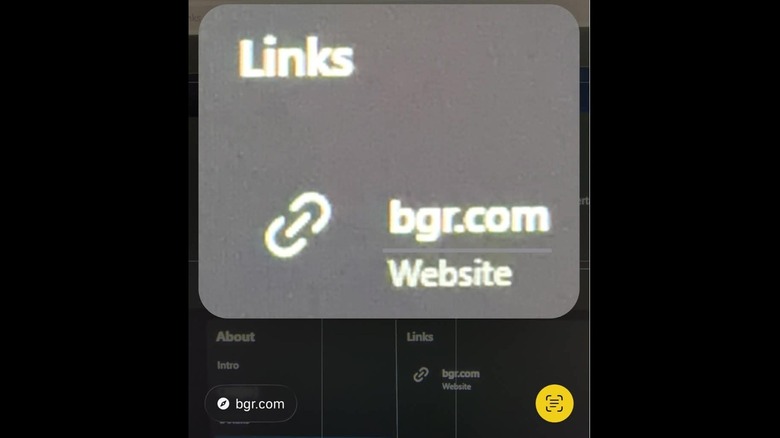
One more hidden iPhone camera feature is the app's ability to let you directly visit websites and call phone numbers that it detects. Similar to scanning QR codes, this provides the benefit of saving time and reducing the risk of human error, compared to typing a long URL on a browser or a phone number on the Phone app. You can point the Camera app at a flyer, a store sign, or any advertisement, and you'll be in touch with the business in no time.
This feature again uses Live Text, so it will work similarly to the previous two functions on this list. Open your Camera app and point it at a website or phone number. Once they're detected, a yellow frame will appear, and tapping the Live Text icon on the lower right of the screen will bring up the option to visit that website in your default browser or to call that phone number using the Phone app.
Access Visual Intelligence
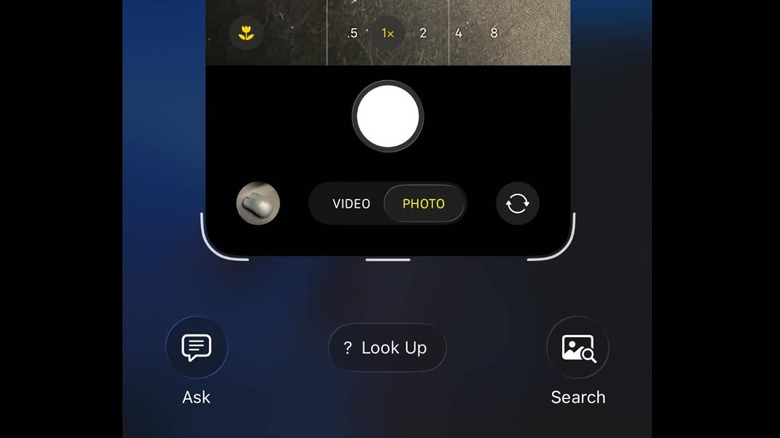
Apple expanded Visual Intelligence as part of the Apple Intelligence features in iOS 27. Its purpose is to help you learn more about what you see on your iPhone's screen or through the Camera app. Visual Intelligence can look up the details of a business, identify plants or animals, allow you to ask ChatGPT about an item, search for similar objects online using your default browser, and even add events to your Calendar if a date is detected.
To use Visual Intelligence with the iPhone's Camera app, just point it at any object. However, instead of taking a photo, you should take a screenshot of whatever you see. This brings up the Visual Intelligence menu, where you can access all kinds of information on the subject of the screenshot. If there is more than one possible subject, you can select the object that you want to focus on by encircling it on the screenshot.
Visual Intelligence, however, is only available for the iPhone 15 Pro, the iPhone 15 Pro Max, and the iPhone 16 and iPhone 17 lineups.