

5 Common Soundbar Problems And How To Fix Them
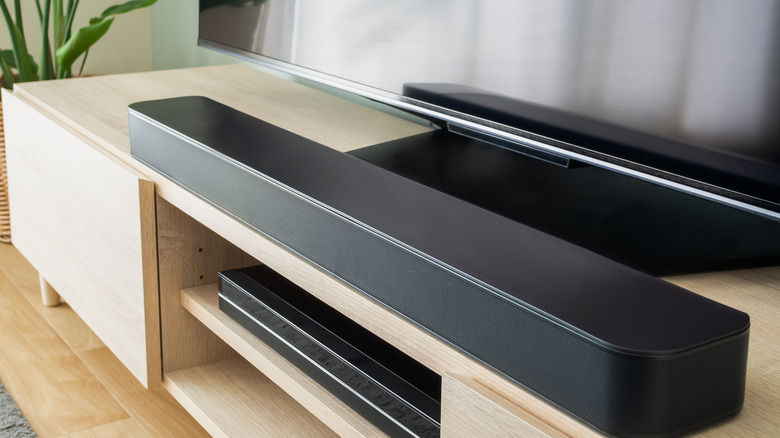
Despite all the improvements, many TVs still struggle to deliver the kind of experience we expect. Soundbars seem like a practical solution to upgrade the TV's audio, as they are compact, affordable, easy to set up and use, and generally work well. But sometimes, soundbars run into issues or throw errors. The good news is that the problems are usually simple and easy to fix.
Common problems include a soundbar not connecting, frequent drops in connectivity, the soundbar turning off automatically, the remote not working, sound coming from the device's speaker instead of the soundbar, audio being out of sync with the video, or no sound at all. Most of these issues are caused by improper connections, outdated firmware, damaged cables, and misconfigured settings. Sometimes, a simple reboot does the trick, while on other occasions, you will have to identify and rectify the underlying cause.
Whether you own a simple, budget soundbar or an advanced one, the solutions listed below apply to all. However, the steps can vary, depending on the manufacturer, so make sure to check the exact steps for your device and soundbar. You will find the instructions in the device's manual or on the manufacturer's official website.
Soundbar not connecting
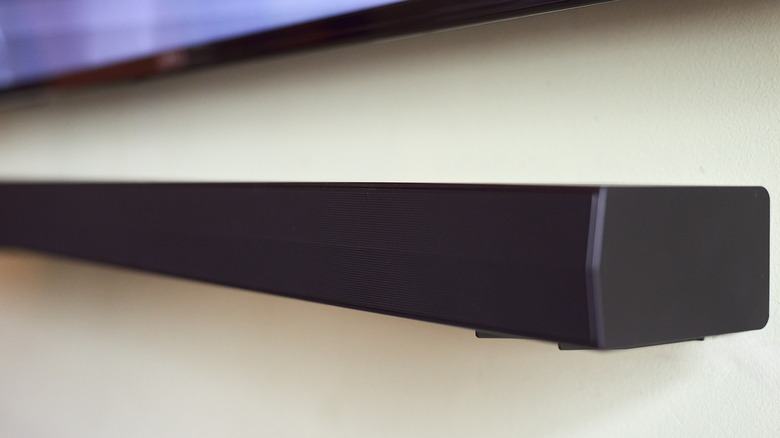
One of the most common problems with soundbars is connection failure, and it can have several different causes. This happens with both wired connections and over Bluetooth, whether it's with your TV, smartphone, or gaming console. For some, the soundbar keeps disconnecting at regular intervals and has to be reconnected. Depending on the device you are using it with and the connection type you are using, there are many possible solutions.
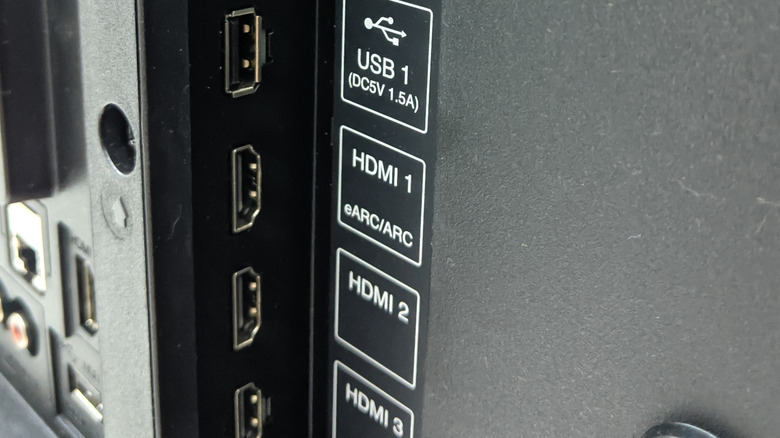
If the soundbar doesn't connect to your TV, start by checking the connections. Make sure the cable is plugged in firmly on both ends. Also, verify that you are plugging the cable into the right port. For instance, your TV may have dedicated ARC and eARC ports, and these should be utilized. If the problem shows up only with eARC connections, try disabling eARC in your TV's settings. Lastly, verify that your TV's firmware is up to date.
For Bluetooth issues with your soundbar, check that the soundbar is in pairing mode and then try establishing a connection. If it doesn't work, reboot both devices and try again. Additionally, make sure no other device is connected to the soundbar. Some soundbars only allow one connection at a time. You can also bring the devices closer if they are currently placed at a distance. Finally, check for interference from household devices, as it can also impact Bluetooth connections and lead to poor audio quality.
Audio and video are not in sync
Sometimes, while the soundbar connects fine, the audio and video are out of sync. The audio could be ahead of the video or the other way around. This audio delay is usually due to misconfigured settings, delays in processing the audio and video, or wireless connections. Bluetooth connectivity can add latency, leading to audio and video mismatch.
When the audio and video are not in sync while your soundbar is connected to a TV, reboot both devices. If you are streaming content from another source, try plugging it directly into the soundbar instead of the TV, if the former supports this. In case you have any audio processing features like Virtual Surround or Dolby Atmos enabled on the soundbar, disable them and check for improvements. These can also add a delay. On many TVs and some soundbars, you have dedicated features called "Lip-Sync," "Audio Video Sync," or "Audio Delay," that specifically address this problem. If you find them, adjust the TV settings to get rid of audio delay.
If nothing else works and you're using Bluetooth, switch to a wired connection. Bluetooth, though convenient, can introduce latency, causing the audio and video to go out of sync.
No sound
If your soundbar is producing no sound at all, it could be due to misconfigured audio settings, improper input selection, audio format mismatch, or simply a hardware issue. To rule out a hardware issue, connect your soundbar to another TV or device and check whether it works. If it doesn't, try factory resetting the soundbar as a last resort; if the problem persists, your soundbar itself could be the issue.
However, if the soundbar works well with other devices but has sound problems with a specific one, say your TV, you need to check a few things. Start with the connections. Make sure the connection type you are using for the soundbar is selected in the TV's settings. Similarly, ensure that the TV is actually outputting audio to the soundbar and not its built-in speakers.
Also, if you are streaming from another device to the TV, make sure it's plugged into the HDMI ARC or HDMI eARC port. Alternatively, you can plug the streaming device directly into the soundbar and then connect the latter to the TV. For this, you will need a soundbar with extra HDMI ports. Finally, check the audio output format and verify whether it's compatible with your setup. You can try switching between different available formats and stick with the one that works.
Soundbar keeps turning off
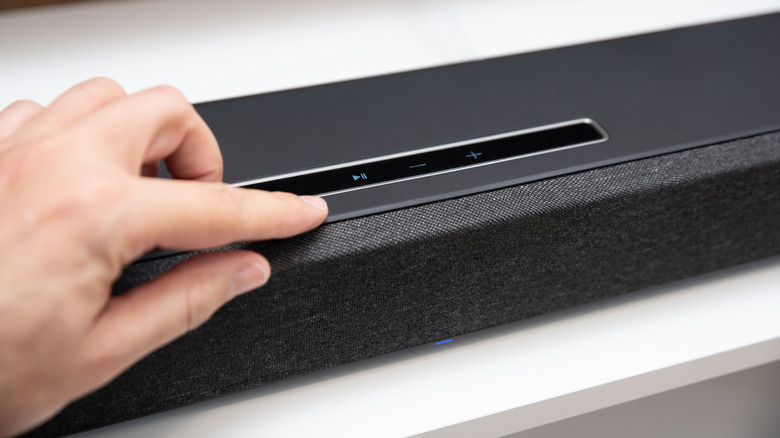
In many cases, the soundbar works fine but keeps turning off at random times. While this may seem like a hardware issue, more often than not, that's not the case. The problem usually stems from misconfigured power management settings on the soundbar or simply a loose power supply cable.
Many soundbars have a built-in power-saving mode that automatically turns it off after a fixed period of inactivity. This could be set up by default, or you may have enabled the feature by mistake. In either case, it's easy to fix. All you need to do is check the soundbar's settings for a feature called "Power Saving Mode," "Energy Saving Mode," or "Auto Standby," and disable it.
If that doesn't work, disable HDMI-CEC in your TV's settings. The feature allows connected devices to be controlled through a single remote. But since its implementation differs by manufacturer, it could behave unexpectedly, causing the soundbar to turn off even when you hit another button on the remote. Don't forget to take a quick look at the soundbar's power adapter and the connection itself. Lastly, look for signs of overheating, as higher temperatures can trigger built-in safety mechanisms that automatically turn off the soundbar to protect internal components.
Remote not working
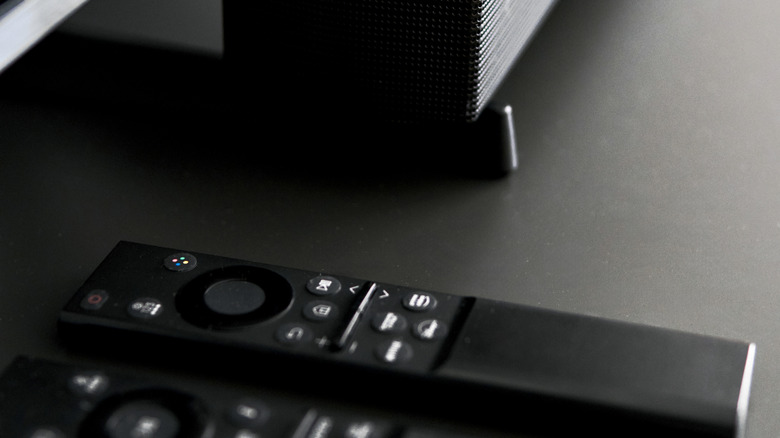
When it comes to issues with the remote, there are two possible scenarios. Either the soundbar's dedicated remote isn't working, or it's the TV remote that also controls the soundbar's volume. For the dedicated remote, check that the batteries are firmly in place. If the remote works when brought close to the soundbar, replace the batteries, since they are most likely weak. Also, make sure there's nothing blocking the soundbar. Besides, you could use your phone's camera to check whether the remote is actually working. Point your camera at the front of the remote, press any button, and see if there's a flash. That's the IR signal, which is also responsible for the flashing red light on iPhones. If you don't see any after replacing the batteries, it's likely that the remote is malfunctioning.
In case the TV's remote is not working, you may simply need to adjust the TV's settings. If your soundbar uses an HDMI connection, turn on HDMI-CEC on the TV. This alone should do the trick. If the problem persists, try reconnecting the TV and soundbar or factory resetting the latter.