

The 4 Cheapest Ways To Add More Storage To Your Laptop

We may receive a commission on purchases made from links.
Of all the habits that are slowing down your computer, filling up the storage is one of the biggest. Considering that many computers are coming with drives smaller than 512GB these days, and that files, apps, and operating systems keep getting bigger, filling up that space is easier than most people realize.
There are several ways to clear storage space on your computer without spending anything. The most common methods are uninstalling apps you don't use, clearing the Downloads folder, emptying the Recycle Bin, or running your operating system's disk cleanup utilities (e.g., Storage Sense in Windows 11). However, if your laptop's storage keeps filling quickly, you might need an external storage solution.
Adding more storage doesn't need to be that expensive. If you're not into heavy gaming (game sizes have gotten large over the years) and creative work, such as 4K video editing, HD photography, and 3D modeling, you might not need external storage that's as big as 1TB or more. Because that's where things start becoming expensive and unattainable for someone on a budget. From SD cards to cloud storage, there are plenty of options to choose from without spending hundreds of dollars.
SD and microSD cards
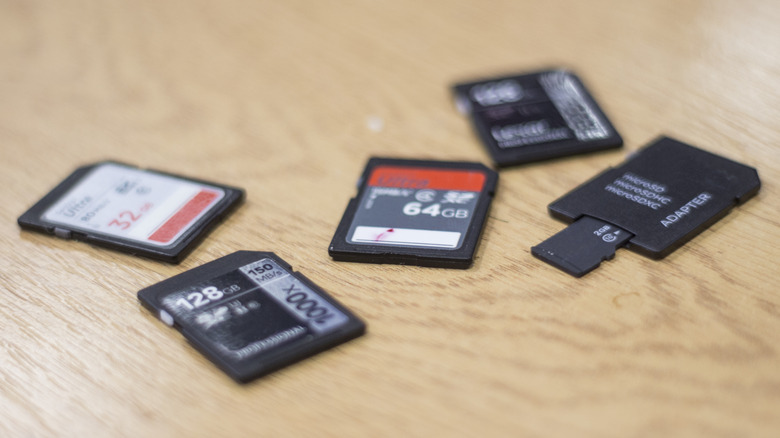
Some PCs and laptops have SD card slots that you can use to expand storage cheaply. Even though they don't provide the biggest storage capacities, SD and microSD cards can help in a pinch. They're also relatively inexpensive, with a 256GB card costing less than $50.
For instance, the PNY 256GB Elite-X Class costs $49.99. It's a microSDXC card, a microSD card with a capacity of more than 32GB (up to 2TB), with a speed of up to 100MB/s. It's marketed mostly to people who need to store 4K UHD videos and HD photos, which can be upwards of 4GB, on their digital cameras and phones. But even if you don't need it for those specific reasons, there's no point in letting the microSD card slot on your laptop go to waste.
Since this is a microSD card, if your computer has an SD card slot instead, it can easily be inserted into something like the SanDisk MicroSD to SD Memory Card Adapter, which costs $4.98. If your computer has neither type of SD slot, then you can get an SD card adapter like the Ugreen SD Card Reader for $9.99. It has a slot for both an SD and microSD card, as well as a USB-C connector on one end and a USB connection on the other, offering wide compatibility with new and older laptops.
USB flash drives
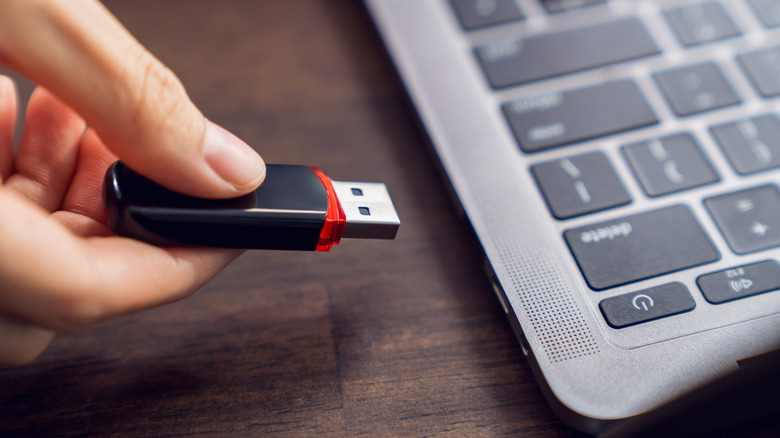
Before you could easily send files to someone via email, over a network (Nearby Sharing on Windows or AirDrop on Mac), or the cloud, flash drives were the dominant transportation medium from one computer to another. IBM started selling 8MB flash drives in the 2000s, with capacity expanding to 1GB in 2004, and then 128GB in 2010.
Now we have flash drives of up to 1TB, making them ultra-portable external drives in their own right. However, if you're looking for affordable options, it's best to stick to those with less than 256GB for affordability and everyday use.
A good option is the Lexar D40E 256GB Dual USB flash drive, which you can get for $49.99. The dual-port design ensures that you can use it on devices with USB-C and USB-A ports, meaning you can connect it to ultrabooks, which usually only have USB-C ports, as well as USB hubs with only USB-A ports. It also boasts transfer speeds of up to 100MB/s.
Small-capacity external hard drives
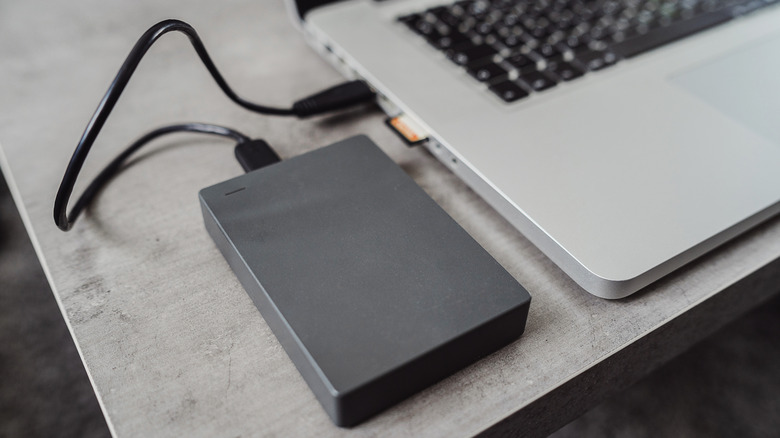
When you're looking to add more storage to your computer, an external drive is probably the first option to spring to mind. However, if you're on a budget, you can forgo the high-capacity drives. If your extra storage needs are modest, such as backing up photos, videos, files, and documents, a 500GB hard drive can be enough. You can easily get a small-capacity hard drive for less than $50 on Amazon.
For instance, the Maxone 500GB Ultra Slim Portable External HDD costs $39.99. It's an ultra-slim external hard drive with durable and scratch-resistant casing. It has a USB 3.0 port that supports transfer speeds of up to 5Gbps, but it's also backward compatible with USB 2.0 ports. While SSDs can be more reliable than HDDs in the short-term, they're more expensive, and some users report higher failure rates than HDDs in the long-term.
You can also buy a used hard drive if you want more capacity at a lower price, but just be sure to buy it from a reputable seller (preferably the manufacturer), ensure that it's passed the necessary health checks, and don't use it as your primary backup method.
Cloud storage
Although the data needed to upload files can be an issue if you're being frugal, using cloud storage can allow you to free up at least 5GB to 20GB or more on your laptop without paying a single cent. For instance, you get 5GB on Microsoft OneDrive, 5GB on iCloud, 15GB on Google Drive, and 20GB on MEGA completely for free.
It's worth noting that even an extra 20GB isn't going to make a huge difference if your laptop's drive is constantly getting full. So only use this method as a last resort, and avoid storing anything sensitive in cloud storage that you don't want unauthorized access to in the event of a data breach. Also be mindful of what can happen to your data if the cloud storage service ever shuts down or fails.
If you want more cloud storage space, you'll have to pay. It's not a one-time fee, though, but an ongoing subscription — all you're doing is renting that storage space. As with all subscription services, the costs can add up over time. But the thing with cloud storage solutions is that expanding the storage can be cheap if your needs are modest. For instance, to get 100GB of storage on Google Drive, you have to subscribe to the Google One Basic plan, which costs $1.99 per month. The same goes for OneDrive when you pay for Microsoft 365 Basic.
Methodology

One thing that needs to be said is that you can definitely find all these options for dirt cheap if you go for off-brand variants. However, they'll most likely be of the low-quality variety, so it's not really recommended.
We looked for external storage solutions that cost less than $50, while still offering enough storage capacity to make a noticeable difference when your laptop is full (that's why we mentioned the paid plans for cloud storage services).
We also stuck to Amazon because that's where many tech brands sell their products and where users have left plenty of ratings and comments regarding their verified purchases. We chose only products that have a minimum of four out of five stars.