

10 Windows Habits That Can Make Your PC Slower
Does your Windows PC feel sluggish? It might be due for an upgrade, or it could be due to how you use it. It doesn't matter if you've got a budget-friendly machine or a high-performance build — if you practise the wrong habits, your computer will definitely start to slow down.
There are many possibilities why a desktop computer or laptop is suddenly crashing or feeling unresponsive. You might be seeing signs your CPU is about to fail, or your motherboard, or even your SSD. However, it's going to be an expensive mistake to buy replacement components when the problem could have been fixed by changing how you use your machine.
In this article, we've listed ten Windows habits that can make your PC slower — some may have completely skipped your mind that they might be affecting your computer's performance. We've also explained the steps to break these habits, and hopefully reverse the effects on your device.
Filling your computer's storage
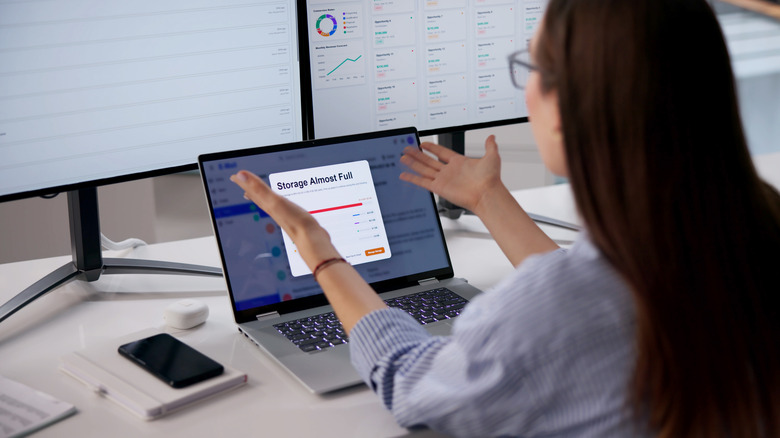
If your Windows computer has a lot of storage space in its SSD or hard drive, don't take it as a challenge to fill it up to the brim. Your system needs available storage to be able to make temporary files and to manage virtual memory more efficiently, so your computer will start slowing down if you overload it with apps and files. The debate continues on how much free space you should target, with suggestions ranging from 10% to 25%.
The easiest way to solve the slowdown caused by full storage is to uninstall apps that you're not using. On the Windows Start menu, search for "Add or remove programs" to bring up a list of all the installed apps on your computer. You can sort the programs according to their size to show you the ones that will have the most impact if you offload them.
Windows offers other tools to manage your computer's storage. These include Storage Sense, which you can enable to automatically delete temporary files that are no longer necessary, and Disk Cleanup, which also looks at other types of files that may be safely removed from your system.
Running too many apps in the background
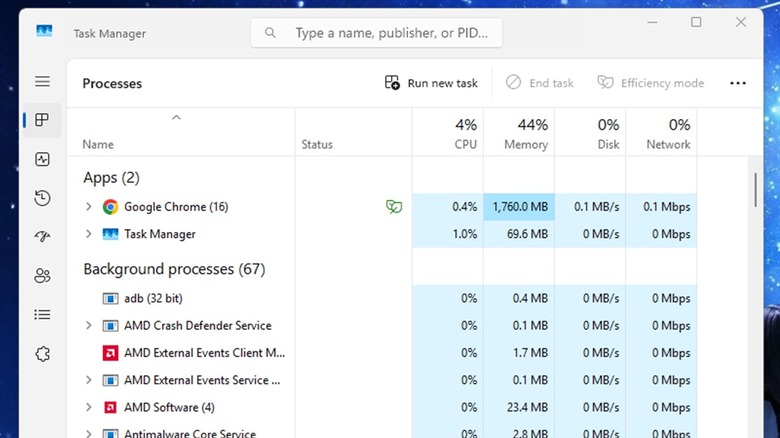
All the apps and processes on your computer use up the system's RAM, and if there are too many of them running at the same time, you'll experience freezes and crashes. If you open your Task Manager by pressing Ctrl + Shift + Esc, you'll see the total percentage of your computer's installed RAM that's in use, and the percentage taken by each app and process that's running on your system.
As your computer's used RAM percentage approaches 100%, it will start slowing down. To avoid this, you can start shutting down memory-hungry apps and processes running in the background by right-clicking on them in Task Manager and selecting the "End task" option.
In the Task Manager window, you should also check the Startup Apps section via the speedometer icon on the left side. This is the software that automatically launch as you boot up your computer. If there are too many of them, it will take a while before you can use your computer properly after turning it on, and they will keep running in the background to drain your RAM. If you see any apps here that you don't need, you can right click on them and choose Disable.
Installing performance booster apps
You may have seen software which developers say will boost the performance of your Windows computer. It promises to make your system faster, squeeze out more power from components, or simplify maintenance to keep everything running smoothly. However, this software is unnecessary, as built-in tools like the aforementioned Storage Sense and Disk Cleanup are already capable of carrying out these functions.
Beyond these apps being redundant due to tools that Windows already offers, some of them can actively harm your computer with malware opening backdoors for hackers to infiltrate your computer, the deletion of files, or aggressive modification of registries in the name of optimization.
When an app sounds like it's too good to be true, it usually is. Instead of quick fixes by downloading a single program, breaking away from the habits that we've highlighted in this article is safer and more sustainable in speeding up your Windows computer.
Delaying the installation of updates
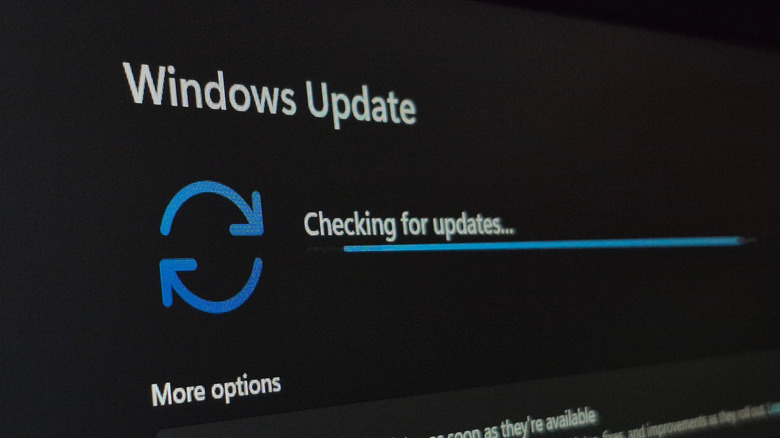
While Windows updates notifications are annoying, a slow computer is worse. Software and operating system updates are designed to boost performance, eliminate bugs, and strengthen security, so it's wise to install them immediately.
To check if there are any available updates for your computer, access the Start menu, then Settings, Windows Update, and click the Check for updates button. This is also where you can toggle options to receive quality and feature updates as soon as they're available. Critical Windows updates download and install automatically by default unless you pause them, but you can enter Advanced options and set your Active hours so that you won't be interrupted while you're using your computer.
This approach to updates is just the same as when you're experiencing lethargic performance on a particular app. The update that you're not installing could contain the fix to make it start working properly again.
Choosing Sleep Mode instead of shutting down
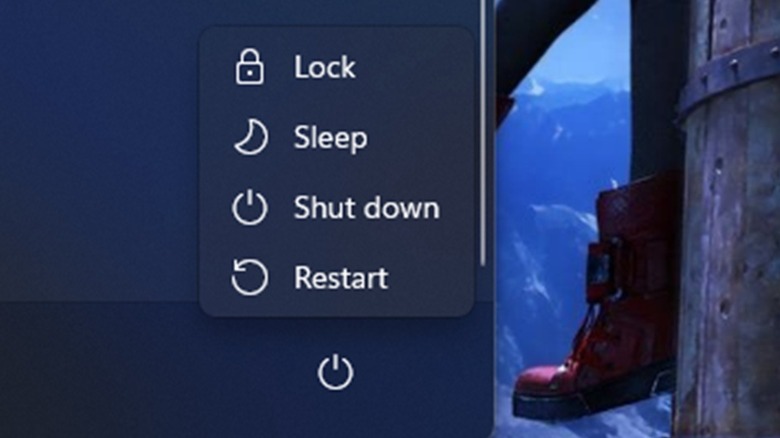
When you click on the Power icon on the Windows Start menu, you'll see Sleep Mode as one of the options. When you activate it, your computer will suspend itself in a low-power state. Once you wake it up, you'll be able to resume your work quickly as the system will not have to go through the startup process.
Sleep Mode is very convenient, but it's meant to be used if you're just taking a short break. Between shutdown and sleep, if you choose the latter for your computer over the course of several days or even weeks, you may start to experience some issues. This is because placing your computer in Sleep Mode doesn't properly release system resources, and it won't complete Windows updates that require you to restart your machine.
Shutting down your computer once you're done for the day, or even just restarting it after completing a heavy load of tasks, will boost its performance. This habit will reset your system by clearing everything, which frees up RAM and refreshes your computer for your next set of activities.
Keeping all features activated
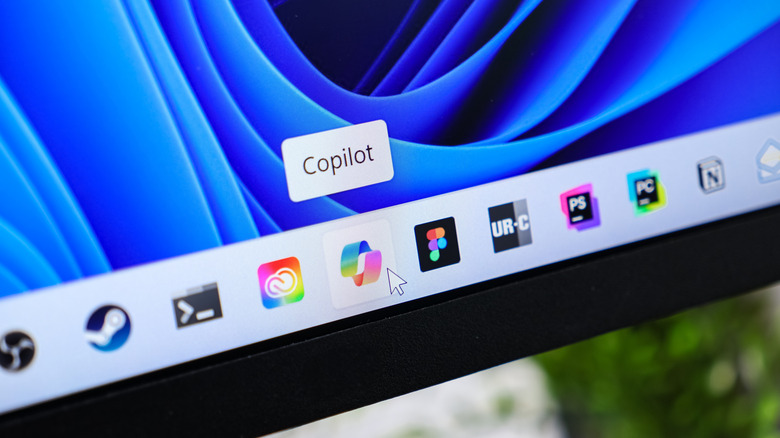
Separately from the apps that you install and the processes that are running in the background, you should check if there are features on your Windows computer that you're not using. These might be slowing down your computer by using up available RAM, so it would be best to disable them.
Among the Windows features that you may want to disable is Microsoft's Copilot. While the AI-powered assistant is helpful in boosting productivity, its presence across the system does affect performance. To disable it, launch the Group Policy Editor by searching for "Edit group policy" in the Windows Start menu. Go to User configuration, then Administrative templates, then Windows components, then finally Windows Copilot. There will be an option on the right to turn off the AI assistant, double click that and select Enabled, then hit Apply, then OK. This process is only available for the Pro, Enterprise, and Education versions, not for the Home version.
Another Windows feature that you can disable for a chance at improving your computer's speed is OneDrive – Microsoft's cloud storage service. Syncing the files on your local storage to the cloud slows down your machine, so you can opt to stop this by right-clicking on the OneDrive icon in the notification tray and choosing "Pause syncing."
Ignoring cybersecurity practices
In the internet age, maintaining a strong cybersecurity posture is essential. If you drop precautions even just for a moment, that's all it takes for malicious actors to find their way into your system.
Internet browsers already have built-in malware protection, and according to experts, Microsoft Defender on Windows is a sufficient antivirus software for most people. If your security is breached, a virus will certainly slow your computer down, but could also compromise sensitive accounts such as your email, social media, and banking. If you ever suspect that there's malware in your computer, you can search for "Virus & threat protection" in the Windows Start menu and launch a quick scan to check.
For a secure system, you should automatically install updates, and follow other best practices in cybersecurity. This includes using strong passwords, two-factor authentication on all of your important accounts, and educating yourself on how to spot phishing scams.
Selecting efficiency over performance in Power Mode
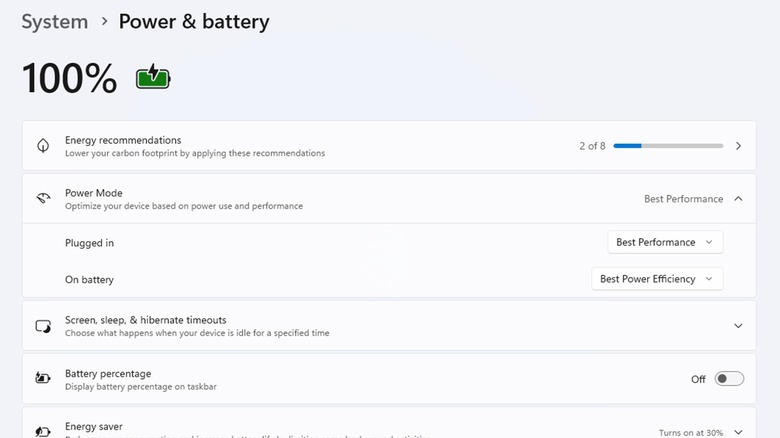
If you go into the Power & battery settings on Windows you'll see an option for Power Mode. Here, you'll be able to choose a suitable power setting from the likes of Best Power Efficiency, Balanced, and Best Performance.
Balanced is the default setting for Power Mode, and it allows your system to increase CPU speed when necessary. Best Power Efficiency consumes the least electricity, at the expense of a slower CPU. If you don't want your computer to slow down, you should select Best Performance, which increases power consumption but maintains your CPU at a high level at all times.
When choosing the Power Mode for a desktop computer, or for when a laptop is plugged in, it doesn't make sense to go for Best Power Efficiency. Switch from Balanced to Best Performance in order to keep your machine running as fast as possible.
Choosing appearance over performance
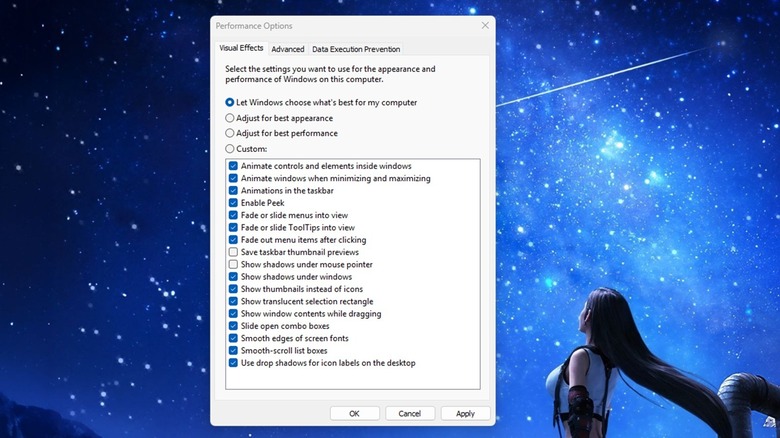
Windows 11, with visual effects like animated windows and fading elements, looks amazing. However, if you want to prevent your computer from slowing down, you might want to sacrifice some of these aesthetics in the name of boosting performance.
If so, head to the Windows Start menu and type "Adjust the appearance and performance of Windows" to bring up the Performance Options window. In the Visual Effects tab, you'll see options to let the operating system choose the settings, adjust for best appearance that enables all effects, adjust for best performance that disables all effects, or a custom configuration that will let you select the effects that you want to keep.
Among these choices, selecting the one that focuses on performance will reduce the visual appeal of your Windows computer, but it will help improve its speed. You can also try the custom configuration and select one or two effects, if you really like them.
Playing games without Game Mode
There are some strong reasons to choose PC gaming over consoles in 2026, and if you're among the gamers who choose PC gaming on a Windows computer, you should make sure that Game Mode is enabled. The feature deactivates some processes running in the background, including driver installations and restart notifications from Windows Update, so that your system can focus its resources on your game.
If you're experiencing slowness or freezing when playing video games on your Windows machine, open your Windows Start menu and search for "Game Mode Settings" to access and toggle the feature on.
While tests reveal that the effectiveness of Game Mode varies between different games and hardware configurations, it won't hurt to activate it to try and see if it helps speed up your device. The feature can also help to stabilize frame rates for some titles, as an added bonus.