

Which Google Maps Navigation Mode Should You Use?
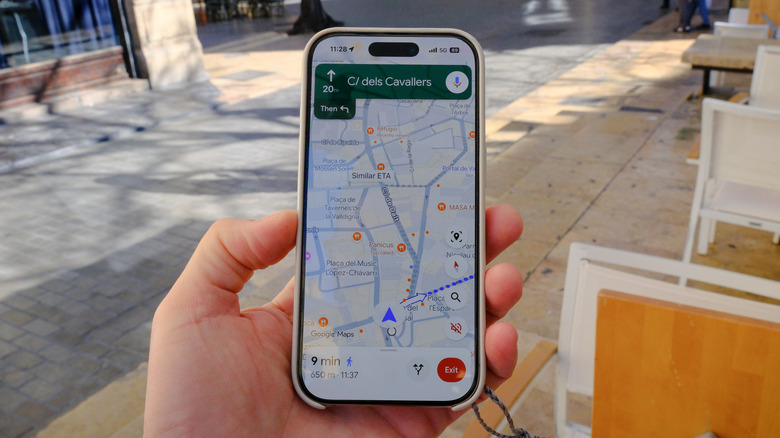
Google Maps is an awesome tool for browsing attractions and finding reviews for great restaurants and shops. Something people don't realize, however, is that Google tailors its turn-by-turn navigation interface to different modes of transportation. As you're looking up directions, you'll see tabs for driving, transit, walking, bicycling, and a ride-hailing option if applicable, along with estimated journey times next to their icons. For driving, walking, and bicycling, you'll enter navigation mode by selecting the Start button at the bottom of the screen.
In navigation mode, you'll find a column of buttons on the right that will adjust your navigation experience. Tap the compass and you'll switch between a top-down view with north fixed upwards and a narrower isometric view that is always pointing in the direction you're facing. You can use touch and gestures to manipulate your view. A Re-center button will appear at the bottom-right corner to take you back to your current position. Keep in mind you may be interacting with this screen without your full attention, so the easier it is to know what you're doing at a glance, the more likely you'll get to your destination safely and on the fastest possible route.
Buttons in navigation mode
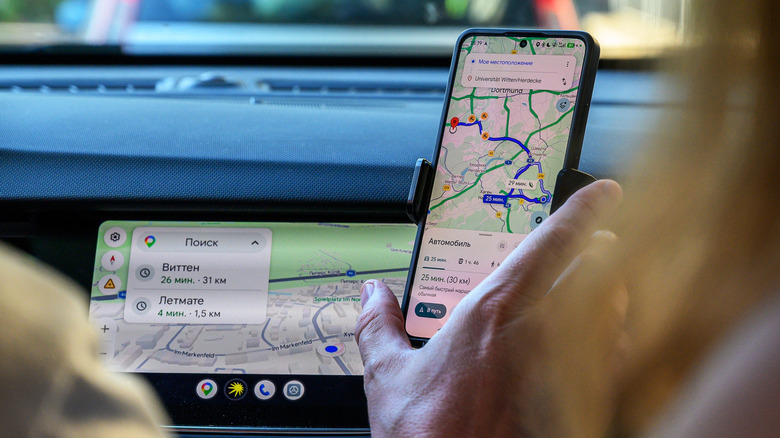
On the main map page, below the compass, the magnifying glass button lets you look up destinations along the way including restaurants and gas stations. Tapping the speaker button lets you toggle next-turn announcements on and off. In driving mode, you get an extra option marked by a speaker with an exclamation point to only be alerted for construction, police activity, and other hazards. Below that is a button with a forked arrow that will let you see and select between alternate route options when available.
There's one more button shared between the three transport modes and it features the logo of a music app such as Spotify or YouTube Music. Tapping that will pop up playback controls within navigation mode. You can select which service you'd like to integrate by swiping up on the tab with your estimated time of arrival, then scrolling to the bottom of the list and selecting Settings. You'll find the "Default media app" item below the "Show media playback controls" toggle. This back-end settings menu contains loads of other parameters such as day and night map color schemes, distance units, and being able to see your estimated speed as well as the current speed limit.
Drivers have other navigation mode settings they can enable. There's an extra button in the column between the alternate routes and playback button, and that is for adding a hazard report—it's a yellow triangle with a 'plus' sign in it. Selecting it takes you to a sub-menu to identify the hazard. Reports are tied to your location information, so logging one quickly after you've encountered the hazard is important, but you should prioritize driving over reporting if you can't safely handle the sub-menu.
Hidden navigation mode toggles
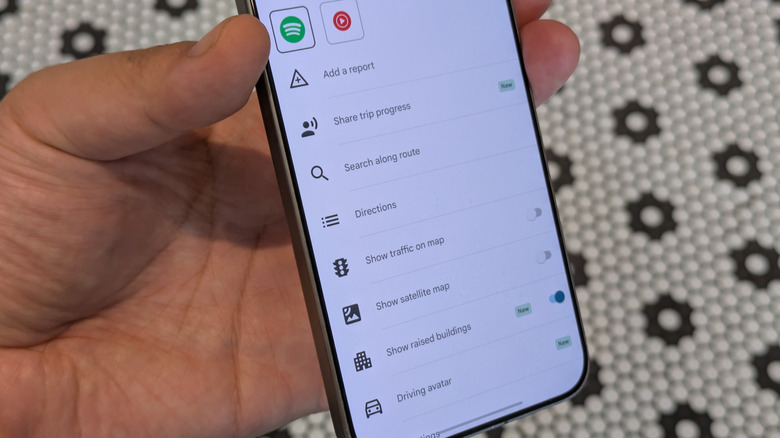
Google Maps also has many hidden features that make your trips better and you'll find several of them by swiping up on the ETA tab at the bottom of the screen. Scrolling through them, many are duplicates of features you can access with that column of buttons while others, such as a location sharing feature, aren't in our direct focus right now.
The common toggle among all transport modes is one called "Show satellite map." If you've turned on the satellite overlay in the regular browsing mode, you'll have noticed it was kept on in navigation mode. Leaving it on can provide more useful visuals that the default overlay's white and gray tones cover up. That said, it can be cluttery and harder to read readable for some people. If you've got the terrain overlay set in your regular Google Maps view, you'll end up being kicked to the default overlay entering navigation mode, so stay aware of the path ahead as well as any warning signs.
Drivers will find a toggle to "Show traffic on map." Switching it on will turn your blue route into green, yellow, red, and maroon based on live congestion data. "Show raised buildings" is a self-explanatory 3D toggle that uses the default overlay. You'll take full advantage of this information in the isometric view, but the toggle will remain on even if you revert to the top-down view. Pedestrians also have a unique toggle in the ETA tab menu, "Tilt up to change view" doing so will bring you into an augmented reality experience using your rear camera with lines, floating arrows, and other overlays to indicate your path.
Navigation mode for transit

Transit users will find a completely different navigation experience to motorists, cyclists, and pedestrians. When looking up directions, you'll be given a list of different possible journeys. At the top of the tab is a carousel of filters where you can prefer certain modes, prioritize for cost or accessibility or timeliness, and expand possible journey options by allowing driving, ride-hailing, and bicycle segments.
Selecting one and then hitting Start will keep you in the regular browsing interface with the bottom tab listing your directions. Directions are updated in real time, so if you miss a departure, the contingent times will change over to the next possible ones. You can activate the AR Live View feature for any walking segments. As you arrive at a station, you can see alerts for delays and elevator outages and report on conditions. On a train, Google Maps can tell you which car you should hop on so you can make the quickest exit when you reach your stop. While on board your vehicle, you'll be notified when your stop is approaching. At the bottom of the screen is a self-explanatory "Report delay" button.
You'll also see the total estimated fare in your directions, but that information isn't as accurate as the data Google Maps keeps for road tolls.