

Your PC's BIOS Has Hidden Features That Can Make It Faster For Free
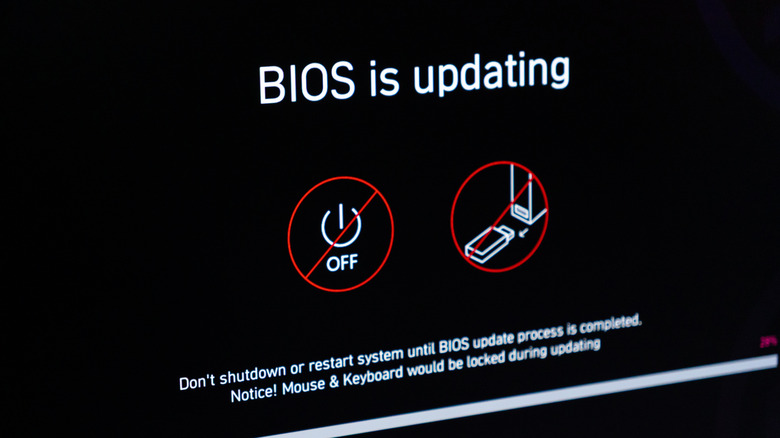
Everyone wants to know how to make their PC faster for free, either by squeezing more frames out of an older setup or building a new gaming rig. One area people usually overlook is their BIOS (Basic Input/Output System) or UEFI firmware that sits beneath the Windows or Linux operating system.
Most people avoid going into their BIOS because it looks like a complicated, text-heavy engineering menu, but it's the control center of the motherboard, which in turn controls every PC component. By learning how to unlock advanced BIOS settings, gamers can switch a few simple options to unlock the performance they paid for without spending a dime. Sometimes, components and motherboards don't perform as well as they should out of the box, so going into BIOS is one of the best ways to get the most out of a new PC.
To kick things off, restart the PC and repeatedly press the Delete, F2, or F12 key depending on the motherboard manufacturer before Windows starts to load. Once inside, it's a good idea to update the BIOS to the latest version via a USB flash drive if needed to ensure hardware compatibility and to make sure the latest security patches are applied. Knowing how long a CMOS battery lasts in a PC helps too, as if it runs dry, all BIOS settings will reset.
Unlocking RAM speed
The first port of call is making sure RAM is performing at its best, as system memory can run restricted if left at its factory default speeds. When installing a new kit of DDR4 or DDR5 RAM, motherboards will automatically default to a slow, conservative baseline speed to ensure system stability when booting for the first time.
This is why those two new sticks of 6000MHz DDR5 RAM aren't performing quite as high, which leaves builders wondering how to unlimit RAM in BIOS. To fix this, users need to locate the Extreme Memory Profile (XMP) setting on Intel boards or the Extended Profiles for Overclocking (EXPO) setting on AMD boards. Advanced mode might need to be enabled to access this setting, which on MSI motherboards is F7.
All users need to do is switch this setting to "Profile 1", which instructs the motherboard to run the memory at the exact speed and timings advertised on the box. This can be technically classed as overclocking, but this is completely safe as users are just unrestricting hardware and running RAM at their designated speeds. Also, make sure to only run a system on two sticks of RAM from the same set, as using four sticks from different sets can throttle overall speeds and cause compatibility issues.
Enabling Resizable BAR for gaming

For an instant and free boost to frame rates when gaming, adjusting a BIOS setting called Resizable BAR (Base Address Register) is a great shout. By default, a computer's CPU can only access 256MB of the graphics card's video memory at a single time.
This creates a big bottleneck on modern hardware and can be easily changed, as enabling resizable BAR gets rid of this artificial limitation completely. With ReBAR turned on, the CPU can dip into the full pool of VRAM all at once, which can add several frames per second in modern AAA titles. This feature comes in especially handy in mid-range to high-end GPUs thanks to having between 12GB and 32GB of VRAM to play with.
Before activating, however, you need to enable "Above 4G Decoding" to make sure the BIOS can allocate more than 4GB of video memory. Without this, the ReBAR toggle often won't appear in the BIOS menu, so make sure not to skip ahead. If you're using a MainGear Zero, optimizations like this come ready out-of-the-box with a hand-checked certificate.
Controlling system temperatures
While tweaking hardware speeds can come in handy, taking manual control of how a motherboard manages cooling can drastically improve gaming and daily use in general. Every motherboard sticks with stock fan curves, but a one-size-fits-all approach either leaves a rig running too warm or too loud thanks to overworked fans.
This is where the "Q-Fan" or "Smart Fan Control" sections of the BIOS come in clutch. Users can manually set exactly how fast case fans spin at specific temperature milestones. For gaming rigs, a steeper curve that aggressively ramps up fan speeds when the CPU gets hot works best. For office and media PCs, a flatter curve means a quieter system for handling lighter workloads.
Setting these curves directly in the BIOS is better than depending on third-party Windows software, as software-based fan controls only apply after Windows boots up. By locking the curves into the firmware, the system remains cool and quiet as the power button is pressed, which also overrides potential software crashes. It's not a good idea to have fan speeds at maximum permanently, as not only will it wear out case fans quicker, but it's a waste of electricity when gaming PCs aren't crunching through AAA gameplay. Many indie titles, for example, aren't demanding on components.
Safe one-click CPU boosting
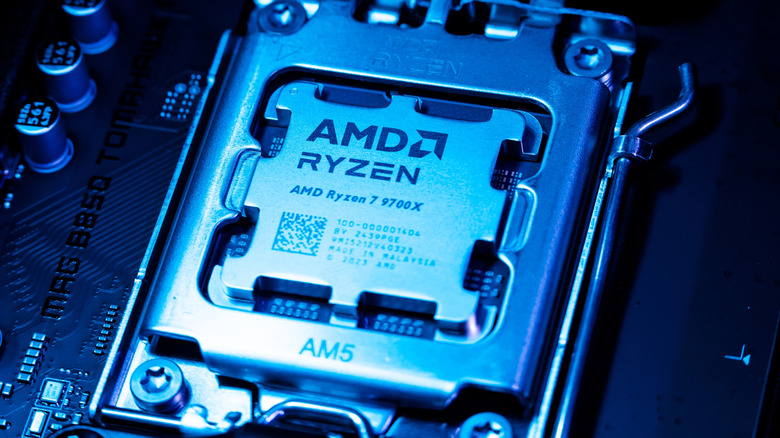
Motherboard manufacturers sometimes include massive, automated "Performance Enhancement" buttons in the BIOS that attempt to aggressively overclock the CPU. This might seem like a good idea to enable, as they're manufacturer-recommended settings, but the reality is they often dump excessive voltage into a processor, causing sharp, immediate thermal throttling and system instability.
Users should instead rely on the native and safe boosting algorithms provided by Intel and AMD. On AMD chipsets, enabling Precision Boost Overdrive (PBO) lets an AMD Ryzen CPU boost to higher clock speeds and hold them for longer, which is controlled by the chip's internal safety limits rather than the motherboard's restrictions.
Intel chipsets will have Intel Turbo Boost instead, which safely boosts the processor without risking hardware damage. These settings aren't going to transform CPU performance, but they're a quick, easy, and safe way to get the maximum intended performance users paid for. You can also try using an AIO (All-In-One) or custom cooling loop to get higher performance while keeping temperatures down. An AIO is the easiest to fit thanks to the liquid, pump, and radiator all fitted by the manufacturer; just make sure there's room at the top of the PC case to fit the radiator and fans before buying.
Optimizing boot times and security
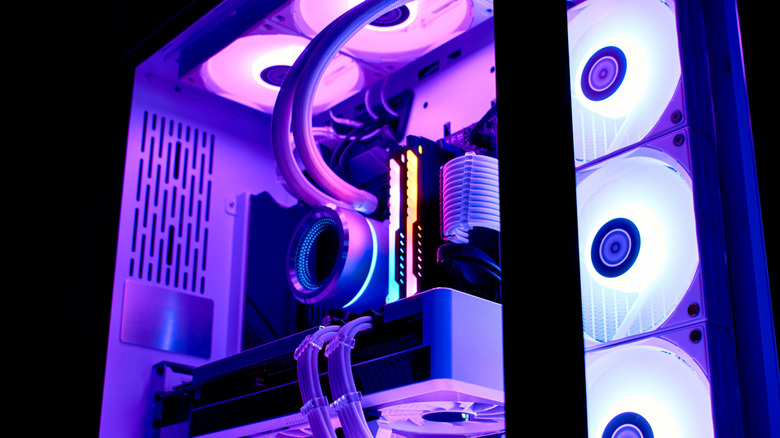
Users can also reduce the amount of time it takes to actually boot into Windows and Linux by tweaking a few background settings. On modern AMD DDR5 systems, there's a feature called "Memory Context Restore", and it's a brilliant feature. This setting saves memory training data between boots, allowing systems to skip the lengthy RAM training process, which can cut boot times by up to a full minute.
Another top tip is to make sure that Legacy Boot and Compatibility Support Module (CSM) settings are disabled. Leaving CSM enabled can block modern features like Resizable BAR from functioning properly, so it's a good idea to turn off this legacy setting and make sure the system is set to UEFI mode.
It's also a good idea to make sure security features are correctly enabled to support modern operating systems. Although there's plenty of reasons why some users shouldn't enable Windows Secure Boot, vanilla Windows 11 will refuse to install or boot if Secure Boot and TPM 2.0 (Trusted Platform Module) aren't enabled in the BIOS. An easy way to get past this is by making a bootable Windows 11 install USB stick with the Chris Titus Tech (CTT) Windows Utility. It has a built-in bootable media creator for custom Windows 11 ISO creation, which lets users bypass hardware checks like Secure Boot and TPM.